
Restaurant step 2: turn on the restaurant modules
Restaurant features in SmartPOS Hub are switched on per business, so a shop that doesn’t use tables never sees them. In this step you turn on the restaurant modules you need and check the main switches in Restaurant settings. It takes about ten minutes.
Switch on the modules
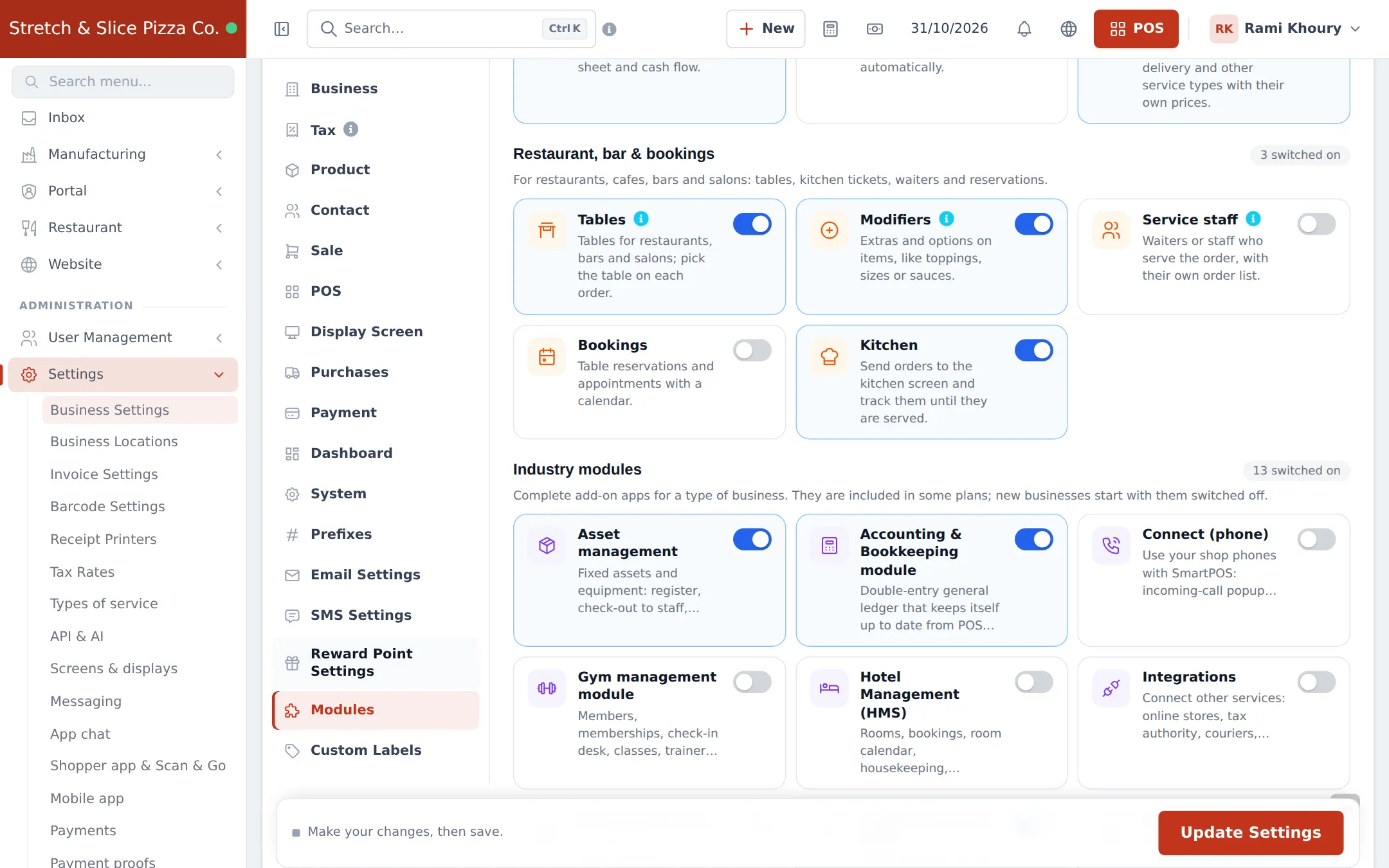
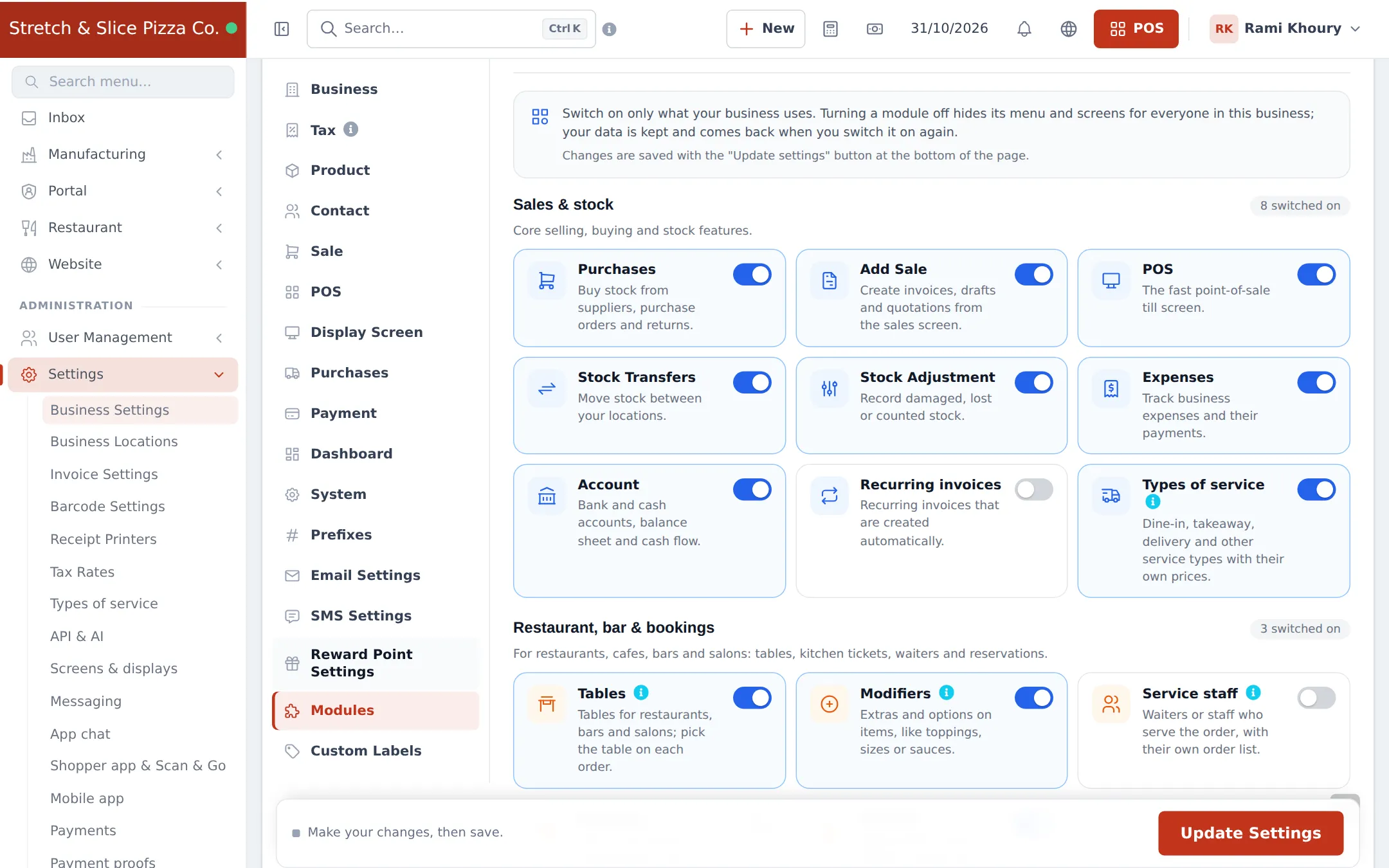
Section titled “Switch on the modules”- Open Settings › Business Settings and click the Modules tab.
- In Sales & stock, make sure POS is on and switch on Types of service if you sell dine-in, takeaway and delivery.
- In Restaurant, bar & bookings, switch on what you use:
- Tables: pick the table on each order and use the floor plan.
- Modifiers: extras and options such as sizes, toppings or sauces.
- Kitchen: send orders to the kitchen screen and track them until served.
- Service staff: choose the waiter on each order.
- Bookings: table reservations with a calendar.
- Click Update Settings at the bottom of the page.
- Reload the page. A Restaurant group now appears in the left menu.
Which modules does my type of restaurant need?
Section titled “Which modules does my type of restaurant need?”| Restaurant type | Tables | Modifiers | Kitchen | Service staff | Bookings | Types of service |
|---|---|---|---|---|---|---|
| Sit-down restaurant or diner | On | On | On | On | Optional | On |
| Café or coffee counter | Optional | On | Optional | Off | Off | Optional |
| Pizza or fast food with delivery | Optional | On | On | Off | Off | On |
| Bar or lounge | On | Optional | Optional | On | On | Off |
Check the Restaurant settings
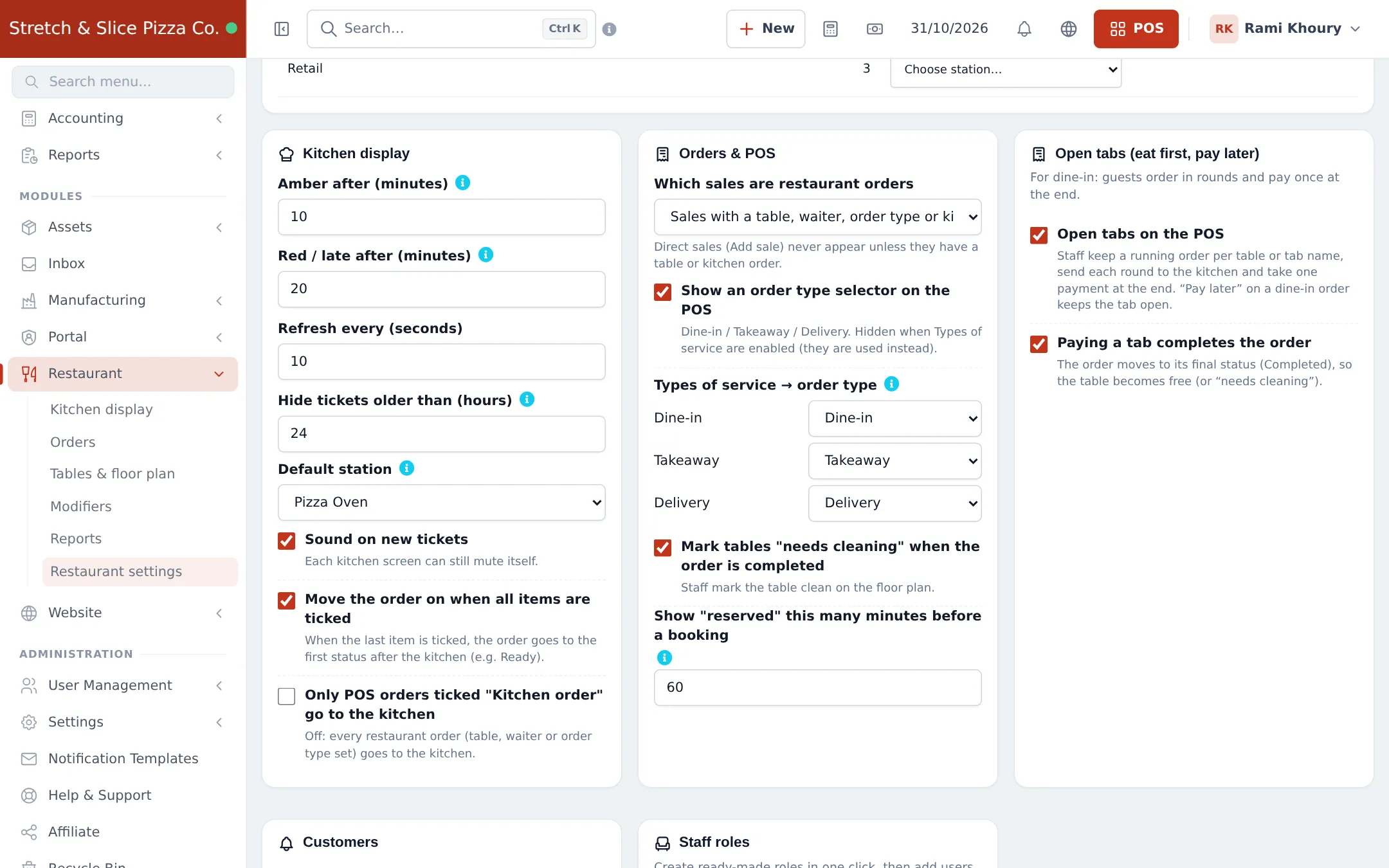
Section titled “Check the Restaurant settings”Open Restaurant › Restaurant settings. The page holds order statuses, kitchen stations, kitchen display timers, POS options, open tabs, customer updates and staff roles. For now, check these cards; you will come back to the others in later steps.
- Orders & POS › Which sales are restaurant orders: keep “Sales with a table, waiter, order type or kitchen order” unless every sale is a restaurant order.
- Show an order type selector on the POS: on, if you don’t use Types of service. When Types of service are on, map each one under Types of service → order type (Dine-in, Takeaway, Delivery).
- Open tabs (eat first, pay later): switch on Open tabs on the POS for sit-down service. Keep Paying a tab completes the order on so the table frees up after payment.
- Mark tables “needs cleaning” when the order is completed: on, if staff clear tables before seating new guests.
- Click Save at the bottom of the page.
Next step
Section titled “Next step”Frequently asked questions
Why don't I see the Restaurant menu?
The Restaurant menu appears when Tables, Kitchen or Modifiers is switched on. Turn on at least one of them in Settings › Business Settings › Modules and click Update Settings, then reload the page.
Does switching a module off delete my data?
No. Turning a module off hides its menu and screens for everyone in the business. Your tables, modifiers and orders are kept and come back when you switch it on again.
What does "Not in your plan" mean on a module card?
Your subscription does not include that module. Open Settings › Package Subscription to see which plans include it, or contact support.
Do I need Service staff if waiters already have their own logins?
Service staff lets you pick the waiter on each order, so you can see orders per waiter and their tables. If one cashier takes every order, you can leave it off.
Where is the Open tabs switch?
Open tabs is not in Settings › Business Settings › Modules. It is in Restaurant › Restaurant settings, in the Open tabs card, and it appears once Tables or Kitchen is on.