
Sales reports - products, payments, dues and customers
These reports answer the everyday sales questions: what sold, how much came in, and who still owes you. They all live under Reports and filter by location and dates.
Purchase & Sale
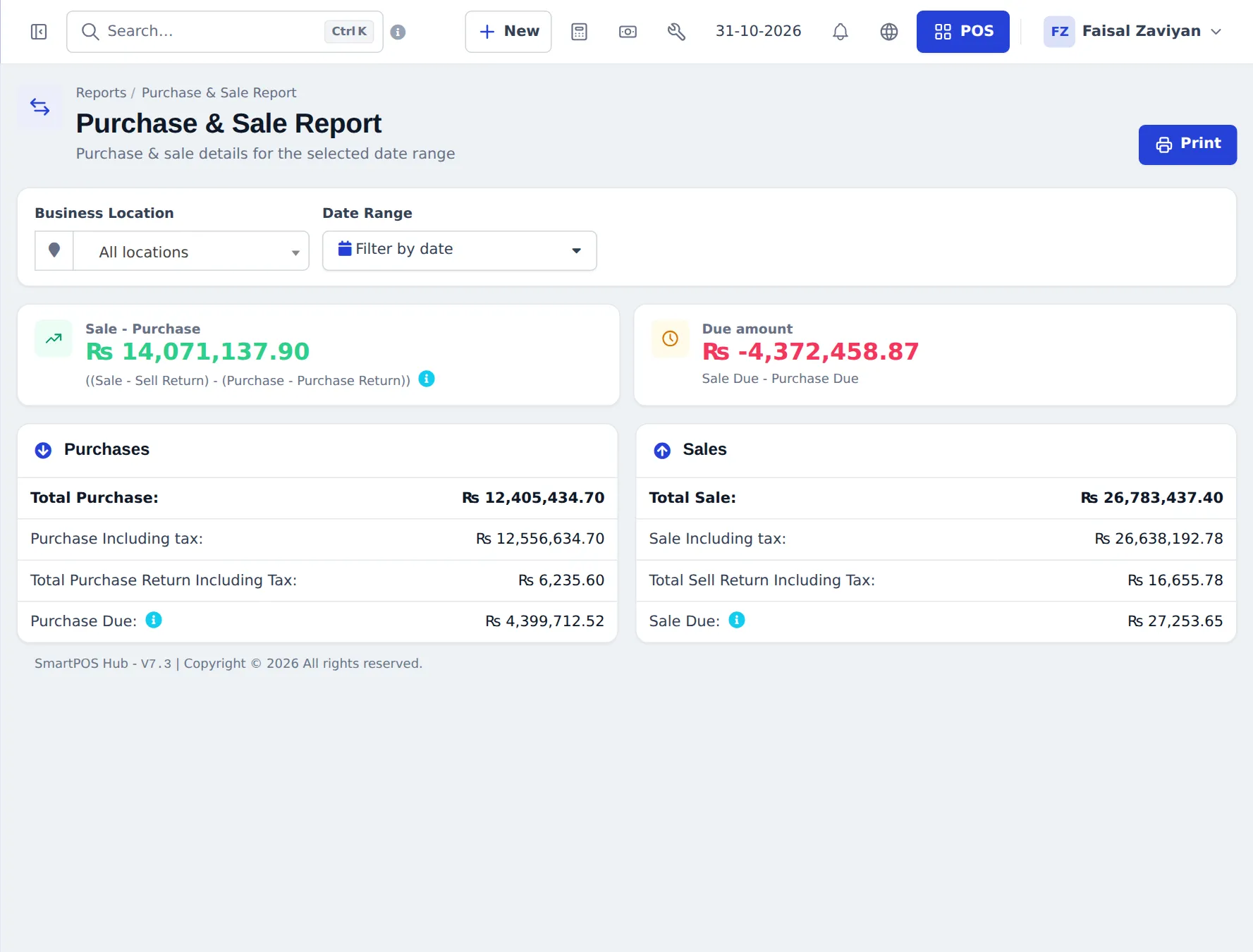
Section titled “Purchase & Sale”The quick health check: Sale − Purchase, Due amount (sale due − purchase due), and totals for purchases and sales including tax and returns.
Product Sell Report
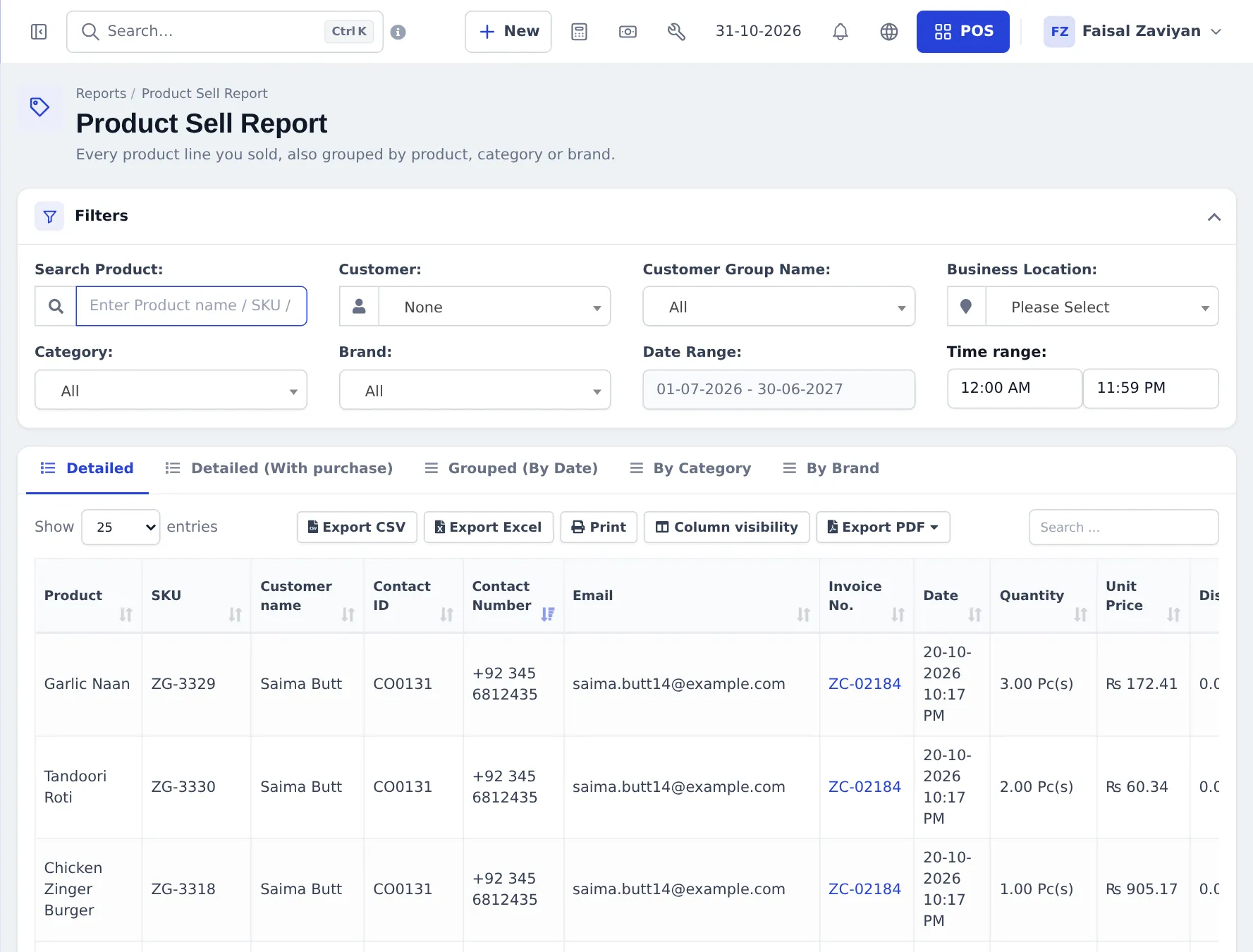
Section titled “Product Sell Report”Every product line sold, with customer, invoice, date, quantity, unit price, discount, tax and total. Tabs: Detailed, Detailed (With purchase) (adds cost), Grouped (By Date), By Category, By Brand. Filters: product, customer, customer group, location, category, brand, date and Time range.
Related: Items Report, Trending Products (chart of best sellers), Product Purchase Report, Purchase & Sale Product.
Sell Payment Report
Section titled “Sell Payment Report”Every payment received from customers: reference, paid on, amount, age, customer, customer group, method, the sale it paid and the user. Filter by customer, location, payment method, customer group, user, date and Age. Use it to check cash vs card vs transfers for any period.
Payment by Age (who is late)
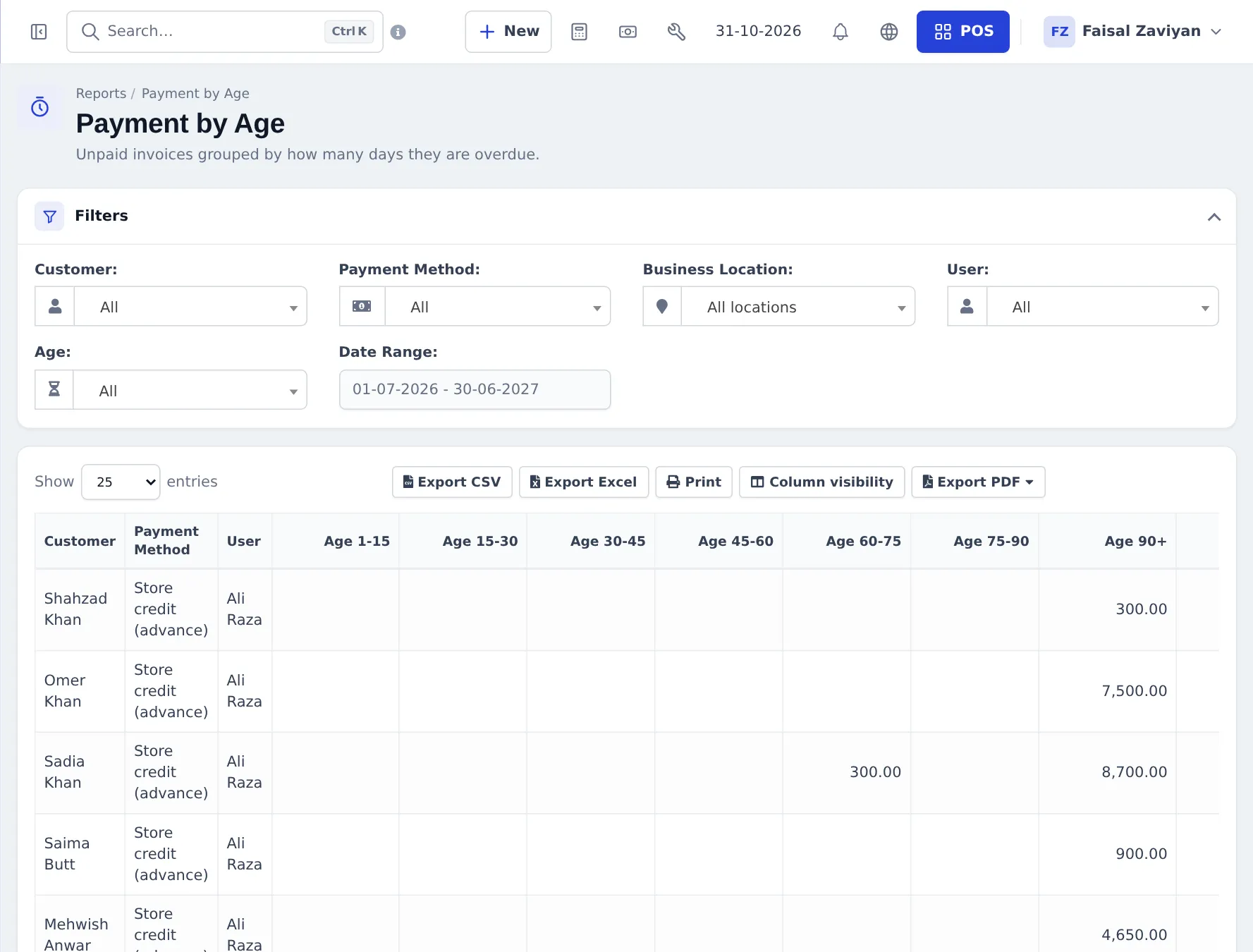
Section titled “Payment by Age (who is late)”Unpaid invoices grouped by how many days they are overdue — Age 1–15, 15–30, 30–45, 45–60, 60–75, 75–90 and 90+ — per customer, with the payment method and user. Overdue is measured from each sale’s pay term.
Customers & Suppliers Reports
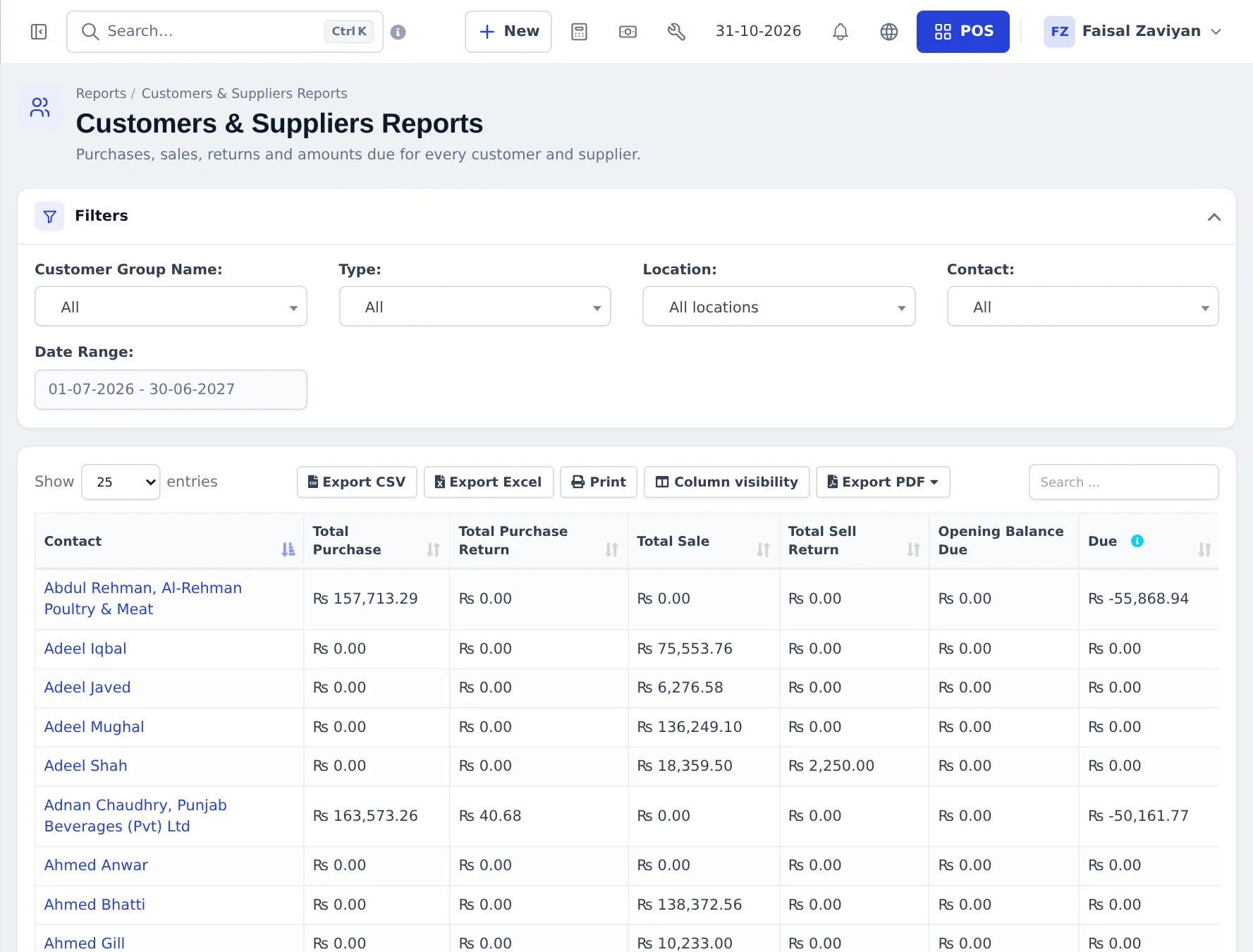
Section titled “Customers & Suppliers Reports”Per contact: Total Purchase, Total Purchase Return, Total Sale, Total Sell Return, Opening Balance Due and Due. Filter by customer group, type (customer / supplier), location and contact. A negative due means you owe that contact.
More sales reports
Section titled “More sales reports”- Customer Groups Report — sales per group.
- Sales Representative Report — sales, commission and expenses per sales person / commission agent.
- Service Staff Report and Table Report — restaurants and salons.
- Tax Report — tax collected on sales and paid on purchases.
- Z Report and Register Report — see Cash register and closing.
Frequently asked questions
How do I see sales per product?
Reports › Product Sell Report. Use the tabs to see each line (Detailed), by date (Grouped), by category or by brand, and filter by product, customer, location and time range.
How do I see how much cash and card we took?
Reports › Sell Payment Report lists every payment received with method, customer and date. For one shift use Close Register or the Register Report.
Which report shows overdue customers?
Reports › Payment by Age groups unpaid invoices by how many days they are late, from 1–15 days up to 90+.
Why is Sale Due different from Balance due on a customer?
Sale Due covers sales only. The customer's Balance due also includes the opening balance, bookings, returns and ledger discounts.
Can I filter by cashier?
Yes. Most sales reports have a User filter, and Sell › All sales can be filtered by the user who added the sale.
Can I see sales by time of day?
Yes. The Product Sell Report has a Time range filter for, say, 12:00 to 15:00.