
Camera barcode scanner on the POS
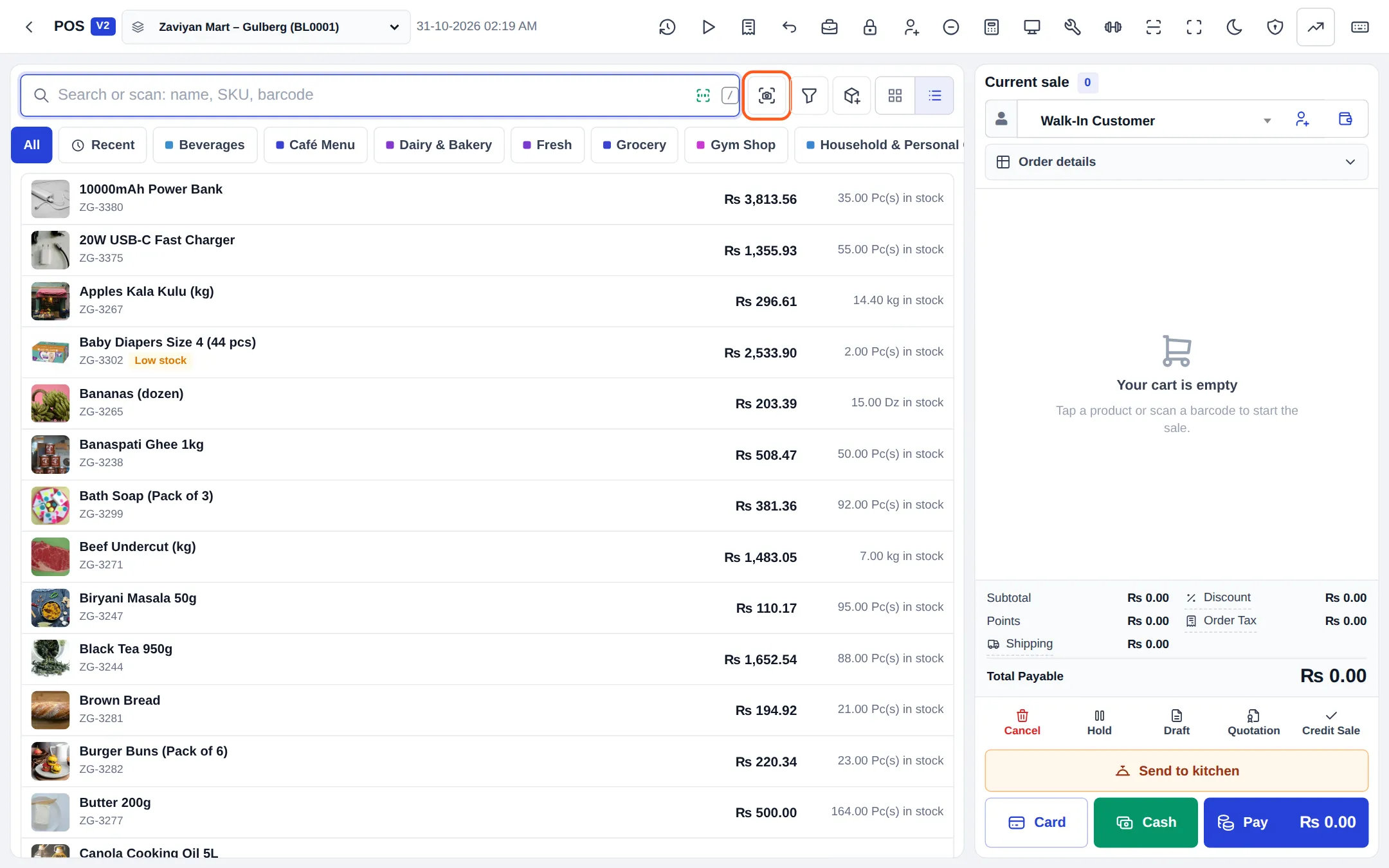
The Camera barcode scanner turns any phone, tablet or laptop camera into a barcode scanner on the web POS. Tap the camera button next to product search in POS V1 or POS V2, point at the barcode, and the product goes into the cart just as if you had used a hand scanner. It is ideal for small shops, market stalls, pop-up counters and staff selling from a tablet on the floor.
Turn it on or off
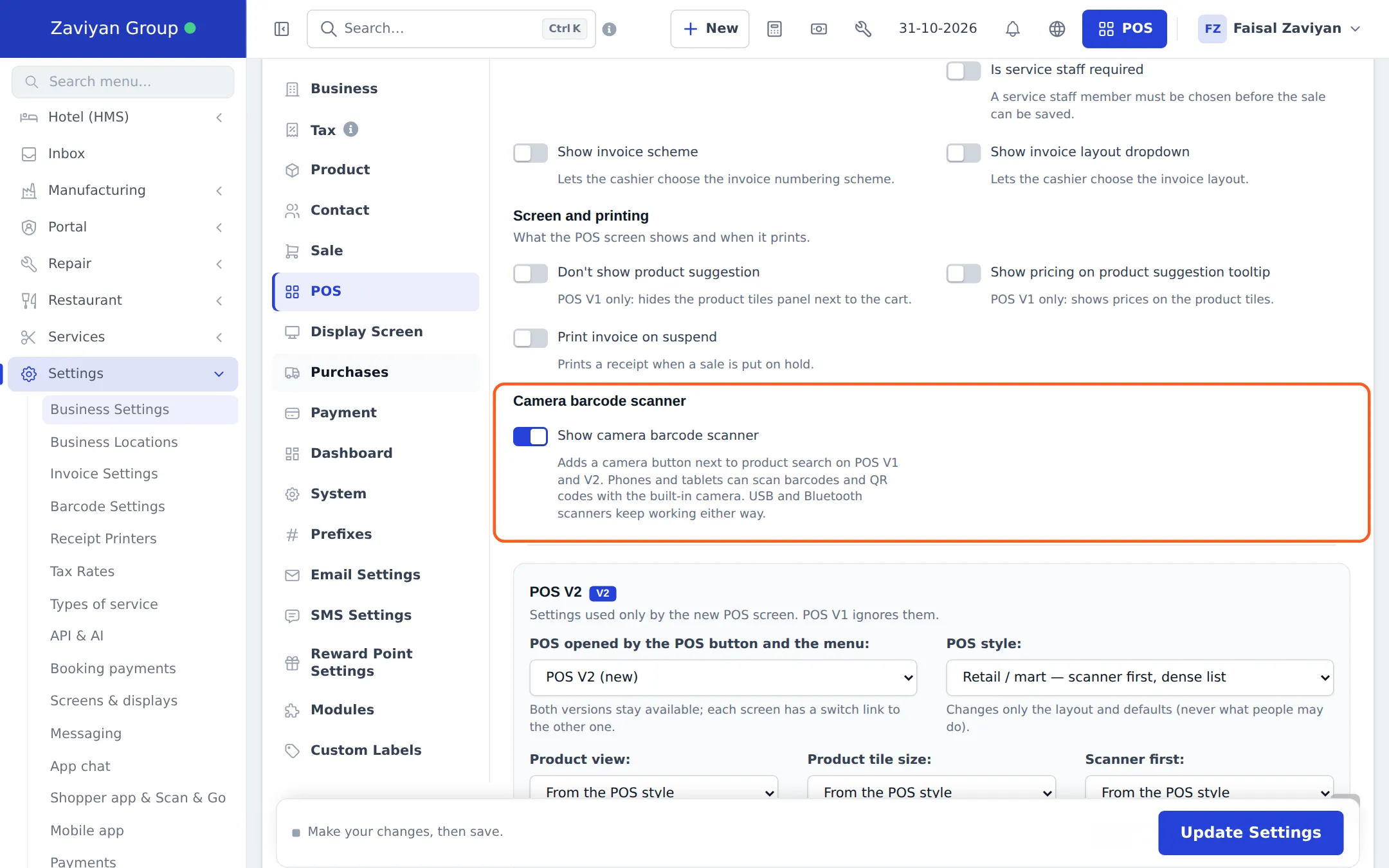
Section titled “Turn it on or off”- Open Settings › Business Settings and click the POS tab.
- Find Camera barcode scanner.
- Tick or untick Show camera barcode scanner.
- Click Update Settings.
Everyday use: scan with the camera
Section titled “Everyday use: scan with the camera”- Open the POS (V1 or V2) on your phone, tablet or laptop.
- Tap the camera button next to the product search box (Scan with camera).
- The first time, your browser asks for camera access. Tap Allow.
- Point the back camera at the barcode inside the frame. You hear a beep and the phone vibrates (where supported).
- The scanner shows Added: product name. In single mode it closes; with Continuous on it keeps scanning.
- If you see Not found: code, the code is not in your products. Staff with the right permission get the add-or-link window (see Product barcodes).
- If Several products match, the scanner closes so you can pick the right one from the POS list.
Scanner controls
Section titled “Scanner controls”| Control | What it does |
|---|---|
| Continuous | Keep scanning item after item. Remembered on that browser. The same code is ignored for a moment while it stays in view, so you don’t add it twice by accident. |
| Flashlight | Turns on the torch, on devices that support it (mostly Android Chrome). |
| Switch camera | Shown when the device has more than one camera. |
| Close | Stops the camera. The camera also stops when you switch apps or tabs. |
Weighing-scale labels work too: when the POS setting Enable weighing scale is on with a label prefix, a scanned scale label adds the item with its weight.
When the camera does not start
Section titled “When the camera does not start”| Message | What to do |
|---|---|
| Camera access is blocked | Allow the camera for the site. iPhone/iPad (Safari): tap aA in the address bar › Website Settings › Camera › Allow. Chrome: tap the icon left of the address › Permissions › Camera › Allow. Then tap Try again. |
| No camera was found on this device. | Use a device with a camera, or a hand scanner. |
| The camera is being used by another app. | Close the other app (video call, camera app) and try again. |
| The camera only works on a secure (https) connection. | Open SmartPOS Hub from its normal web address. |
| This browser cannot use the camera. | Update to the latest Safari or Chrome. |
In the SmartPOS Business app
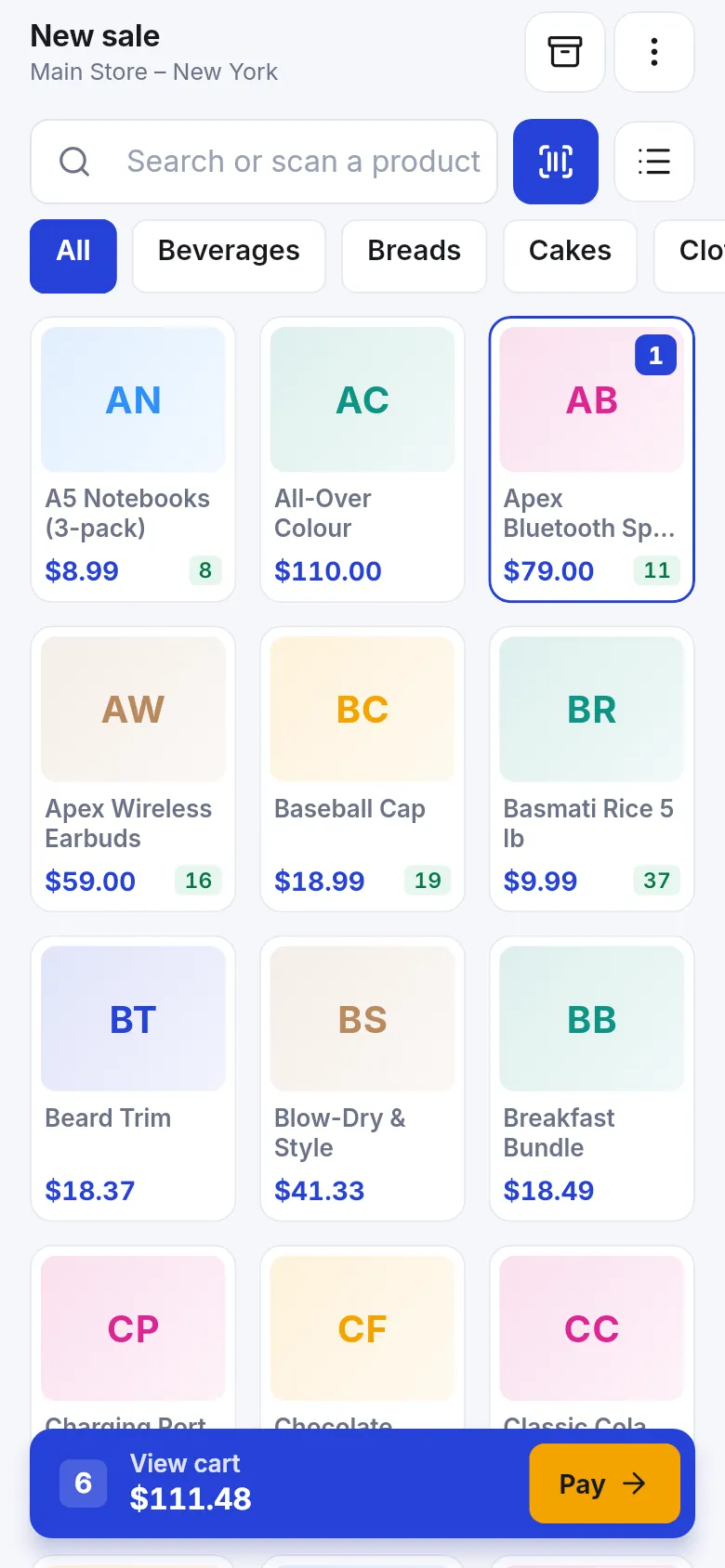
Section titled “In the SmartPOS Business app”The staff app has its own scanner: the scan button next to Search or scan a product on the Sell screen. It does not depend on the web setting above.
Related pages
Section titled “Related pages”Frequently asked questions
Do I still need a hand scanner?
No, but you can keep one. The camera button is an extra. USB and Bluetooth scanners and typing in the search box keep working exactly as before.
Which phones and browsers work?
Current Safari and Chrome on iPhone and iPad, Chrome and Samsung Internet on Android, and Chrome, Edge or Firefox on a laptop with a camera. The page must be opened over the normal secure web address.
Which barcodes can it read?
EAN-13, EAN-8, UPC-A, UPC-E, Code 128, Code 39, Code 93, ITF, Codabar, QR, Data Matrix and PDF417.
The camera says Camera access is blocked. What do I do?
Allow the camera for the site in your browser settings, then tap Try again. On iPhone use aA in the address bar, Website Settings, Camera, Allow. In Chrome tap the icon left of the address, Permissions, Camera, Allow.
How do I scan many items in a row?
Turn on Continuous in the scanner. It keeps scanning item after item and remembers the choice on that browser. Scanning the same product again raises its quantity.
Does the camera scanner need a permission or a plan?
No. Anyone who can use the POS can use it, on every plan. An admin can hide the button in Business Settings under POS.