
Add a sale and manage invoices
Besides the POS, you can create invoices from Sell › Add Sale, a full-page form for back-office sales. Every sale — POS, Add Sale, online orders, app sales — then lives in Sell › All sales, where you print, share, edit and collect payments. This page covers both.
Create a sale with Add Sale
Section titled “Create a sale with Add Sale”-
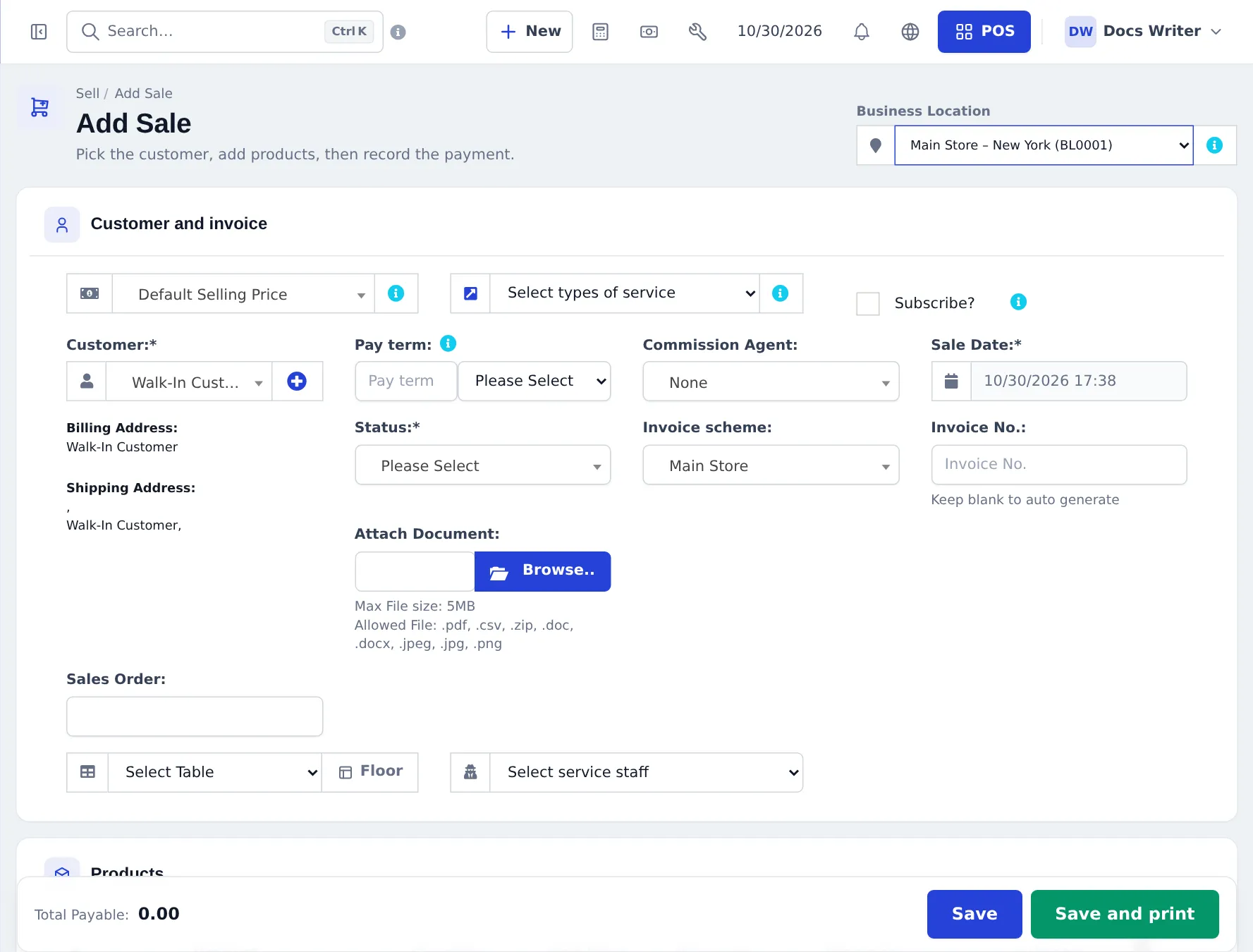
Go to Sell › Add Sale and pick the Business Location at the top right.
-
In Customer and invoice, choose the Customer, the Pay term (for credit customers), Sale Date, Status (Final, Draft or Quotation), Invoice scheme and, if you want, your own Invoice No. (leave blank to auto-number). You can also link a Sales Order and attach a document.
-
In Products, search and add the items with quantity, unit price and discount.
-
Add order Discount, Order Tax, Shipping details and notes below.
-
In Add payment, enter what the customer paid now — the full amount, a part, or nothing (it becomes due).
-
Press Save or Save and print.
Find and manage sales (All sales)
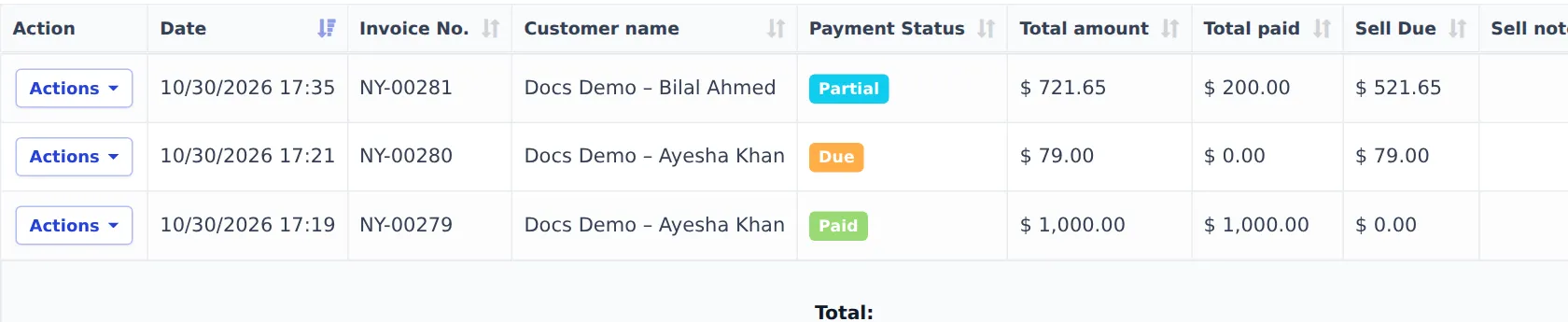
Section titled “Find and manage sales (All sales)”Sell › All sales lists every sale with Date, Invoice No., Customer name, Location, Payment Status, Payment Method, Total amount, Total paid and Sell Due. Use Filters for location, customer, payment status (Paid, Due, Partial, Overdue), dates, user, shipping status and more. Column visibility and Export CSV / Excel / PDF work on what you see.
Each row’s Actions menu:
| Action | Use it to |
|---|---|
| View | See the sale with lines, taxes and payments |
| Edit | Change the sale (opens the POS for POS sales) |
| Delete | Remove the sale (stock goes back) |
| Edit Shipping | Update shipping status and delivery details |
| Print Invoice, Packing Slip, Delivery Note | Print or save as PDF |
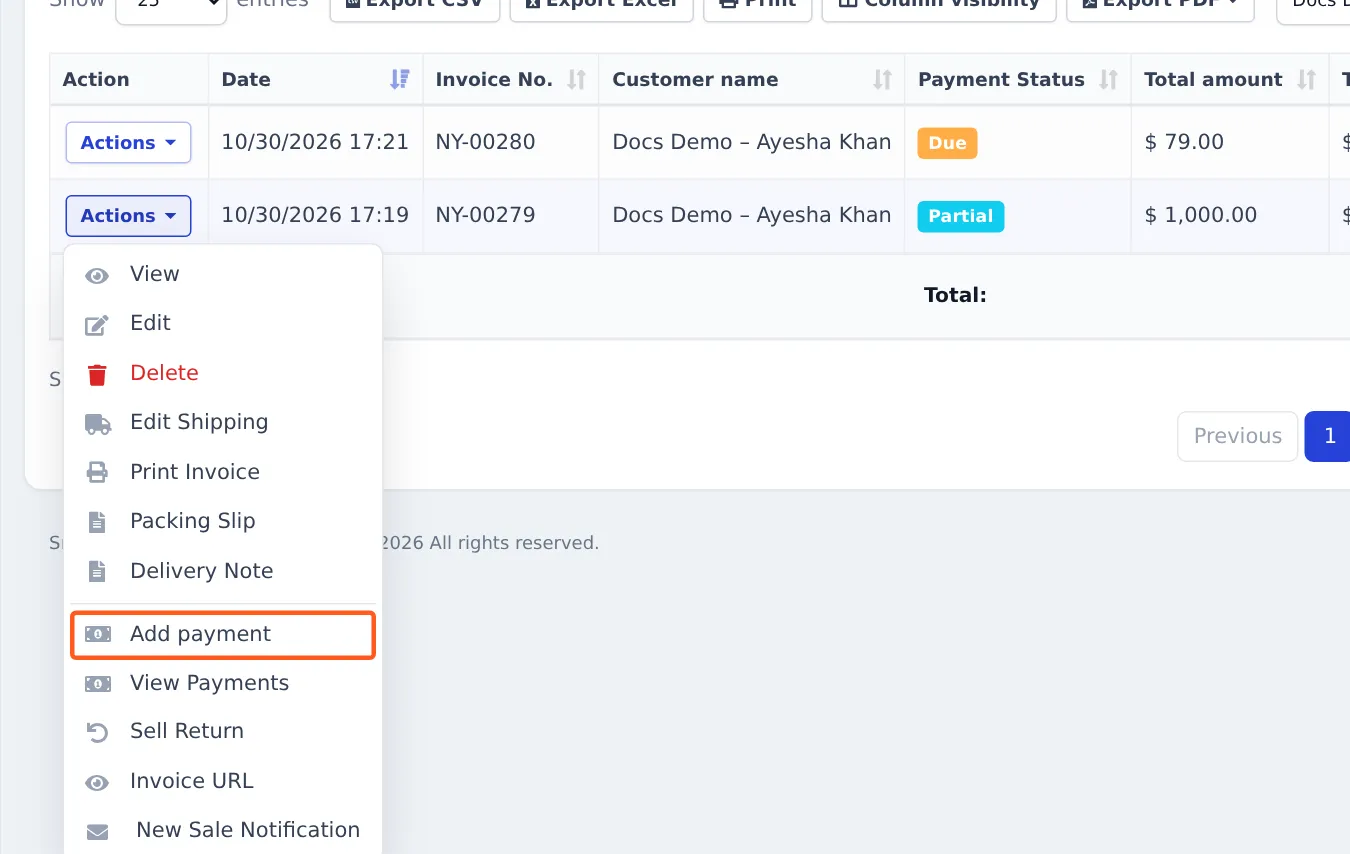
| Add payment / View Payments | Record or review payments — see Credit and part payments |
| Sell Return | Take items back — see Returns and refunds |
| Invoice URL | Copy the online invoice link to share with the customer |
| New Sale Notification | Send the invoice notification by e-mail / SMS (when set up) |
The invoice
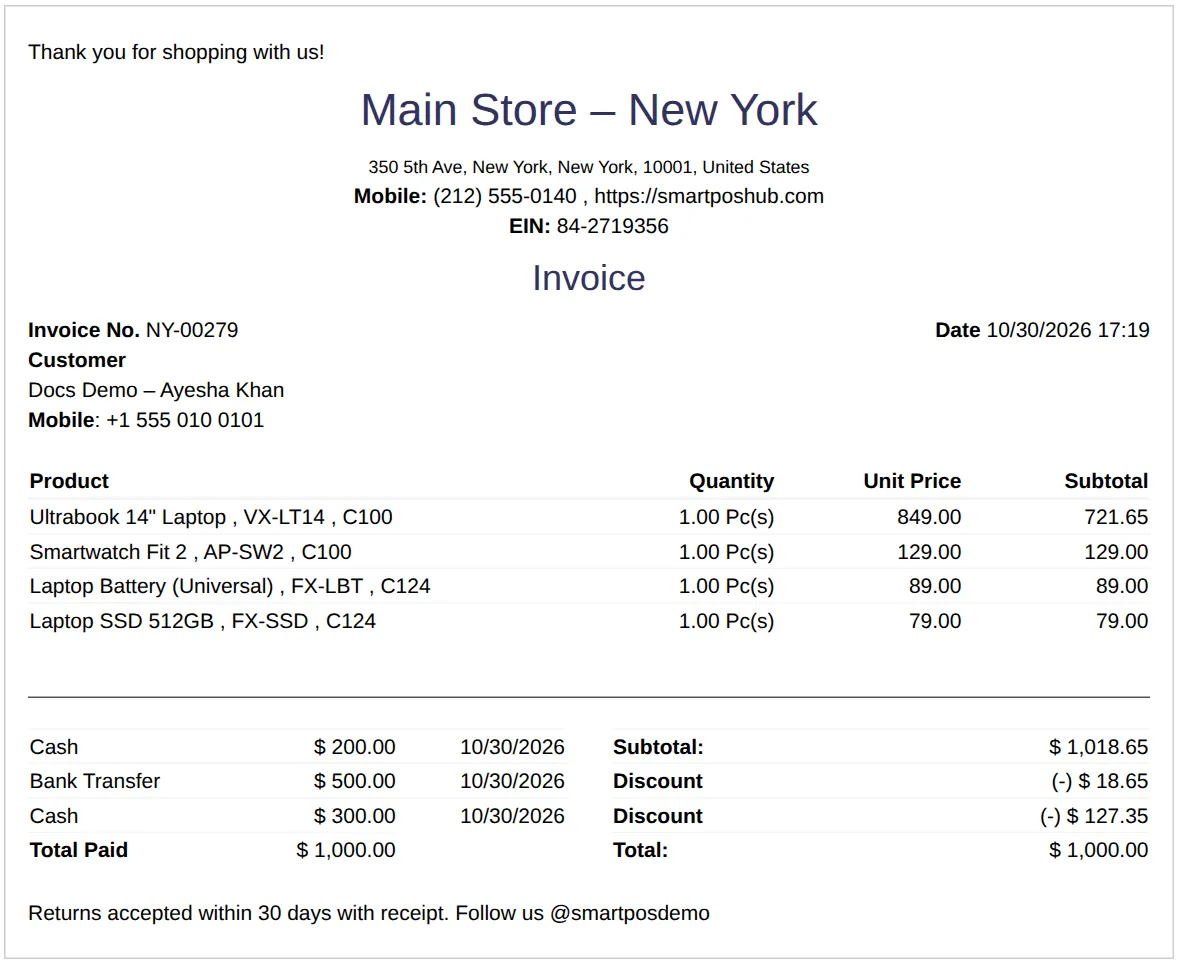
Section titled “The invoice”The invoice uses the invoice layout of the location and lists items, totals, every payment taken and the amount still due. Reprint it after each payment so the customer has the latest copy.
Change the design in Receipts and invoice layouts.
Other sales lists under Sell
Section titled “Other sales lists under Sell”- List POS — only POS sales. Offline sales button — sales that came from Offline POS.
- List Drafts, List quotations, Sales Order — see Quotations, drafts and orders.
- List Sell Return, Gift cards, Return settings — returns and store credit.
- Shipments, Discounts, Subscriptions, Import Sales — shipping, automatic discounts, recurring invoices and importing old sales.
- Set a Pay term on credit invoices so they show as Overdue on time.
- Use Invoice URL instead of sending PDFs: the link always shows the latest payments.
- How far back a sale can be edited is set in Settings › Business Settings › Business › Transaction Edit Days.
Frequently asked questions
When should I use Add Sale instead of the POS?
Use Add Sale for invoices made in the office - deliveries, business customers, invoices with a pay term or attachments, or sales typed in after the fact. It needs no cash register.
How do I send an invoice to a customer?
Open Sell › All sales › Actions › Invoice URL to copy or share the online invoice link, or Print Invoice to print or save it as PDF.
How do I find all unpaid invoices?
In Sell › All sales open Filters and set Payment Status to Due, Partial or Overdue.
Can I change the invoice number?
Invoice numbers come from the invoice scheme of the location. You can type your own in the Invoice No. field on Add Sale, or leave it blank to number it automatically.
What is the difference between All sales and List POS?
All sales shows every sale. List POS shows only sales made on the POS screens.
Can I delete a sale?
Yes, from Actions › Delete if your role allows it. Stock goes back and its payments are removed. Prefer a sell return for goods that came back.