
Café & coffee shop setup guide for SmartPOS Hub
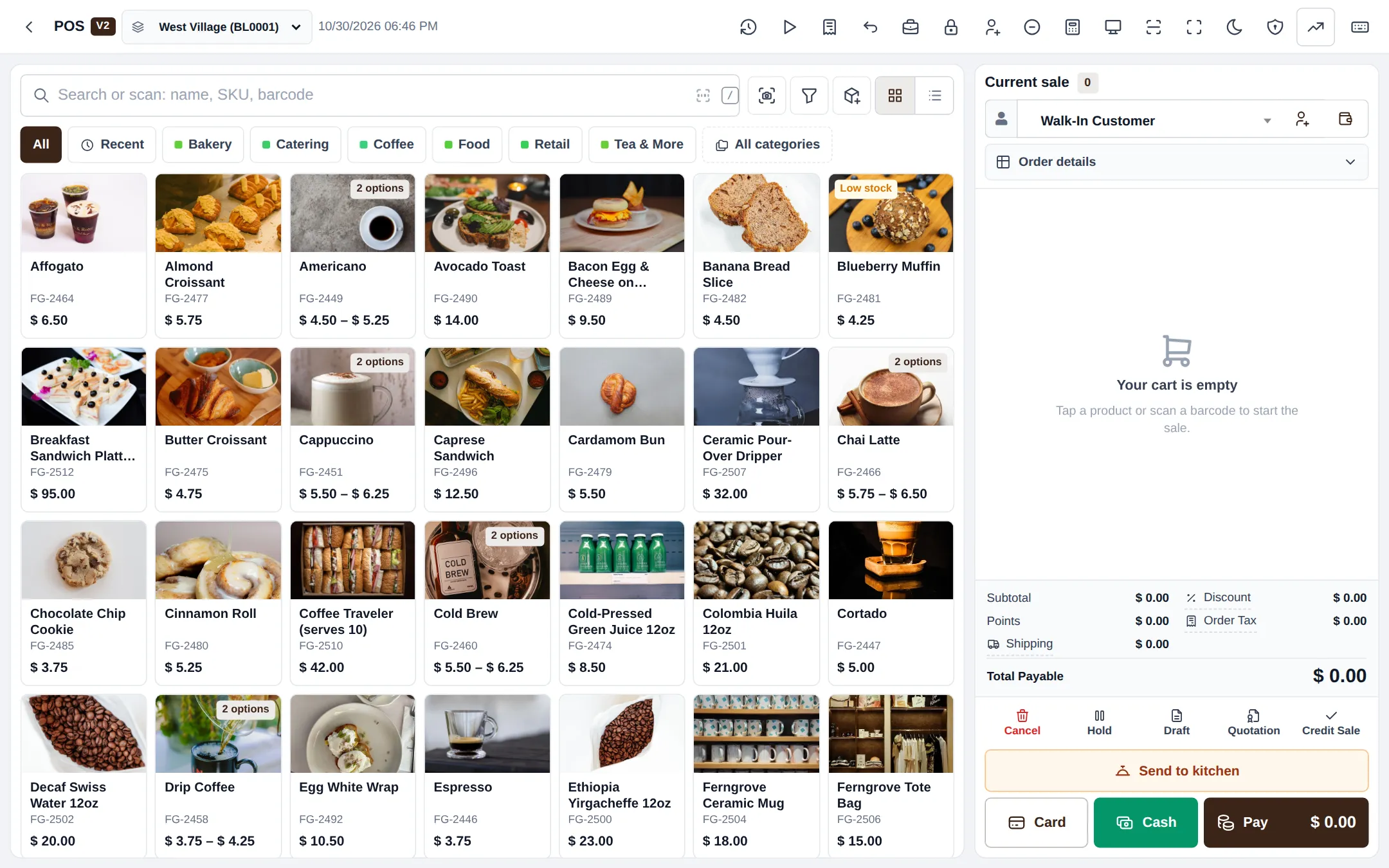
This guide sets up a café, coffee shop, tea house or juice bar on SmartPOS Hub. It builds on the restaurant basics and focuses on what makes a café fast: a tile menu, drink sizes and options, a bar screen for baristas, a customer display, tabs for regulars and loyalty points.
Who this guide is for
Section titled “Who this guide is for”- Coffee shops and espresso bars that sell mostly at the counter.
- Cafés with a small kitchen for sandwiches, toast and pastries.
- Multi-branch coffee chains that share one menu.
Basics shared with restaurants (business settings, kitchen display, order statuses, types of service) are explained in the Restaurant guide. This guide links to them instead of repeating them.
What you will set up
Section titled “What you will set up”- Café settings and modules.
- A fast tile menu: categories, drinks with sizes, favourites.
- Modifiers for milk, syrups and shots.
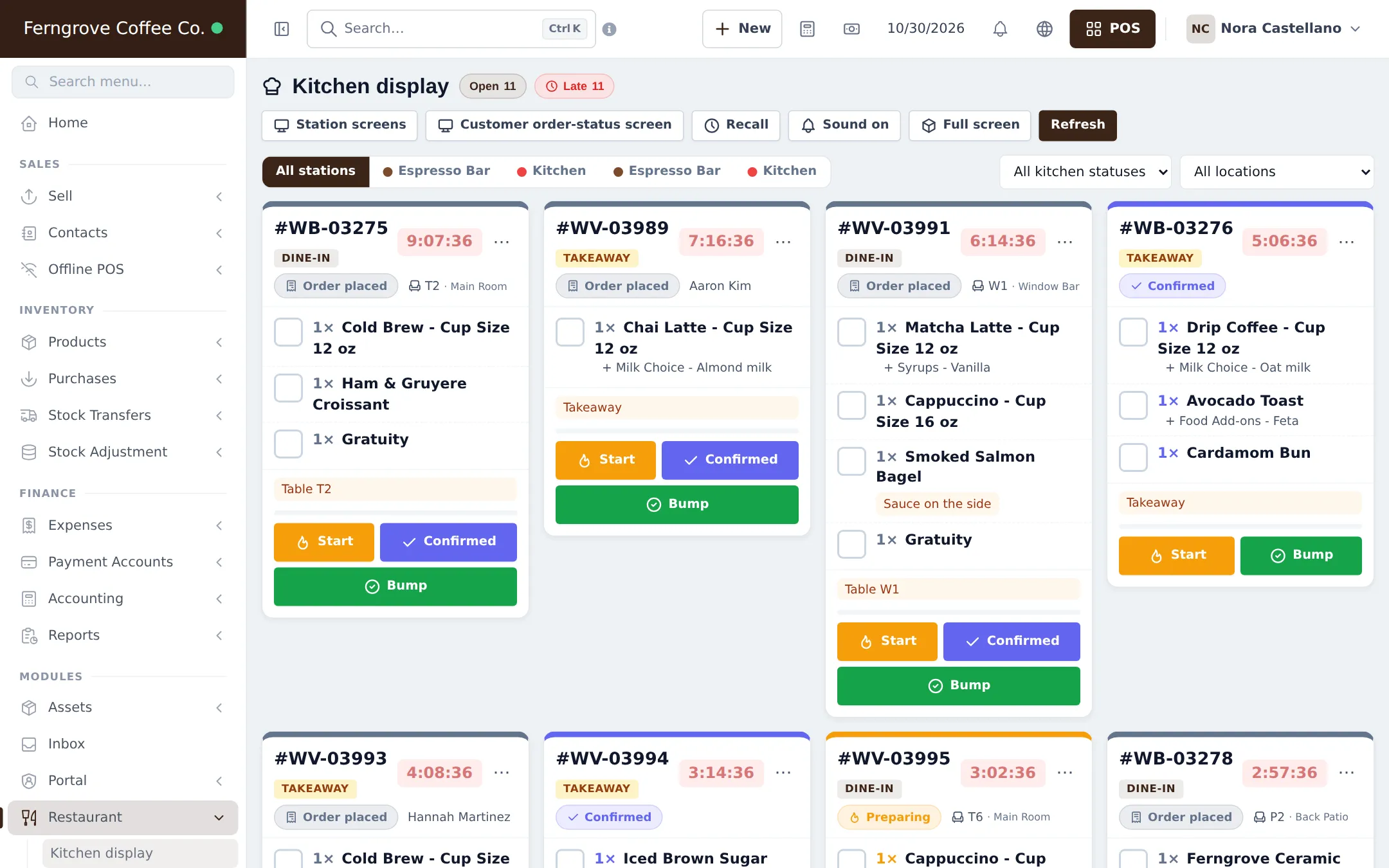
- Bar screen, kitchen screen and customer display.
- Tabs for regulars and groups.
- Loyalty with reward points.
- Daily operations.
- Go-live checklist.
Modules to turn on
Section titled “Modules to turn on”| Module | Where | Needed for |
|---|---|---|
| Modifiers | Settings › Business Settings › Modules | Milk, syrups, extra shots, food add-ons |
| Kitchen | Settings › Business Settings › Modules | Bar and kitchen screens, Send to kitchen, open tabs |
| Tables | Settings › Business Settings › Modules | Only if guests are served at tables |
| Types of service | Settings › Business Settings › Modules | Dine-in and takeaway with their own prices or packing charge |
| Open tabs | Restaurant › Restaurant settings › Open tabs | Pay at the end |
| Reward points | Settings › Business Settings › Reward Point Settings | Loyalty |
| Offline POS | Settings › Business Settings › Modules | Selling without internet (optional) |
Time needed
Section titled “Time needed”| Part | Typical time |
|---|---|
| Steps 1–2 (settings, menu) | 1–2 hours for 40–80 items |
| Step 3 (modifiers) | 20–30 minutes |
| Step 4 (screens) | 20–30 minutes |
| Steps 5–6 (tabs, loyalty) | 15 minutes |
Shared guides you will use
Section titled “Shared guides you will use”Frequently asked questions
How is the café guide different from the restaurant guide?
It focuses on counter service - a fast tile menu, drink options, a bar screen for baristas, a customer-facing display, tabs and loyalty. Tables, delivery and riders are in the Restaurant guide; use it if your café also has full table service.
How do I handle sizes like 12 oz and 16 oz?
Make the drink a variable product with one variation per cup size. Each size has its own price and the POS asks for the size when the drink is tapped.
Where do oat milk and extra shots go?
In modifier sets such as Milk Choice, Syrups and Espresso Extras, each option with its own price. Link the sets to the drinks that offer them.
Can baristas see drink orders on a screen?
Yes. Create an Espresso Bar station mapped to your coffee categories. The bar screen shows only drinks; food goes to the Kitchen station.
Can customers see their order on a screen?
Yes. The customer display at the till shows their items and total, and an order-status board on a TV shows when orders are ready to collect.
Can regulars run a tab?
Yes. Turn on Open tabs in Restaurant settings. A tab can be named after the guest and paid once when they leave.
Does SmartPOS Hub have a loyalty program?
Yes. Reward points let customers earn points on every purchase and redeem them for a discount at the till.
Do I need tables?
No. Most cafés work with takeaway and counter orders only. Switch on Tables only if guests sit and are served.
Can I keep selling when the internet drops?
Yes, with the Offline POS module on a registered counter device or the SmartPOS Business app.
Can I try it first?
Yes. The public café demo listed on smartposhub.com shows a two-branch coffee shop with modifiers, a bar screen and loyalty. It is read-only and resets every few days.