
Bottle shop step 5: purchases, lots and stock
Stock in a bottle shop arrives from a few distributors and breweries, usually by the case and often several times a week. This page records those deliveries with lots and dates, pays the distributors and keeps an eye on stock and freshness.
Before you start
Section titled “Before you start”- Distributors are added in Contacts › Suppliers with their pay terms.
- Enable Lot number and Enable Product Expiry are on if you track them (step 1).
Record a delivery
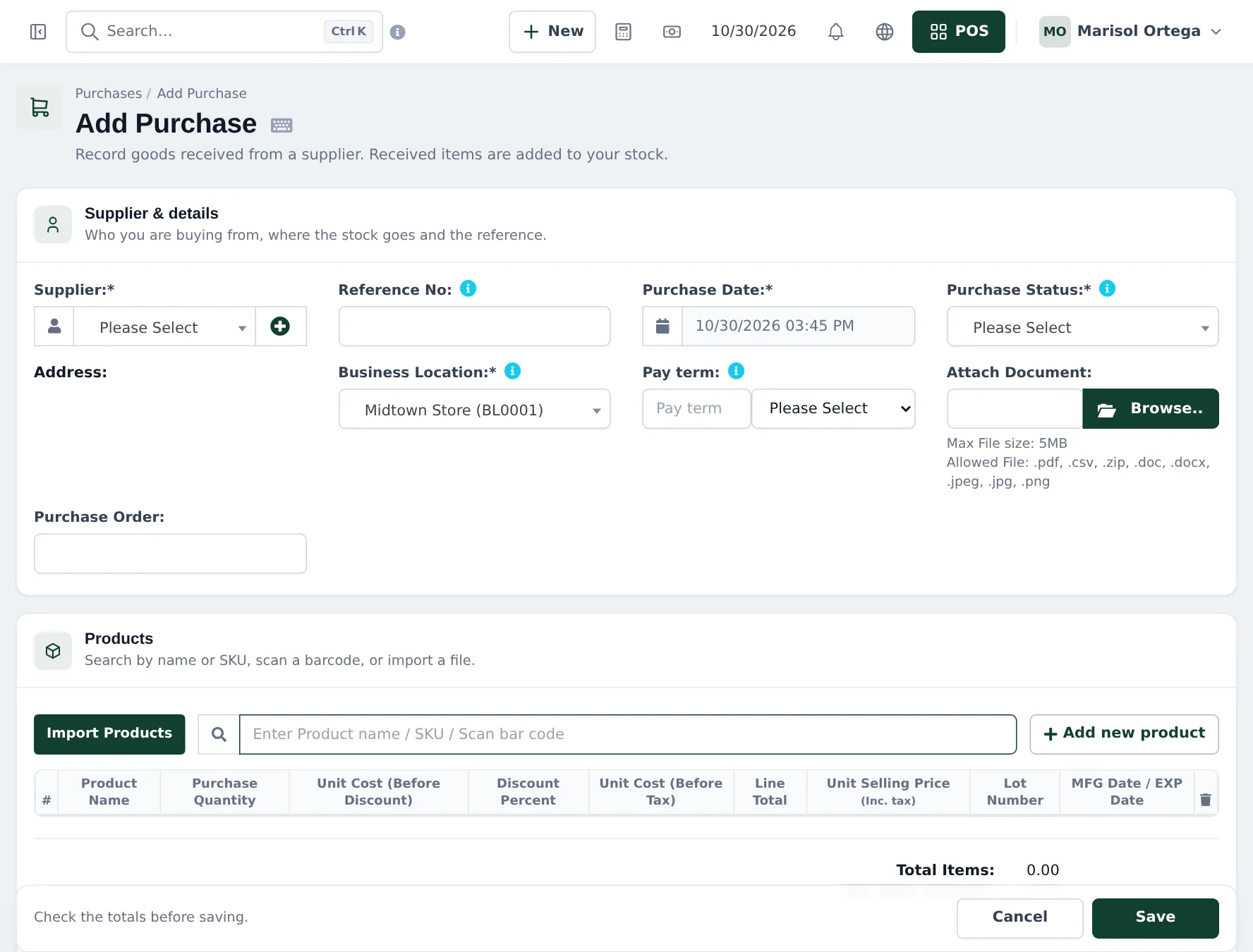
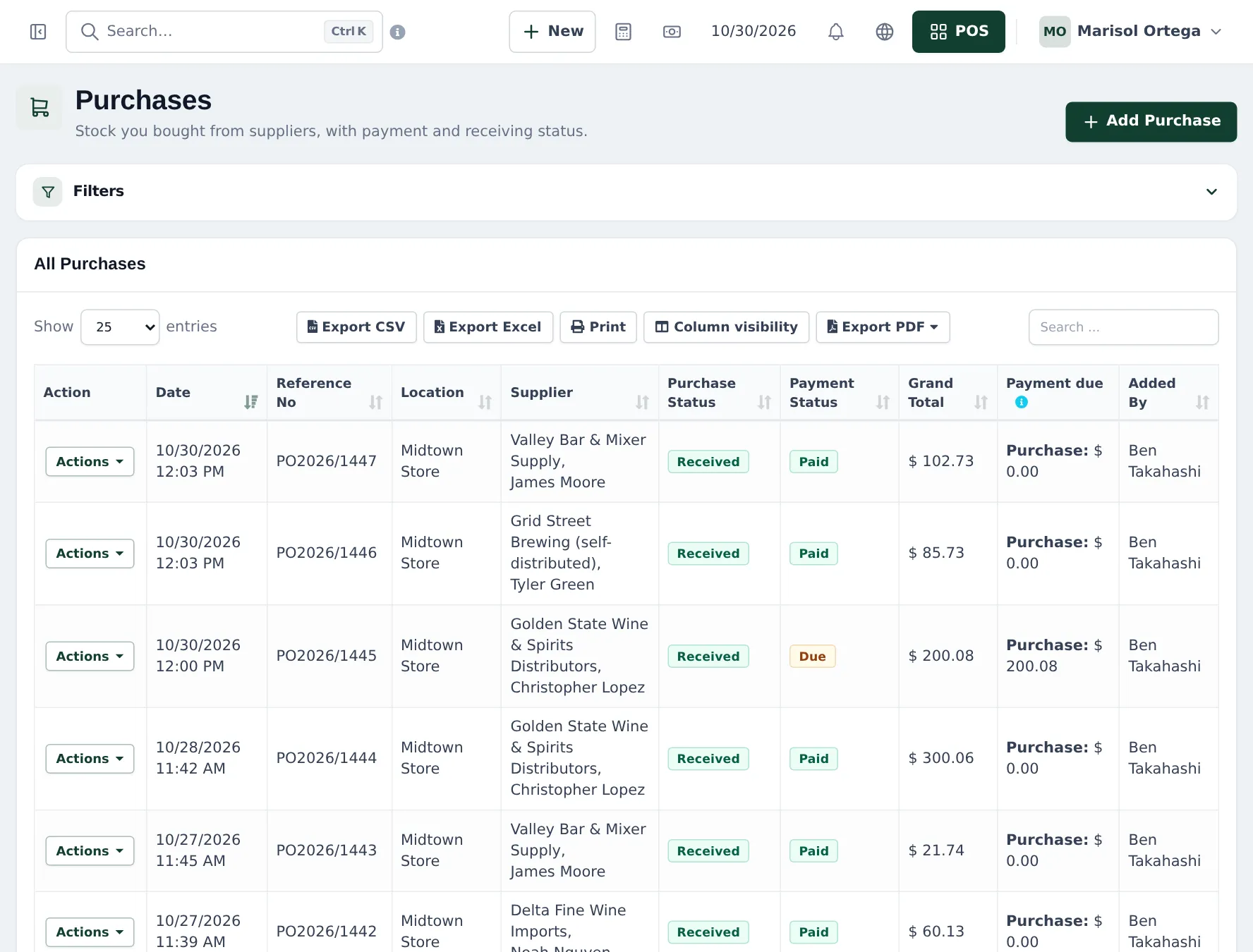
Section titled “Record a delivery”- Open Purchases › Add Purchase.
- Choose the Supplier, enter the distributor’s invoice number in Reference No, the Purchase Date and set Purchase Status to Received.
- Choose the Business Location that receives the goods. Link a Purchase Order if you sent one.
- Scan or search each product. Pick the unit (Case (12)) or the pack variation, enter Purchase Quantity and Unit Cost.
- Enter the Lot Number and the MFG / EXP Date for beer, cider and mixers.
- Enter what you pay now (or 0) and save.
Watch freshness and stock
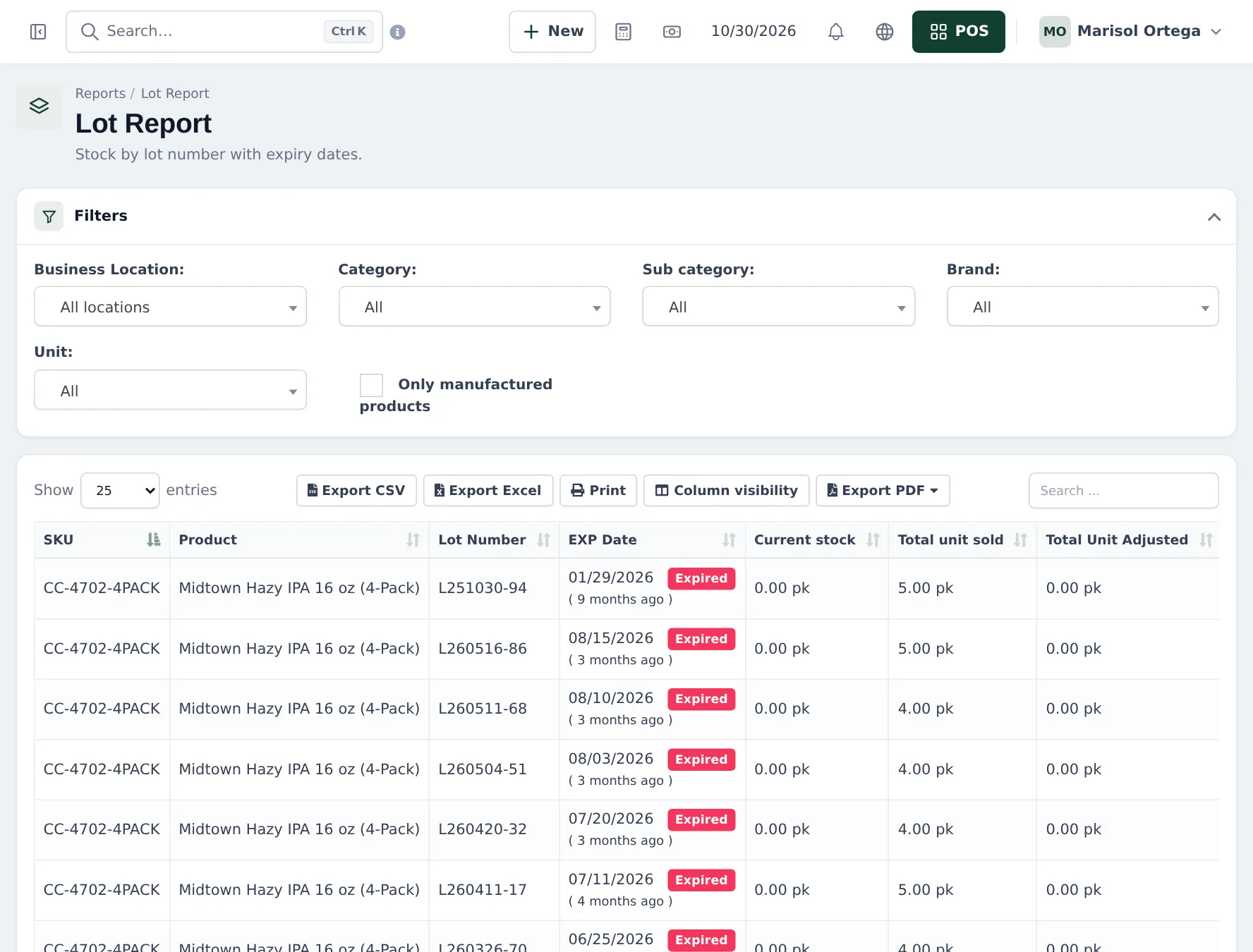
Section titled “Watch freshness and stock”- Reports › Lot Report: stock per lot with its expiry date; expired lots are flagged Expired.
- Reports › Stock Expiry Report: what has expired or will expire soon.
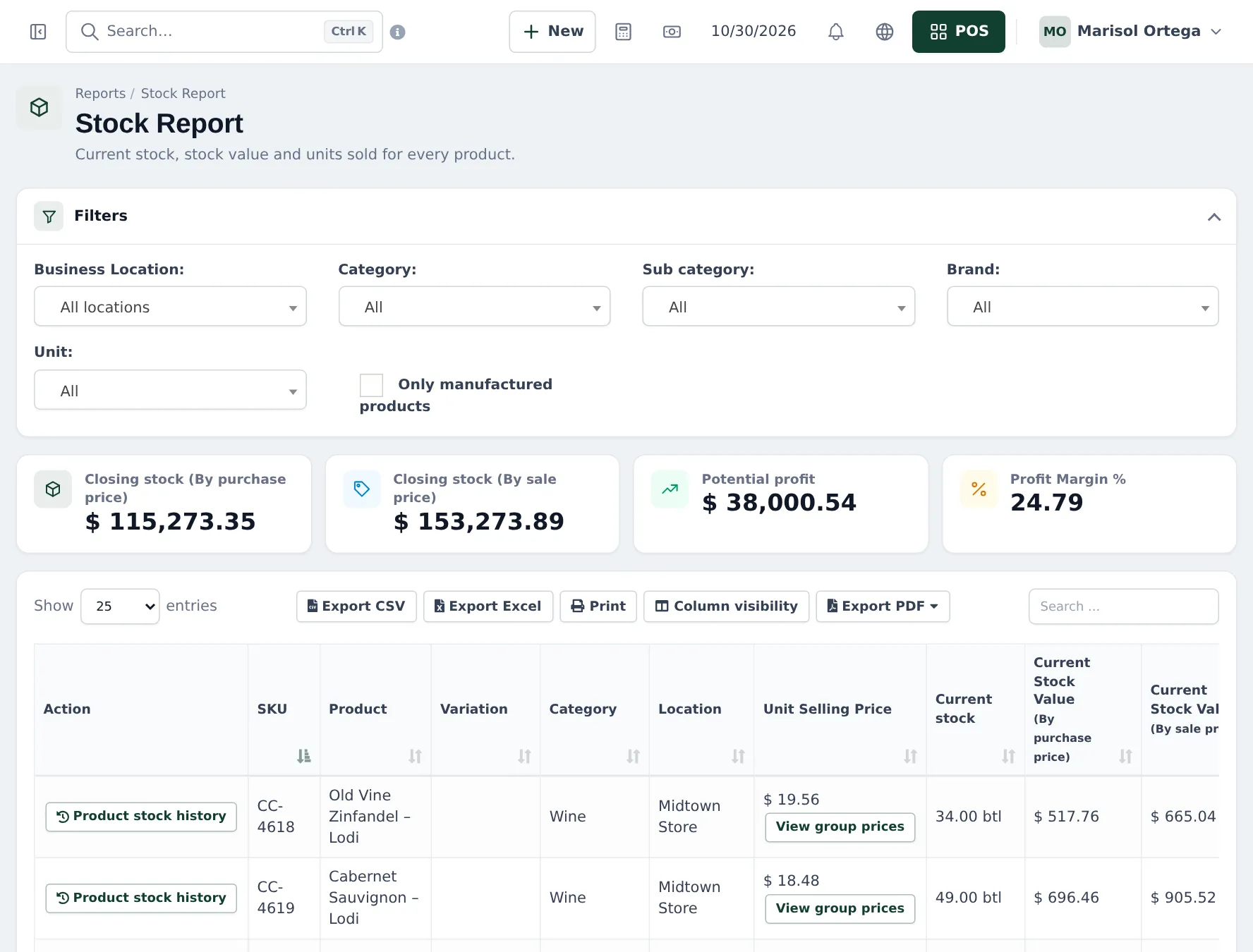
- Reports › Stock Report: stock, value and potential profit per product and location.
Tips and mistakes to avoid
Section titled “Tips and mistakes to avoid”- Remove expired or broken bottles with Stock Adjustment › Add Stock Adjustment and a reason. Web adjustments only remove stock.
- Send damaged cases back with Purchases › List Purchase Return so the distributor’s balance is right.
- Do counts of spirits more often than of beer; they are high value. See stock counts.
Next: daily operations.
Frequently asked questions
Can I receive cases and sell bottles?
Yes. Choose Case (12) on the purchase line; stock is added in bottles.
Where do I enter the lot number and best-before date?
On each purchase line, in Lot Number and the MFG / EXP date fields. They appear when Enable Lot number and Enable Product Expiry are on.
Can the cashier pick the lot when selling?
Yes. With lots on, the POS line shows a Lot & Expiry choice.
How do I see beer that is going out of date?
Reports › Stock Expiry Report and Reports › Lot Report list stock by lot with its expiry date, filtered by location and category.
How do I pay distributors later?
Save the purchase with nothing or part paid and a pay term. Pay later with Add payment on the purchase or Pay on the supplier.