
Jewelry store step 7: repairs, resizing and polishing
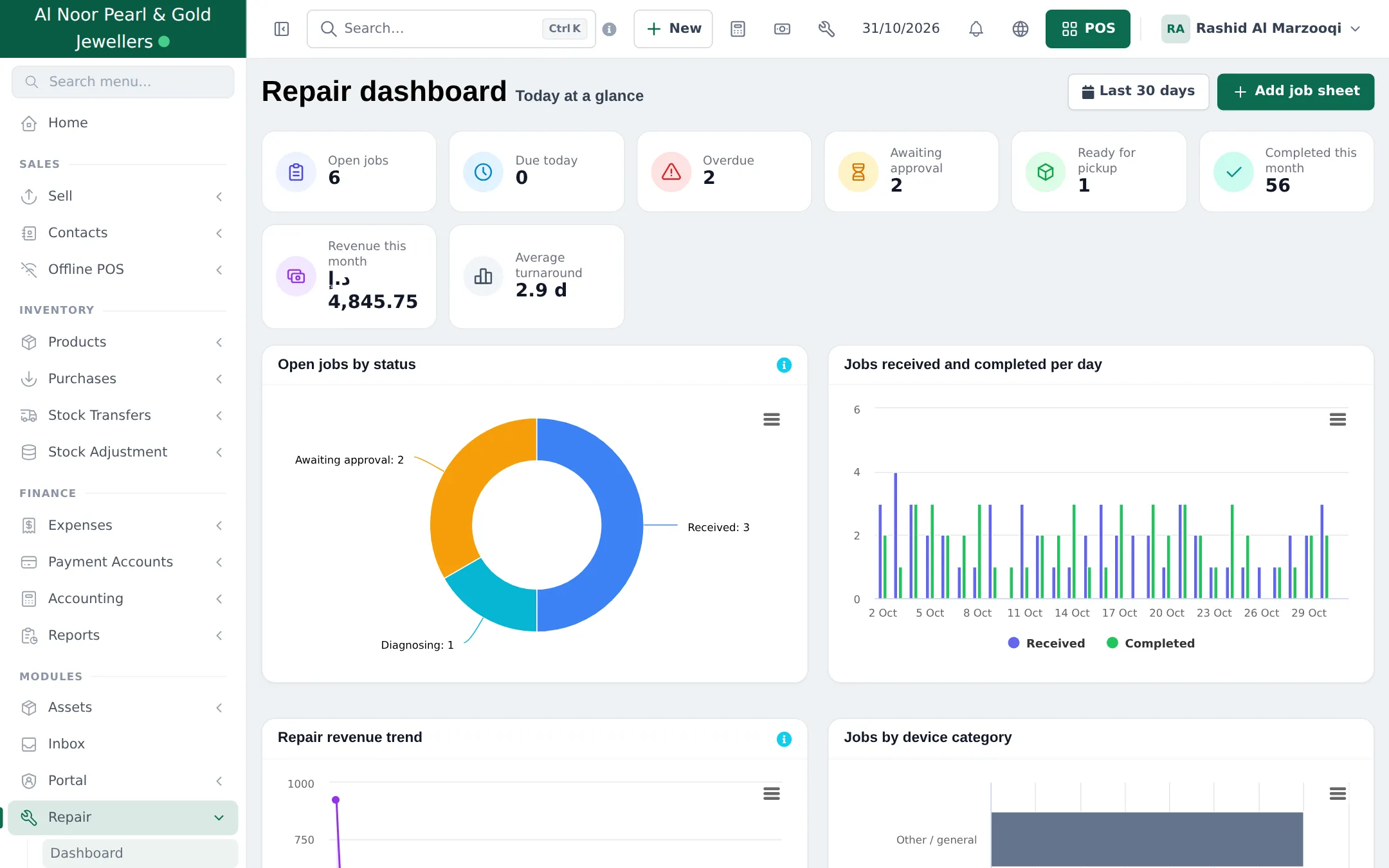
Resizing, soldering, re-setting stones, polishing and watch batteries bring customers back. The Repair module gives each piece a job sheet from intake to pickup, so nothing is lost and every customer knows when to come back.
Before you start
Section titled “Before you start”- Add your repair services as products with Manage Stock? off: for example Ring Resizing (Gold), Chain Soldering / Repair, Stone Re-setting / Prong Repair, Laser Engraving (per item), Polishing. Parts (clasps, jump rings) are normal stock products.
- Create logins for your goldsmiths (User Management › Users).
First-time setup
Section titled “First-time setup”- Open Repair › Settings. On General, set the Job number prefix, default technician, warranty (for example Jewellery Repair 30 Days Warranty), days until ready and intake rules (terms, signature, minimum deposit).
- On Categories & fields, click Add custom category for Ring, Chain & necklace, Bracelet, Earrings and Watch. Open the field builder and Add field for details such as Metal, Karat and Weight in (g). Fields appear on the job sheet as soon as the category is picked.
- On Statuses, adjust the list, for example Received, Assessing, Awaiting approval, In workshop, Ready for pickup, Delivered.
- On Printing & labels, add your repair terms (liability for stones, uncollected items).
Full settings reference: Repair module.
Book in a piece
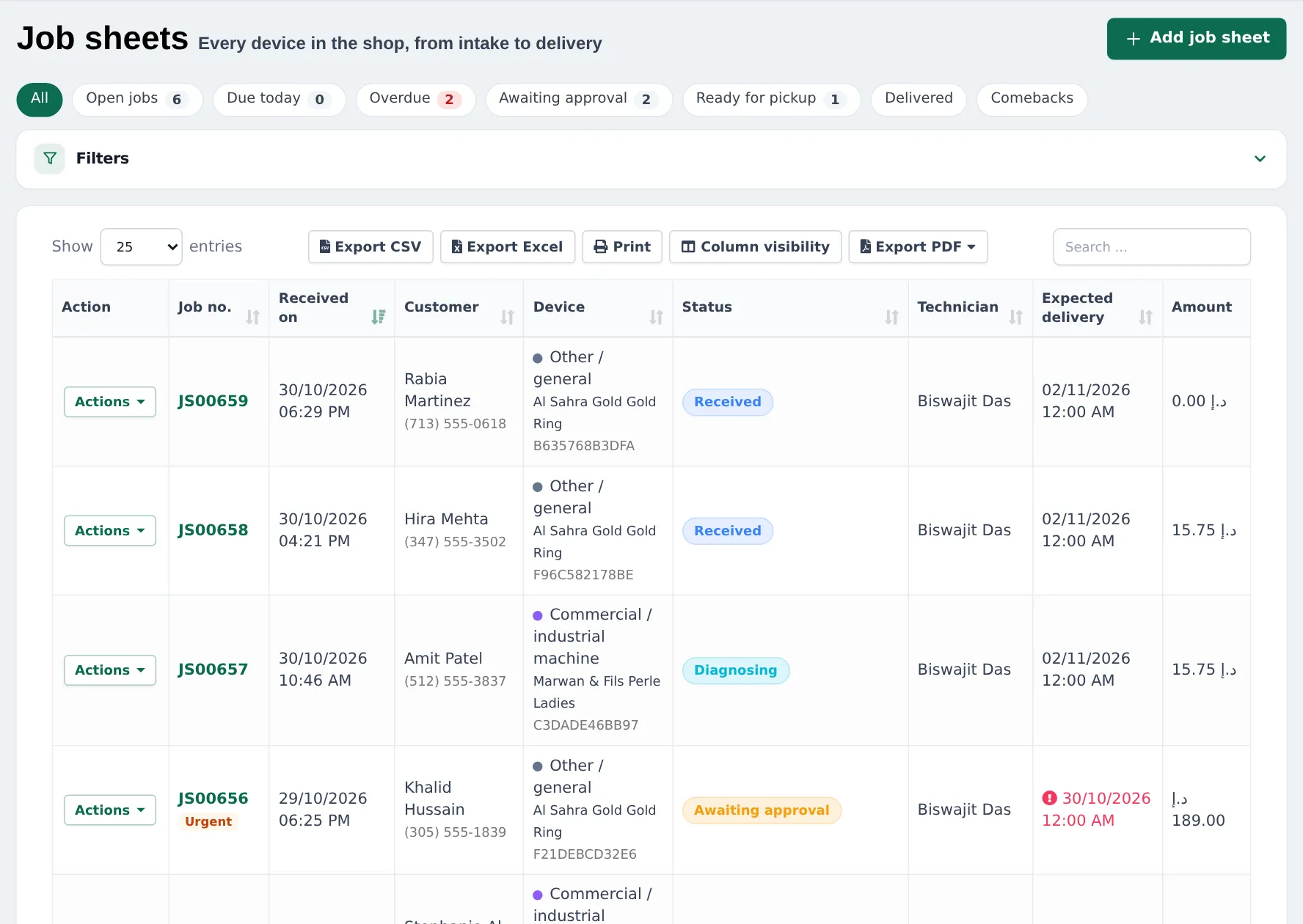
Section titled “Book in a piece”- Click Add job sheet and pick or quick-add the Customer.
- Choose the Device category (Ring), the Brand if known, and type the tag or hallmark in Serial / IMEI.
- Enter Reported problems (resize from 52 to 55, solder chain, replace missing stone) and the weight in.
- Choose Priority (Normal, Urgent, Express), Expected delivery, the Assigned technician and an Estimated cost.
- Click Save & print ticket and give the customer the claim ticket.
Approve, repair and hand back
Section titled “Approve, repair and hand back”- If the price changes, create an estimate and record the customer’s approval.
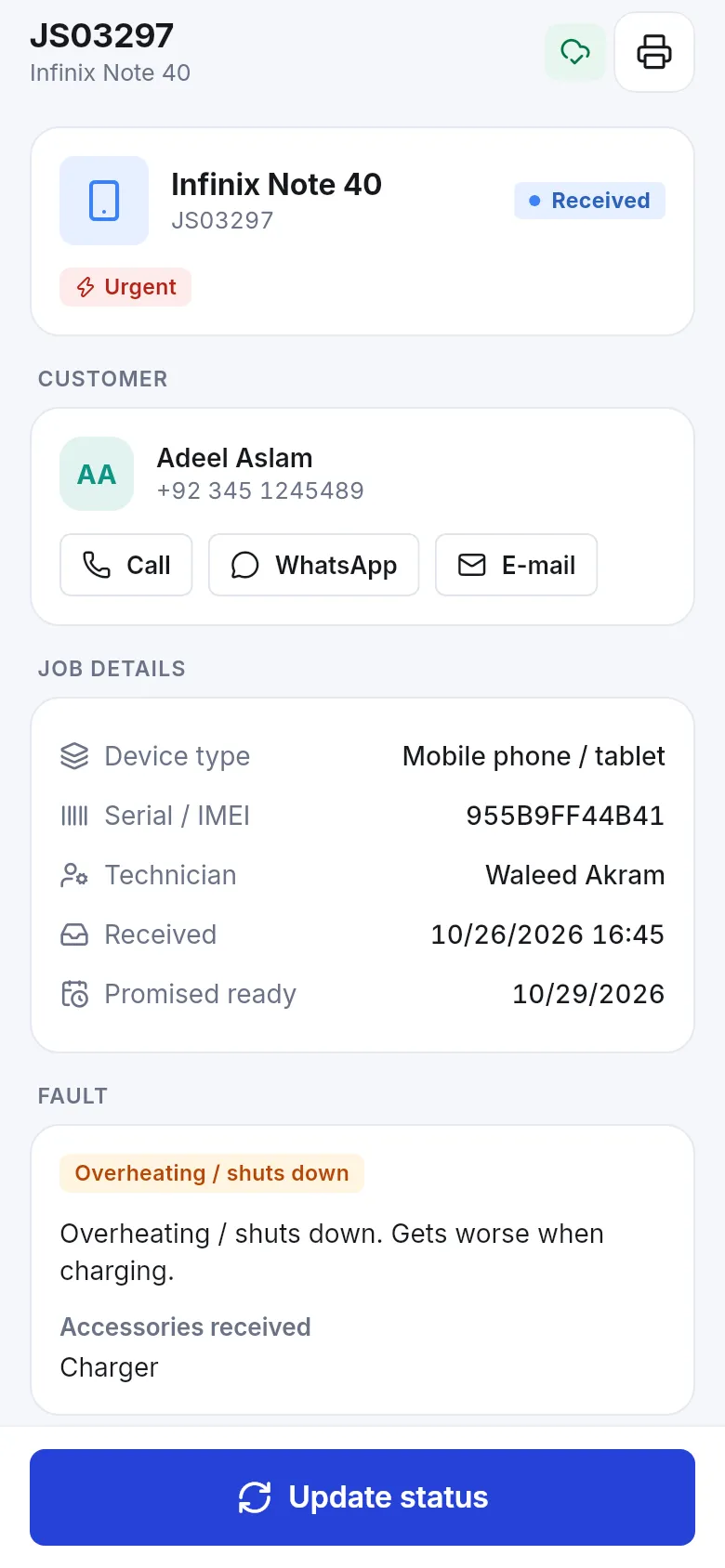
- The goldsmith changes the status as work progresses and adds parts or services used.
- When the status is Ready for pickup, the customer can be notified.
- At pickup, weigh the piece again in front of the customer, then convert the job sheet to an invoice and take payment in the POS.
Next: daily operations.
Frequently asked questions
Is the Repair module only for phones?
No. You add your own device categories in Repair › Settings › Categories & fields with Add custom category, for example Ring, Chain, Bracelet or Watch, with fields such as metal, karat and weight in.
How do I record the weight of a piece left for repair?
Add a weight field to your jewelry device category, or write it in the problem description and on the claim ticket. Weigh it again at pickup.
Can the customer approve the price first?
Yes. Create an estimate from the job sheet, mark it sent and record the customer's approval before work starts.
How do I bill the repair?
Convert the job sheet to an invoice. The POS opens with the customer and the repair services and parts; take payment as usual.
Can I use repair services as products?
Yes. Add services such as Ring Resizing (Gold), Chain Soldering / Repair, Stone Re-setting and Laser Engraving as products without stock, and add them to the job sheet.
Can customers check the status themselves?
Yes, if you switch on the status page in Repair › Settings. The claim ticket has a QR code to the status page.