
Customers and suppliers (contacts)
Contacts are the people and businesses you trade with: customers, suppliers, or both. Each contact has a profile, balances, a ledger and the full history of sales, payments and documents. This page shows how to add, import, find and use contacts.
Where contacts live
Section titled “Where contacts live”The Contacts menu has Suppliers, Customers, Customer Groups, Import Contacts, Leads and Recovery carts.
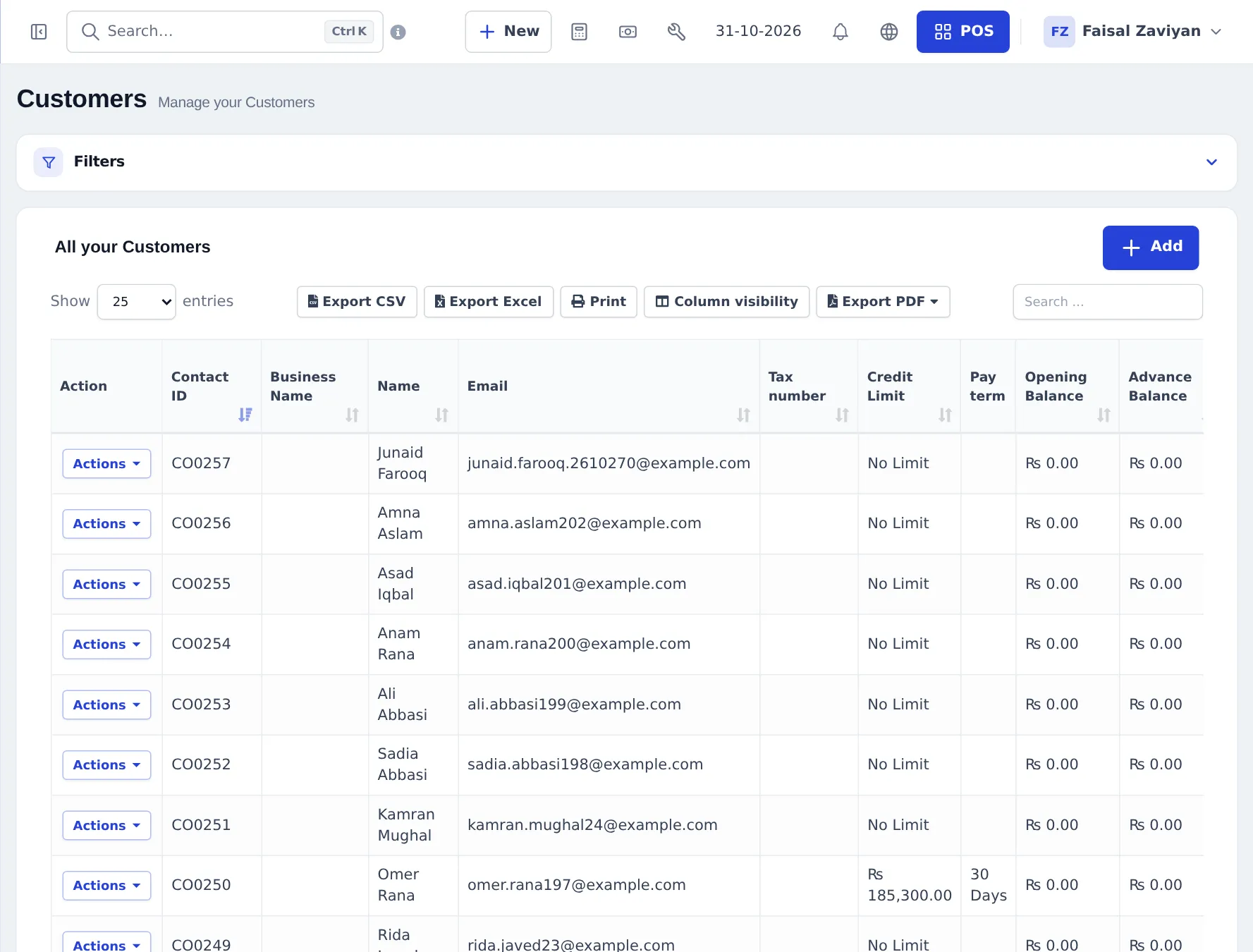
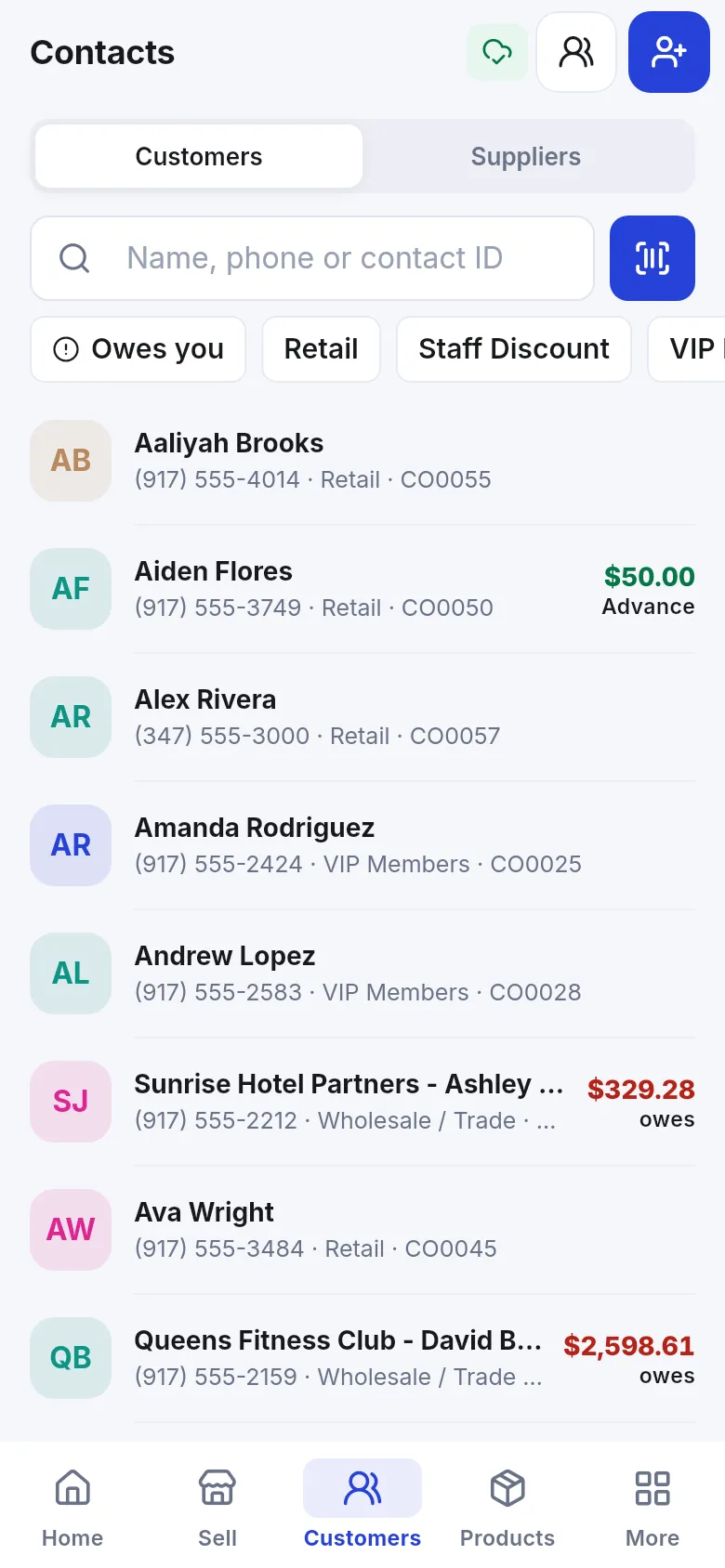
The customers list shows each customer’s Credit Limit, Pay term, Opening Balance, Advance Balance, Customer Group and the total sale due. Actions on a row include Pay (collect what they owe), Pay Sell Return Due (refund what you owe them), View, Edit, Ledger, Deactivate and Delete.
Add a customer
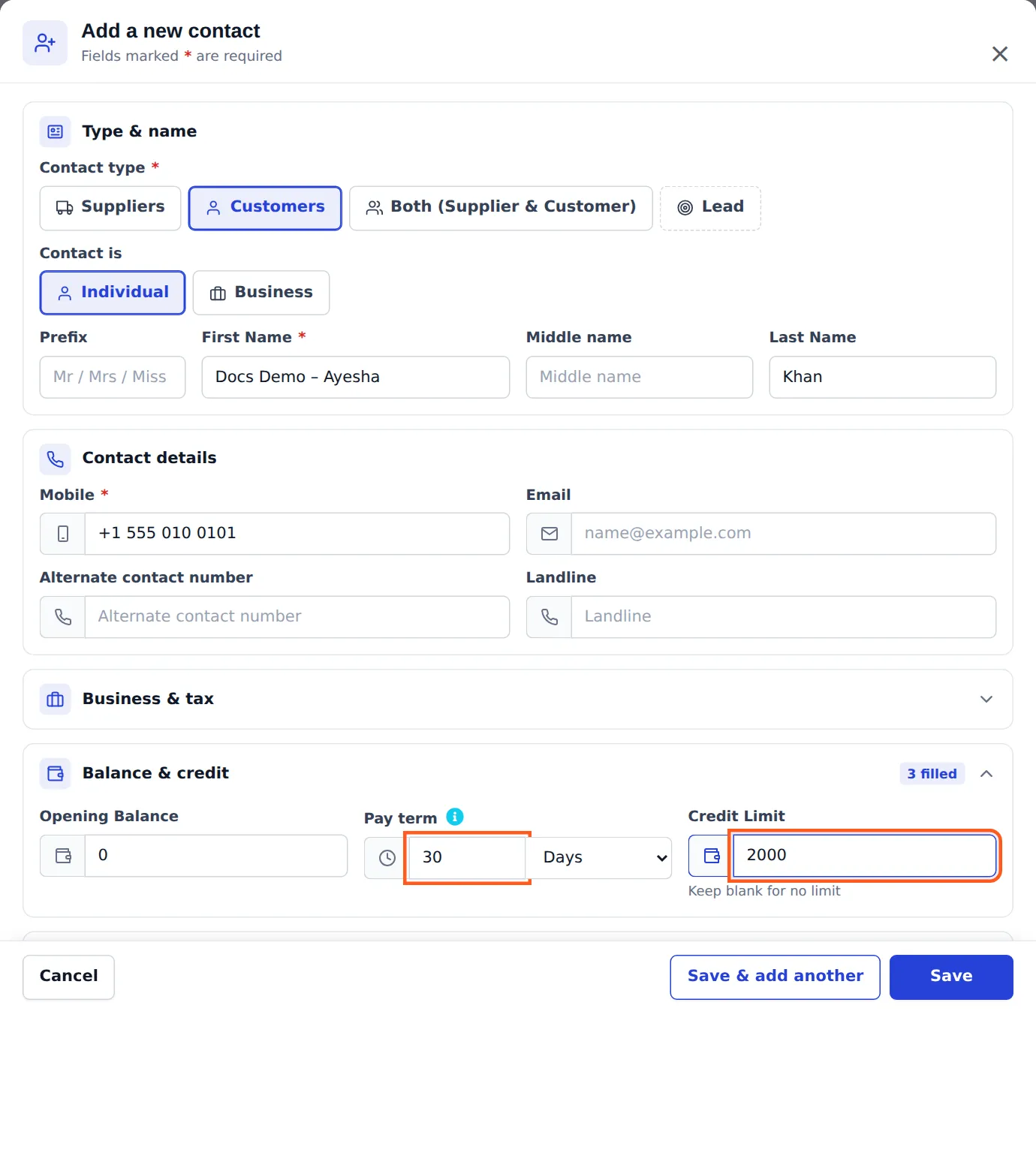
Section titled “Add a customer”- Go to Contacts › Customers and press Add.
- Type & name: Contact type (Suppliers, Customers, Both (Supplier & Customer) or Lead) and Contact is Individual or Business. Fill First Name (and prefix, middle and last name) or the business name.
- Contact details: Mobile (required), Email, Alternate contact number, Landline.
- Business & tax: tax number, Customer Group (for automatic discounts or price groups) and Contact ID (Auto if left empty).
- Balance & credit: Opening Balance, Pay term, Credit Limit — see credit limits.
- Address and Other details (assigned team members, date of birth). Fields only show when your business uses them.
- Press Save (or Save & add another).
The contact page
Section titled “The contact page”Click a contact’s name. The top shows the profile with copy buttons, and cards for Total sales, Balance due, Advance Balance, Credit Limit and Last sale, plus quick actions Add payment, New sale, Send ledger, Add Discount and Edit. Switch contact jumps to another contact.
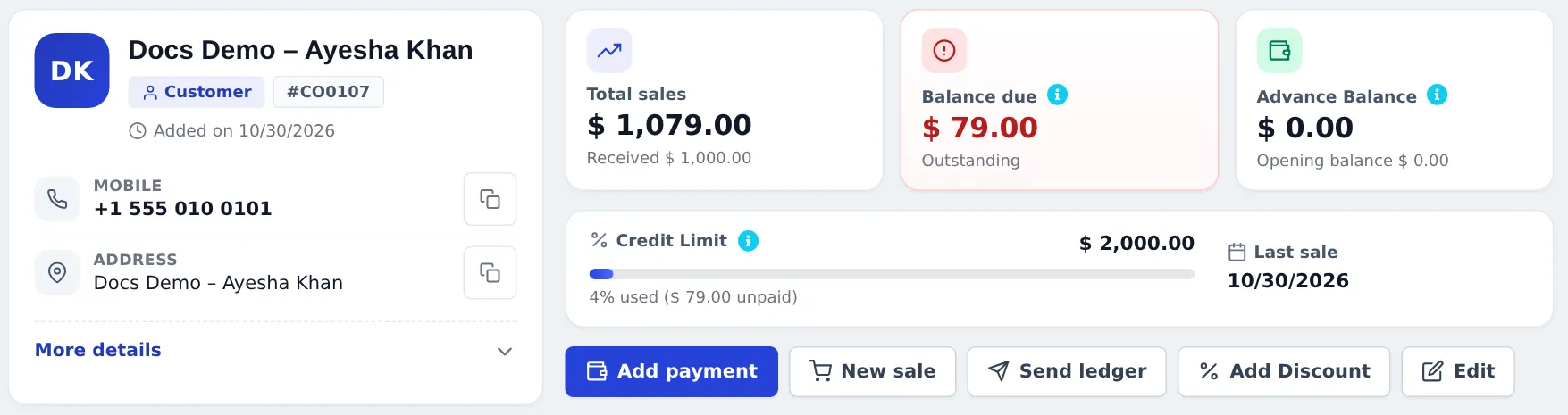
Tabs (depending on your modules): Ledger, Sales, Subscriptions, Documents & Note, Payments, Activities, Conversations, Portal, Store credit & gift cards, bookings, repairs, gym, assets and accounting.
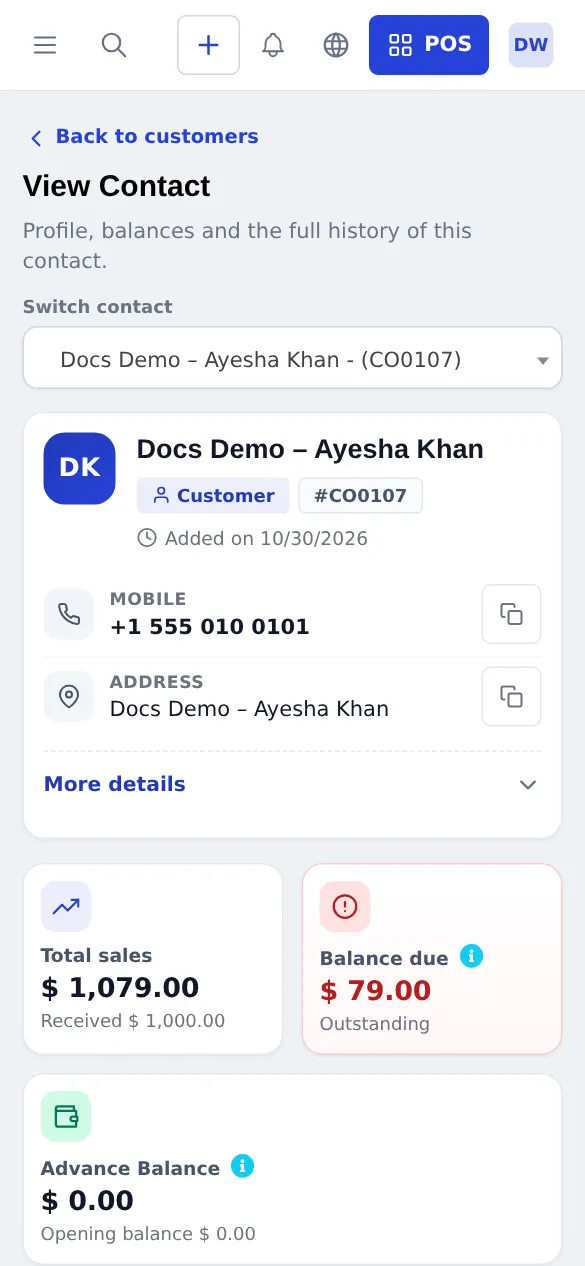
On a phone the same page stacks into one column:
Import contacts
Section titled “Import contacts”Contacts › Import Contacts: download the template, fill one row per contact (customers can include credit limit, pay term and opening balance), upload it and check the preview before you confirm.
Suppliers
Section titled “Suppliers”Suppliers work the same way under Contacts › Suppliers; their balance is what you owe. See Supplier payments and credit.
Frequently asked questions
What is the difference between a customer, a supplier and both?
Customers buy from you, suppliers sell to you. Choose Both (Supplier & Customer) for a business that does both; it then appears in sales and purchases with one shared ledger.
Which fields are required for a customer?
Only First Name (or the business name for a business contact) and Mobile. Everything else is optional.
Can I add a customer while selling?
Yes. Press the + next to the customer box in the POS. In POS V2 the quick-add form is filled from what you typed in the search box.
How do I import my customer list?
Use Contacts › Import Contacts with the Excel or CSV template. Fill one row per contact, upload it and check the preview before importing.
Why does a person not appear in the POS customer search?
They may be a lead, not a customer. Leads are kept in Contacts › Leads and become customers when they buy or when you convert them.
Can customers see their own balance?
Yes, if you invite them to the customer portal or they join your store in the SmartPOS Shopper app.
What is Walk-In Customer?
The default customer for anonymous counter sales. It cannot buy on credit.