
Selling in SmartPOS Hub – POS overview
SmartPOS Hub gives you several ways to sell, and they all save the same kind of sale: stock, payments, customer balances, the cash register and reports update the same way. This overview helps cashiers and owners pick the right screen and understand what happens from the first scan to the receipt.
The ways to sell
Section titled “The ways to sell”| Where | Best for | Open it from |
|---|---|---|
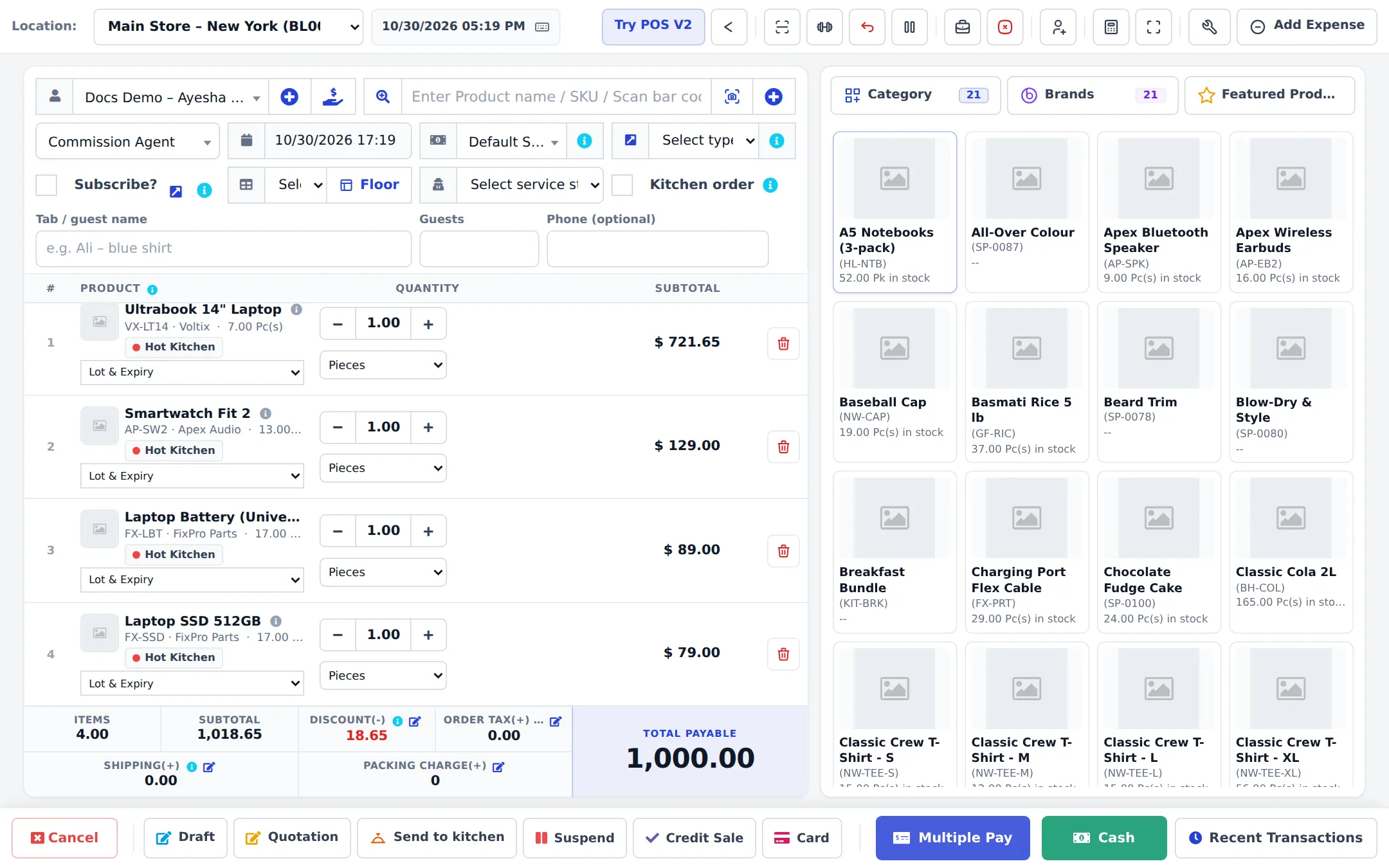
| POS V1 (classic) | Counters that want every field on one screen | Sell › POS, or POS in the top bar (when V1 is your default POS) |
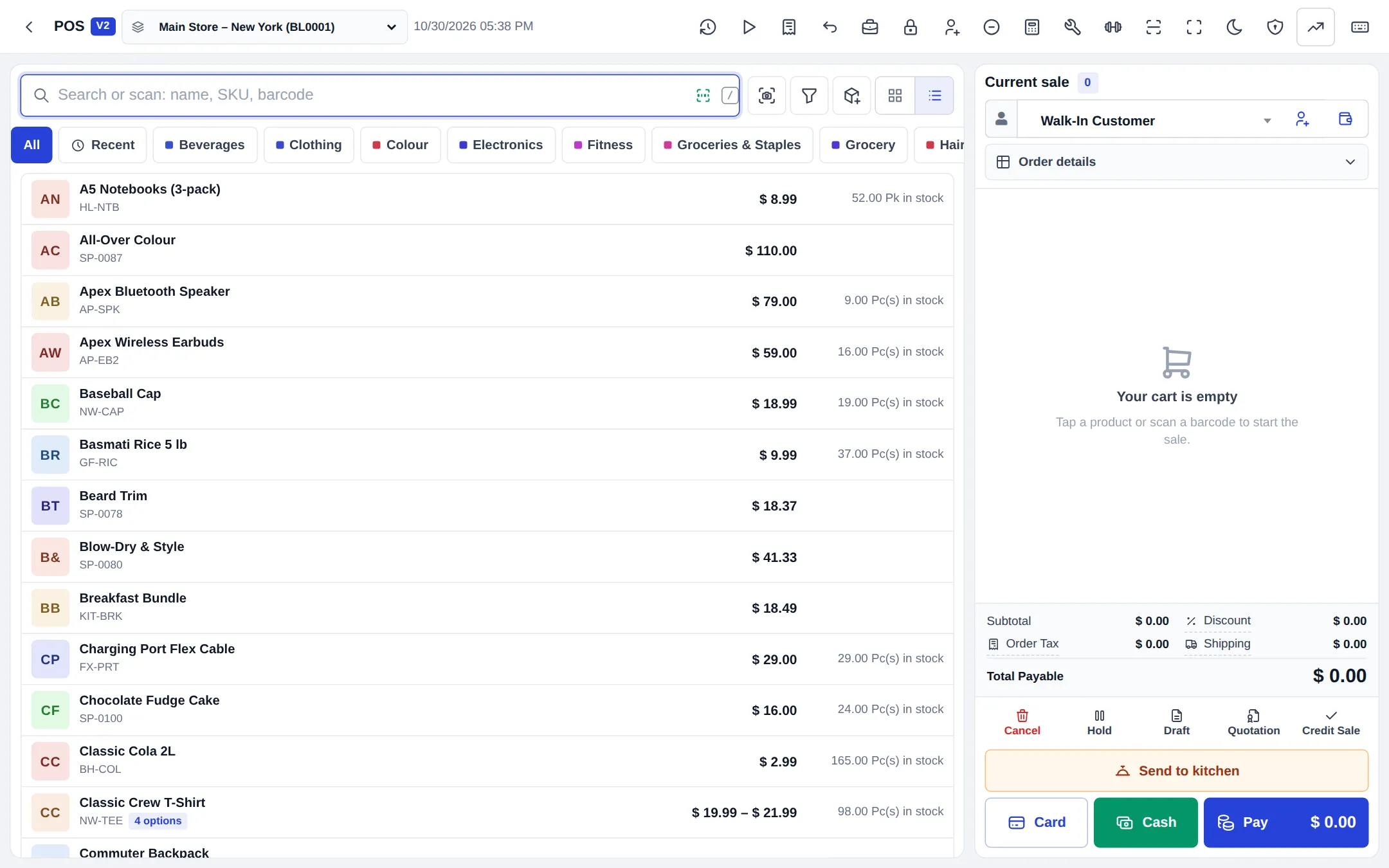
| POS V2 (new) | Fast, touch-friendly selling; scanner-first marts, cafés, restaurants, pharmacies, salons | Try POS V2 in POS V1, or set it as default; then Sell › POS and the top-bar POS open it |
| Add Sale | Back-office invoices: delivery, B2B, invoices typed later | Sell › Add Sale |
| Offline POS | Keep selling when the internet drops | Offline POS in the sidebar |
| SmartPOS Business app | Selling from an Android phone or tablet, also offline | Google Play |
Quotations, drafts and sales orders are made from the same screens — see Quotations, drafts and orders.
How a POS sale works
Section titled “How a POS sale works”- Open the register. The first time you open the POS in a shift, enter your Cash in hand and the Business Location, then press Open Register. See Cash register and closing.
- Choose the location at the top if you work in more than one shop. Products, prices and stock follow the location.
- Choose the customer. Leave Walk-In Customer for anonymous sales, or search by name, phone or contact ID. Use + to add a new customer on the spot.
- Add products: scan a barcode, type in the search box, or tap a product tile. Change quantity with − / +, tap a line to change price or discount (if your role allows it).
- Add order extras if needed: Discount, Order Tax, Shipping, Packing charge, table and waiter (restaurants), service staff (salons).
- Take payment: Cash (paid in full in cash), Card, Multiple Pay (split payments, part payments, other methods) or Credit Sale (nothing paid now). See Payment methods.
- Print or send the receipt. The POS clears for the next customer.
The POS buttons
Section titled “The POS buttons”| Button | What it does |
|---|---|
| Cancel | Empties the cart without saving |
| Draft | Saves the sale as a draft to finish later (no stock change) |
| Quotation | Saves a price quote for the customer |
| Suspend (V2: Hold) | Parks the sale, for example while the customer fetches something; resume it from the suspended list |
| Send to kitchen | Restaurants: sends the order to the kitchen screen |
| Credit Sale | Finishes the sale with nothing paid (customer required) |
| Card | Finishes the sale paid in full by card |
| Multiple Pay | Opens the payment window: split methods, part payments, notes |
| Cash | Finishes the sale paid in full in cash |
| Recent Transactions | Your latest final sales, quotations and drafts: reprint, edit or delete |
On a phone or tablet
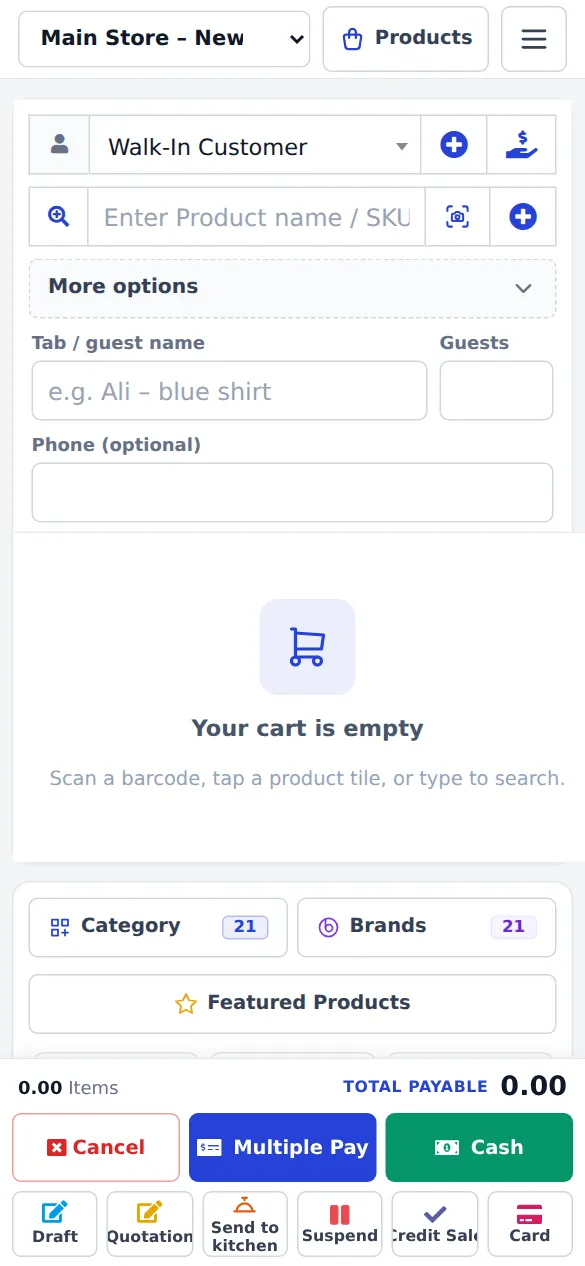
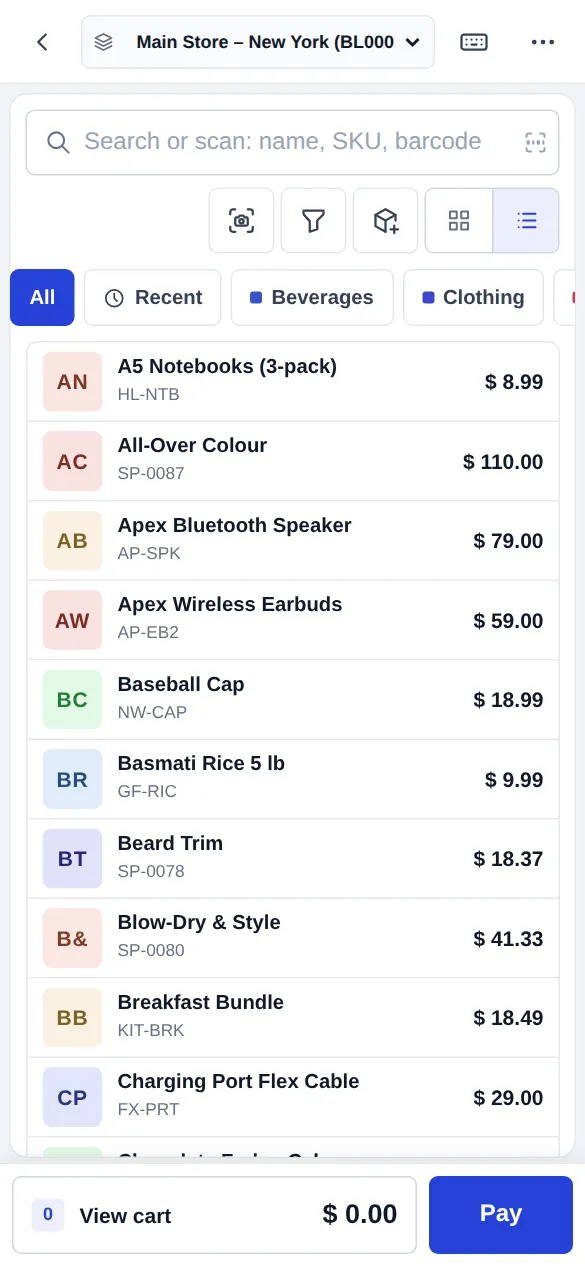
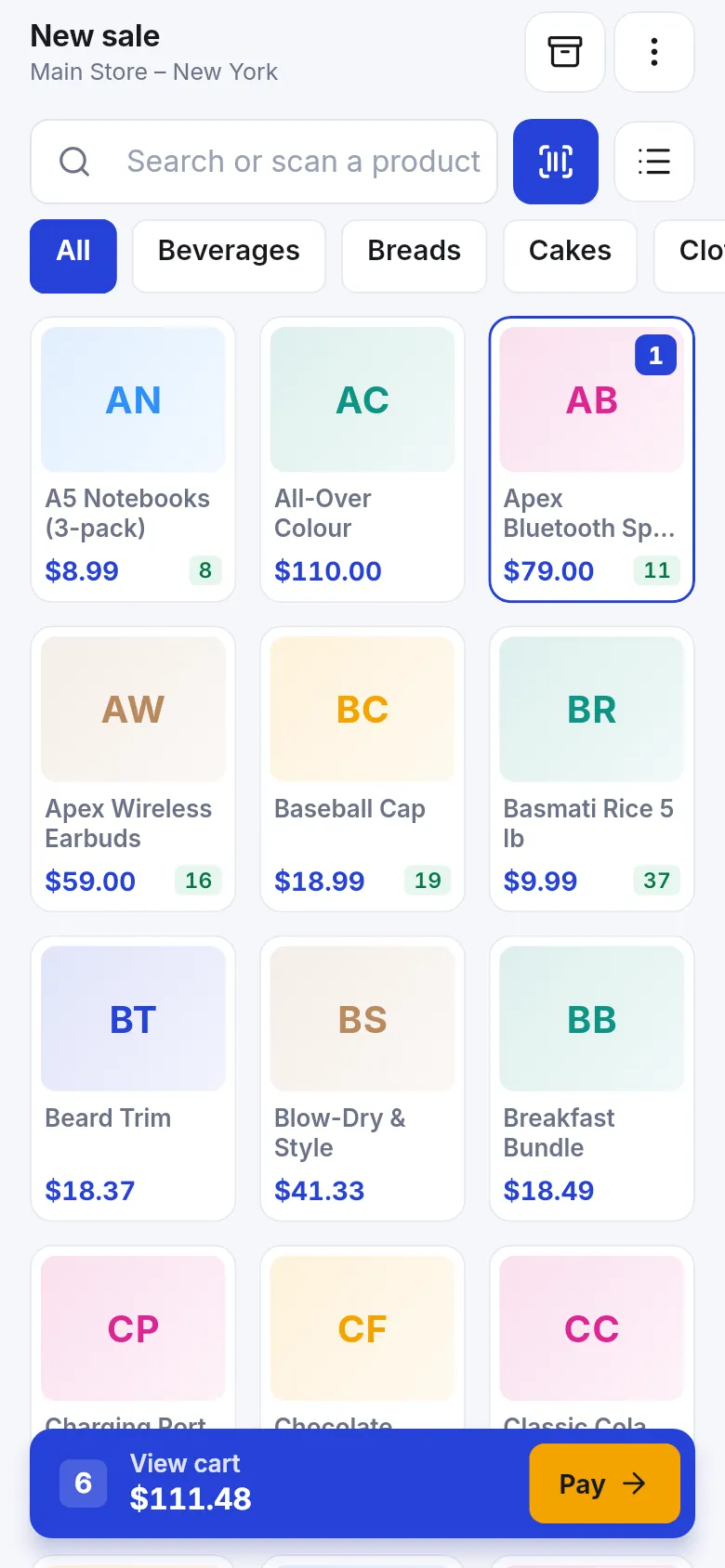
Section titled “On a phone or tablet”Both POS screens adapt to small screens: the cart and totals scroll, products open in a full-screen sheet, and the payment buttons sit in a bottom dock. For daily phone selling, the SmartPOS Business app is smoother and also works offline.
Who can see what
Section titled “Who can see what”What a cashier sees depends on three things:
- Your plan — some modules (restaurant, offline POS, gift cards…) are only in some plans.
- Settings — Settings › Business Settings › POS turns POS buttons and behaviour on or off for everyone (for example Disable credit sale button, Disable Draft).
- The role — User Management › Roles can hide buttons for a role and controls who may edit prices or give discounts.
In POS V2, admins see a POS features panel (shield icon) that lists every feature and why it is shown or hidden.
- Keep one location per register: a cashier’s register belongs to one location.
- Use Recent Transactions to reprint the last receipt instead of making a new sale.
- If the internet is unstable, set up Offline POS before you need it.
Next steps
Section titled “Next steps”Frequently asked questions
Which POS screen should I use, V1 or V2?
Both save exactly the same sales. POS V2 is newer, faster and touch friendly, with styles for retail, café, restaurant, pharmacy and services. POS V1 is the classic screen with every field on one page. Try both and set your favourite as the default.
Do I have to open a cash register before selling?
Yes, the POS screens ask you to open a register with your cash in hand the first time you sell each shift. Add Sale (the back-office form) does not need one.
Can I sell without internet?
Yes, with Offline POS on the web or offline selling in the SmartPOS Business app. Sales sync when the connection is back.
Where do I find all my sales afterwards?
Sell › All sales lists every sale with its payment status. Sell › List POS shows only sales made at the POS screens.
Can a cashier sell from a phone?
Yes. The web POS works on phones with a phone layout, and the SmartPOS Business app is built for selling on Android phones and tablets.
Can I sell to a customer on credit?
Yes. Pick the customer and use Credit Sale, or pay part of the total in Multiple Pay. See Credit sales and part payments.
Why are some POS buttons missing for my cashier?
Buttons follow the plan, the POS settings and the cashier's role. An admin can open the POS features panel in POS V2 to see which feature is hidden and why.
What happens to stock when I sell?
Stock goes down at the location you sell from as soon as the sale is final. Drafts, quotations and sales orders do not reduce stock.