
Open and close the cash register (end of day and Z report)
The cash register tracks the money in each cashier’s drawer during a shift: the cash you start with, cash sales, due payments collected, refunds and expenses. At the end of the day you close it with your counted cash and print the Z report. This page is for cashiers and shop managers.
Open the register
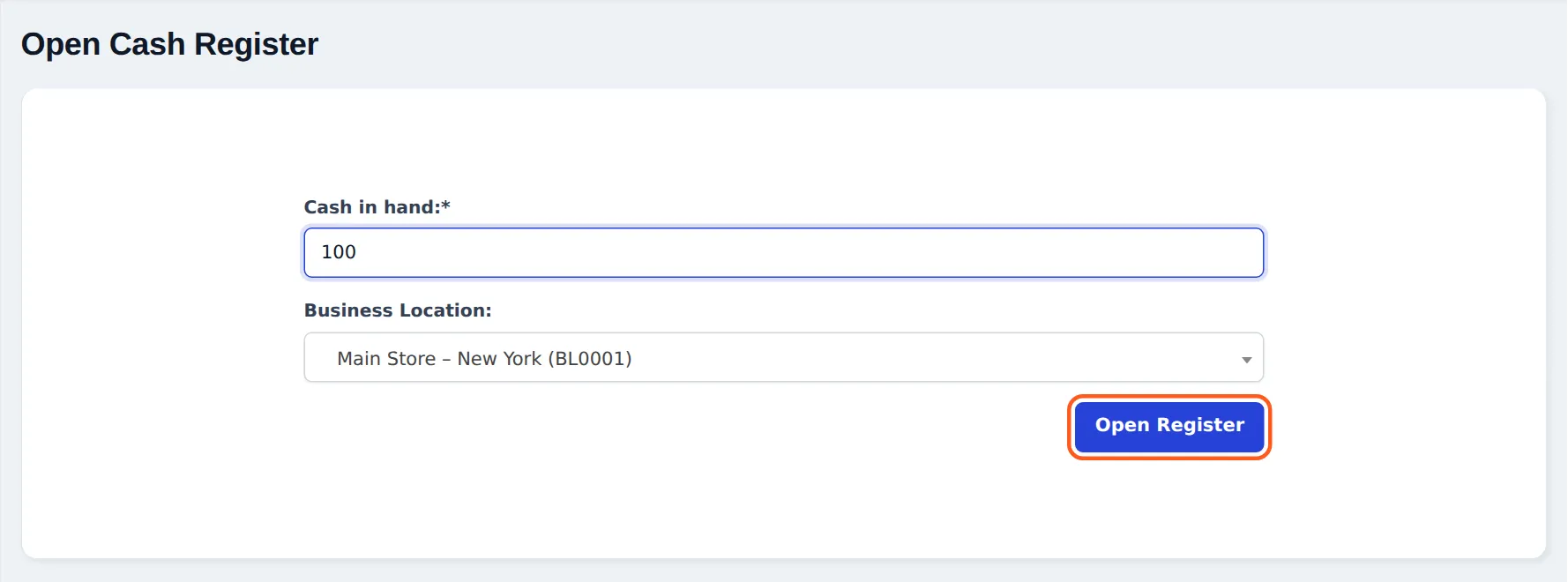
Section titled “Open the register”- Press POS. If no register is open for you, the Open Cash Register page appears.
- Enter Cash in hand — the float in the drawer (for example 100).
- Choose the Business Location and press Open Register. The POS opens.
During the shift
Section titled “During the shift”- Register Details (icon in the POS top bar) shows the running totals by payment method.
- Add Expense in the POS top bar records cash taken out (for example a delivery tip); it reduces the expected cash.
- Cash refunds from returns also reduce the expected cash.
Close the register
Section titled “Close the register”-
In the POS top bar press Close Register. The Current Register window opens:
- Cash Drawer Summary — Opening Balance, (+) Cash Received (Sales), (+) Cash Received (Due Payment), (−) Cash Refunds, (−) Cash Expenses and Expected Cash in Drawer.
- Sales Summary — Gross Sales (Total Invoiced), (−) Total Refund, Net Sales.
- Payments Collected — by method: Sell, Due Payments Collected, Expense, Grand Total Collected.
- Outstanding Receivables — what was invoiced but not collected (credit and part-paid sales).
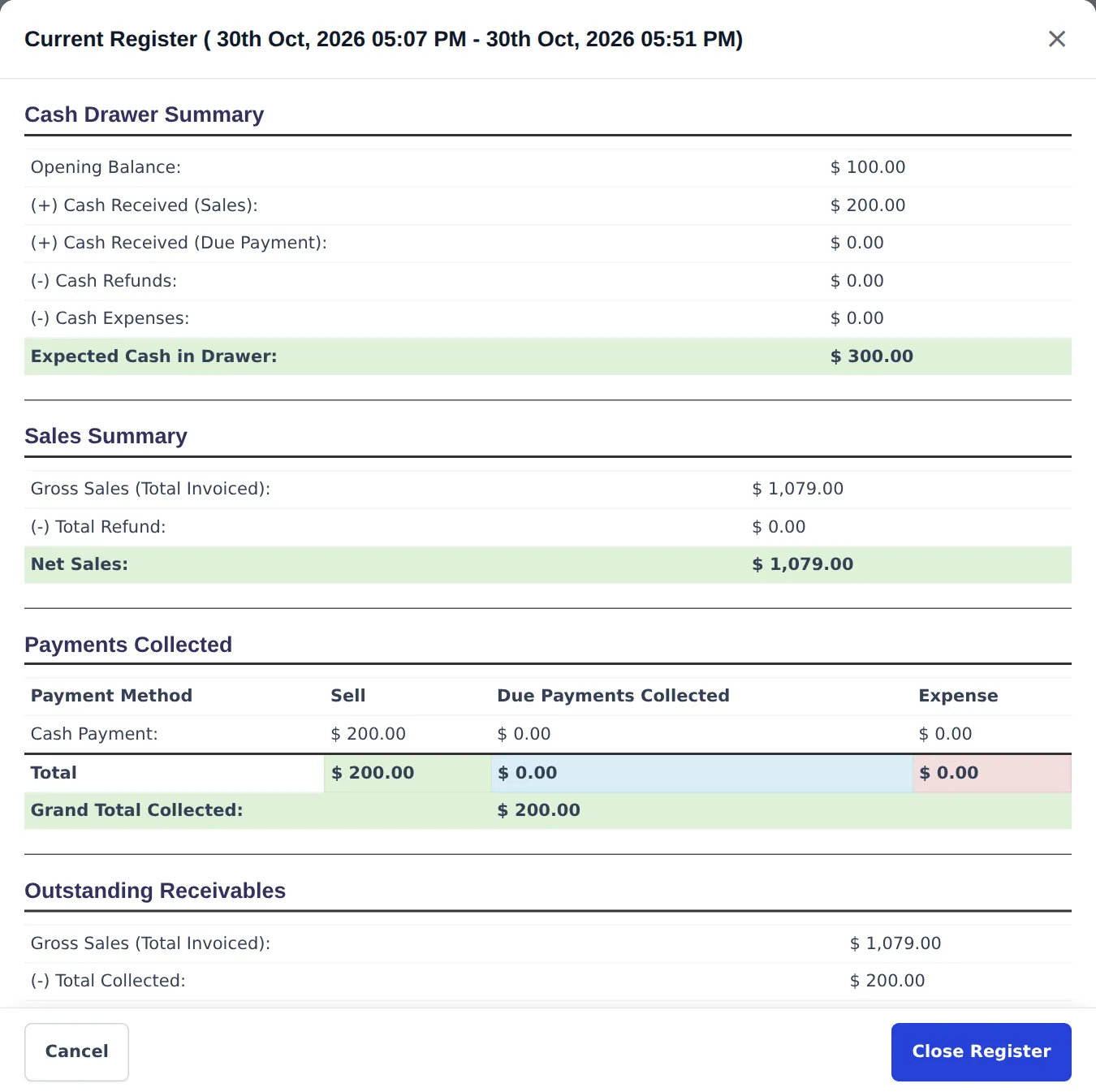
Our example shift: 100 float + 200 cash taken = 300 expected. 1,079 was invoiced but only 200 collected; the rest is on customer accounts. -
Count the cash and enter the totals (cash, card slips, cheques) and a Closing Note.
-
Press Close Register. You can print the summary. The next POS visit asks you to open a new register.
Z report and register report
Section titled “Z report and register report”-
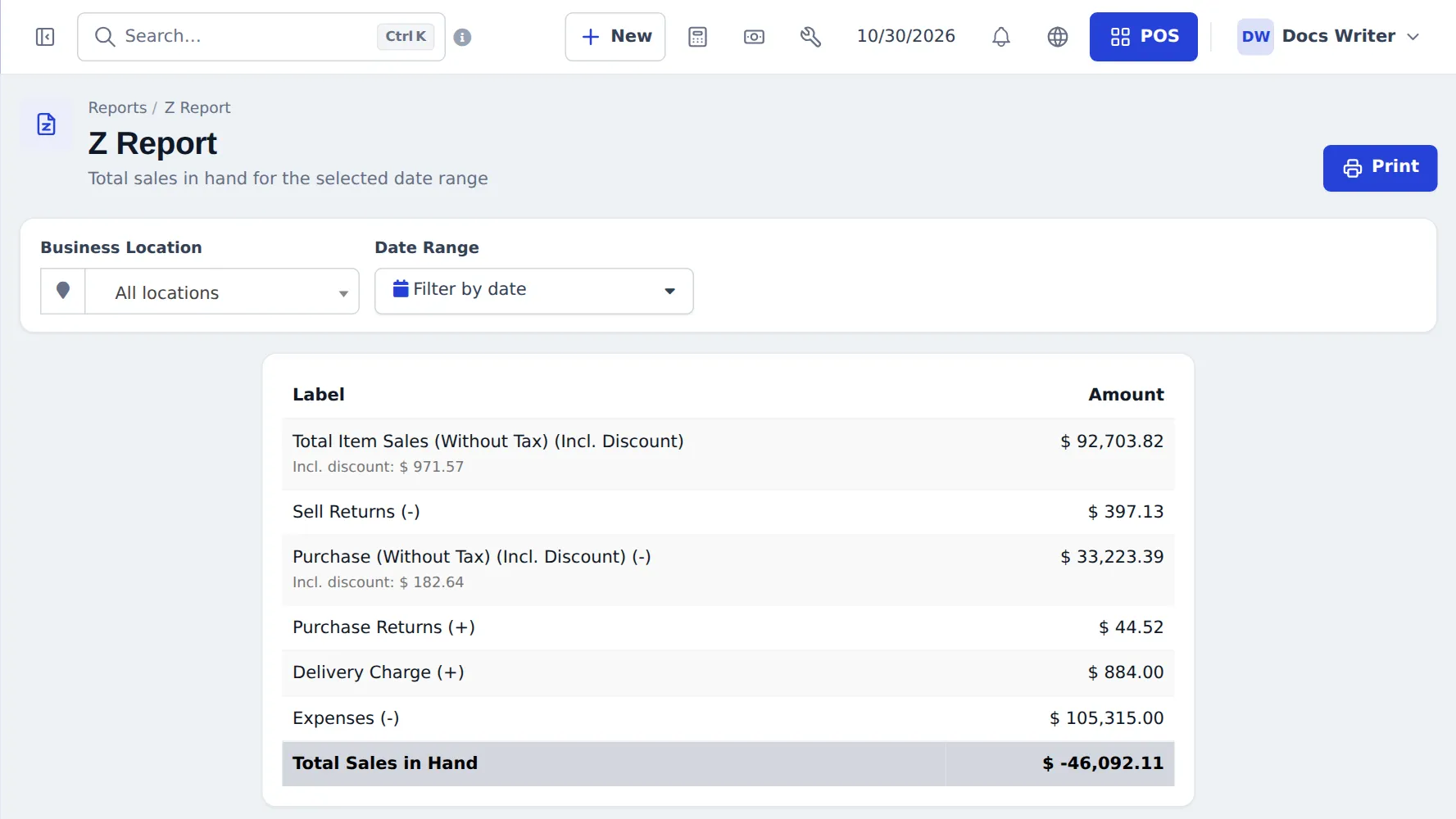
Reports › Z Report — choose Business Location and Date Range: total item sales, sell returns, purchases, purchase returns, delivery charges, expenses and Total Sales in Hand. Press Print.
-
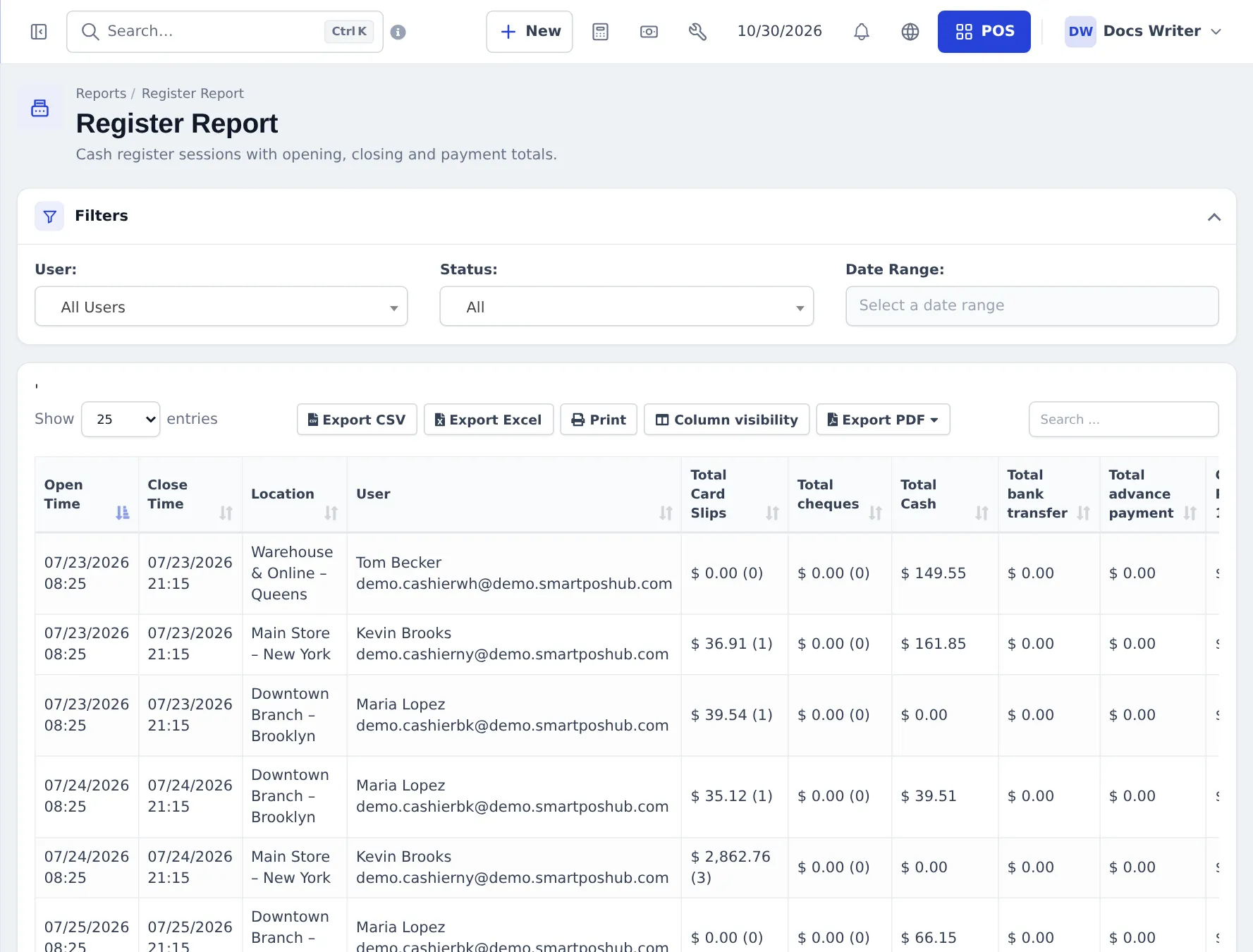
Reports › Register Report — every register session with Open Time, Close Time, Location, User and totals per method (card slips, cheques, cash, bank transfer, advance payment…). Filter by user, status (open / closed) and dates.
In the SmartPOS Business app
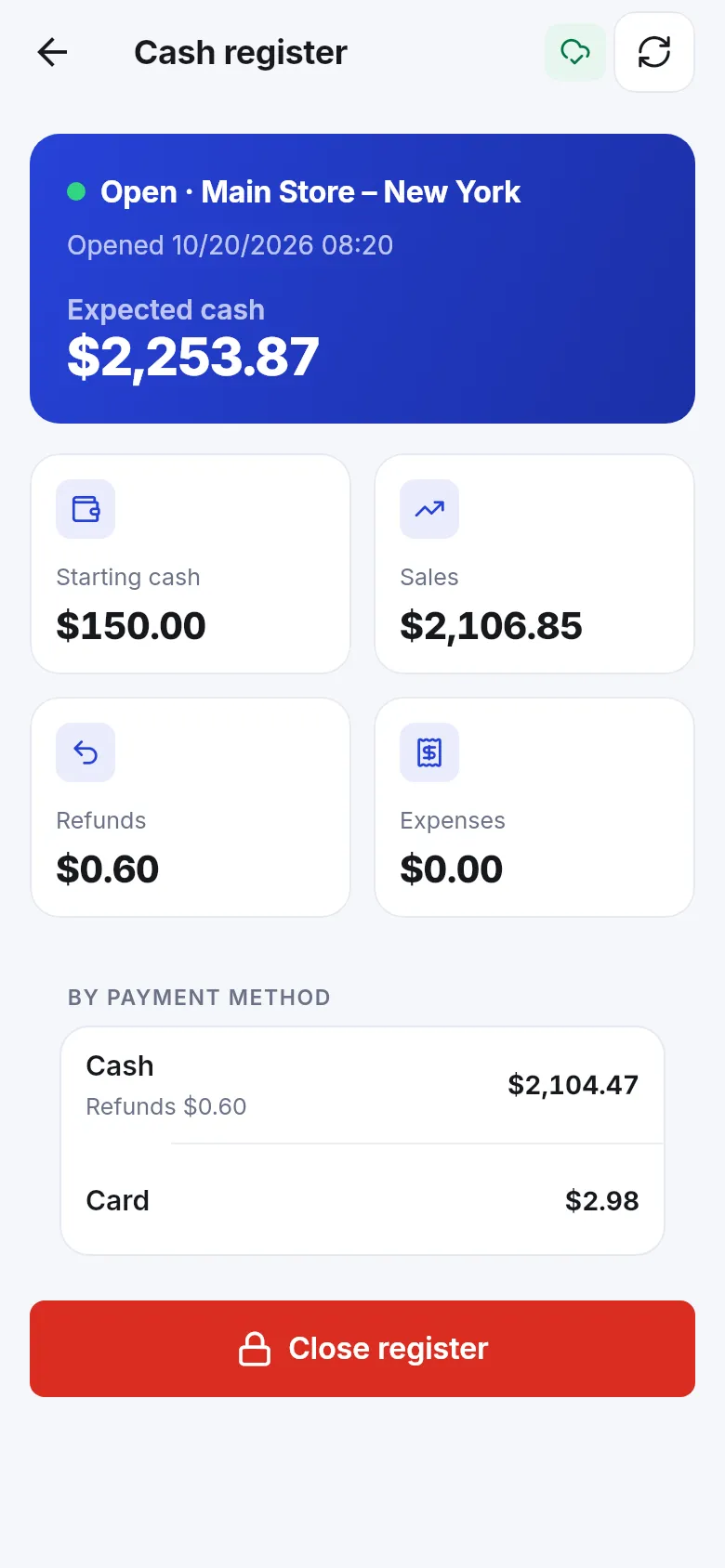
Section titled “In the SmartPOS Business app”The app’s Cash register screen shows the open register, Starting cash, Sales, Refunds, Expenses, totals By payment method and Close register.
Frequently asked questions
Why does the POS ask me to open a register?
Each cashier works in their own register for one location. Opening it records the cash you start with, so the expected cash at closing is right.
Do payments collected later count in my register?
Yes. Cash collected for older sales (due payments) shows as Cash Received (Due Payment) and in the Due Payments Collected column, on the day you take it.
What is Expected Cash in Drawer?
Opening balance plus cash received from sales and due payments, minus cash refunds and cash expenses. Count your drawer and compare.
What is the Z report?
Reports › Z Report sums up sales, returns, purchases, delivery charges and expenses for a date range and location, ending with Total Sales in Hand. Print it at the end of the day.
Can a manager see all registers?
Yes. Reports › Register Report lists every register session with user, location, open and close times and totals by payment method.
Can I close a register from the app?
Yes. The SmartPOS Business app has a Cash register screen with the expected cash, sales, refunds, expenses and a Close register button.