
Auto shop step 1: locations and modules
An auto shop needs three things switched on before anything else: your location, the Repair module for job cards, and warranties for parts and work. This page also sets up roles for service advisors, technicians and the parts counter.
Add your location
Section titled “Add your location”- Open Settings › Business Locations. Edit the first location (created when you signed up) or click Add.
- Enter the shop name, address and phone. They print on job cards, claim tickets and invoices.
- Choose the Invoice scheme (for example prefix RO- for repair orders) and the invoice layouts.
- Save. Add a second location only for a second shop or a separate parts warehouse.
Switch on the modules and settings
Section titled “Switch on the modules and settings”- Open Settings › Business Settings and go to the Modules tab.
- Turn on Repair module. Keep Purchases, Add Sale, POS, Stock Adjustment and Expenses on.
- Optional: Order options & personalisation to record vehicle details on parts sales, Customer & partner portal for fleet customers, Messaging for SMS and e-mail updates.
- On the Product tab, tick Enable Warranty and Enable Brands.
- Click Update settings. The Repair menu appears in the sidebar.
Create your warranties
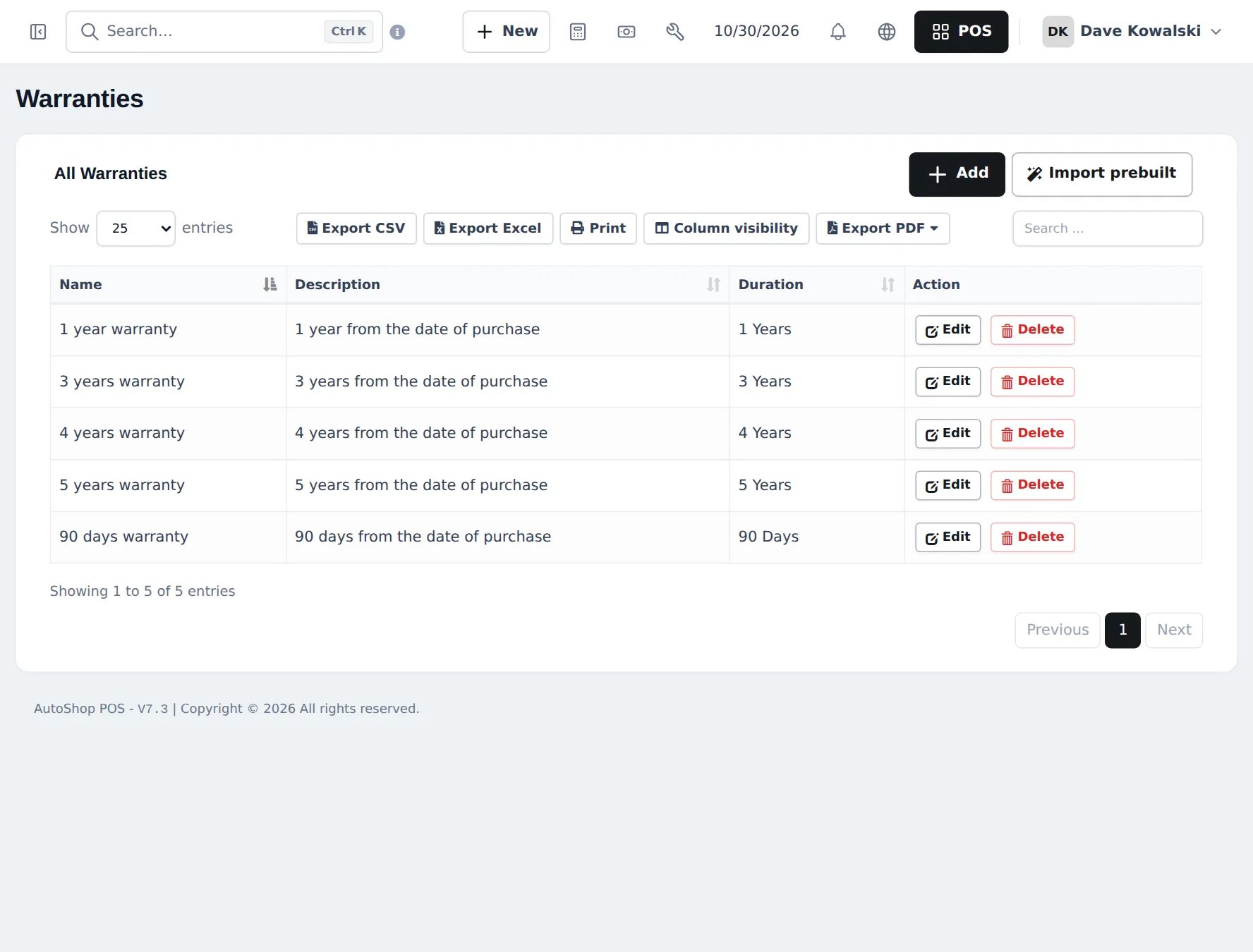
Section titled “Create your warranties”Open Products › Warranties and click Add (or Import prebuilt). Typical garage warranties: 90 days on labour, 1 year on parts, 3 or 5 years on batteries.
Roles for your team
Section titled “Roles for your team”| Role | Typical Repair permissions |
|---|---|
| Service advisor | Create job sheets, Edit job sheets, Record advance / deposit, Create estimates and record approval, Convert job sheet to invoice (plus POS sale) |
| Technician | View only own job sheets, Change job status and add comments, View repair dashboard |
| Parts counter | POS sale permissions; view job sheets if they pick parts for jobs |
| Manager | Everything, including Repair settings and reports |
Set them in User Management › Roles, then give each person a user in User Management › Users with the role and location.
Tips and mistakes to avoid
Section titled “Tips and mistakes to avoid”- Do not make every technician an admin. Job deletion and device secrets should stay with managers.
- If you also do mobile service at customers’ homes, keep one location and use the On-site service type on job cards.
Next: step 2: parts and labour.
Frequently asked questions
Do I need two locations for the workshop and the parts counter?
Only if they keep separate stock. Most shops use one location for both, so parts sold over the counter and parts used on jobs come from the same shelf.
Where do I switch on the Repair module?
Settings › Business Settings, Modules tab. Turn on Repair module and click Update settings. The Repair menu then appears in the sidebar.
The Repair card says Not in your plan. What now?
Your plan does not include it. Click See plans on the card to upgrade, or contact support.
Which permissions should a technician get?
Usually View only own job sheets, Change job status and add comments and View repair dashboard. Leave out delete, device passwords and convert to invoice unless they also bill customers.
Do I need Enable Warranty?
Yes, if you want to choose a warranty per product and per sale line and print it on the invoice. It is on the Product tab of Business Settings.