
Gym module – members, memberships and check-in desk
The Gym management module runs a gym or fitness studio in SmartPOS Hub: membership packages, member profiles, a front-desk check-in screen that works with card scanners, classes and timetable, trainers, workout and diet plans, body measurements and gym reports. Membership sales are ordinary sales, so they show in your ledgers and profit and loss.
What the module includes
Section titled “What the module includes”| Menu item under Gym | What it does |
|---|---|
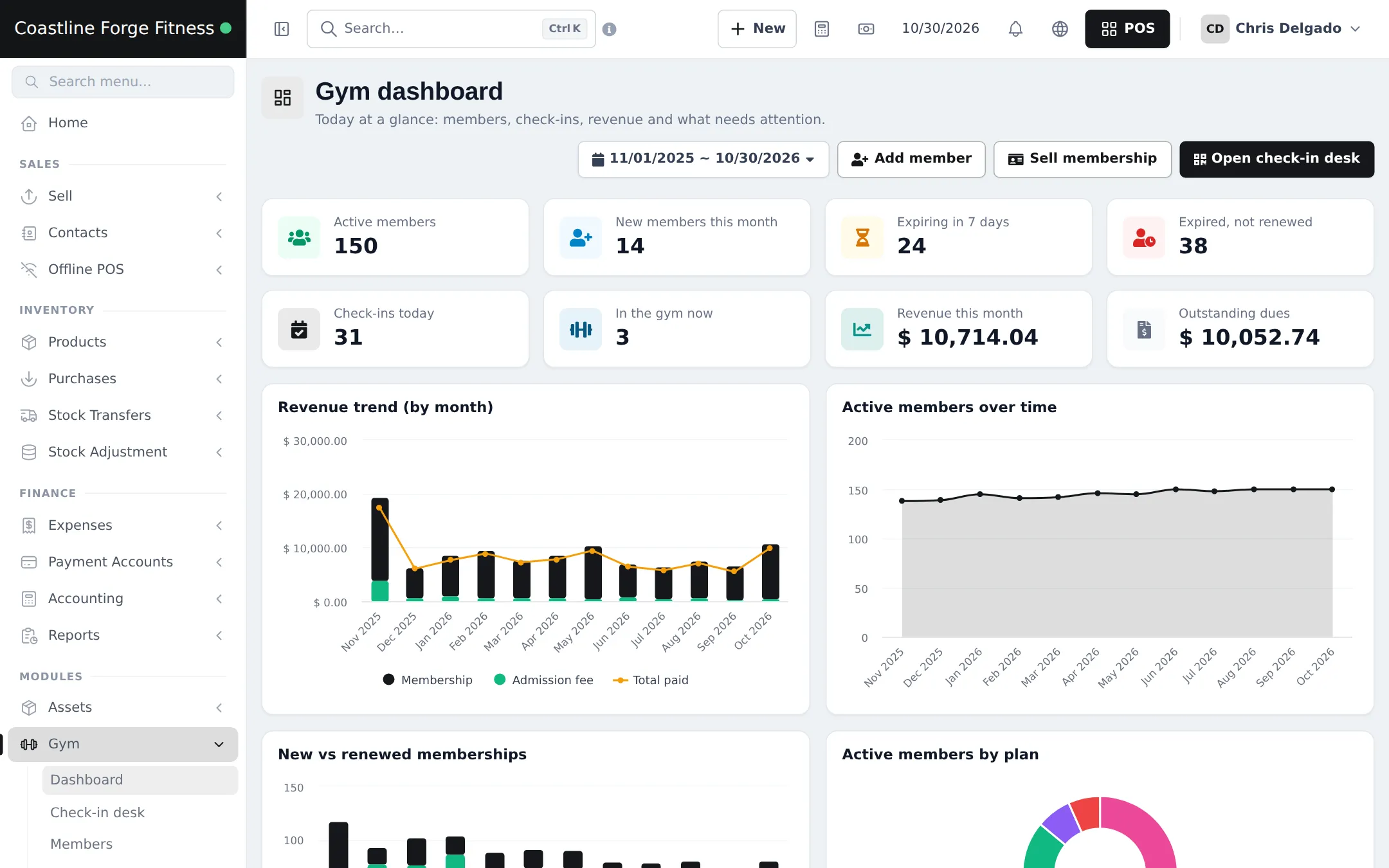
| Dashboard | Active members, new this month, expiring soon, expired, check-ins today, in the gym now, revenue and dues, with charts |
| Check-in desk | Scan a member card or search; check in, check out or renew |
| Members | Member profiles linked to customer contacts: photo, code, health notes, trainer, goals |
| Memberships | Sell, renew, change plan, freeze and cancel |
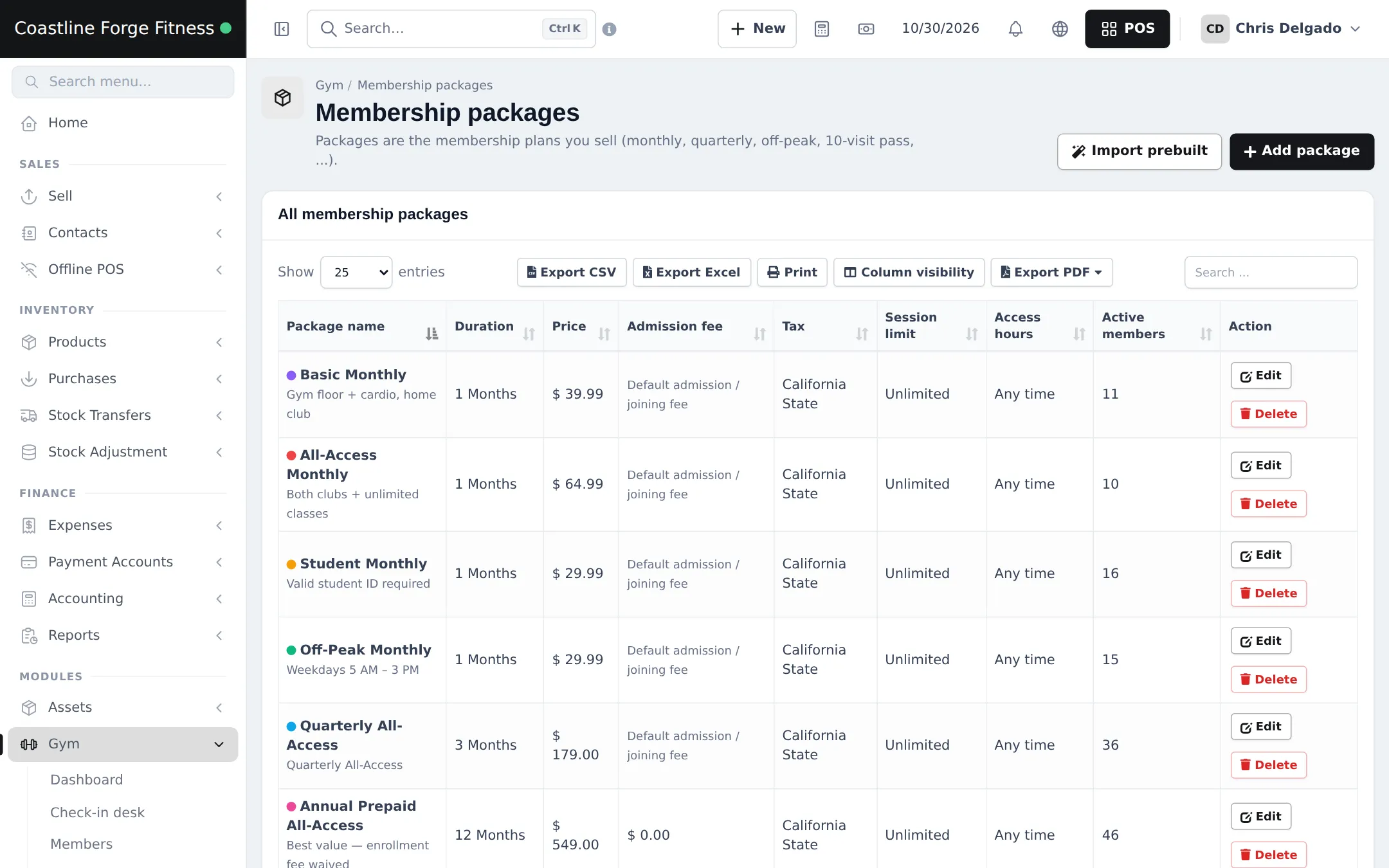
| Membership packages | The plans you sell: duration, price, admission fee, session limits, class access, access hours |
| Attendance history | Every check-in and check-out |
| Classes & schedule | Classes, weekly time slots, rosters and attendance |
| Trainers | Trainers linked to users, with commission and assigned members |
| Workout & diet plans | Day-by-day plans you assign to members |
| Body measurements | Weight, BMI, body fat and other measurements with a progress chart |
| Reports / Settings | Gym reports and settings |
First-time setup
Section titled “First-time setup”While packages, trainers, classes, members or sales are missing, the Gym dashboard shows a Set up your gym checklist with links.
- Switch the module on: Settings › Business Settings › Modules, turn on Gym management module, and click Update settings.
- Open Gym › Settings. Set your member code prefix and default tax on General, then check Membership rules (admission fee, grace days, renew from), Freeze, Attendance & access (one or more check-ins a day, auto check-out, what blocks entry), Locations & rooms and Cards & receipts. Click Update.
- Open Gym › Membership packages and click Add package (or Import prebuilt). Enter name, duration, price, admission fee, tax, session limit, class access and access hours.
- Add trainers under Trainers, and classes and time slots under Classes & schedule.
- Add members under Members (or import them), then sell each one a membership.
Everyday use
Section titled “Everyday use”Check members in at the front desk
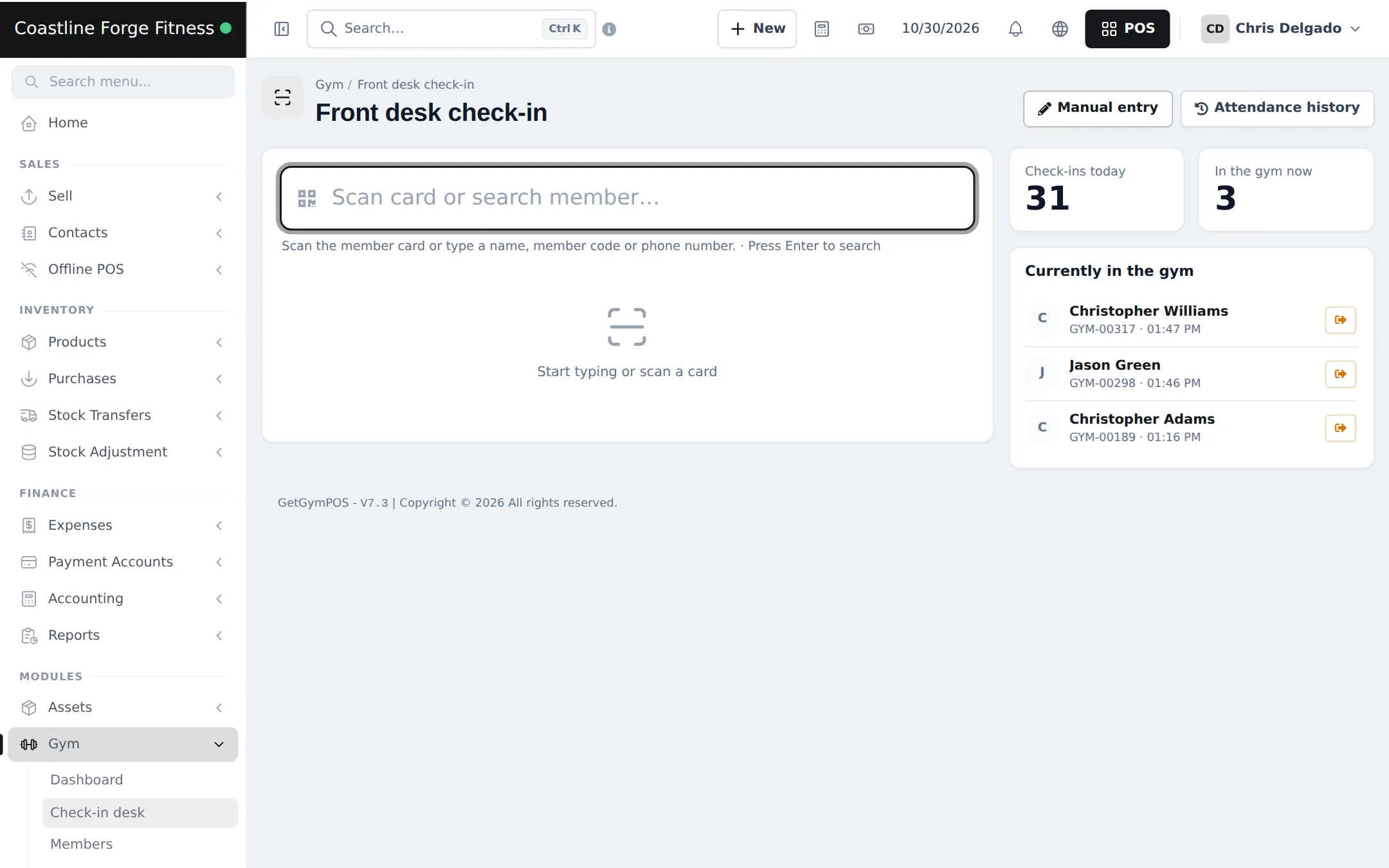
Section titled “Check members in at the front desk”- Open Gym › Check-in desk (or click Open check-in desk on the dashboard).
- Scan the member card, or type a name, member code or phone number and press Enter.
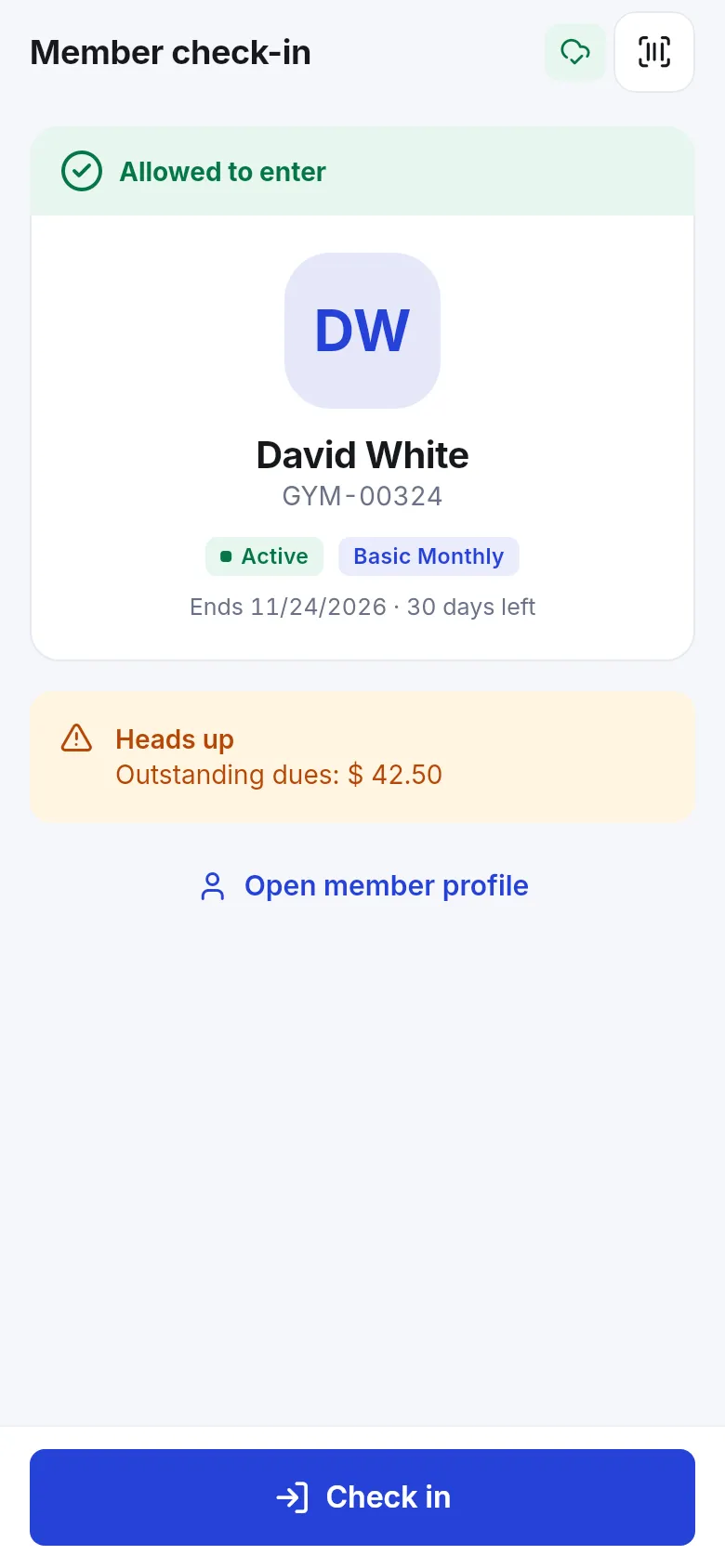
- The card shows the photo, plan, end date, days left, sessions, dues and any medical note, with allowed or blocked and the reasons.
- Click Check in. If the plan has expired, click Renew to sell a new period on the spot. Use Manual entry for a check-in you forgot to record.
Sell or renew a membership
Section titled “Sell or renew a membership”- From the member page or Memberships, choose Sell membership, pick a package and start date (renewals start after the current end date), and take payment now or later.
- From the POS, pick the customer and click Gym membership in the POS toolbar.
- Unpaid amounts show as Outstanding dues; collect them later with the normal add-payment window.
Settings explained
Section titled “Settings explained”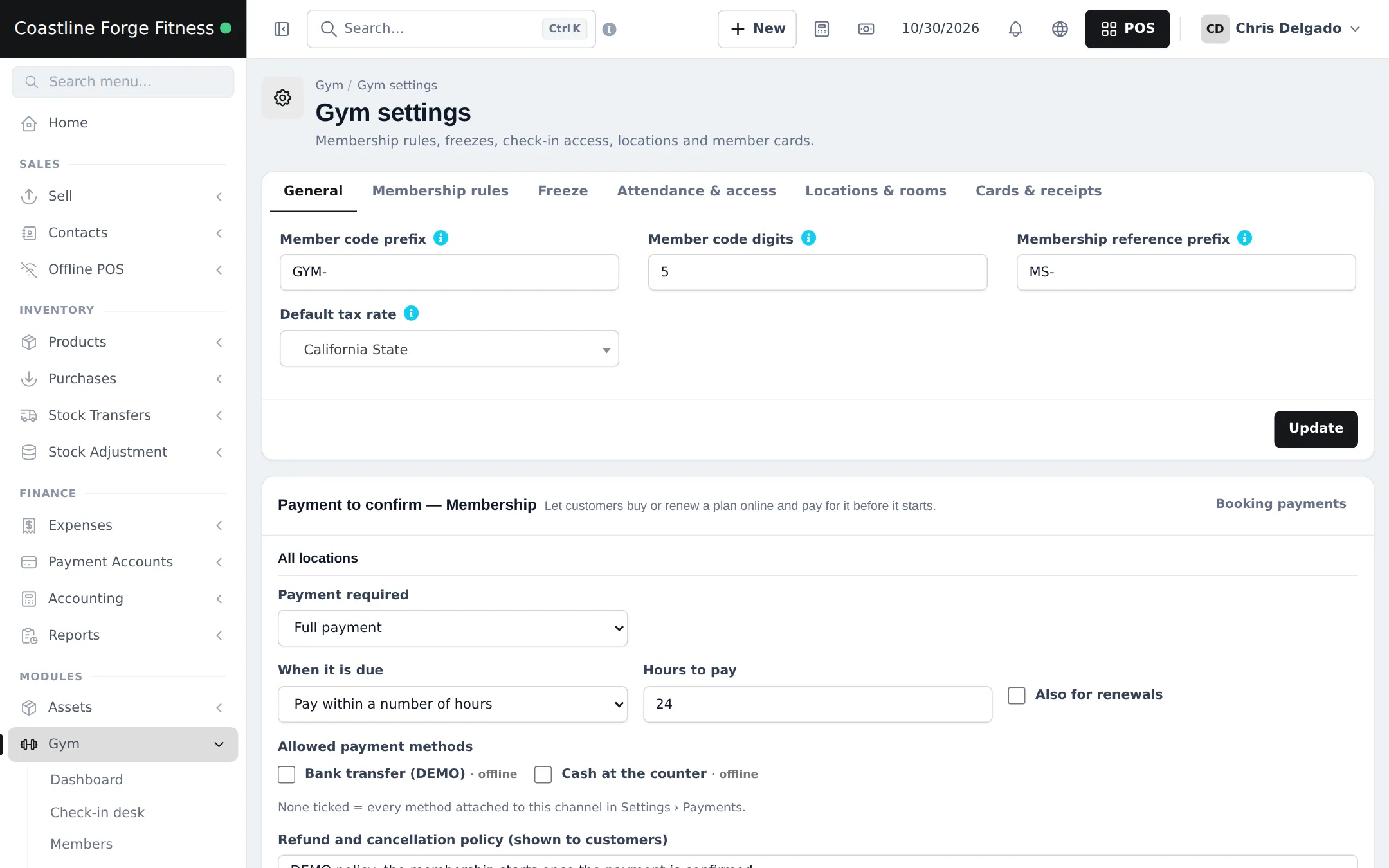
| Tab | Main options |
|---|---|
| General | Member code prefix and digits, membership reference prefix, default tax rate |
| Membership rules | Default admission fee and whether it is charged once per member, grace days, expiry warning window, renew from end date or today |
| Freeze | Freezing on or off, minimum and maximum days, maximum freezes |
| Attendance & access | One or several check-ins per day, auto check-out after hours, block entry on expired plan, dues or session limit |
| Locations & rooms | Where members train |
| Cards & receipts | Member card and receipt options |
The Payment to confirm — Membership section below the tabs lets customers buy or renew online and pay before the plan starts. See Booking payments.
Permissions
Section titled “Permissions”| On the Roles page | What it allows |
|---|---|
| View gym dashboard | The Gym dashboard |
| Members: view / add & import / edit / delete | Member profiles |
| Memberships: view | Memberships and receipts |
| Memberships: sell, renew & change plan | Selling memberships (also the POS button) |
| Memberships: freeze & unfreeze / Memberships: cancel & delete | Freeze and cancel |
| Membership packages: manage | Packages |
| Membership payments: add / edit / delete | Payments on memberships |
| Attendance: use the check-in desk / Attendance: view history | Check-in desk and history |
| Classes: view timetable / book members into classes / manage classes & schedule | Classes |
| Trainers: manage | Trainers |
| Workout & diet plans: manage and assign | Plans |
| Body measurements: manage | Measurements |
| Gym reports / Gym settings | Reports and settings |
A front-desk role usually needs Attendance: use the check-in desk, Members: view and Memberships: sell, renew & change plan. Admins have every permission.
In the SmartPOS Business app
Section titled “In the SmartPOS Business app”Front-desk staff check members in by scanning their card with the phone camera. The app shows Allowed to enter or the reason entry is blocked, plus any outstanding dues. Members, renewals and class rosters are in the app too.
Tips and mistakes to avoid
Section titled “Tips and mistakes to avoid”- Print member cards with their code so the check-in desk can scan them; typing names is slower at busy times.
- Decide early whether expired members or members with dues are blocked; staff can still override at the desk.
- Use packages for every variation (student, off-peak, quarterly) instead of manual discounts, so reports by plan stay clear.
Related pages
Section titled “Related pages”Frequently asked questions
Who is the Gym module for?
Gyms, fitness studios, yoga and martial-arts studios, swimming clubs and sports clubs that sell memberships and check members in at the door.
Can I sell a membership from the POS?
Yes. Pick the customer on the POS and click Gym membership. Choose a package, check the start date and price, and take payment now or later.
How does check-in work with a card scanner?
Open Gym › Check-in desk. A barcode or QR scanner that types like a keyboard scans the member card and presses Enter; if the member is allowed, they are checked in straight away. Otherwise the desk shows why, for example an expired plan or dues.
Can a member freeze their membership?
Yes, when freezing is allowed in Gym settings and on the package. The frozen days are added to the end date.
What happens when a member changes plan?
Use change plan on the membership. Unused days of the old plan are credited against the new one.
Does gym revenue show in my accounts?
Yes. Membership sales are normal sales with payments, so they appear in the member's ledger, cash register and a Gym membership revenue row in the Profit / Loss Report.
Do members get expiry reminders?
Yes, by email, when you turn on auto-send for the Gym membership expiry reminder in Notification Templates and email is set up for your business.
Can I limit visits per week?
Yes. Each package can have a session limit for the whole membership, per week or per month, class access and access hours such as off-peak.