
Buy on credit and pay suppliers in parts
Most shops don’t pay suppliers on delivery. SmartPOS Hub lets you record a purchase on credit, pay it later in as many parts as you like, and always see what you owe each supplier. This page is for owners and accountants who handle supplier bills.
How supplier credit works
Section titled “How supplier credit works”| Payment status | Meaning |
|---|---|
| Paid | The full purchase total has been paid. |
| Partial | Part has been paid; the rest is still owed. |
| Due | Nothing has been paid yet. |
Every unpaid amount is added to the supplier’s Balance due. If you set a Pay term on the purchase (for example 30 days), the purchase also counts towards the overdue figures in Reports › Payment by Age.
Before you start
Section titled “Before you start”- Your role needs Add purchase payment (and Edit purchase payment / Delete purchase payment to correct mistakes), in User Management › Roles, group Purchase.
- If you track money per bank or cash box, create them in Payment Accounts › List Accounts first so you can pick a Payment Account.
1. Record a purchase on credit
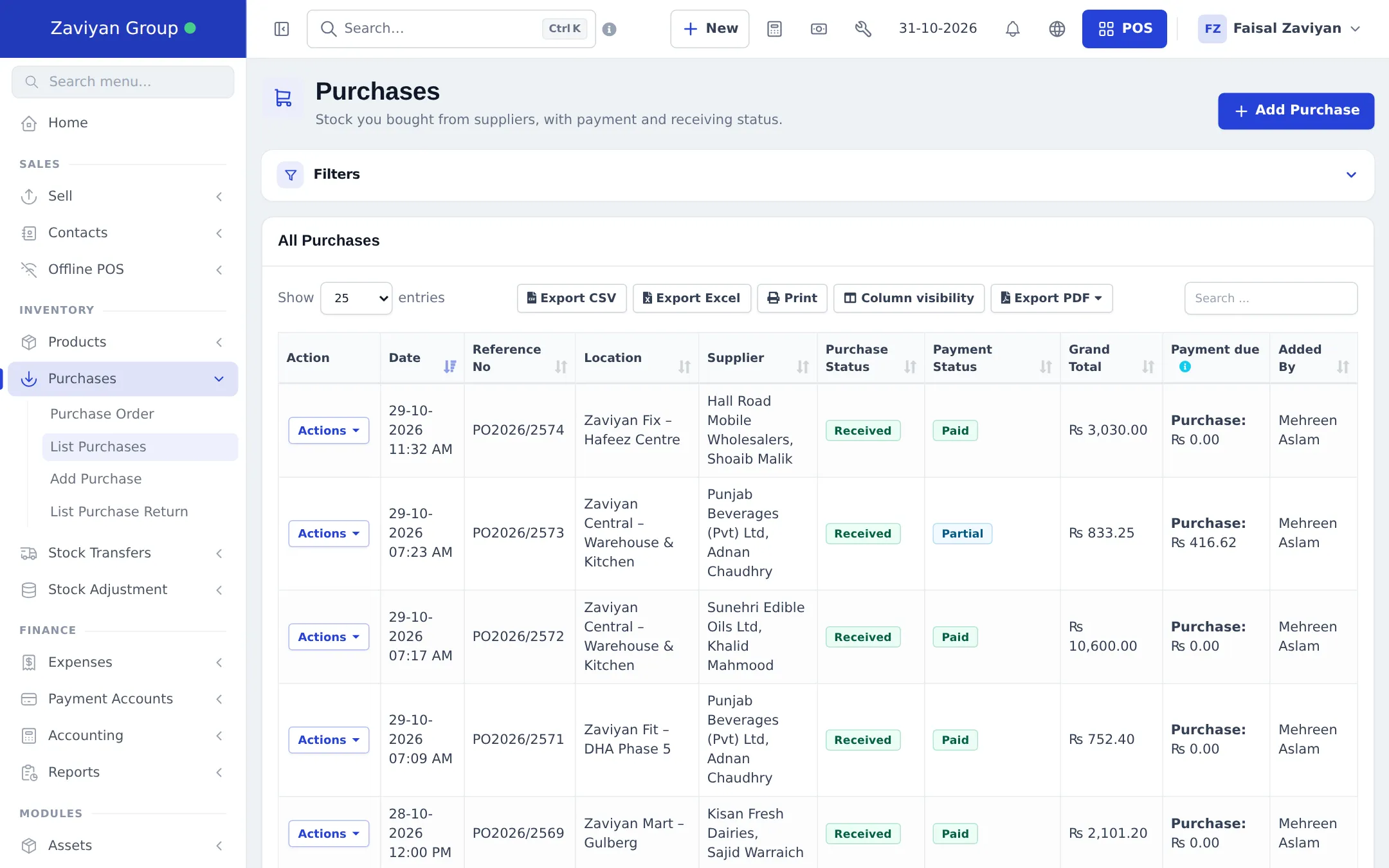
Section titled “1. Record a purchase on credit”When you add the purchase, go to the Add payment section and enter 0 (nothing paid) or the part you paid today, for example 20 % of the bill. Save. The purchase shows Due or Partial in Purchases › List Purchases, with the open amount in Payment due.
2. Pay one purchase in instalments
Section titled “2. Pay one purchase in instalments”- In Purchases › List Purchases, open Actions on the purchase and choose Add payment.
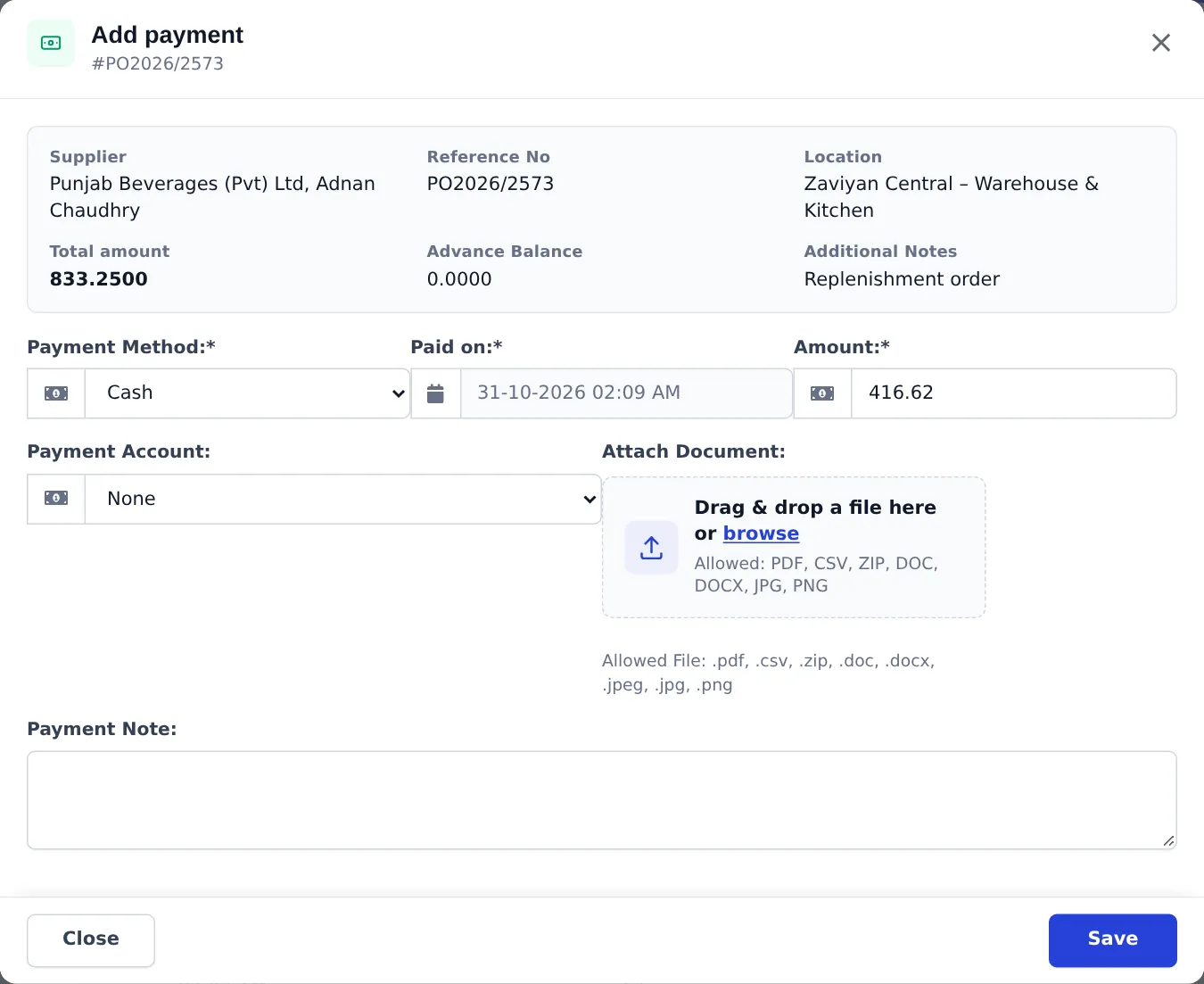
- The window shows the supplier, reference, location, Total amount and the supplier’s Advance Balance. Amount is filled with what is still due; change it to what you are paying now (for example the next 50 %).
- Choose the Payment Method (cash, card, cheque, bank transfer…), check Paid on, and pick a Payment Account if you use one.
- Attach the receipt under Attach Document and add a Payment Note if useful.
- Click Save. Repeat for every later instalment.
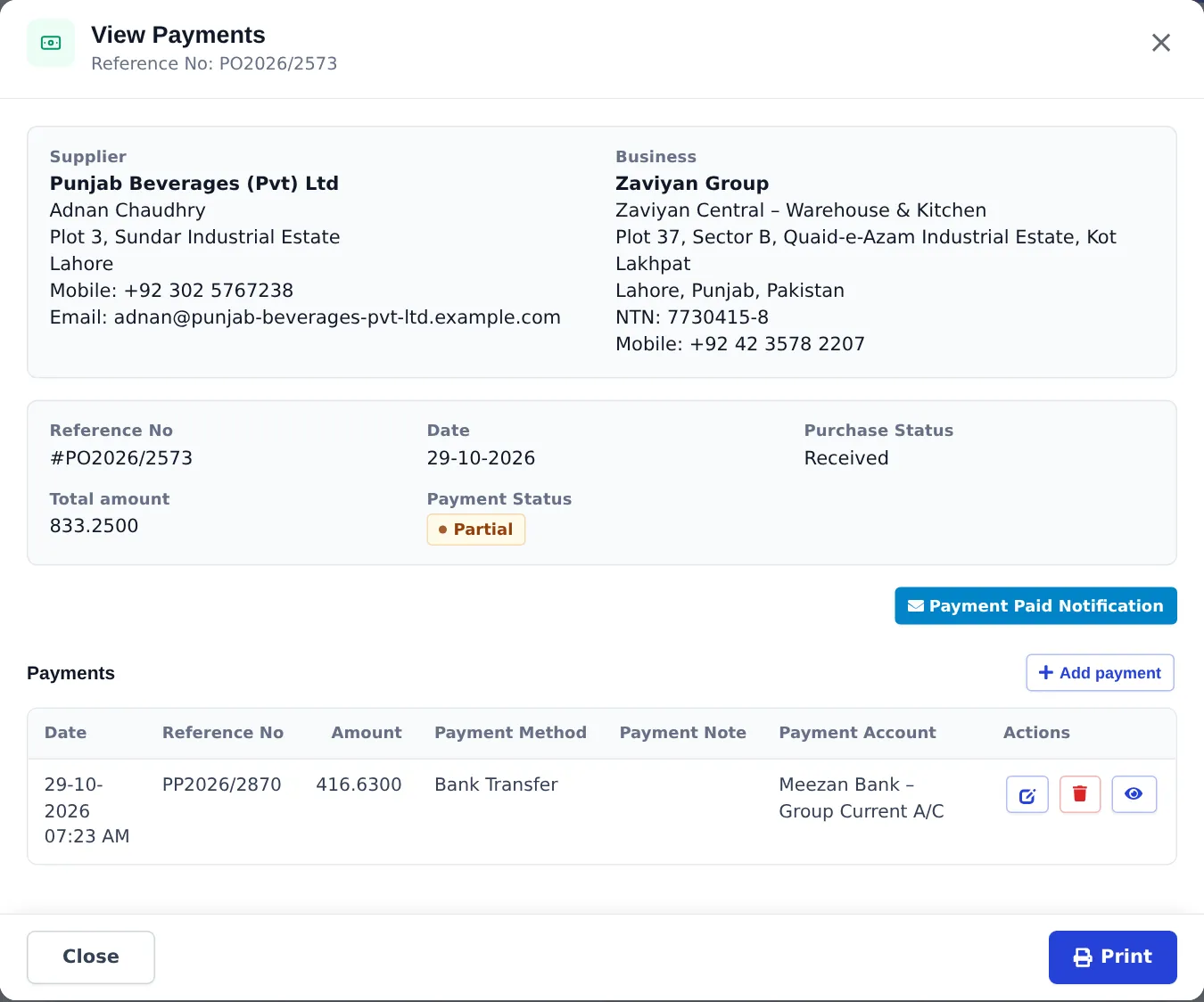
To check or fix earlier instalments, choose Actions › View payments. Each payment has edit, delete and view buttons, and Add payment is available there too.
3. Pay the supplier’s whole balance at once
Section titled “3. Pay the supplier’s whole balance at once”When you settle several bills together, pay from the supplier instead of bill by bill:
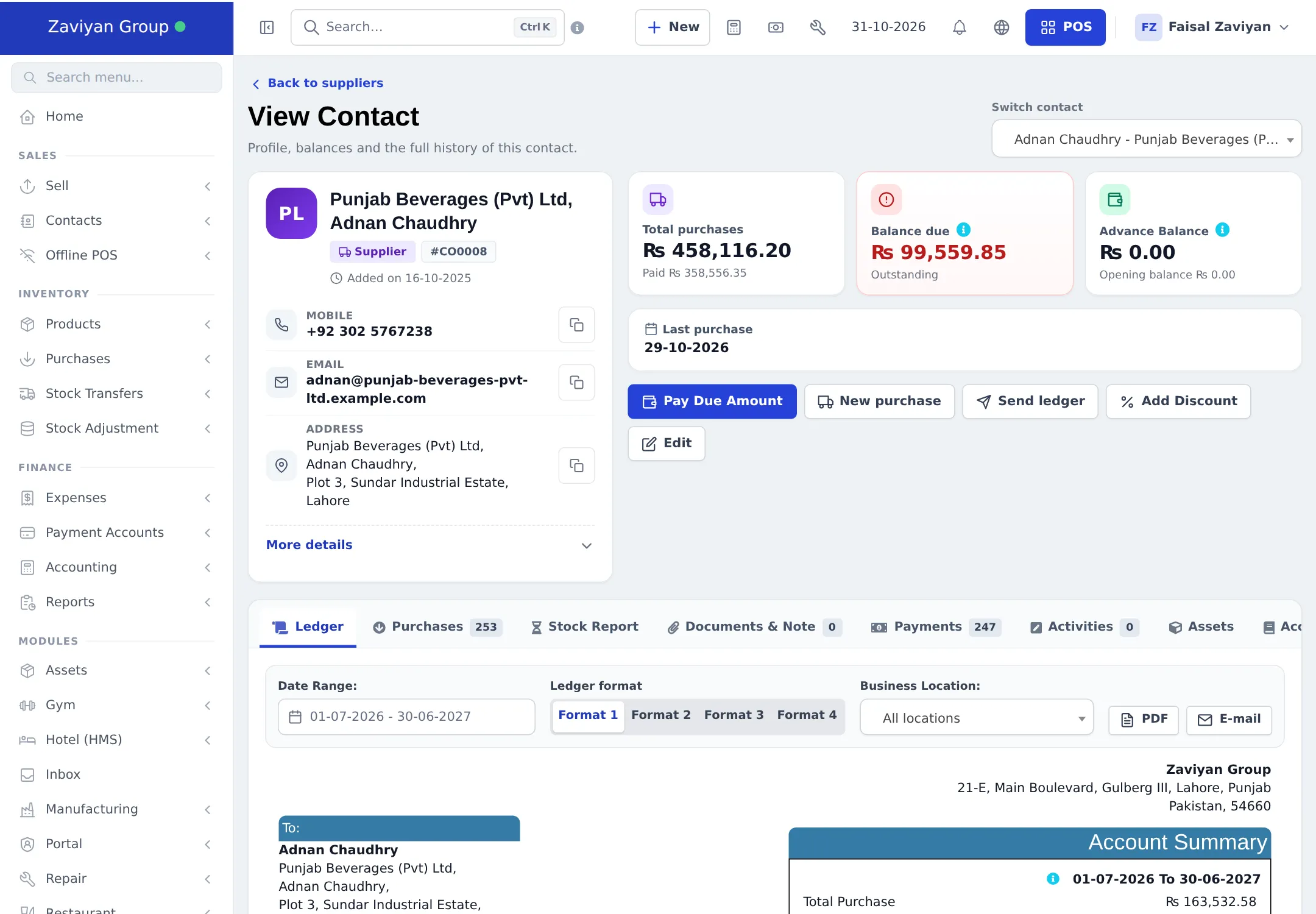
- Open Contacts › Suppliers and click the supplier’s name.
- The page shows Total purchases, Balance due and Advance Balance. Click Pay Due Amount.
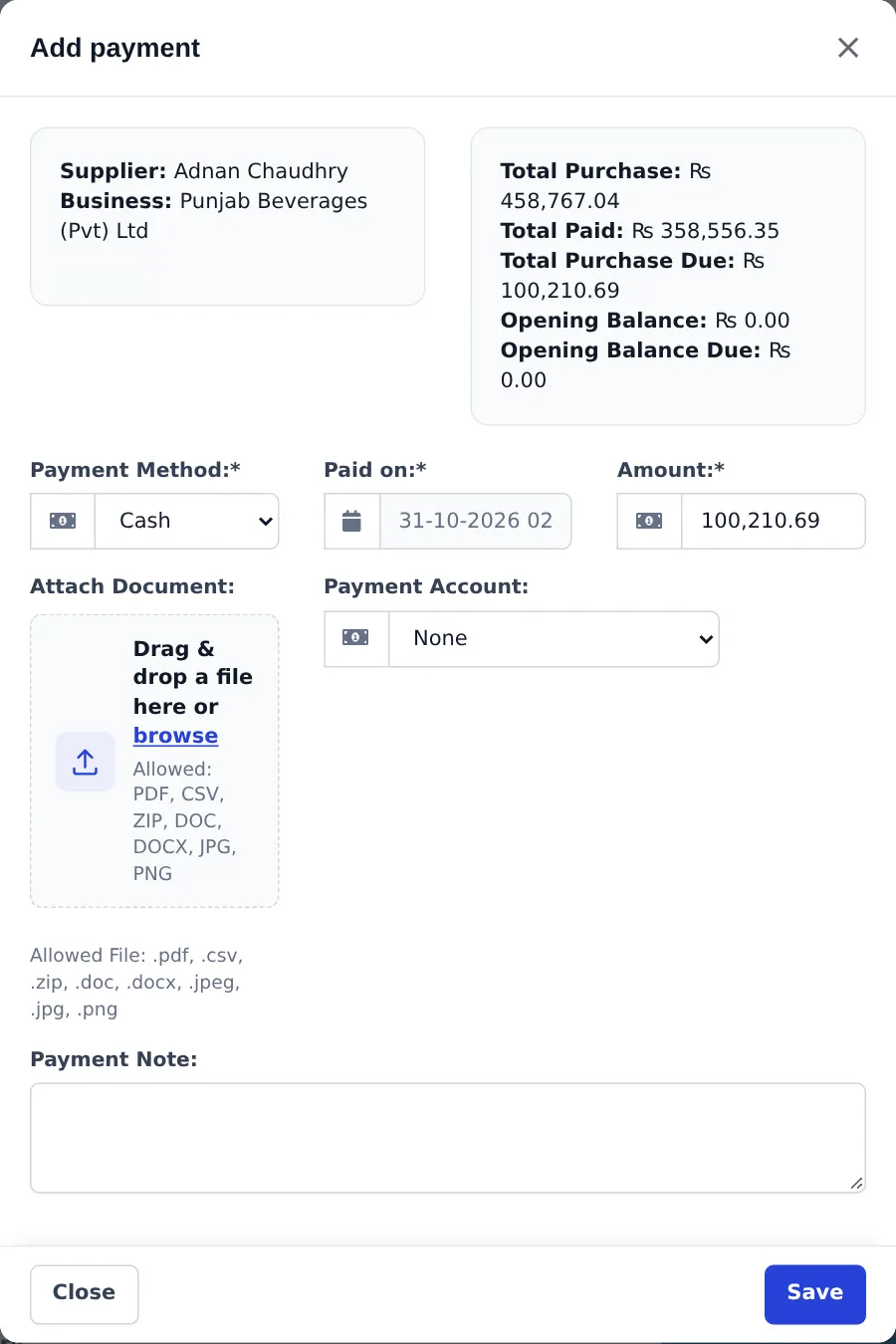
- The window lists Total Purchase, Total Paid, Total Purchase Due and any opening balance. Enter the Amount you are paying, the Payment Method and Paid on.
- Click Save. The amount is applied to the oldest unpaid purchases first.
See what you owe
Section titled “See what you owe”- Home dashboard: the Purchase due card and the purchase payment due widget.
- Supplier page › Ledger: every purchase, payment and return in date order. Download it as PDF or send it by E-mail to agree balances with the supplier.
- Reports › Supplier & Customer Report, Purchase Payment Report and Payment by Age (see Reports overview).
Tips and mistakes to avoid
Section titled “Tips and mistakes to avoid”- Always pay against the purchase (or with Pay Due Amount), not as an expense. Expenses do not reduce what you owe the supplier.
- Returns lower the balance too: a purchase return is deducted from what you owe.
- Use Payment Account consistently, otherwise bank balances in Payment Accounts won’t match your bank statement.
Related pages
Section titled “Related pages”Frequently asked questions
How do I buy stock on credit?
Save the purchase with a payment amount of 0, or with only the part you paid. The purchase gets the payment status Due or Partial, and the unpaid amount is added to the supplier's Balance due.
Can I pay one supplier bill in several instalments?
Yes. Open the purchase, choose Actions › Add payment, and enter the instalment. Repeat whenever you pay again. The status changes from Due to Partial and then to Paid.
How do I pay several open bills at once?
Open the supplier from Contacts › Suppliers and click Pay Due Amount. The payment is applied to the oldest unpaid purchases first.
What happens if I pay the supplier more than I owe?
The extra is kept on the supplier as an advance. It shows as Advance Balance on the supplier's page and can be used against later purchases.
Where can I see everything I owe?
The Purchase due figure on the Home dashboard, the Payment due column in List Purchases, the supplier's Ledger tab, and reports such as Supplier & Customer Report, Purchase Payment Report and Payment by Age.
Can I correct or delete a supplier payment?
Yes, from View payments on the purchase, if your role has Edit purchase payment or Delete purchase payment. The purchase status and supplier balance update straight away.
Does a supplier payment come out of a bank account?
Only if you pick a Payment Account when you pay. Then the payment also shows in that account's statement under Payment Accounts.