
Restaurant step 3: import the prebuilt setup
SmartPOS Hub comes with a ready-made restaurant library. Instead of typing every category, option and role by hand, you open Import prebuilt on each list, tick what fits your restaurant and import it. You then rename or price the items to match your menu. This page lists every prebuilt import a restaurant uses, in the best order.
Before you start
Section titled “Before you start”- Finish step 2: the Modifiers, Tables, Kitchen and Types of service switches must be on, or their Import prebuilt buttons are hidden.
- You need the matching permission (for example, creating categories or managing tables). Owners and admins have them all.
1. Menu categories
Section titled “1. Menu categories”- Open Products › Categories.
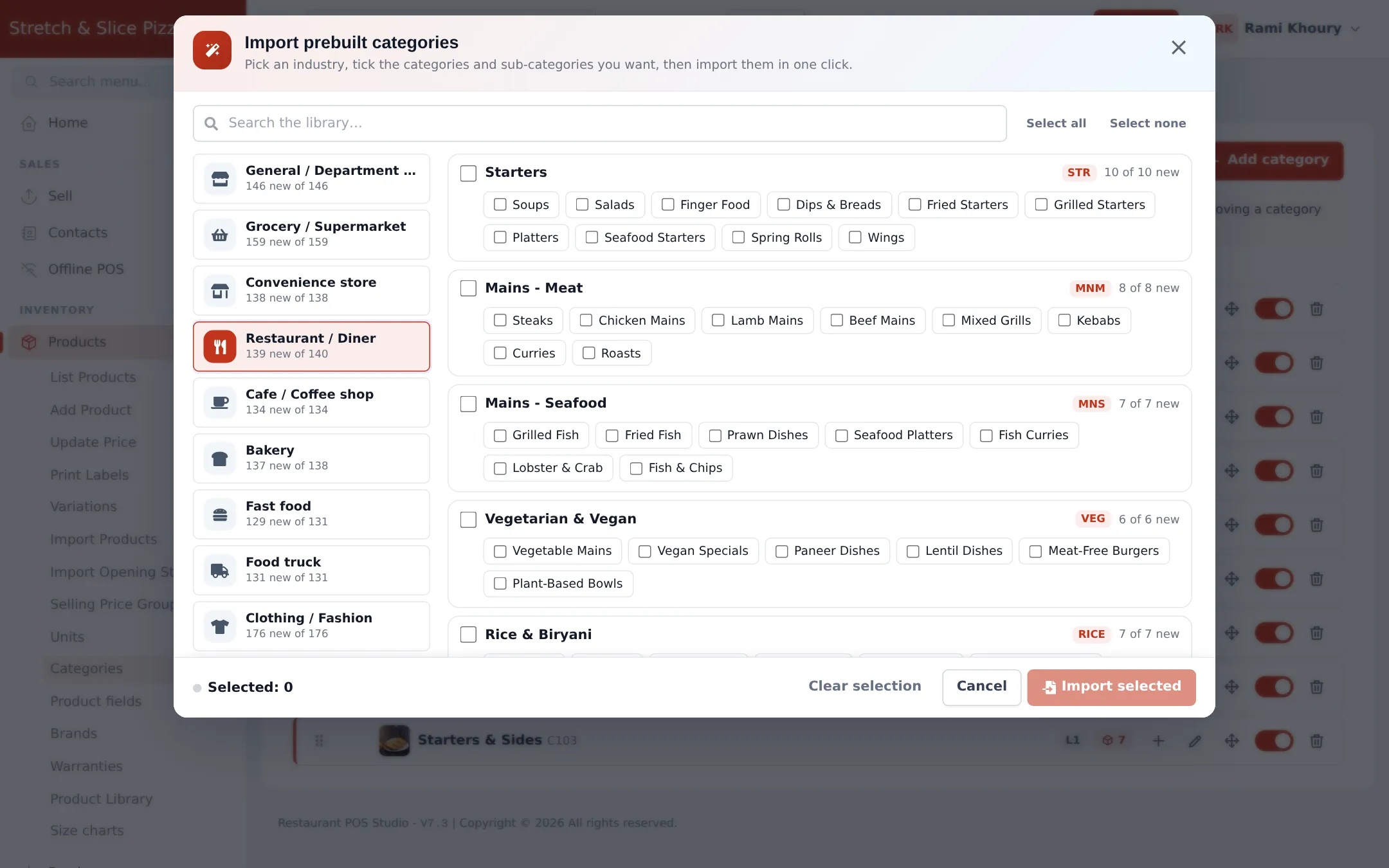
- Click Import prebuilt.
- Pick your industry on the left: Restaurant / Diner, Cafe / Coffee shop, Bakery, Fast food or Food truck.
- Tick the categories you serve (for example Starters, Mains, Desserts, Drinks). Sub-categories are ticked with their parent; untick any you don’t need.
- Click Import selected.
2. Modifier sets (sizes, toppings, sauces)
Section titled “2. Modifier sets (sizes, toppings, sauces)”- Open Restaurant › Modifiers.
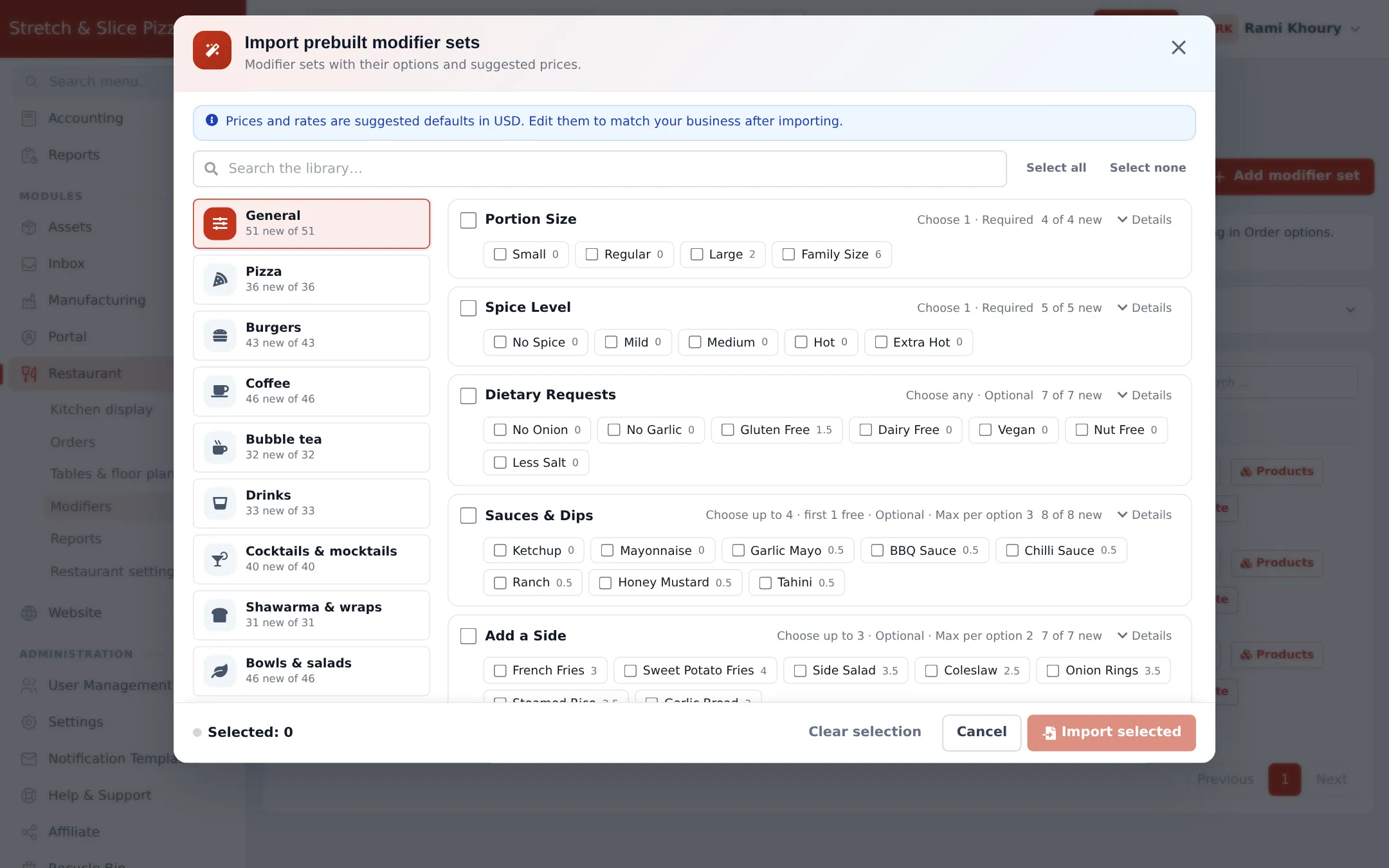
- Click Import prebuilt.
- Choose a trade group on the left, such as Pizza, Burgers, Coffee, Bubble tea, Drinks or General.
- Tick the sets you need. Each set shows its rule (for example “Choose 1 · Required” or “Choose up to 4 · first 1 free”) and its options with suggested prices.
- Click Import selected. Sets that open other sets (for example a flavour that opens its own sauces) are imported together with their nested sets.
3. Tables
Section titled “3. Tables”- Open Restaurant › Tables & floor plan.
- Click Import prebuilt.
- Choose the location the tables belong to.
- Tick the areas and tables you need (for example Main Hall, Terrace, Booths, Bar seats).
- Import, then rename or add seats in step 5.
4. Kitchen stations
Section titled “4. Kitchen stations”Open Restaurant › Restaurant settings, find Kitchen stations and click Import prebuilt. Pick stations such as Hot Kitchen, Grill, Pizza Oven, Cold Kitchen / Salads, Desserts, Bar or Coffee Bar / Barista. You map categories to stations in step 6.
5. Types of service
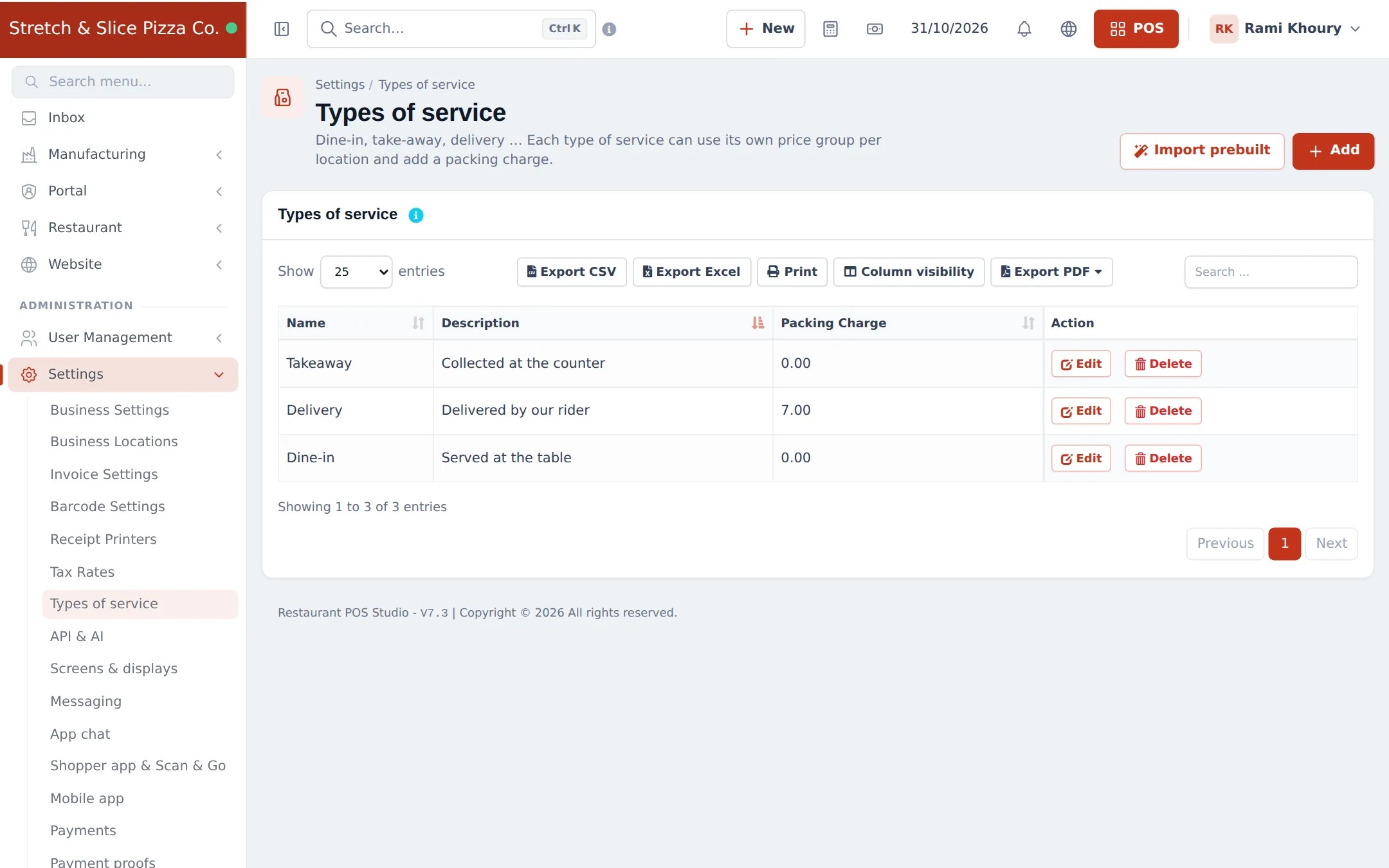
Section titled “5. Types of service”Open Settings › Types of service and click Import prebuilt. The restaurant group has dine-in, takeaway, delivery and similar types. Each can carry a packing charge (a percentage, 0 for none).
6. Staff roles
Section titled “6. Staff roles”You have two ways to create restaurant roles:
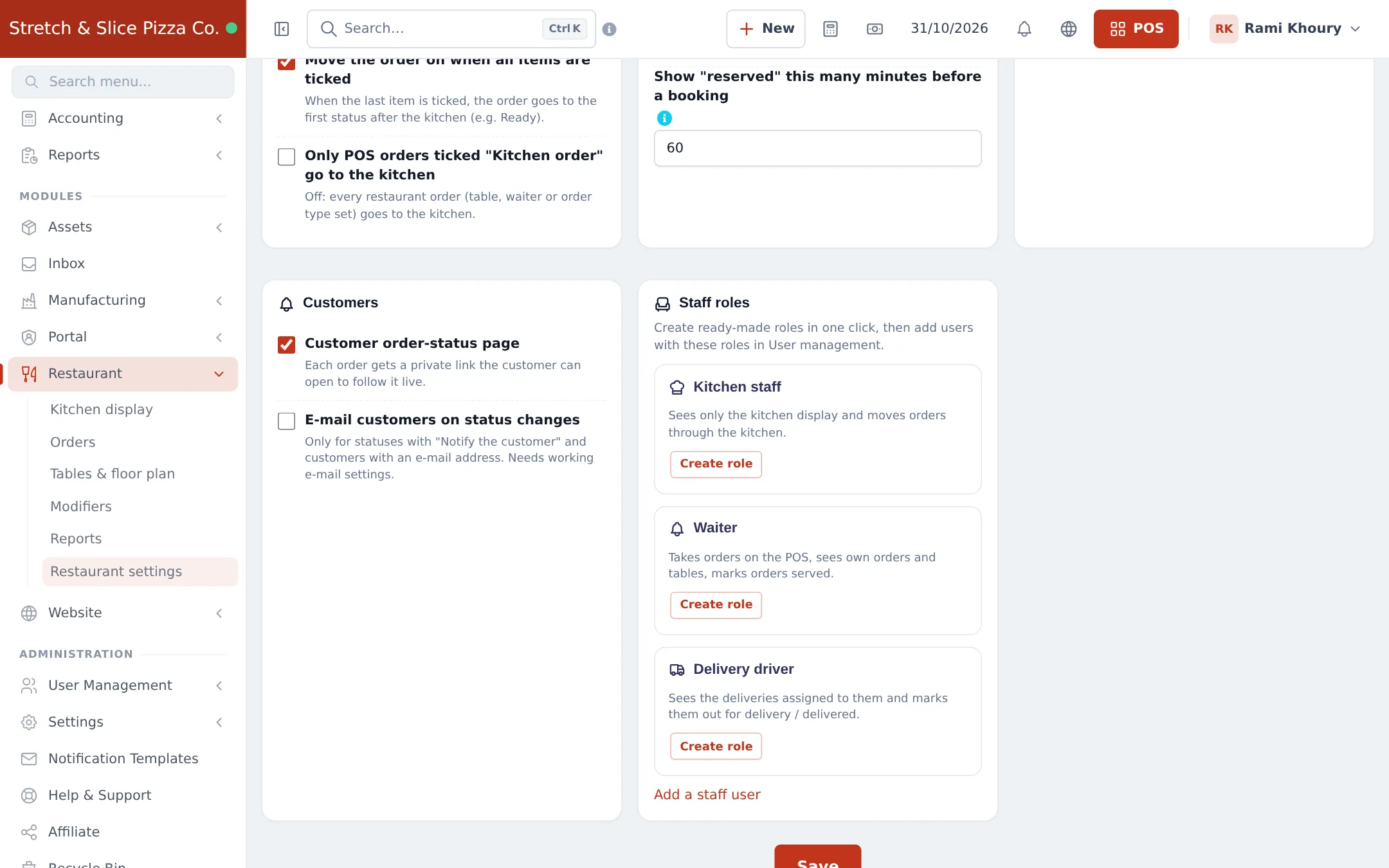
- Restaurant settings › Staff roles: one-click Create role buttons for Kitchen staff (sees only the kitchen display), Waiter (takes orders, sees own orders and tables) and Delivery driver (sees own deliveries).
- User Management › Roles › Import prebuilt: the restaurant group has Restaurant Manager, Waiter, Kitchen Staff / Chef, Restaurant Cashier, Host / Hostess and Delivery Rider.
Then add a user for each person in User Management › Users and give them their role. See Users and roles.
Other lists worth importing
Section titled “Other lists worth importing”| List | Where | Useful for |
|---|---|---|
| Units | Products › Units | The Food service unit group, plus weight and volume units for ingredients |
| Tax rates | Settings › Tax Rates | Your country’s VAT or sales tax (check with your accountant) |
| Receipt printers | Settings › Receipt Printers | 80 mm receipt and kitchen printer presets |
| Expense categories | Expenses › Expense Categories | Rent, gas, staff meals, wastage |
Full details for every list: Import prebuilt.
Next step
Section titled “Next step”Frequently asked questions
Does Import prebuilt change things I already created?
No. It only adds what is missing. Existing categories, modifier sets, roles and rates are never changed, and items with the same name are skipped.
Are the prices in the prebuilt modifier sets correct for my country?
They are suggested defaults in USD. Edit each set after importing to match your own prices and currency.
Can I import only some categories?
Yes. Tick only the categories and sub-categories you want, or use Select none and pick one by one. The counter at the bottom shows how many are selected.
Which location do imported tables go to?
The import window asks for a location. Run it once per branch if each branch has its own tables.
Is there a one-click import for the whole restaurant?
No. Each list has its own Import prebuilt button, so you choose exactly what you need. Doing all of them takes about 15 minutes.
Can I undo an import?
Delete the items you don't want from their list page. Imported items behave like ones you created yourself.