
Modifiers – sizes, toppings, sauces and extras
Modifiers are option groups the cashier (or an online customer) picks when an item is sold: size, crust, flavour, toppings, sauces, dips, milk type, sugar level. Each option can add a price, and you decide the rules — one choice or several, required or optional, how many are free. Restaurants, cafés, pizzerias, burger and juice bars use them most.
How modifiers work
Section titled “How modifiers work”- Create a set (for example “Crust”) with options and prices. Price 0 = free.
- Choose the rules: One choice (radio buttons) or Several choices (check boxes), Required or not, minimum and maximum.
- Link it to products. The POS opens the options window as soon as a linked product is added to the cart.
- Nest sets (optional). An option can open its own sets: Pizza → “Flavour” (choose 1) → Margherita opens “Sauce” and “Extras” for Margherita.
Before you start
Section titled “Before you start”- Modifiers is switched on in Settings › Business Settings › Modules.
- The products you want to link exist. See Add products.
First-time setup
Section titled “First-time setup”- Open Restaurant › Modifiers.
- New to modifiers? Click Create pizza example. It adds Pizza size, Pizza flavour and a sauce and extras set for each flavour, so you can see a finished structure. Or click Import prebuilt to pick ready-made sets for your trade.
- Click Add modifier set to build your own.
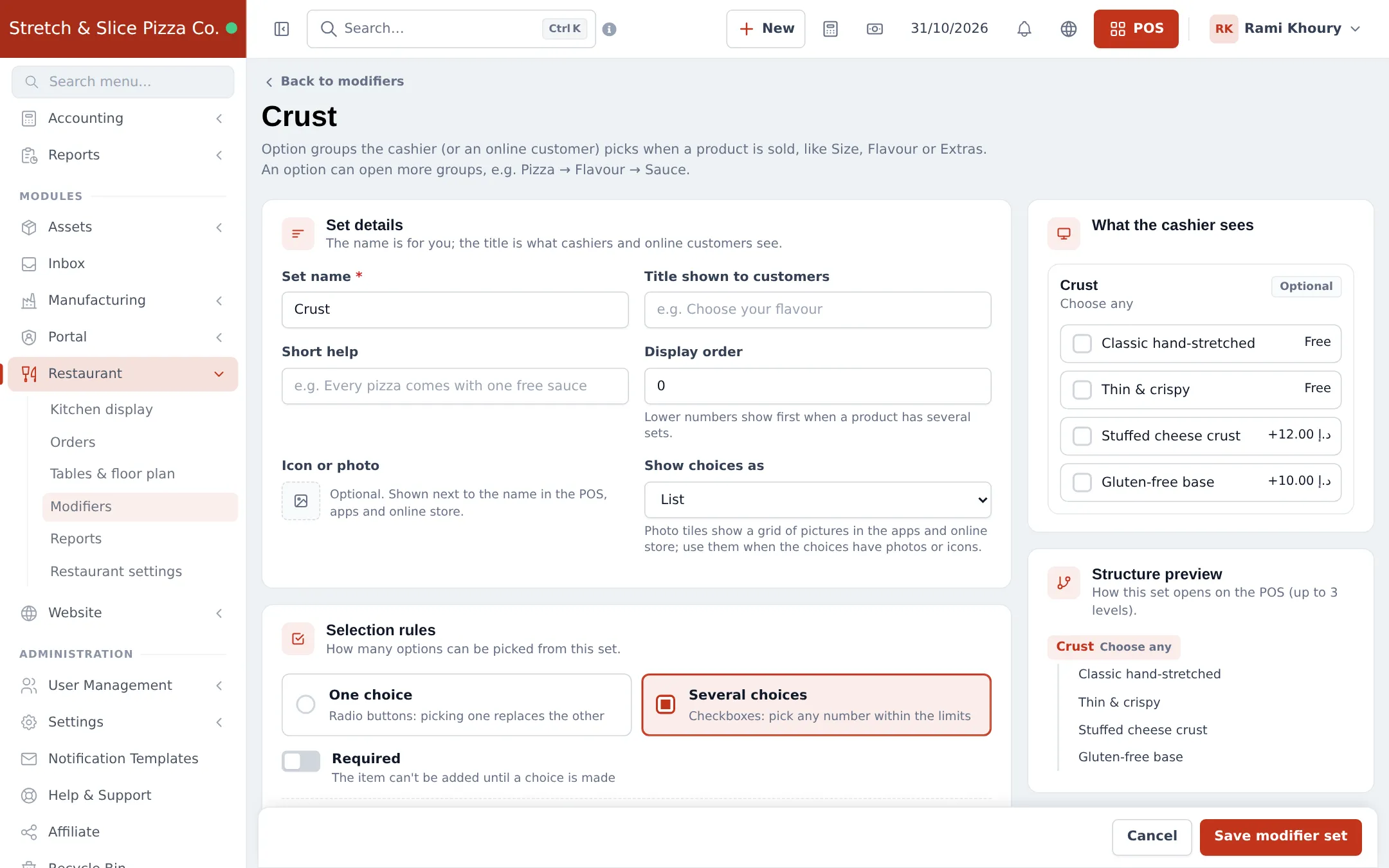
- Under Set details, enter the Set name (for you) and, optionally, the Title shown to customers (for example “Choose your crust”), Short help and Display order (lower numbers show first).
- Optionally pick an Icon or photo and how to Show choices as (list, buttons or photo tiles). Photo tiles look best in the apps and online store.
- Under Selection rules, choose One choice or Several choices, switch on Required if needed, and set Minimum, Maximum (empty = no limit), Allow quantity per option (for 2× extra cheese) with Max per option, and Free choices (the first N choices are free).
- Under Options, type each option and its Price (0 = free). Tick Pre-selected for the usual choice. Press Enter to add the next row; drag to reorder.
- Under Products, search and add the products that open this set, or use Add all products of a category.
- Check What the cashier sees and the Structure preview on the right, then click Save modifier set.
Nested sets (Pizza → Flavour → Sauce)
Section titled “Nested sets (Pizza → Flavour → Sauce)”- Create the inner sets first, for example “Sauce – Margherita” and “Extras – Margherita”. They don’t need products.
- Open the outer set (“Pizza flavour”) and, next to the Margherita option, click Opens and choose the sets it opens.
- Save. On the POS, picking Margherita slides in its sauce and extras sets underneath.
Up to three levels work (product → set → child set → grandchild). Sets that would loop back are not offered.
More on each option
Section titled “More on each option”Click ⋯ More on an option to add a description, mark it Sold out (shown but can’t be chosen), Hidden (not offered anywhere, kept on old sales), or limit it to Only at these locations.
Everyday use at the till
Section titled “Everyday use at the till”- Add a linked product to the cart on the POS. The options window opens straight away.
- Pick the options. Required groups show Required and turn red until filled; the counter shows how many are picked and the maximum.
- The footer shows the running total. Click Add to order (or press Enter). Esc cancels.
- To change later, click Options under the item in the cart, change and click Update item.
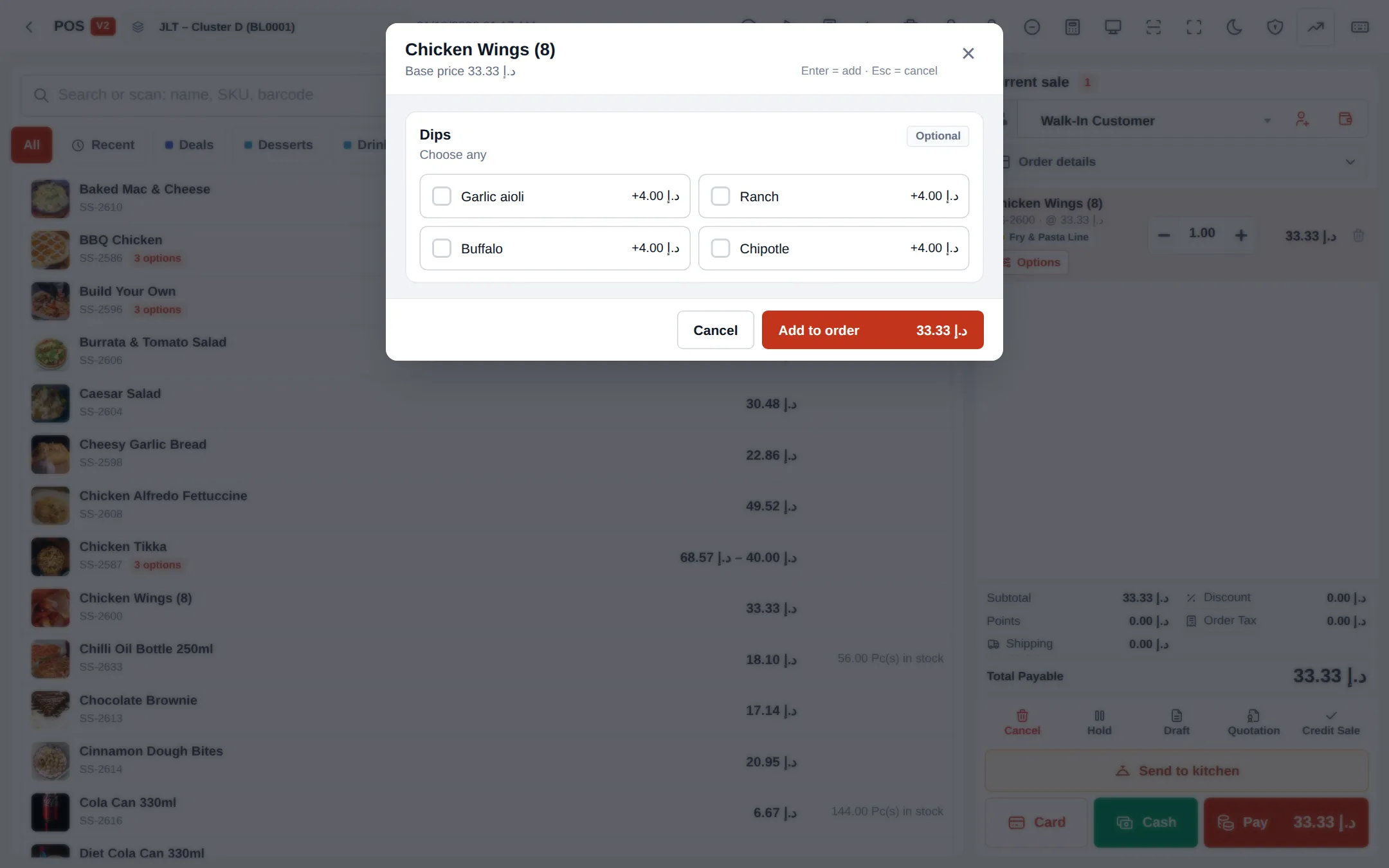
Chosen options show as chips under the item. They print on the receipt and kitchen ticket. If you cancel the window for a new item that has a required group, the item is removed with “…was not added: it needs options”.
Managing your sets
Section titled “Managing your sets”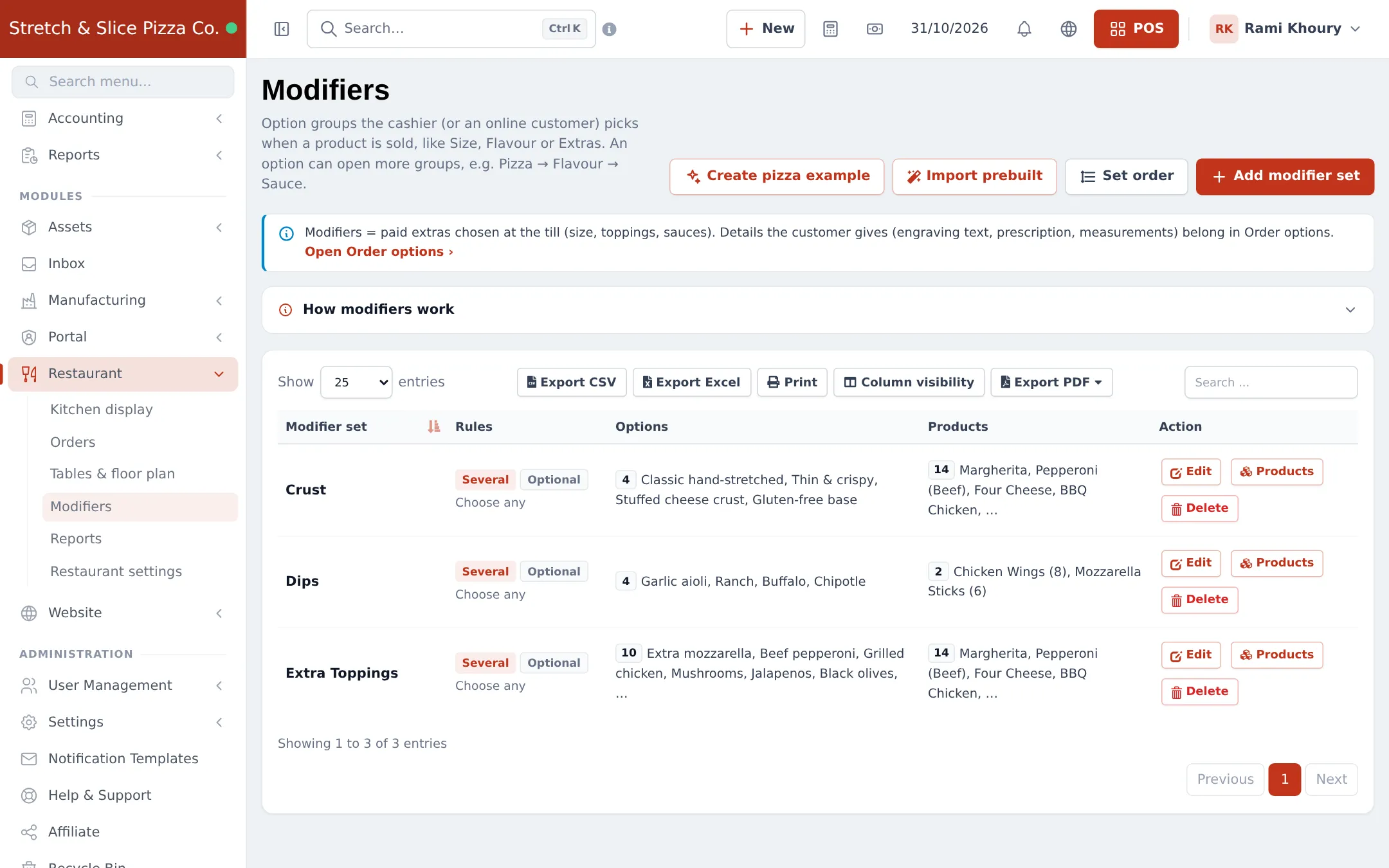
- Edit opens the builder.
- Products opens a quick window to add or remove linked products without opening the builder.
- Set order lets you drag sets into the order customers see them.
- Removing an option that was already sold keeps it on old sales.
Settings explained
Section titled “Settings explained”| Field | Meaning |
|---|---|
| One choice / Several choices | Radio buttons vs check boxes. |
| Required | The item can’t be added until a choice is made. |
| Minimum / Maximum | How many options must / may be picked. Rule text such as “Choose 1”, “Choose up to 3” or “Choose any” is shown to the cashier. |
| Allow quantity per option / Max per option | Lets the cashier pick 2× of the same option. |
| Free choices | The first N picks are free (in pick order). |
| Pre-selected | Option ticked by default. |
| Opens | Child sets this option opens. |
| Display order | Order of sets when a product has several. |
Permissions
Section titled “Permissions”| Permission (Roles page › Product) | Lets the user |
|---|---|
| View product | See the Modifiers list |
| Add product | Create modifier sets and the pizza example |
| Edit product | Change sets, link products, reorder sets |
| Delete product | Delete modifier sets |
Cashiers don’t need any of these to pick options on the POS; Add POS sell is enough.
In the apps and online store
Section titled “In the apps and online store”The same sets, rules, icons, photos and sold-out marks appear in the SmartPOS Business app POS, the SmartPOS Shopper app and your online store. Rules are checked again when the order is saved, so a missed required choice can’t slip through.
Tips and mistakes to avoid
Section titled “Tips and mistakes to avoid”- Keep set names unique and clear (“Sauce – Margherita”, not just “Sauce”) so you can pick the right one under Opens.
- Use Sold out, not delete, when an option runs out for the day.
- Turning Modifiers off while products still have required sets can block those items online. Unlink them first.
Related pages
Section titled “Related pages”Frequently asked questions
What is the difference between modifiers and order options?
Modifiers are paid extras picked at the till, like size, crust, toppings or sauces. Order options are details the customer gives, like engraving text, a prescription or a cake message. Use Order options for those.
Should I use modifiers or product variations for pizza sizes?
Either works. Variations give each size its own SKU, price and stock. A modifier set is quicker when size only changes the price and you don't track stock per size.
How do I make a choice compulsory?
Open the set, choose One choice (or Several choices with a Minimum), and switch on Required. The POS will not add the item until a choice is made.
Can the first topping be free?
Yes. Set Free choices to 1 in Selection rules. The first option the cashier picks is free and later ones are charged.
Can a flavour have its own sauces?
Yes. In the options list, use Opens next to an option to choose the sets it opens. For example Margherita opens "Sauce - Margherita". Up to three levels are supported.
An option ran out. Can I hide it for today?
Yes. Under More on that option, tick Sold out. It still shows but can't be chosen. Hidden removes it everywhere but keeps it on old sales.
Do modifiers work in the online store and the apps?
Yes. The same sets, rules, icons and photos appear in the online store, the SmartPOS Business app and the SmartPOS Shopper app, and are checked again when the order is saved.
Do modifiers show on the kitchen ticket?
Yes. Chosen options print under the item on receipts, kitchen tickets and the kitchen display. Nested options show their path, for example Margherita › Garlic & herb.