
Salon step 5: appointments, walk-ins and checkout
This is the daily work at the front desk: booking clients, greeting walk-ins, moving each visit from Confirmed to Completed, and billing it in the POS so revenue, commission and the client’s history all line up. It is for receptionists, managers and stylists who bill their own clients.
Before you start
Section titled “Before you start”- Services, staff and hours are set up (steps 2–3).
- The cashier has opened their cash register (it opens the first time they open the POS each day).
Book an appointment
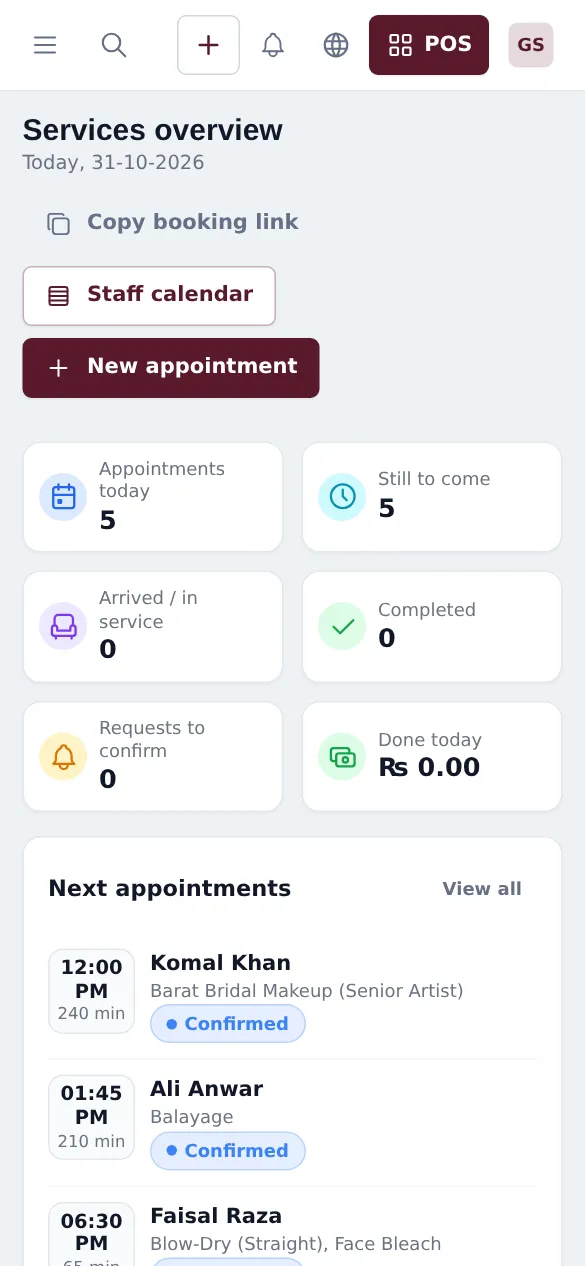
Section titled “Book an appointment”- Click New appointment on Services › Overview (or New booking on Bookings).
- Search the client by name or phone, or type a new name and mobile number.
- Choose a service. Click Add another service for more, for example a cut and a blow-dry.
- For each service pick a stylist or Any available staff. The form shows Total time and Total.
- Pick the day and a free time. Set the Source (Phone, Walk-in, Online, POS or Other), add a customer note (for example “Prefers a quiet room”) and save.
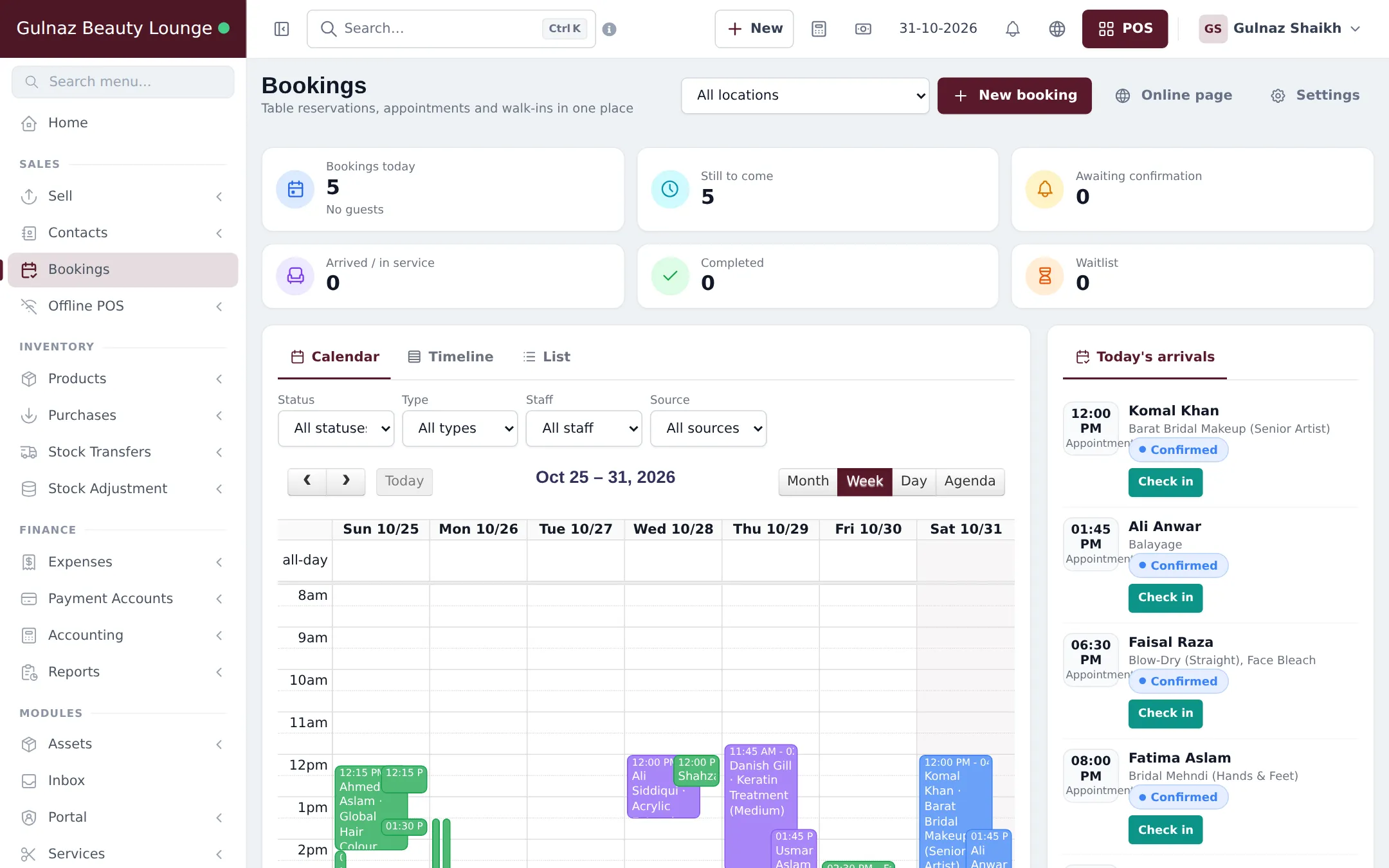
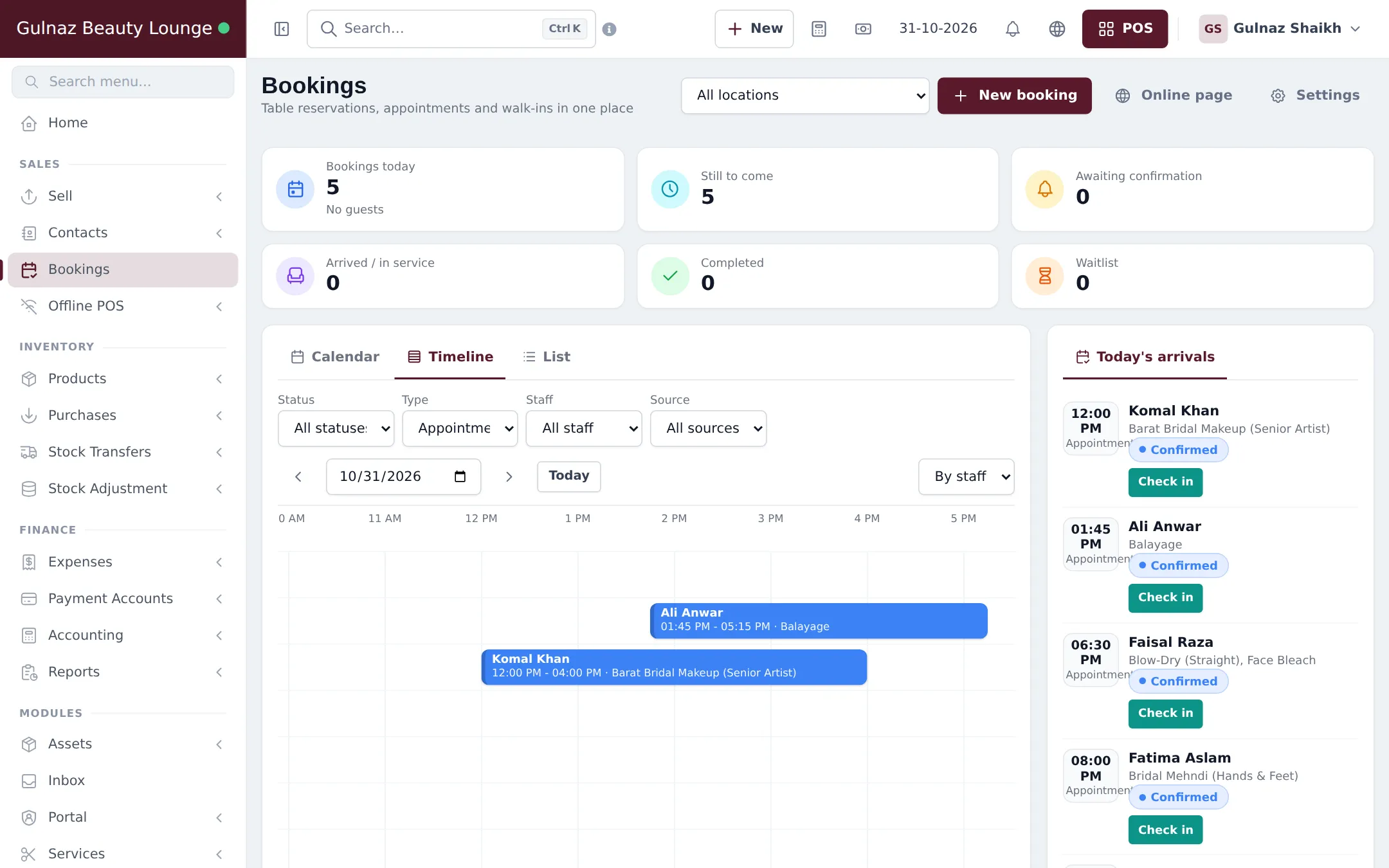
The appointment appears on Bookings in Calendar, Timeline and List views, and on Services › Staff calendar in the stylist’s row. Drag an appointment in the calendar to move it.
Walk-in clients
Section titled “Walk-in clients”You have two ways to serve a client without an appointment:
| Way | When to use it | What you get |
|---|---|---|
| New appointment with source Walk-in, starting now, then Check in, Start, Checkout | Any service a stylist earns commission on | Commission, the client’s visit history, the Walk-in count in reports |
| Sell the service straight from the POS and pick the stylist in Select service staff | Quick extras like a fringe trim when nobody tracks commission | The sale, with the stylist in Reports › Service Staff Report (needs the Service staff switch) |
Move the visit along
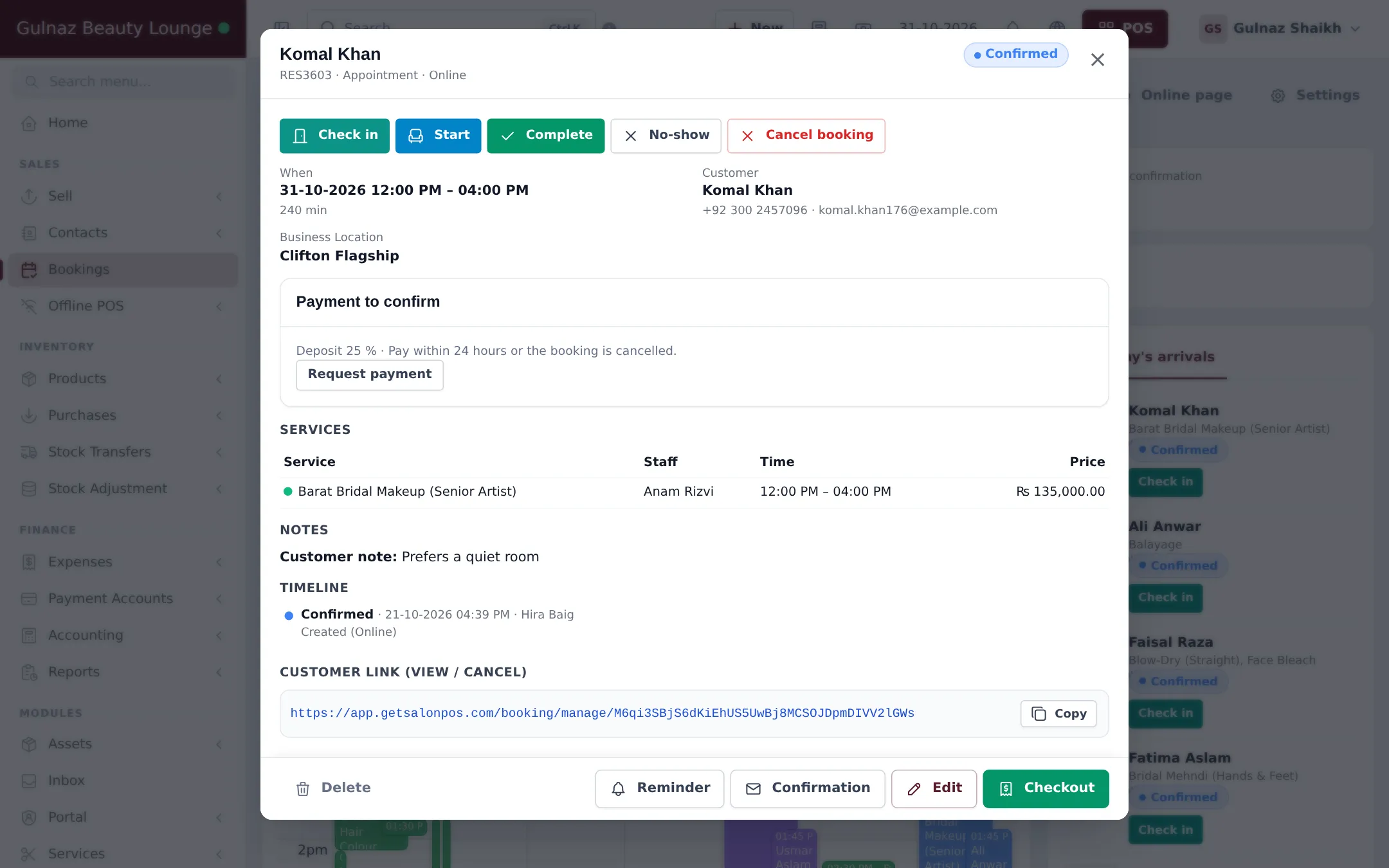
Section titled “Move the visit along”Click an appointment (or Check in in Today’s arrivals) to open it. The top buttons follow the visit:
- Check in when the client arrives.
- Start when the service begins.
- Checkout when it is finished, to bill it (next section).
- No-show or Cancel booking if the client does not come. Reminder and Confirmation send the email again; Edit changes services, staff or time.
Check out in the POS
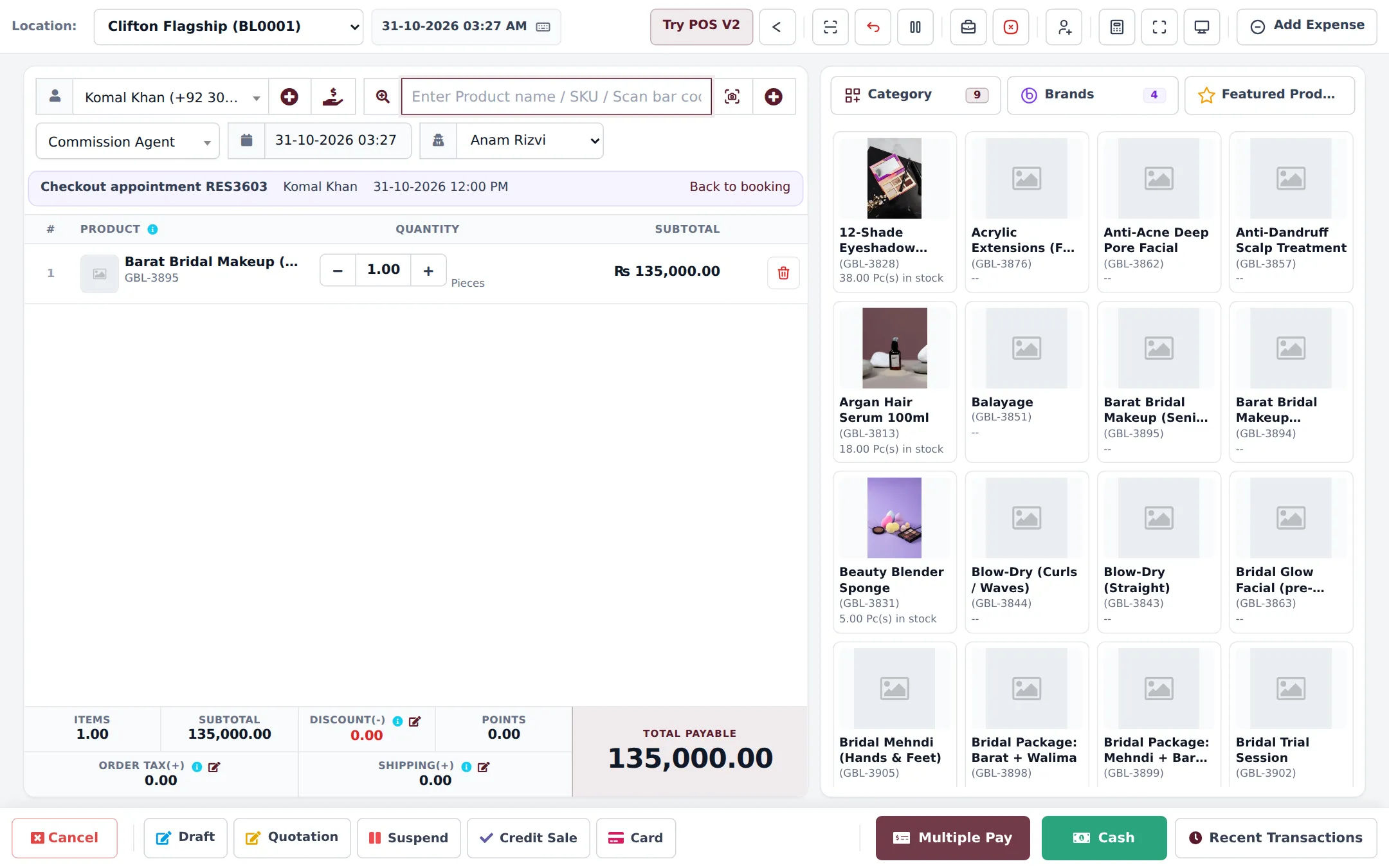
Section titled “Check out in the POS”- Click Checkout on the appointment. The POS opens with a banner Checkout appointment and the client, services, prices and stylist already filled in.
- Add retail products the client is buying, a discount, or another service.
- If the banner shows Deposit paid, take that amount with the Advance payment method (see advances).
- Take payment with Cash, Card or Multiple Pay. Regular clients on account can use Credit Sale (see credit and part payments).
- The receipt prints. If Mark the appointment completed when its sale is paid in the POS is on, the appointment becomes Completed, and commission is recorded for each stylist.
On a phone
Section titled “On a phone”The Services and Bookings pages work in a phone browser, and stylists can use My day in the SmartPOS Business app to mark Client arrived and Finish.
Mistakes to avoid
Section titled “Mistakes to avoid”- Billing an appointment by opening the POS directly. Always use Checkout, or commission and the appointment link are lost.
- Leaving yesterday’s appointments as Confirmed. Mark them Completed or No-show so reports are right.
- Giving a walk-in to “Any available staff” when you know who did it. Pick the person, so their commission counts.
Frequently asked questions
Can one appointment have several services with different stylists?
Yes. In the appointment form click Add another service for each one. Each line has its own staff member, and the services run back to back.
What happens if the stylist I pick is busy?
SmartPOS Hub checks working hours, breaks, time off, other appointments and buffers, and tells you that the person is not free for that service at that time. Choose another time or Any available staff.
How should I handle walk-in clients?
Create a New appointment for now with the source Walk-in, then Check in, Start and Checkout. That keeps commission and the client's history. For a quick sale with no commission, sell the service straight from the POS.
Can I add a shampoo to the same bill?
Yes. When the POS opens from Checkout, the services are already in the cart. Scan or tap any retail product to add it before you take payment.
How do I use a deposit the client paid online?
The POS banner shows Deposit paid. The deposit is saved as the client's advance, so choose the Advance payment method for that amount and take the rest by cash or card.
Is there a field for tips?
No. The POS has no tip amount. If you print with the Salon & spa receipt design from the Invoice Designer, the receipt has blank Tip and Total with tip lines for the client to fill in.
What if a client does not show up?
Open the appointment and click No-show. No-shows count in Services › Reports and on the client's Appointments tab, so you can spot repeat no-shows and ask them for a deposit next time.