
Accounting & Bookkeeping module
The Accounting & Bookkeeping module gives SmartPOS Hub a real double-entry general ledger that keeps itself up to date. Every sale, purchase, expense, return and payment you record in the POS becomes a balanced journal entry automatically. It is for owners and accountants who want a balance sheet, trial balance and proper profit & loss without retyping anything.
Who it is for
Section titled “Who it is for”- Any business that wants real books: shops, marts, pharmacies, restaurants, salons, hotels, gyms and repair shops. The setup offers a chart of accounts made for each of these.
- Owners who want to know cash, money owed to them, money they owe and true profit at a glance.
- Accountants who need a trial balance, balance sheet, ledgers, aging reports and a tax summary they can export.
What you get, under the Accounting menu:
| Menu item | What it is for |
|---|---|
| Dashboard | Cash & bank, receivables, payables, income and expenses this month and year, net profit, current ratio, gross margin, charts and a Needs attention panel |
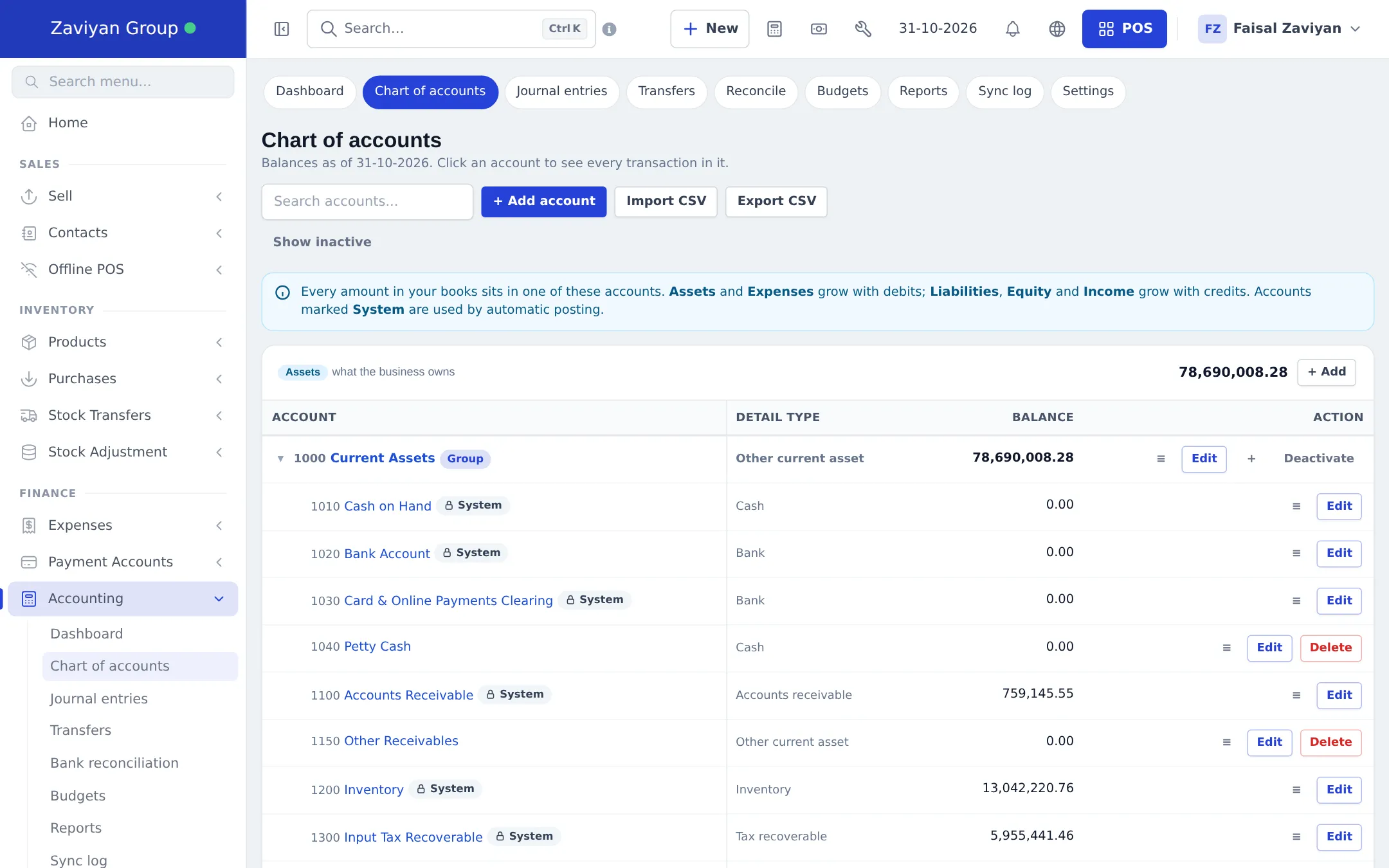
| Chart of accounts | Your accounts in a tree (assets, liabilities, equity, income, expenses) with balances; click an account to see every transaction in it |
| Journal entries | Automatic entries (read-only, linked to their sale or purchase) and your own manual entries |
| Transfers | Move money between cash, bank and card accounts, with an optional fee |
| Bank reconciliation | Tick off cleared items against your bank statement, or import the statement as CSV and auto-match |
| Budgets | A budget per account per month, then Budget vs actual |
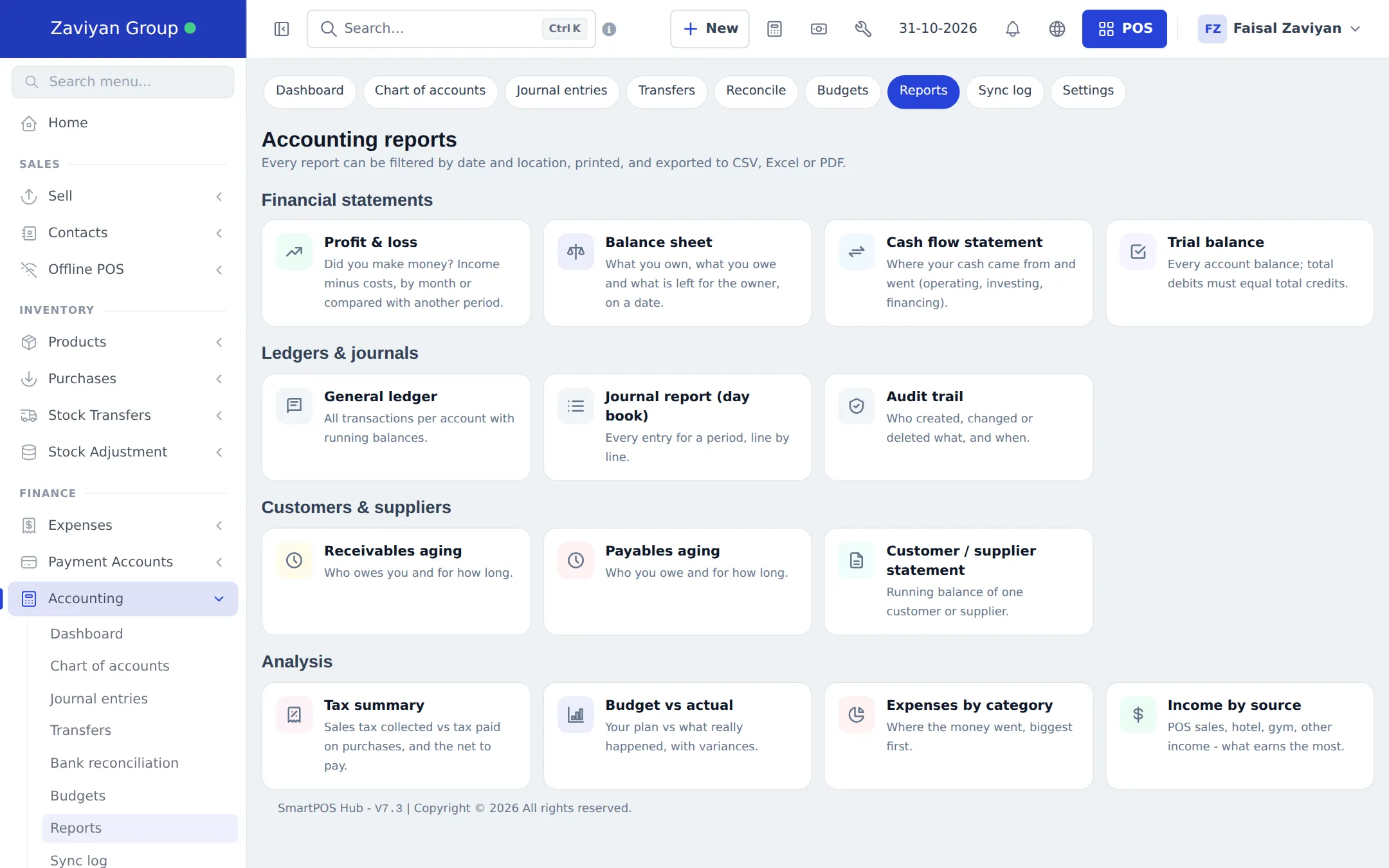
| Reports | Financial statements, ledgers, aging, tax summary and more |
| Sync log | Every automatic posting, with Sync now and Full re-sync |
| Settings | How your books are kept (see below) |
Before you start
Section titled “Before you start”- Your financial year start month is taken from Settings › Business Settings › Business. Check it first: it decides “this year” in every report.
- Decide which chart fits you best: Retail, Restaurant, Services, Hotel, Gym or Repair. You can add or rename accounts later.
- If your business is older than the data in SmartPOS Hub, have your starting balances ready (cash, bank, what customers owed, what you owed suppliers).
First-time setup
Section titled “First-time setup”- Switch the module on: Settings › Business Settings › Modules, turn on Accounting & Bookkeeping module and click Update settings.
- Open Accounting in the sidebar. The first visit opens Set up Accounting & Bookkeeping (“Three quick choices and your books start keeping themselves”). Staff without the settings permission see “Accounting is not set up yet” and must ask the owner.
- Under Choose a chart of accounts, pick the template for your type of business.
- Pick Account numbering: Standard 4-digit codes (1000-5999), Extended 5-digit codes (10000-59999) or No codes (names only).
- Choose how stock costs are recorded (perpetual inventory is recommended) and answer Which existing documents should be posted?: All history (recommended), Only from the start of this financial year, or From a date I choose.
- Click Start bookkeeping. The app posts your existing sales, purchases, expenses and payments and shows how many entries were created.
- If you started later than your real start date, open Settings › Opening balances and enter the balances you had on your start date, then Save opening balances.
Everyday use
Section titled “Everyday use”Most days you do nothing: the books follow the POS. Postings happen the moment a document is saved and are re-checked every 10 minutes.
- Check the dashboard for the Needs attention panel (unposted documents, unreconciled items, entries in a closed period).
- Record things the POS does not know about with Journal entries › + New journal entry: pick accounts, enter debits and credits, and save. The save button stays off until debits equal credits.
- Move money between cash and bank with Transfers.
- Reconcile your bank each month under Bank reconciliation: enter the statement date and ending balance, tick cleared items until the difference is zero, then finish.
- Read the reports under Reports. How to read each one is explained in Bookkeeping reports.
What posts automatically
Section titled “What posts automatically”| In the POS you… | The books get… |
|---|---|
| Make a sale (cash or credit) | Receivable, sales revenue, tax payable, discounts; with perpetual inventory also cost of goods sold out of inventory |
| Take a payment (also part payments) | Cash or bank in, the customer’s receivable down |
| Accept a sell return | Sales returns, tax back, stock back into inventory |
| Receive a purchase / return one | Inventory and input tax against the supplier’s payable |
| Add an expense | The expense account mapped to its category |
| Adjust stock | Shrinkage against inventory |
| Hotel bookings, gym memberships, repair sales | Their own revenue accounts |
A customer’s Contacts page also gets an Accounting tab with their ledger balance and a 12-month statement.
Settings explained
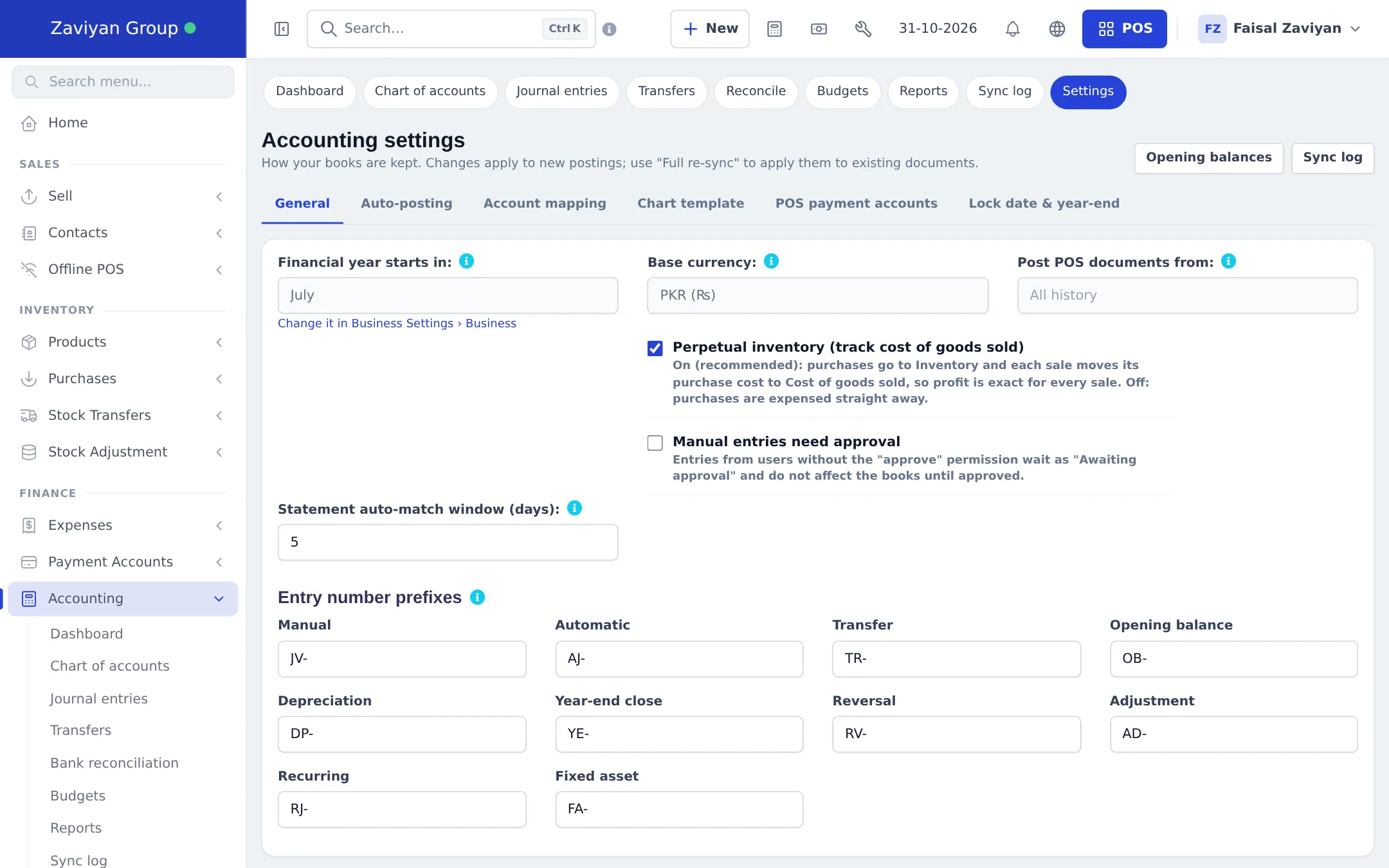
Section titled “Settings explained”Open Accounting › Settings. Changes apply to new postings; use Full re-sync on the Sync log page to apply them to existing documents.
| Tab | What you set |
|---|---|
| General | Shows financial year start and base currency; Perpetual inventory (track cost of goods sold); Manual entries need approval; Statement auto-match window (days); Entry number prefixes (manual JV-, automatic AJ-, transfer TR- and others) |
| Auto-posting | Turn posting on or off per document type |
| Account mapping | Which account each kind of posting uses, with overrides per location and payment method; expense categories and tax rates to accounts |
| Chart template | Add the accounts of another template later |
| POS payment accounts | Link your Payment Accounts (cash drawer, bank) to ledger accounts |
| Lock date & year-end | Lock date (closed period): nothing on or before it can be posted or changed. Year-end close moves the year’s profit to equity and can lock the year |
Permissions
Section titled “Permissions”Give these in User Management › Roles (they appear only when your plan includes the module).
| Permission (as on the Roles page) | Lets the user |
|---|---|
| Accounting: view dashboard | Open the accounting dashboard |
| Accounting: view chart of accounts & registers | See accounts and each account’s transactions |
| Accounting: add / edit / delete accounts | Change the chart of accounts, import accounts |
| Accounting: view journal entries | See entries |
| Accounting: create journal entries (and reverse) | Add manual entries and reverse entries |
| Accounting: edit manual journal entries | Edit manual entries |
| Accounting: delete manual journal entries | Delete manual entries and templates |
| Accounting: approve journal entries | Approve entries when approval is switched on |
| Accounting: transfer money between accounts | Use Transfers |
| Accounting: bank reconciliation | Reconcile bank accounts |
| Accounting: view budgets / manage budgets | See or edit budgets |
| Accounting: manage fixed assets & depreciation | Manage the simple fixed-asset register |
| Accounting: view financial reports | Open all accounting reports |
| Accounting: run auto-posting sync / view sync log | Use Sync now and the sync log |
| Accounting: settings & account mapping | Run the setup, change settings, opening balances |
| Accounting: lock date & year-end close | Close periods and years |
A typical Accountant role has everything except settings and lock date; a Viewer has the dashboard and reports only.
In the SmartPOS Business app
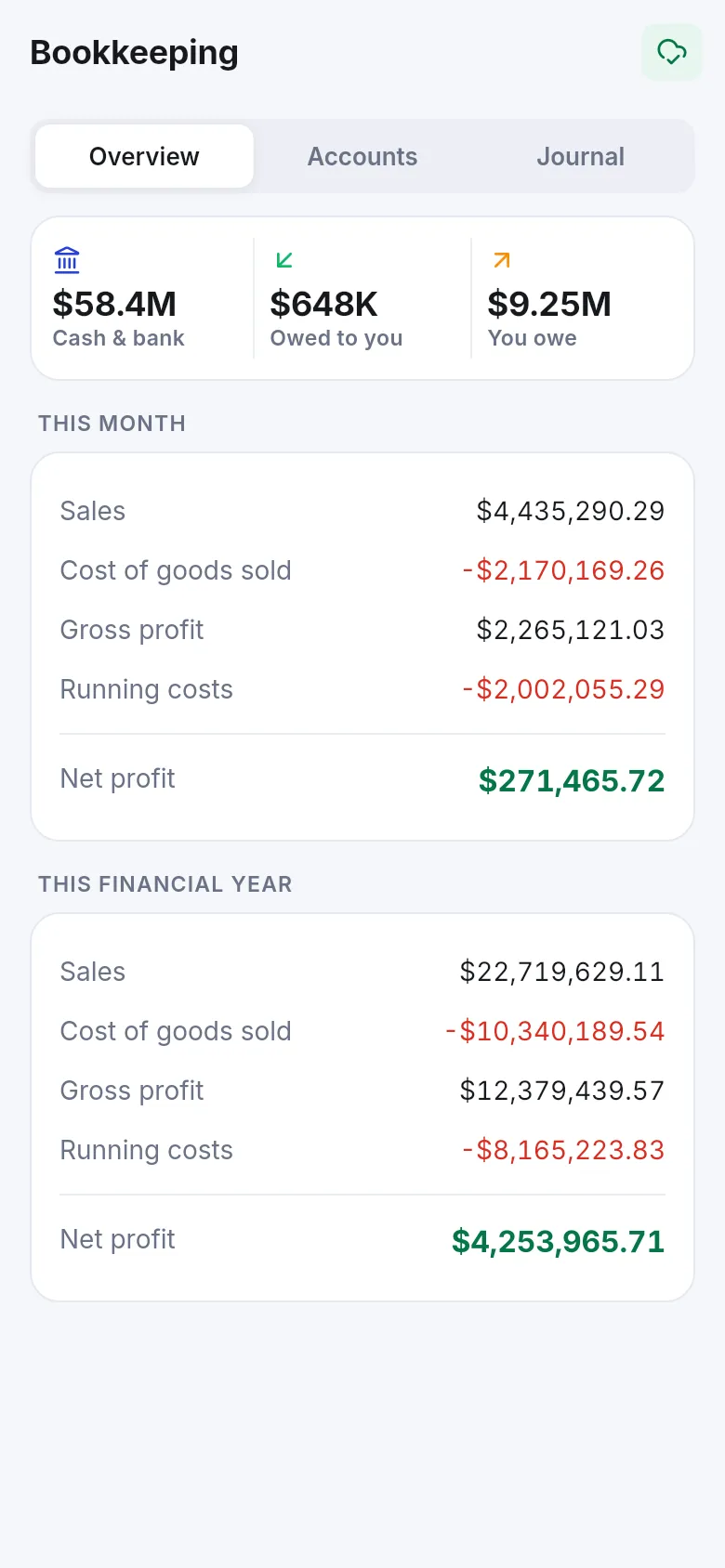
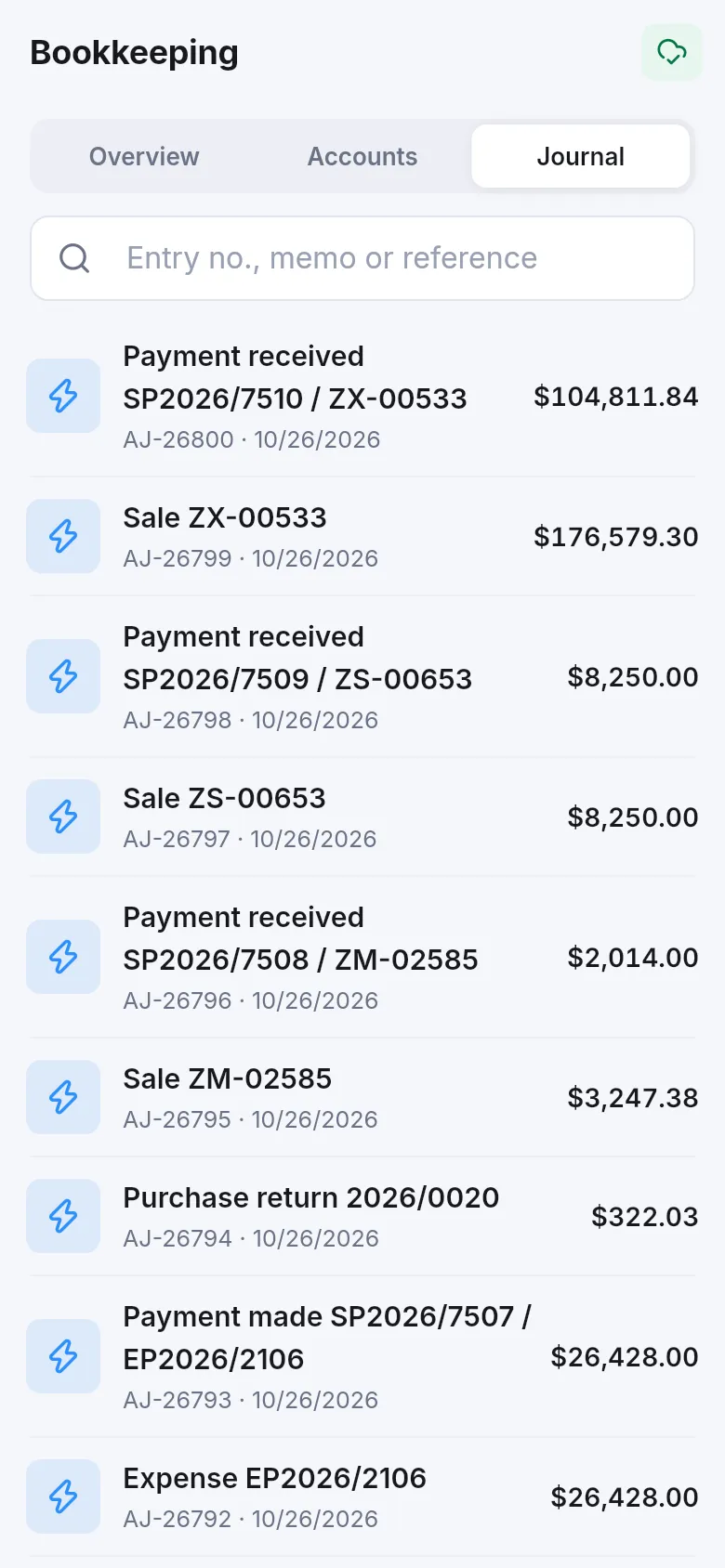
Section titled “In the SmartPOS Business app”The app has a read-only Bookkeeping screen with three tabs: Overview (cash & bank, owed to you, you owe, and this month’s and this year’s sales, cost of goods sold, running costs and net profit), Accounts (balances, tap one for its register) and Journal (search by entry number, memo or reference).
Tips and mistakes to avoid
Section titled “Tips and mistakes to avoid”- Set the financial year start month before you run the setup.
- Don’t post the same money twice: if a bill was already entered as an Expense in the POS, don’t add a manual journal for it too.
- Deleting an automatic entry isn’t possible: change or delete the sale, purchase or expense instead, and the entry follows.
- Accounting is single-currency (your business currency).
Related pages
Section titled “Related pages”Frequently asked questions
Do I have to type journal entries for every sale?
No. Every sale, return, purchase, expense, stock adjustment and payment becomes a balanced journal entry automatically. You only type manual entries for things that never pass through the POS, such as a loan or owner's capital.
What happens to the books if a cashier edits or deletes a sale?
The sale's journal entry is updated or reversed to match. Each document has exactly one entry, so nothing is ever posted twice. If the old date is inside a closed period, an adjustment entry is dated on the first open day instead.
Is this the same as Payment Accounts?
No. Payment Accounts is the simple cash and bank register that comes with every account. Accounting & Bookkeeping is a full double-entry ledger with a chart of accounts, balance sheet and trial balance. You can link your payment accounts to ledger accounts in Accounting settings › POS payment accounts.
My business has been running for two years. Can I start bookkeeping today?
Yes. In the setup you choose whether to post all history, only this financial year, or from a date you pick. If you start later than your real start date, enter your earlier balances under Opening balances.
Can my accountant use it without seeing everything else?
Yes. Create a role that has only the Accounting permissions you want (for example everything except settings and lock date) and give it to your accountant's user.
Does switching the module off delete my books?
No. Turning it off in Settings › Business Settings › Modules only hides the menu. Your accounts and entries are kept and come back when you switch it on again.
Can I see the books in the SmartPOS Business app?
Yes, read-only. The Bookkeeping screen in the app shows the overview, the chart of accounts with balances and the journal. Entries and settings are managed on the web.