
Inbox - chat with Shopper app customers from your phone
The Inbox in SmartPOS Business brings customer conversations to your phone: chats from customers who use the SmartPOS Shopper app, plus SMS, e-mail and WhatsApp conversations from your messaging channels. Staff can take a chat, reply with text and photos, leave internal notes and close it when done.
Before you start
Section titled “Before you start”- Your store is listed in the Shopper app and app chat is on. See Website chat and app chat and the App chat module.
- Optional: set routing, greeting and away messages on the web in Settings › Messaging › App chat.
The inbox
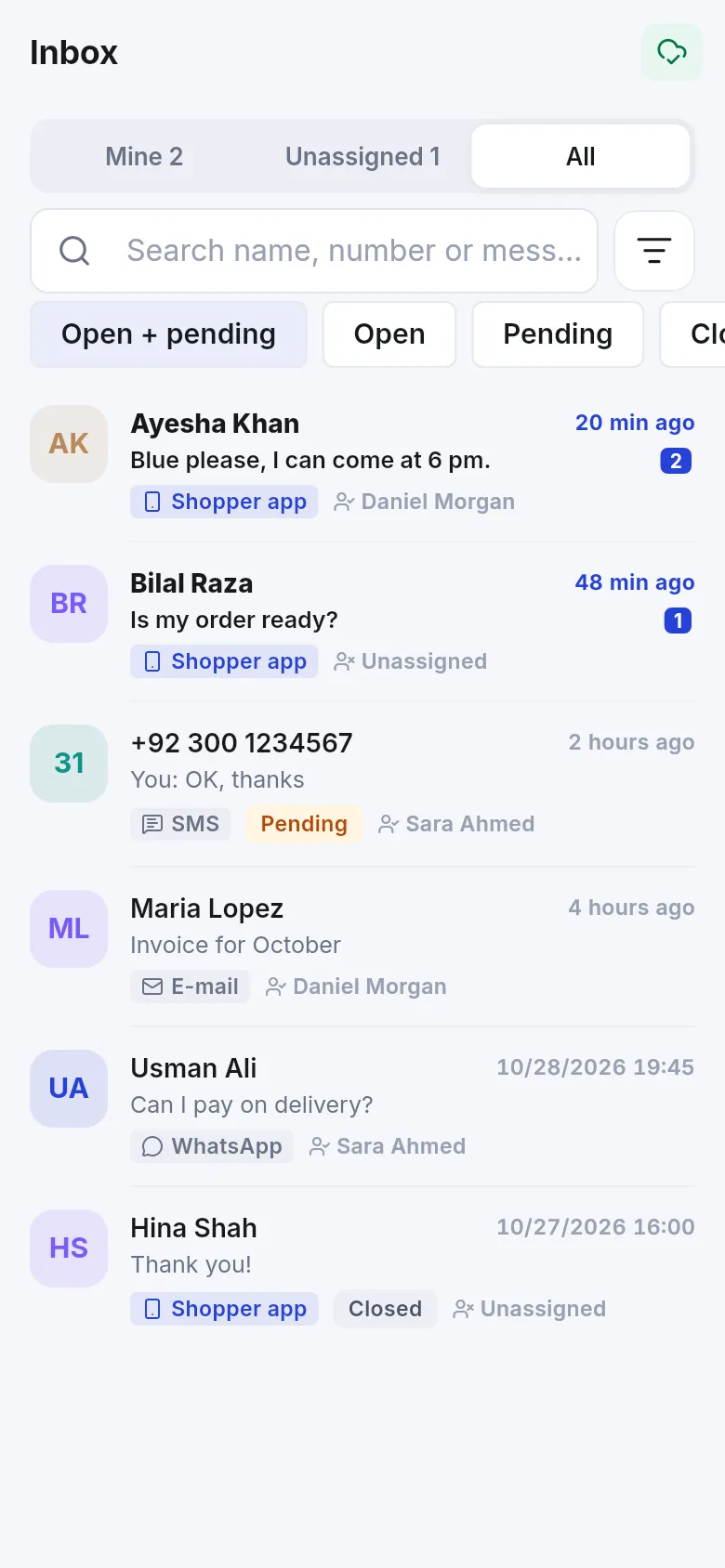
Section titled “The inbox”Open Inbox from More, the Home card (… unread conversations, … assigned to you, … unassigned) or a notification.
- Boxes: Mine, Unassigned, All (what you see depends on your role).
- Status: Open + pending, Open, Pending, Closed, All.
- Filter by Channel: Shopper app, SMS, E-mail, WhatsApp, Calls.
- Search name, number or message.
Each row shows the customer, last message, channel, status and who it is assigned to.
Reply to a chat
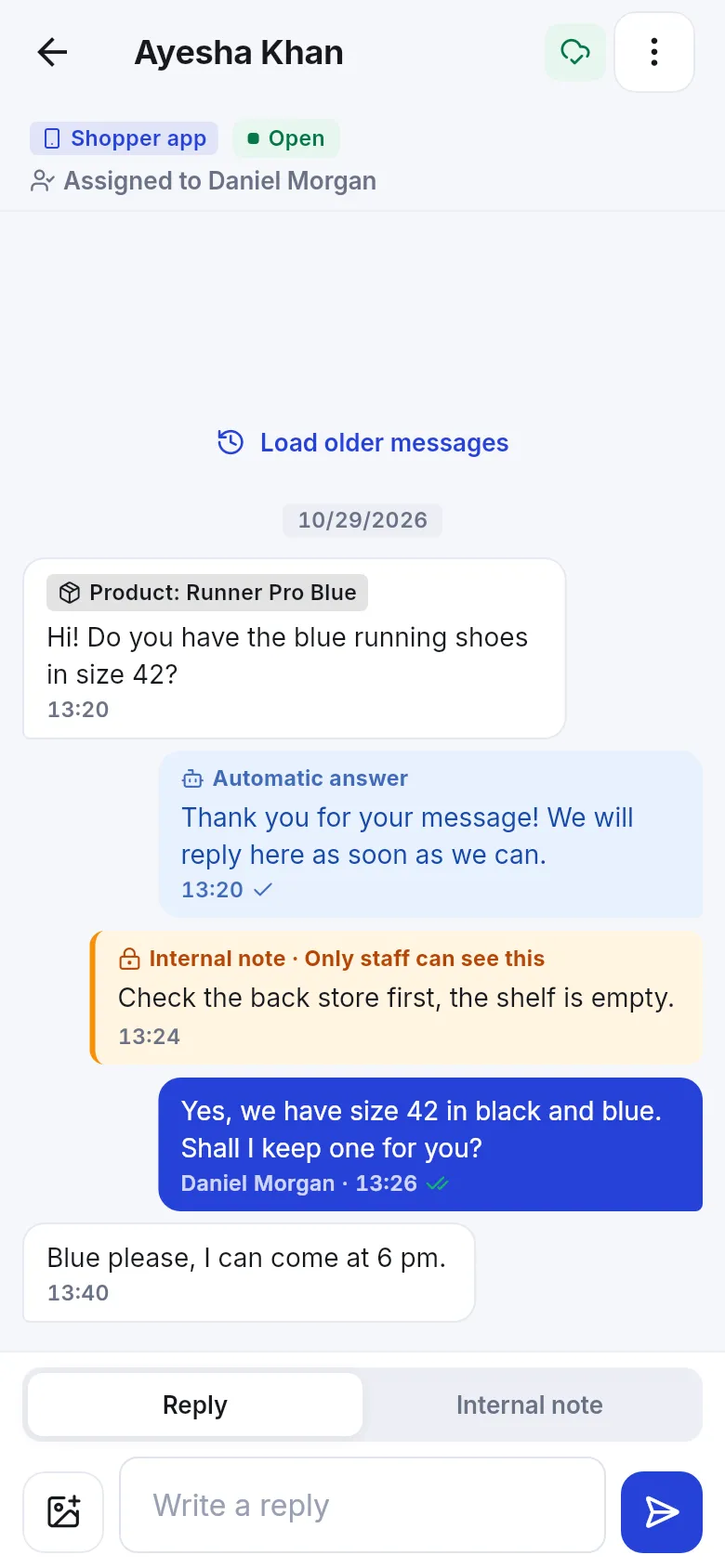
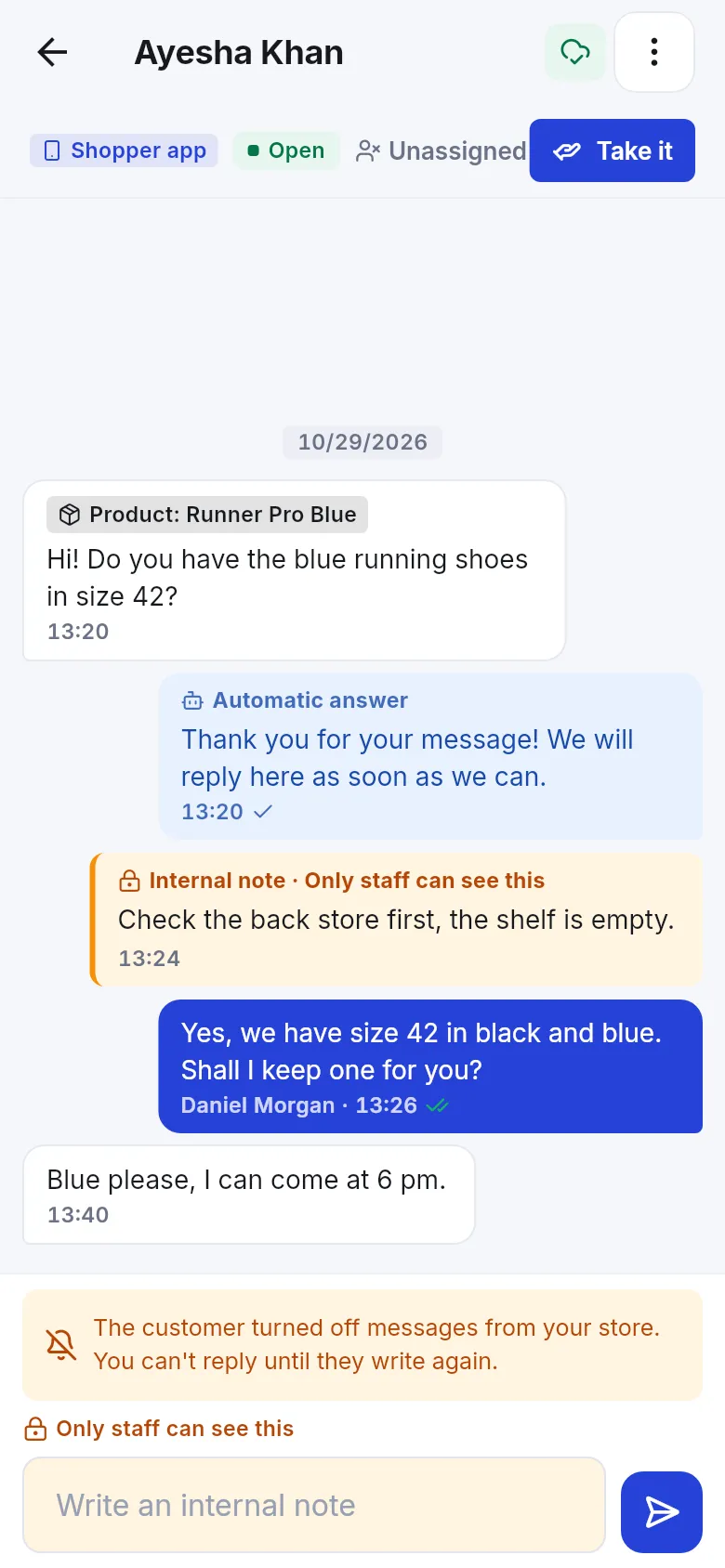
Section titled “Reply to a chat”- Tap a conversation. If it is unassigned, tap Take it – This conversation is yours now.
- Read the messages. A chip such as Product or Order shows what the customer was looking at.
- Choose Reply, type in Write a reply, optionally Add photo (Camera or Gallery), and tap Send.
- To talk to your team, switch to Internal note – Only staff can see this.
- From ⋮ choose Assign (to a colleague), Mark pending, Close conversation, Reopen, Open contact or Block customer.
Messages marked Automatic answer were sent by your greeting or “we are closed” settings. Your replies show Sent, then Read when the customer opens the chat.
Blocking
Section titled “Blocking”- Block customer (managers): the customer can no longer write to your store in the Shopper app. Unblock customer reverses it.
- If the customer turns off messages from your store, the app says You can’t reply until they write again.
Messages you may see
Section titled “Messages you may see”| Message | Why |
|---|---|
| The customer has to start this chat first. | Staff can’t open new app chats. |
| Chat in the Shopper app is switched off for this business. | Turn on app chat on the web. |
| Your messaging quota is used up. | The owner tops up messaging. |
| You can read this conversation, but your role can’t reply. | Ask for the send permission. |
Related pages
Section titled “Related pages”Frequently asked questions
Can I start a chat with a customer from the app?
No. Only the customer can start a Shopper app chat, by tapping Message store in the SmartPOS Shopper app. After that you can reply from the Business app, the web Inbox or the customer page.
Is the chat real-time?
Nearly. Messages show when you open or refresh the inbox, and a phone notification tells you about new chats when push is on.
Who sees a new chat?
It goes to the person picked by your App chat routing setting (nobody, one person or round robin). Staff allowed to see unassigned chats can tap Take it.
Can the customer see internal notes?
No. Internal notes are only for your team and are never sent to the customer.
Can I send photos?
Yes, in Shopper app chats when photos are allowed in your App chat settings. Photos up to 5 MB.
What does Pending mean?
You replied and are waiting for the customer. A new message from the customer opens the chat again.
Why can't I reply?
The customer may have turned off messages from your store, your role may only allow reading, or your messaging quota is used up. The app says which.