
Pharmacy step 3: generic names, Rx flags and controlled items
Medicines need more information than a name and a price: the generic (salt) name, strength, dosage form, pack size and whether a prescription is required. SmartPOS Hub keeps these in product fields, grouped as a Pharmacy field group that you attach to your medicine categories.
Before you start
Section titled “Before you start”- Your medicine categories exist (imported with the Pharmacy catalog in step 2, or from Products › Categories › Import prebuilt).
Add the Pharmacy field group
Section titled “Add the Pharmacy field group”- Open Products › Product fields.
- Click Import prebuilt and pick the Pharmacy group. It contains Generic name, Strength, Dosage form, Pack size, Prescription required, Manufacturer, Storage and Registration number.
- Attach the group to your medicine categories (for example Pain & Fever, Cough, Cold & Flu, Prescription Generics). Tick “include sub-categories”.
- Make sure the group is switched on. Fields marked Website show on your online store; fields marked Filter can be used to filter and search there.
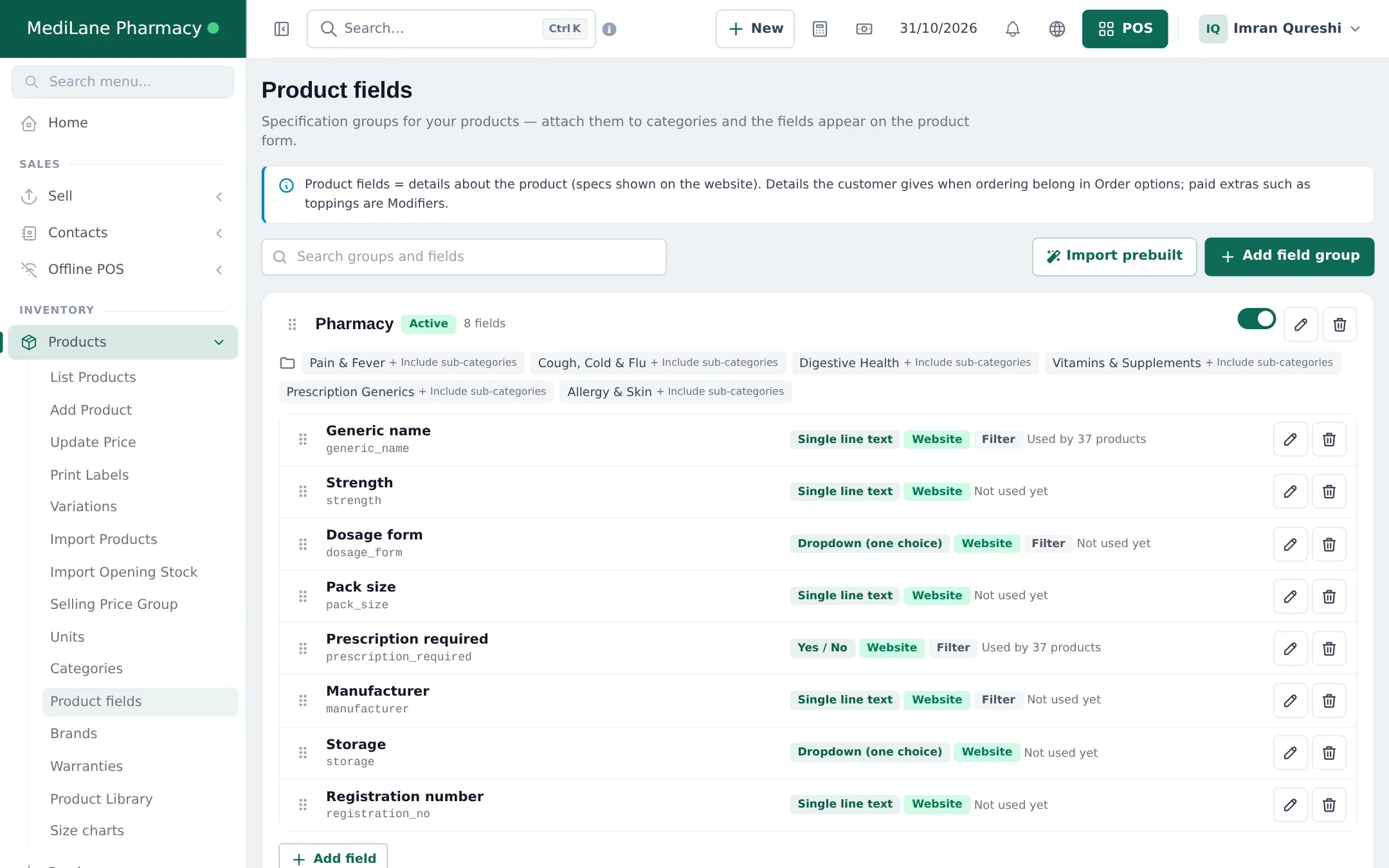
From now on, the Add Product and edit forms of medicines in those categories show the Pharmacy fields.
Brand vs generic
Section titled “Brand vs generic”| Where it lives | Example | |
|---|---|---|
| Brand name | Product name | Panadol 500mg Tablet (20x10) |
| Manufacturer | Brand, and the Manufacturer field | GSK Consumer Healthcare |
| Generic / salt | Generic name field | Paracetamol (500 mg) |
Prescription-only medicines
Section titled “Prescription-only medicines”Set Prescription required to Yes on prescription-only products. This:
- shows the Rx status on the product and on your online store;
- lets your online store hold orders with these items until a pharmacist approves the uploaded prescription (step 6).
At the counter, check the paper prescription as you do today, and note the prescription reference or doctor in the sale’s note.
Controlled medicines
Section titled “Controlled medicines”Frequently asked questions
Where is the generic name stored?
In the Generic name product field of the Pharmacy field group. Library imports fill it from the catalog; for your own products, type it on the product form.
Can customers search by generic name online?
Yes. The online store uses the Pharmacy fields marked as filters, so customers can find medicines by generic (salt) name and see brand alternatives.
How do I mark a medicine as prescription-only?
Set the Prescription required field to Yes on the product. On your online store, such items can then require a prescription upload and pharmacist approval.
Does SmartPOS Hub enforce controlled-drug rules at the counter?
No. It records every sale with batch, customer and user, but it does not replace the controlled-drug register or checks your law requires. Keep your register and limit who can sell these items.
Can I add my own fields, like Schedule or Storage temperature?
Yes. Edit the Pharmacy field group in Products › Product fields and add a field. Storage and Registration number are already included.