
Appliance store step 4: installation and delivery
Most ACs and big appliances leave the store on a truck and need a technician at the customer’s home. This step covers three things: charging for installation and delivery, booking the installation, and tracking the delivery.
Before you start
Section titled “Before you start”- Products are set up with serial numbers and warranties (step 3).
- Your installers and drivers exist as users (Users and roles).
1. Installation and delivery as products
Section titled “1. Installation and delivery as products”- Products › Add Product. Name it clearly, for example “AC installation (up to 1.5 ton)”, “Fridge delivery – city”.
- Untick Manage Stock? in the Stock section (a service has no stock).
- Set the price and tax, and save.
- At the sale, add the service next to the appliance. For a package (AC + installation + bracket), create a Combo product.
2. Book the installation visit
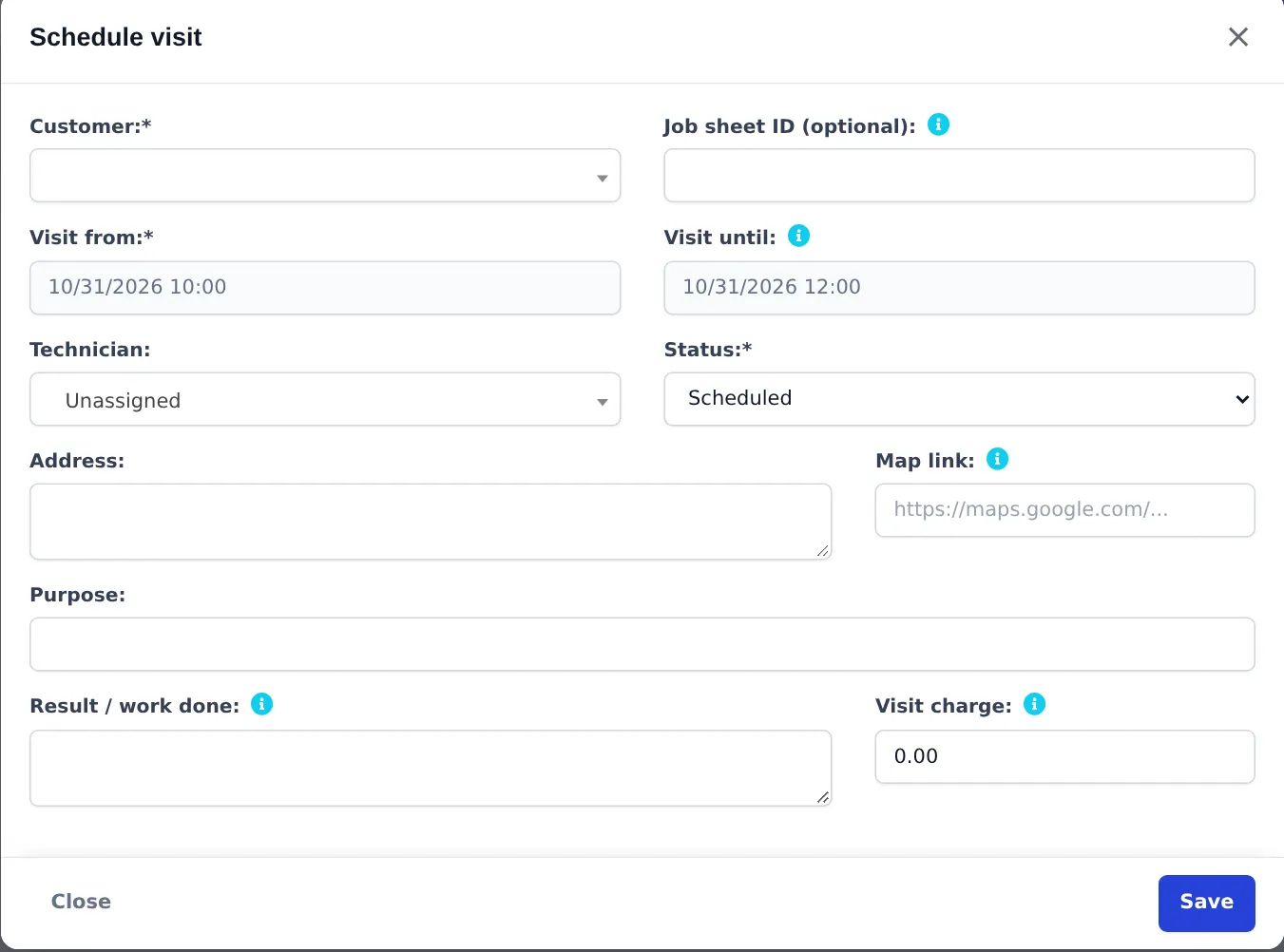
Section titled “2. Book the installation visit”- Open Repair › On-site visits and click Schedule visit.
- Choose the Customer. Leave Job sheet ID empty for a new installation (fill it for a repair).
- Set Visit from and Visit until, the Technician, Status (Scheduled) and the Address with an optional Map link.
- In Purpose, write what to install, for example “Install 1.5 ton inverter AC, serial …”. Add a Visit charge if you charge for the visit itself.
- Save. The visit appears in the list (Today, Upcoming) and on the dashboard calendar. After the job, the technician updates the status (On the way, In progress, Completed) and Result / work done.
Use this when you want installation slots in a technician’s calendar, and online booking.
- Services › Services: add “AC installation” with its duration and price. Each service is also a product without stock.
- Services › Staff: add your installers with their working hours.
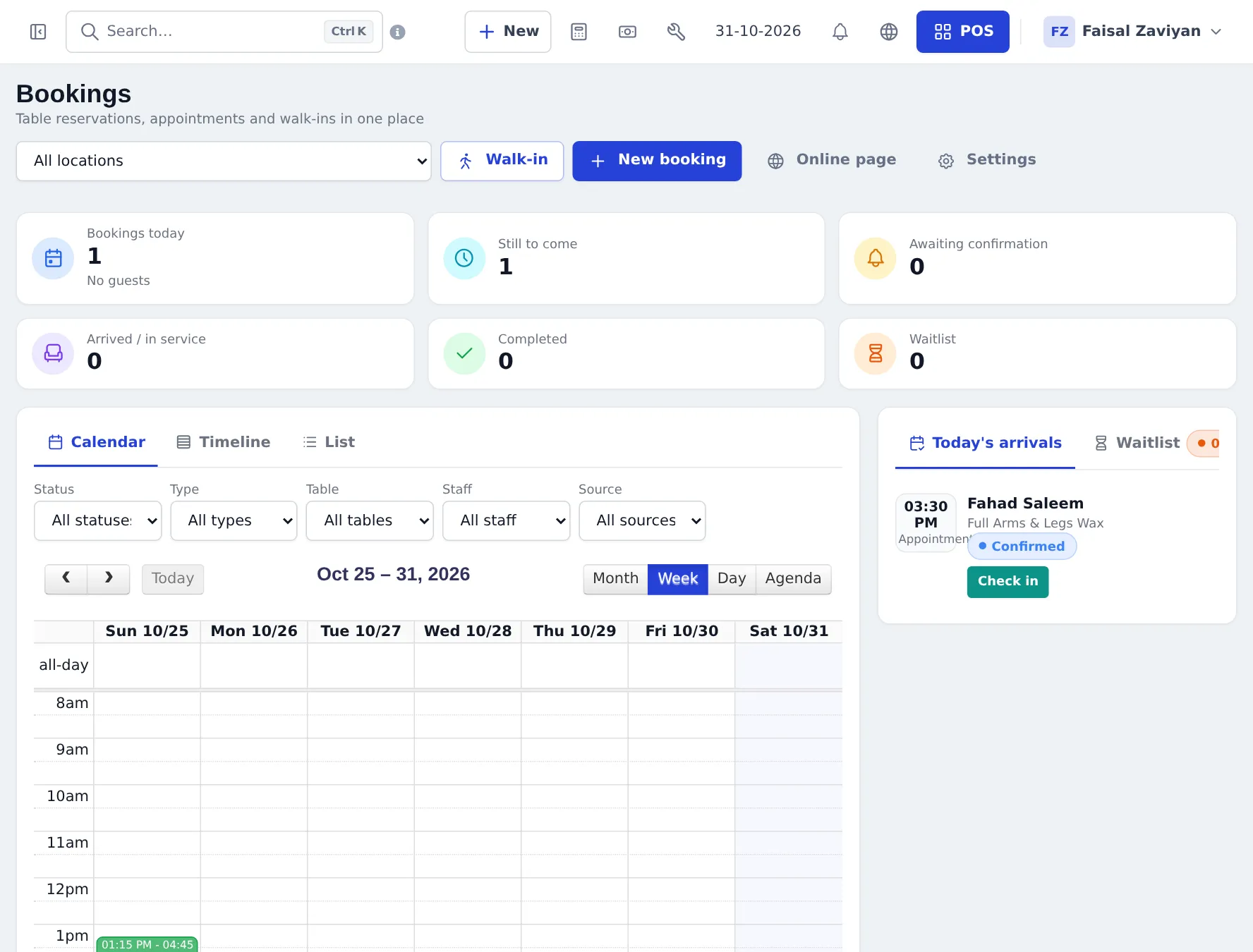
- Services › Overview › New appointment, or open Bookings and drag a time range in the calendar.
- At checkout, open the appointment in the POS so the service is on the invoice.
3. Track the delivery
Section titled “3. Track the delivery”- On Sell › Add Sale, fill Shipping and extra charges: Shipping Address, Shipping Charges, Shipping Status (Ordered), and the Delivery Person.
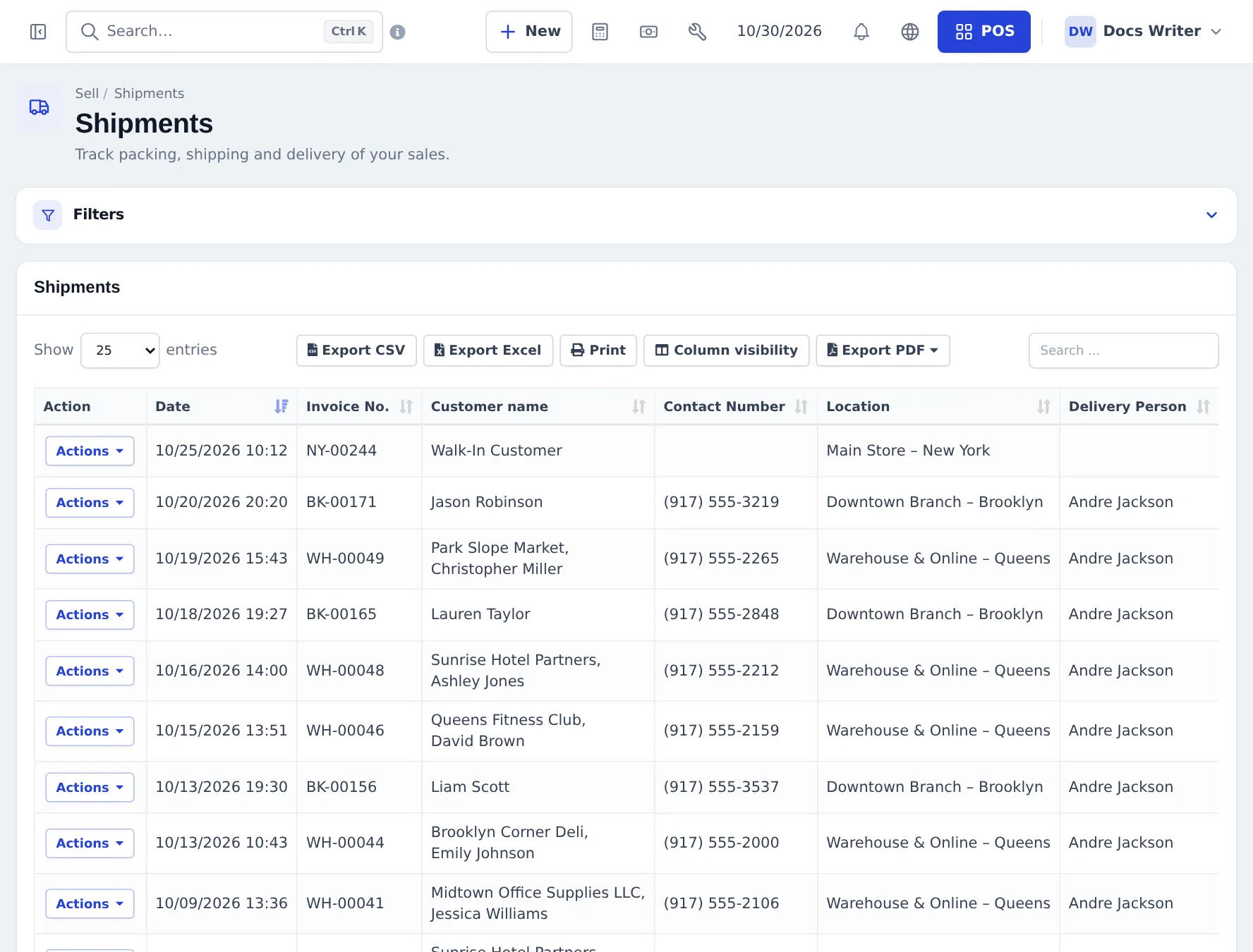
- Save the sale. It appears in Sell › Shipments.
- Update the Shipping Status to Packed, Shipped and Delivered, and record Delivered To. Attach the signed delivery note in Shipping Documents.
Own riders and couriers: the Shipping & delivery module
Section titled “Own riders and couriers: the Shipping & delivery module”Switch it on to get a Shipping menu with Orders to ship, a Dispatch board for your own riders (assign orders, follow them, see the cash each rider holds), Riders & zones, Rider settlement at the end of the day, COD reconciliation and Shipping settings. Riders can be staff with a login (they see My deliveries) or external drivers who get a job link by SMS. See Shipping & delivery.
Next: step 5: sell on instalments.
Frequently asked questions
How do I charge for installation?
Create installation as a product with Manage Stock unticked, for example AC installation up to 1.5 ton, and add it to the sale next to the AC. It appears on the invoice and in sales reports like any item.
Should delivery be a product or a shipping charge?
Either works. A delivery product shows in product sales reports. Shipping Charges on the sale add to the invoice total and keep delivery separate from goods. Pick one and use it every time.
How do I book an installation for a date and technician?
Use Repair › On-site visits › Schedule visit with the customer, date and time window, technician, address, map link and purpose. The visit shows on the dashboard calendar. With the Services module you can instead book an appointment slot in a technician's calendar.
How do I know which deliveries are still out?
Sell › Shipments lists every sale with shipping details, filterable by location, customer, delivery person and shipping status (Ordered, Packed, Shipped, Delivered, Cancelled).
Do I need the Shipping & delivery module?
Not for simple delivery. The sale's shipping details and Sell › Shipments cover it. The module adds a dispatch board for your own riders, rider links, cash-on-delivery settlement and courier companies.
Can the delivery person mark the order delivered from a phone?
With the Shipping & delivery module, riders with a login see My deliveries, and external riders get a job link by SMS where they mark picked up, on my way, delivered with photo and signature, or failed.