
Salon step 6: retail products and stock
Retail is easy extra revenue for a salon or spa: the shampoo the stylist just used, a serum, a makeup sponge. This page adds those retail products with photos and barcodes, sets prices and opening stock, and shows them next to your services in the POS. It is for the owner or manager.
Before you start
Section titled “Before you start”- The Product Library module is on in Settings › Business Settings › Modules (if your plan includes it). Without it, add products by hand under Products › Add Product.
- You know which brands you stock and your selling prices.
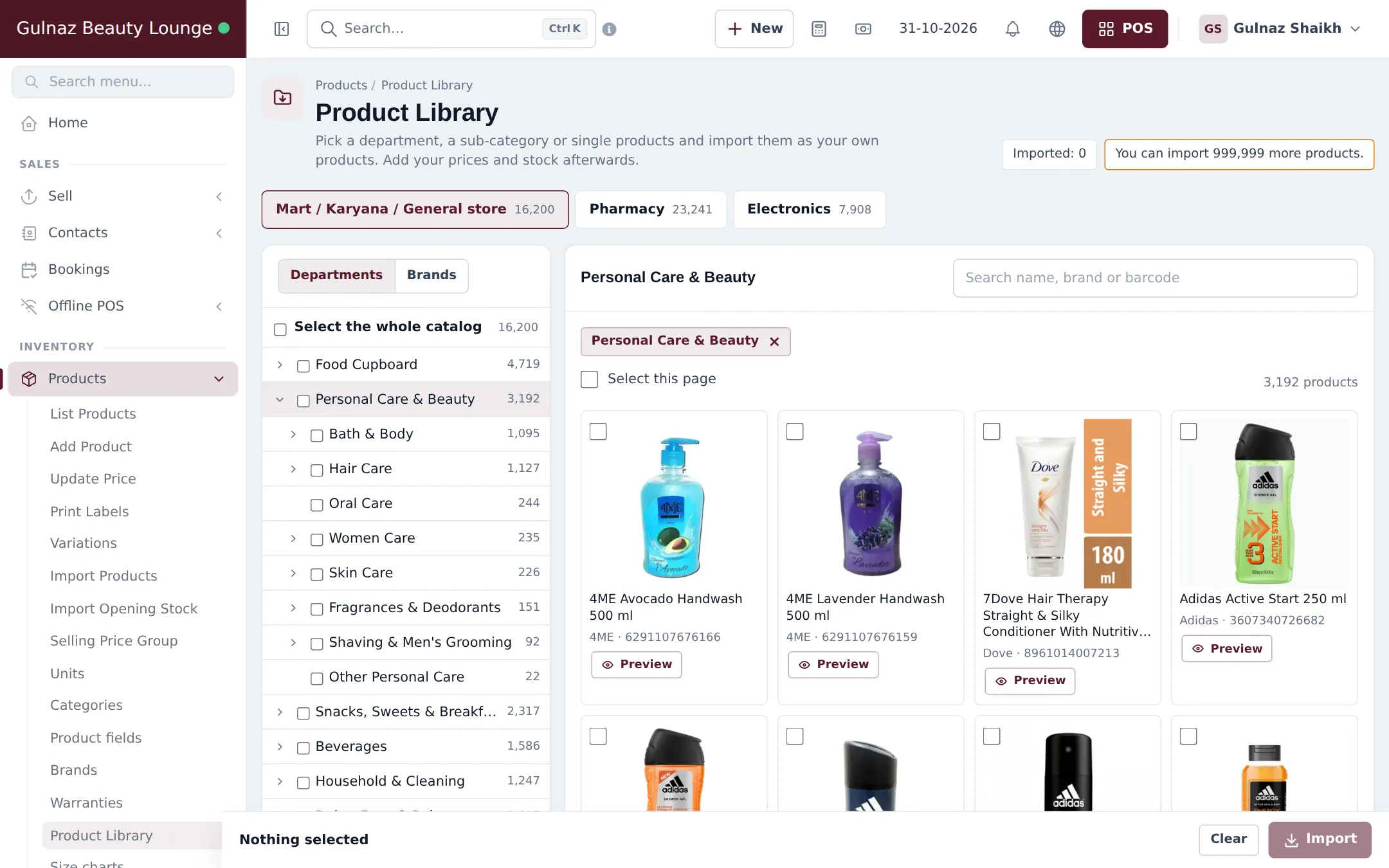
Import beauty products from the Product Library
Section titled “Import beauty products from the Product Library”- Open Products › Product Library and choose the Mart / Karyana / General store catalog.
- Click Personal Care & Beauty in Departments, then open a sub-category such as Hair Care, Skin Care, Bath & Body or Shaving & Men’s Grooming. Use Brands or the search box to narrow it down.
- Tick the products you sell (or a whole sub-category). Use Preview to check a product’s photo and barcode.
- Click Import at the bottom and confirm. The products become your own products, with no price and no stock yet.
Add prices and opening stock
Section titled “Add prices and opening stock”- Open Products › List Products, filter by the category you imported and Edit each product, or use Products › Update Price to change many at once.
- Enter the purchase price and selling price.
- Enter opening stock per branch with Products › Import Opening Stock or the product’s opening stock window. See Opening stock.
- Record new deliveries as purchases from your supplier. See Purchases.
Products you only use in the treatment room (colour, wax, massage oil) can be stock items too, so you know when to reorder. Remove what you use with a stock adjustment (Stock adjustments).
Sell products at the POS
Section titled “Sell products at the POS”Retail products appear in the POS product grid next to your services, with the stock left in this branch. Tap or scan to add them, on their own or on the bill of a checked-out appointment.
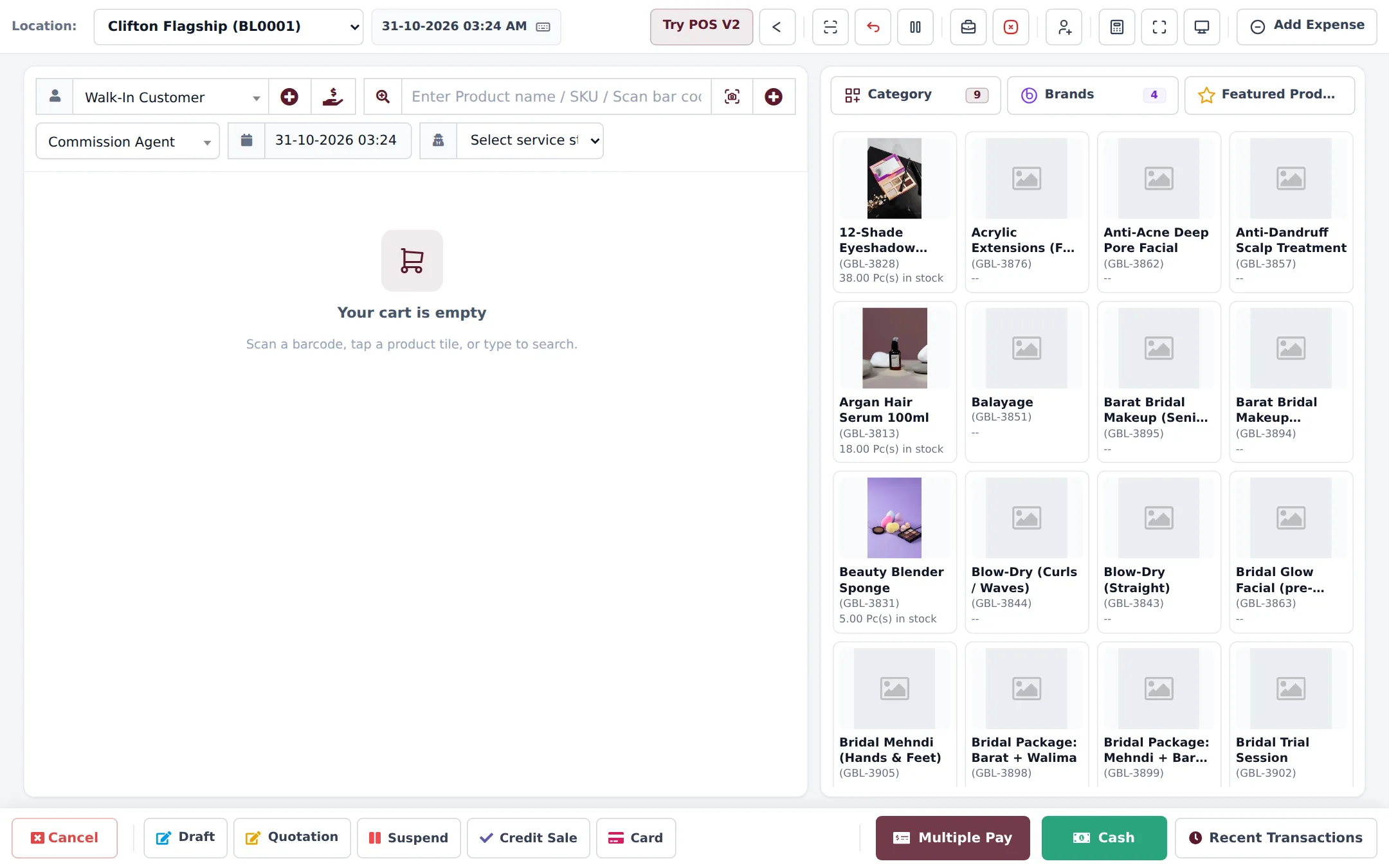
- Pick your top sellers in POS screen Featured Products on the branch’s location form (Settings › Business Locations), so they are one tap away under Featured Products in the POS.
- Use Reports › Stock Report filtered by category to see what to reorder each week.
- Put products under a brand so you can report sales by brand.
Frequently asked questions
Where do I find salon retail products to import?
In Products › Product Library, open the Mart / Karyana / General store catalog and its Personal Care & Beauty department. It has Hair Care, Skin Care, Bath & Body, Fragrances & Deodorants, Shaving & Men's Grooming and more, with photos and barcodes.
Do imported products come with prices?
No. The Product Library brings names, brands, photos, barcodes and categories. You add your own selling price and stock after importing.
Can I track products used in the treatment room, such as colour tubes?
Yes, as stock. Record them as purchases when they arrive and remove what you use with a stock adjustment. Services themselves do not use up stock automatically.
Can I sell a product without an appointment?
Yes. Open the POS, scan or tap the product and take payment. Retail and services can also be on the same bill at checkout.
Can stylists earn commission on product sales?
Services commission is only on services. To pay a percentage on product sales, use Sales Commission Agents and pick the agent on the POS sale.