
Daily operations in a hardware store
Once the setup is done, a hardware day follows the same rhythm: contractors early, DIY customers through the day, a supplier truck, a shuttle run between the yard and the store, and a cash-up at night. This page lists what to do at each point and where it happens in SmartPOS Hub.
Opening
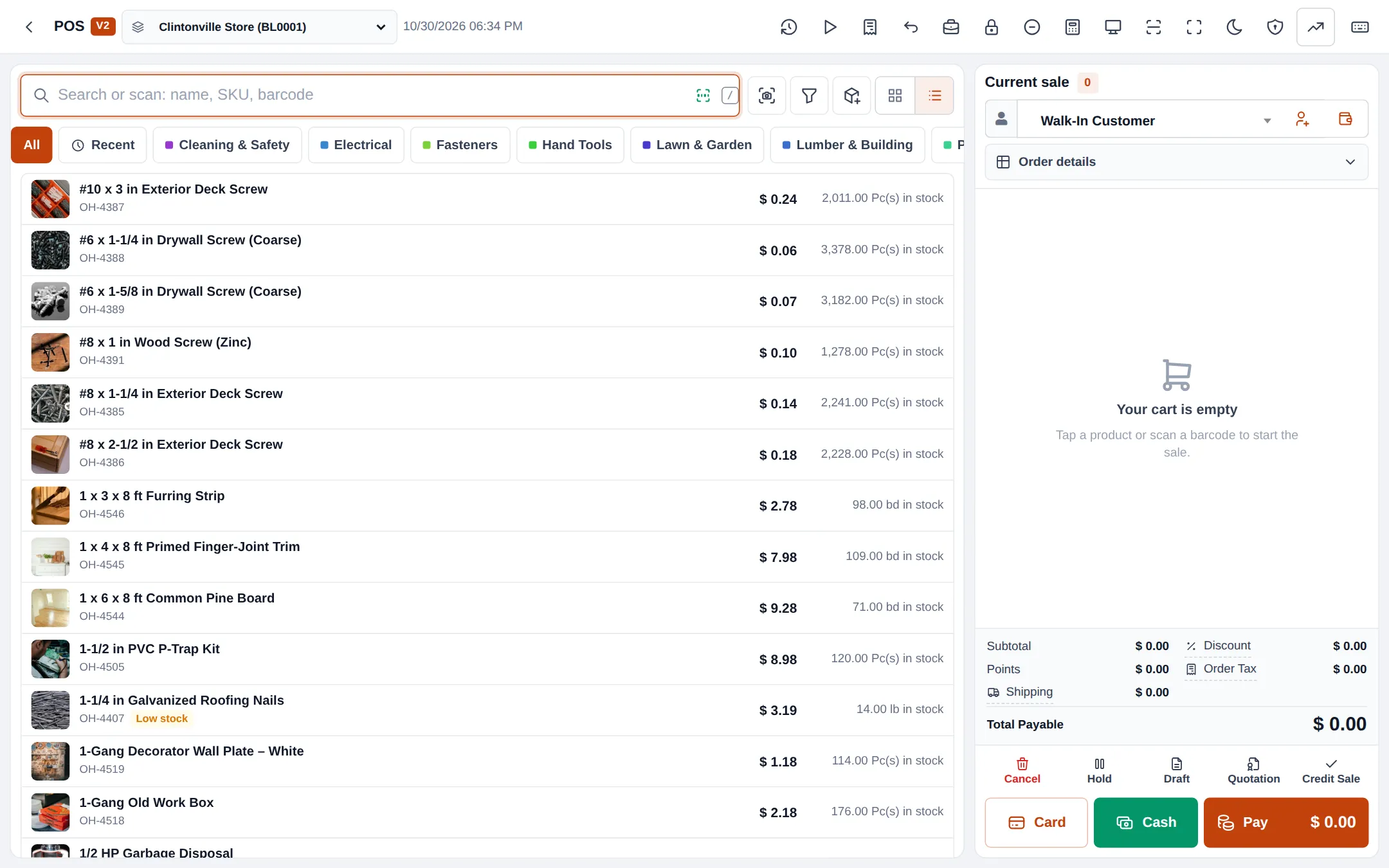
Section titled “Opening”- Open Sell › POS at each till. The first time in a shift, enter the Cash in hand and press Open Register.
- Check the dashboard on Home for Sales Payment Due (house accounts) and Purchase Payment Due.
- Look at the low-stock items (the POS also marks them Low stock) and add them to the next purchase order.
At the counter
Section titled “At the counter”- Walk-in DIY: scan or search, pick the unit (Box or Pieces, Spool or Ft), take cash or card.
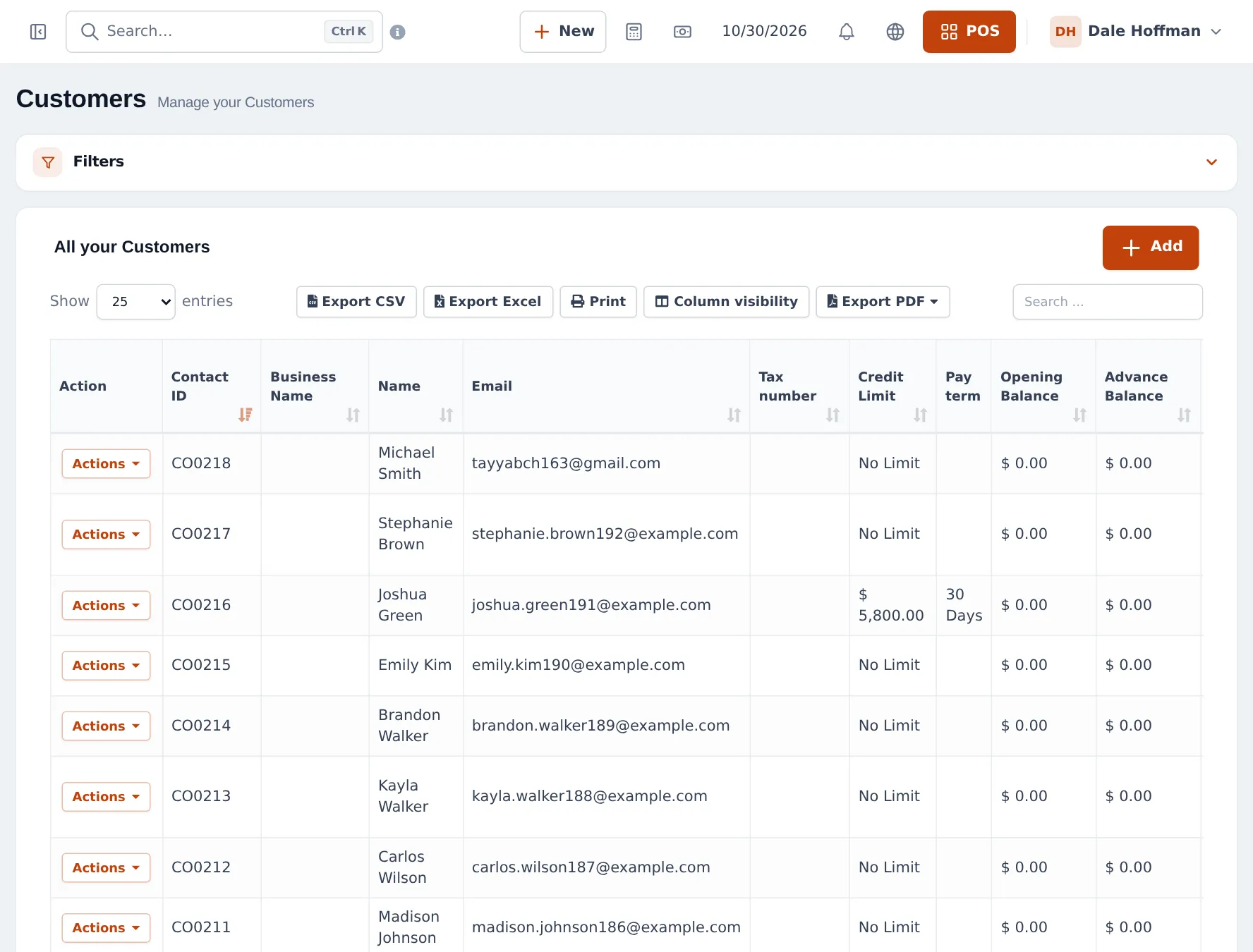
- Contractors: choose the customer first so their price group applies, then Credit Sale for the house account. The sale is refused if it would go over their credit limit.
- Quotes: press Quotation for anyone who wants a price first (step 5).
- Services: key cutting, glass cutting or delivery are products without stock; add them like any item.
Through the day
Section titled “Through the day”- Truck arrives: record the purchase against the purchase order (step 6).
- Shuttle run: create a stock transfer from the yard to the store; mark it Completed when it is unloaded.
- Damaged or mis-tinted stock: Stock Adjustment › Add Stock Adjustment with a reason.
- Payments from contractors: Receive Payment next to the customer in the POS, or Add payment on the customer page.
Closing
Section titled “Closing”- Close each register from the POS (close register button): count cash, check card slips, and add a note.
- Open Reports › Z Report for the day’s sales, returns, expenses and total in hand.
- Check Sell › All sales filtered to today for any sale left Due that should have been paid.
Weekly and monthly
Section titled “Weekly and monthly”| When | What | Where |
|---|---|---|
| Weekly | Chase overdue house accounts | Reports › Payment by Age |
| Weekly | Reorder from suppliers | Reports › Stock Report, Purchases › Purchase Order |
| Monthly | Statements to contractors | Customer page › ledger, or the customer portal |
| Monthly | Profit by store | Reports › Profit / Loss Report filtered by location |
| Season change | Count a department | Stock counts |
Related pages
Section titled “Related pages”Frequently asked questions
Which POS screen is best for a busy hardware counter?
Either works. POS V2 is built for fast scanning and keyboard shortcuts; POS V1 shows the unit dropdown directly on each cart line. Sell › POS opens whichever version is set as the default.
How do I look up an item a customer describes?
Type part of the name, size or SKU in the POS search, or filter by category tab. On the shop floor, staff can search and check stock in the SmartPOS Business app.
What do I check at the end of the day?
Close each register and count cash, then look at the Z Report, Sell › All sales for any unpaid house-account sales, and the dashboard's low-stock list.
A customer returns a box of screws. How?
Use Sell › All sales › Actions › Sell Return on the original sale, or the return button in the POS. Choose the quantity and unit returned; stock comes back.
How do I record damaged lumber?
Stock Adjustment › Add Stock Adjustment with the reason. Web adjustments remove stock only.