
Hardware step 4: contractor accounts and prices
Contractors, remodelers and property managers are the backbone of most hardware stores. They expect trade prices, a house account they pay monthly, and statements. In SmartPOS Hub that is three things together: a selling price group for their prices, a customer group that applies it, and a credit limit and pay term on each account.
Before you start
Section titled “Before you start”- Products and prices are loaded (step 3).
- You have a list of trade accounts with their limit and terms.
1. Create the trade price lists
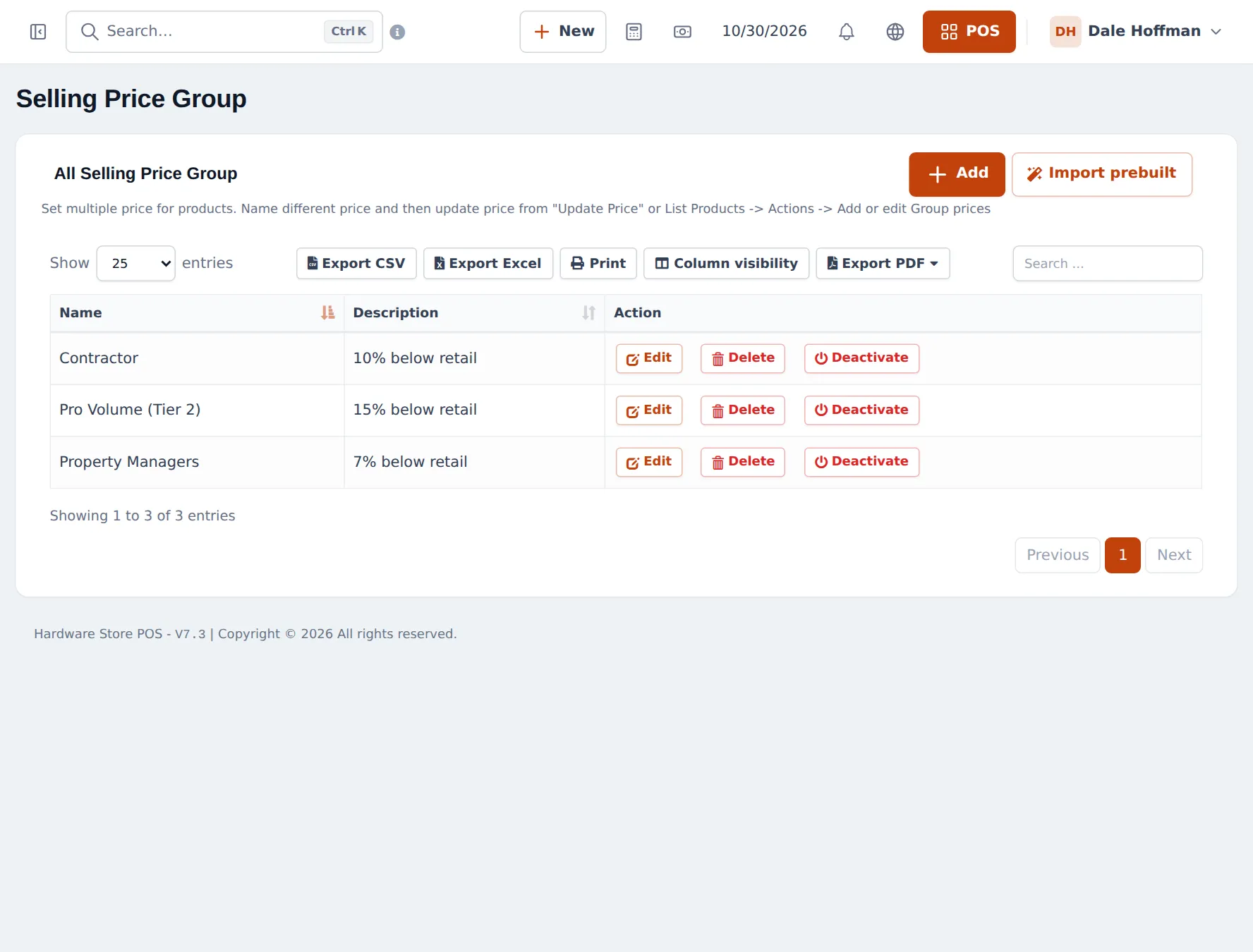
Section titled “1. Create the trade price lists”- Open Products › Selling Price Group and click Add (or Import prebuilt).
- Create one group per price level, for example Contractor (10 % below retail), Pro Volume (Tier 2) (15 % below) and Property Managers (7 % below). The description is for your staff only.
- Set the prices: on Products › List Products use Actions › Add or edit Group Prices for one product, or Products › Update Price to fill a whole column in a spreadsheet. Each price can be Fixed or a Percentage of the default price.
2. Link the price lists to customer groups
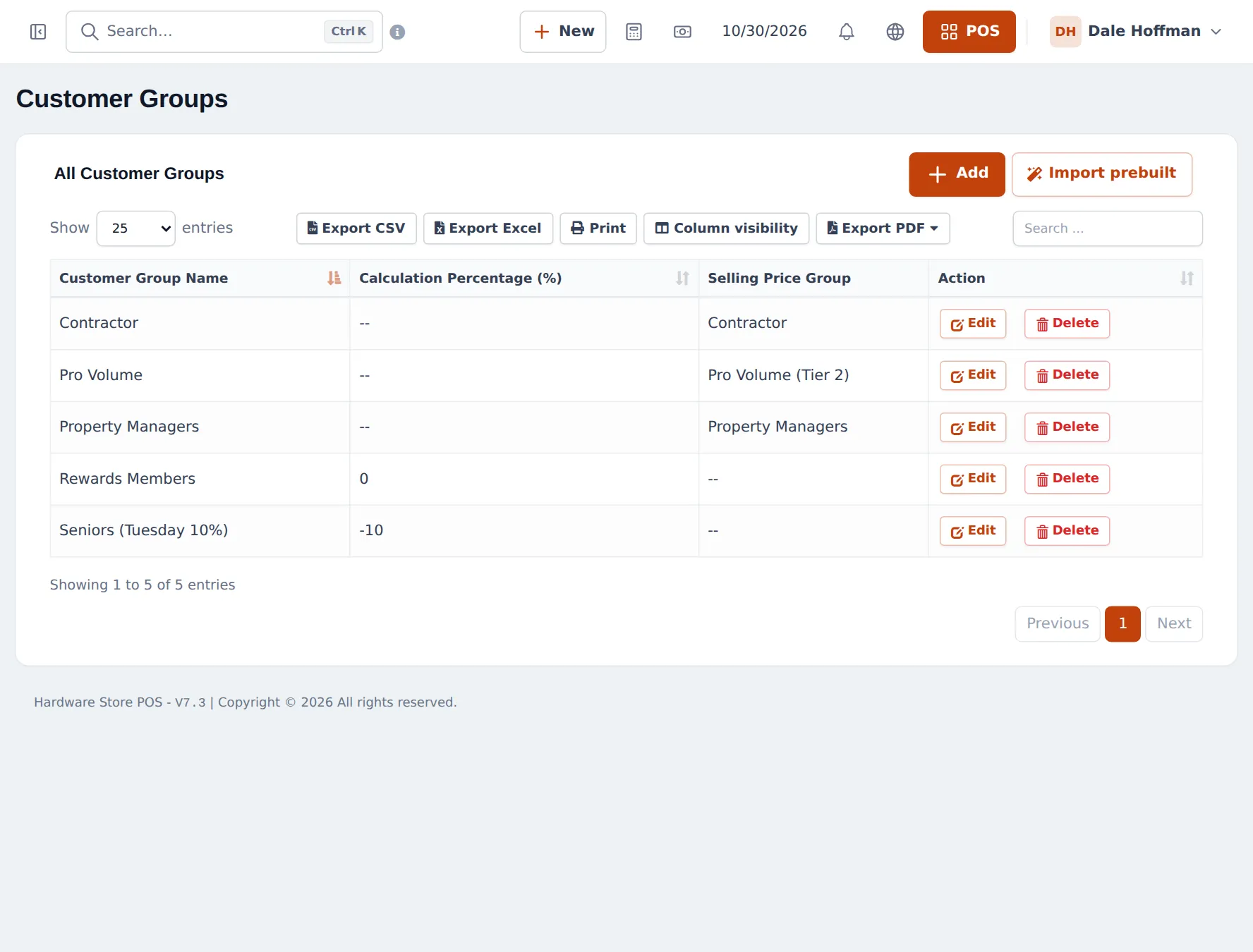
Section titled “2. Link the price lists to customer groups”- Open Contacts › Customer Groups and click Add.
- Name the group (for example Contractor), set Price calculation type to Selling Price Group and choose the price group.
- For a simple discount group (for example Seniors on Tuesdays), choose Percentage and enter -10.
3. Open the house accounts
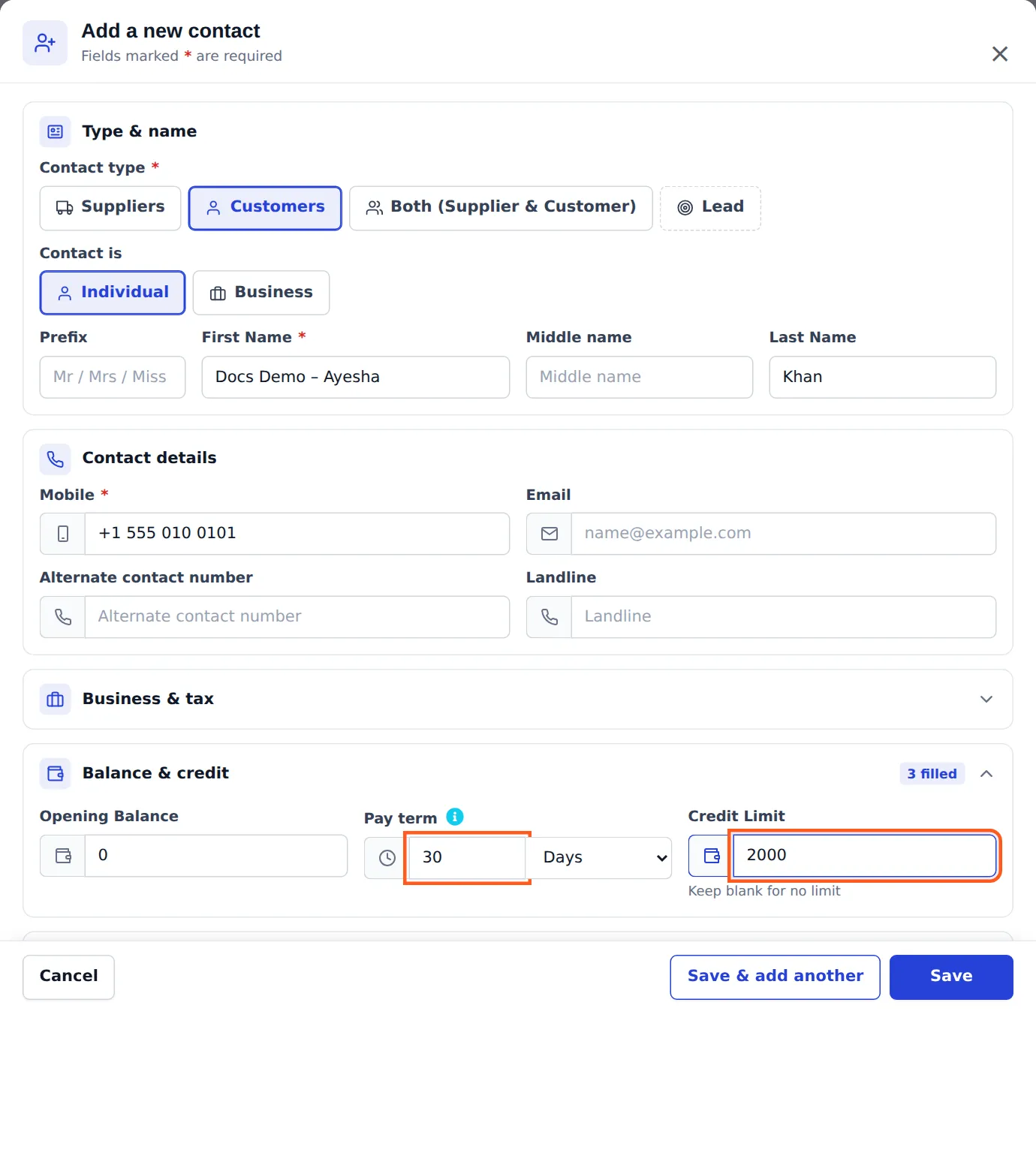
Section titled “3. Open the house accounts”- Open Contacts › Customers and click Add (or edit the customer).
- Fill in the Business Name and the contact person.
- Choose the Customer Group (Contractor, Pro Volume…).
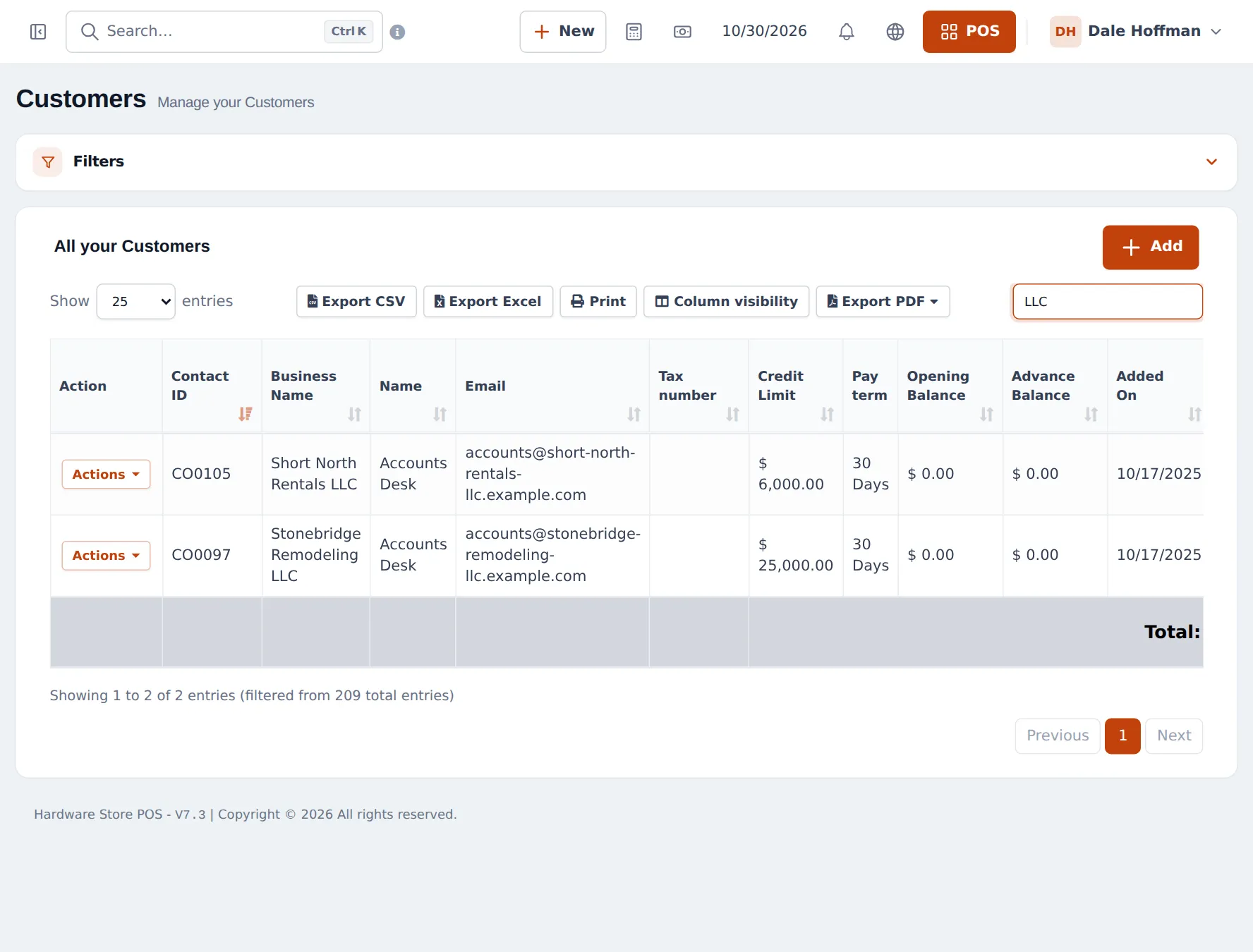
- Open Balance and credit: set the Pay term (for example 30 Days) and the Credit Limit (for example 15,000). Leave Credit Limit empty for no limit.
- Save.
4. Sell on account
Section titled “4. Sell on account”- In the POS, choose the contractor as the customer. Prices switch to their group.
- Add the items and press Credit Sale (nothing paid now), or Multiple Pay / Pay to take a part payment.
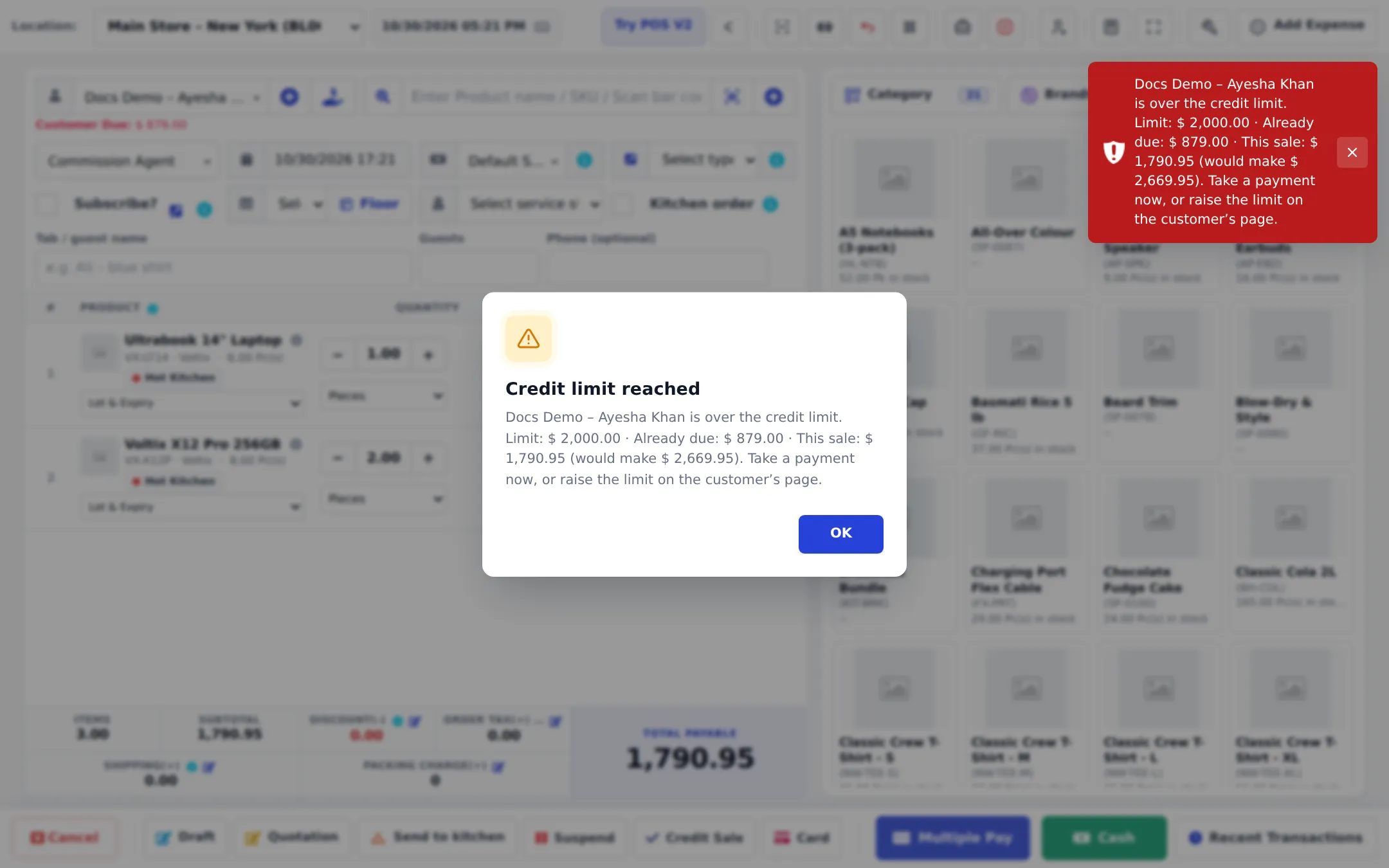
- The sale is saved with the due date from the pay term. If the new total would go over the limit, the sale is refused.
5. Collect payments
Section titled “5. Collect payments”- One invoice: Sell › All sales › Actions › Add payment.
- Several invoices: open the customer and press Add payment (or Pay in the customers list); the amount is applied to the open invoices, oldest first. At the till, Receive Payment next to the customer does the same.
- Who is late: Reports › Payment by Age groups unpaid invoices by days overdue; Reports › Supplier & Customer Report shows each account’s total due.
See credit and part payments for every screen of a credit sale and later payments.
Tips and mistakes to avoid
Section titled “Tips and mistakes to avoid”- Put pro-desk cashiers on a location with Default Selling Price Group set, if that counter only serves trade customers.
- Tax-exempt contractors: add their tax number on the customer and use a zero tax rate where your rules allow.
- Review limits every quarter. A limit that is too high is a risk; too low and the pro desk calls you every day.
Next: step 5: quotes to invoices.
Frequently asked questions
How do contractors get their prices automatically?
Create a selling price group such as Contractor, set each product's price in that group, then create a customer group with Price calculation type set to Selling Price Group and choose Contractor. Every customer in that group gets those prices when you pick them on a sale.
Can I just give contractors 10 % off everything?
Yes. Either set the group price as Percentage on each product, or make a customer group with Price calculation type Percentage and a calculation percentage of -10.
What happens when a contractor goes over the credit limit?
The sale is refused with a Credit limit reached message showing the limit, what is already due and this sale. Take a payment first or raise the limit.
How do I record that a contractor pays monthly?
Set the Pay term on the customer (for example 30 Days). Each credit sale gets a due date from it, and overdue invoices show in Reports › Payment by Age.
Can a contractor pay several invoices at once?
Yes. Open the customer and press Add payment, or use Pay in the customers list, and enter the amount. The payment is applied to the open invoices, oldest first.
Can contractors see their own statement?
Yes, with the Customer & partner portal module. Invite them from the customer page; they sign in to see invoices, quotations and their balance.