
Customer credit limits, pay terms and advance balance
Credit limits stop customers from owing more than you allow, pay terms tell SmartPOS Hub when an unpaid sale is late, and the advance balance holds money customers leave with you. This page explains all three and how they show on the customer page, the POS and the app.
Set the credit limit and pay term
Section titled “Set the credit limit and pay term”- Open Contacts › Customers, then Add for a new customer or Edit on an existing one.
- In Balance & credit fill in:
- Credit Limit — the most the customer may owe at once. Keep blank for no limit.
- Pay term — a number with Days or Months.
- Opening Balance — what they already owed before you started with SmartPOS Hub.
- Press Save.
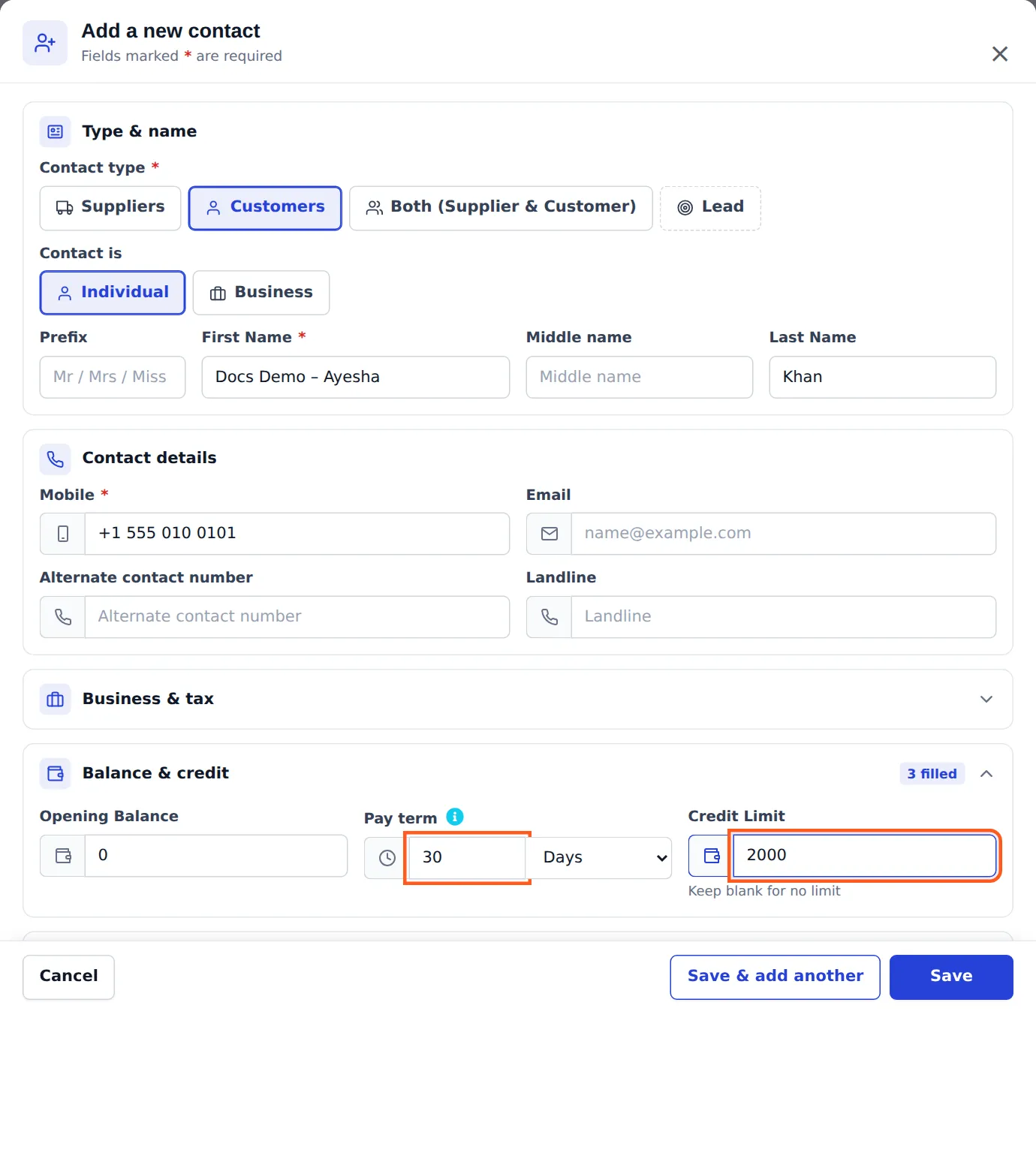
Default for new customers: Settings › Business Settings › Contact › Default credit limit.
How the limit is checked
Section titled “How the limit is checked”When a cashier finishes a sale that is not fully paid, SmartPOS Hub adds the unpaid part to what the customer already owes on final sales. If the result is above the limit, the sale is not saved and the POS explains the numbers:
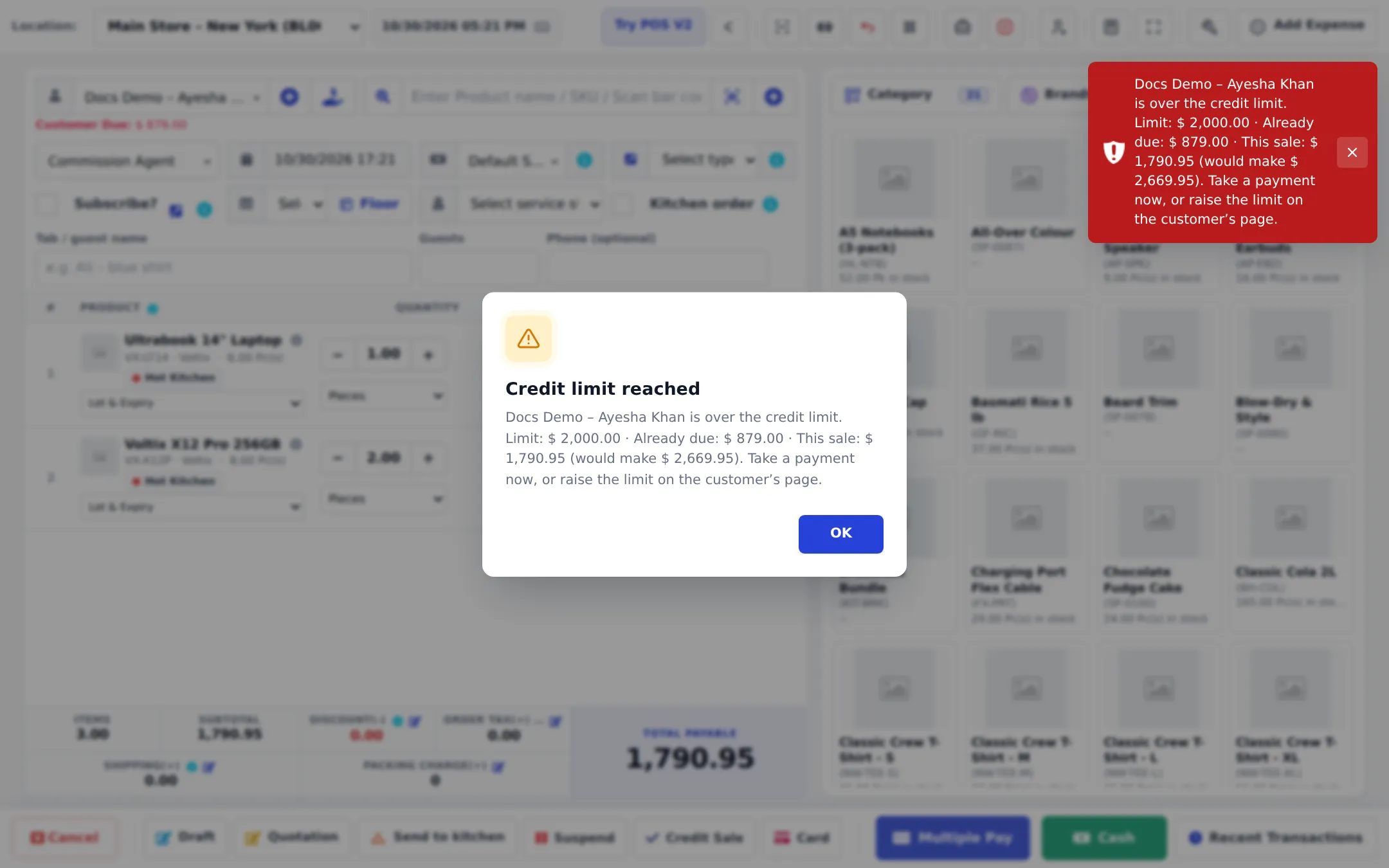
To continue: take more payment now, collect older dues first, or raise the limit. Fully paid sales are never blocked.
Read the balance cards
Section titled “Read the balance cards”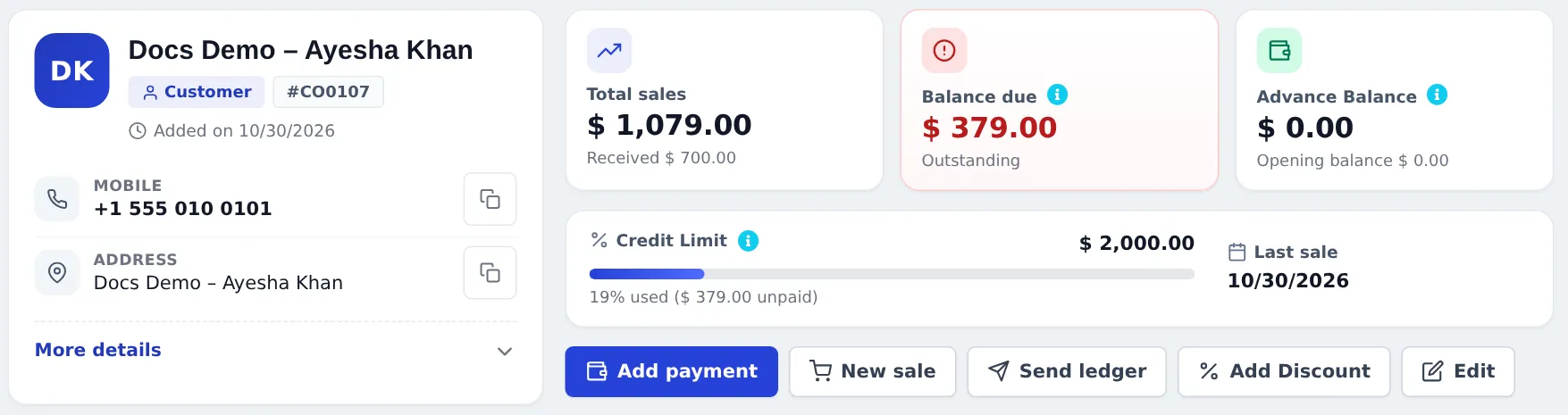
| Card | Meaning |
|---|---|
| Total sales | Everything sold to the customer, with Received below |
| Balance due | Everything still unpaid: sales, bookings and memberships, opening balance, minus returns, ledger discounts and payments. Positive = they owe you; negative = you owe them |
| Advance Balance | Money paid in advance, usable on future invoices |
| Credit Limit | The limit and how much of it is used by unpaid sales (19% used (379.00 unpaid)) |
Advance balance (deposits and store credit)
Section titled “Advance balance (deposits and store credit)”- Take an advance: customer page › Add payment › enter the amount › Save. Anything above the balance due goes to Advance Balance.
- Spend it: in the POS payment window or Add payment, choose Store credit (advance). The POS shows the customer’s Advance Balance at the top of the payment window.
- Not enough? You see Required advance balance not available — pay the rest with another method (Add Payment Row).
Returns settled as Store credit also add to the advance balance — see Gift cards and store credit.
In the SmartPOS Business app
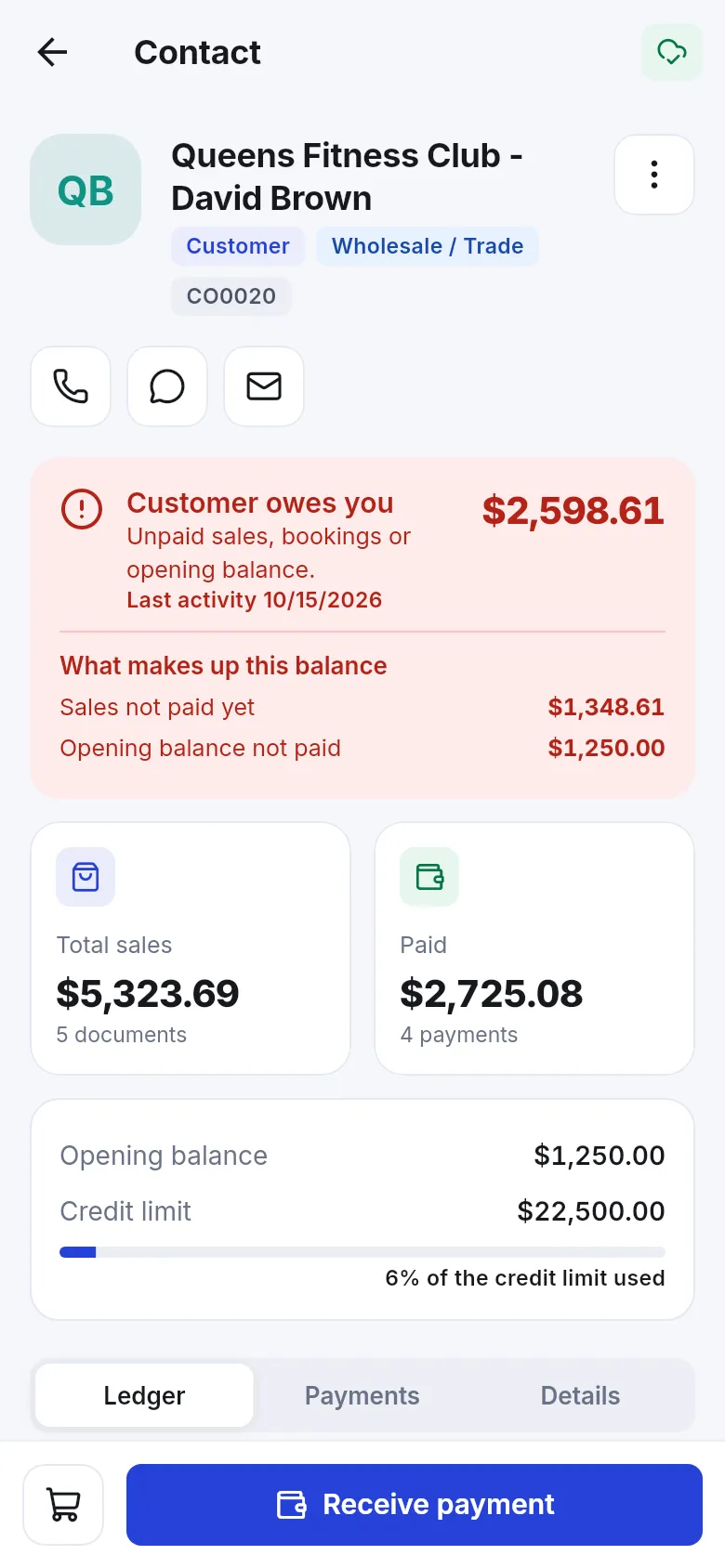
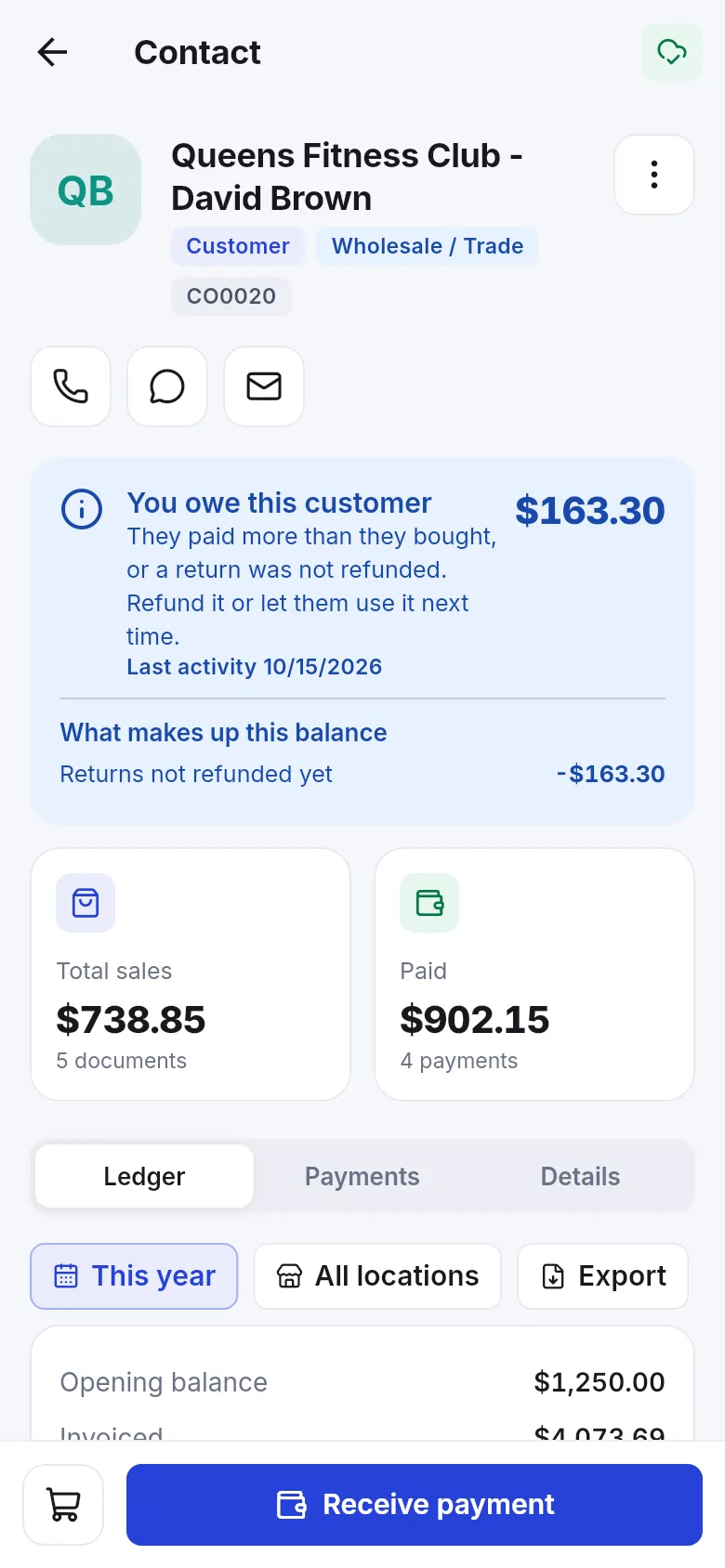
Section titled “In the SmartPOS Business app”The customer screen says it in plain words: Customer owes you, You owe this customer (they paid more than they bought, or a return was not refunded), or All settled — with What makes up this balance, the advance and opening balance, and the credit limit bar. Selling above the limit shows Over the credit limit.
- Review Reports › Supplier & Customer Report and Payment by Age weekly for customers close to their limit.
- Give long-standing customers a pay term; give new ones a small limit.
- Don’t put deposits as negative sales — use Add payment so they show as advance.
Frequently asked questions
What does the credit limit count?
The unpaid amount of the customer's final sales plus the new sale. Drafts, quotations and sales orders are not counted. When the total would go above the limit, the sale is refused.
How do I give a customer no limit?
Leave Credit Limit empty on the customer. The customer page then shows No limit.
Can I set the same limit for all new customers?
Yes. Set Default credit limit in Settings › Business Settings › Contact. New customers get it, and you can still change it per customer.
How do I take a deposit from a customer?
Open the customer and press Add payment. Enter the deposit amount; whatever is more than the balance due is kept as advance balance.
How does the customer spend the advance?
At the next sale, choose Store credit (advance) as the payment method in the payment window or in Add payment.
What does a negative balance due mean?
You owe the customer, for example after a return that was not refunded. Refund it with Add payment or let them use it on the next purchase.