
Invoice numbering and receipt design settings
This guide explains how SmartPOS Hub numbers your invoices (invoice schemes) and how your receipts and invoices look (invoice layouts), including ready-made templates for your type of business. It is for owners and managers. Choosing a template and a numbering format takes about ten minutes.
Before you start
Section titled “Before you start”- Permission: invoice settings access (owners and Admin have it).
- Your logo is uploaded in Settings › Business Settings › Business.
- Your locations exist: Multiple locations.
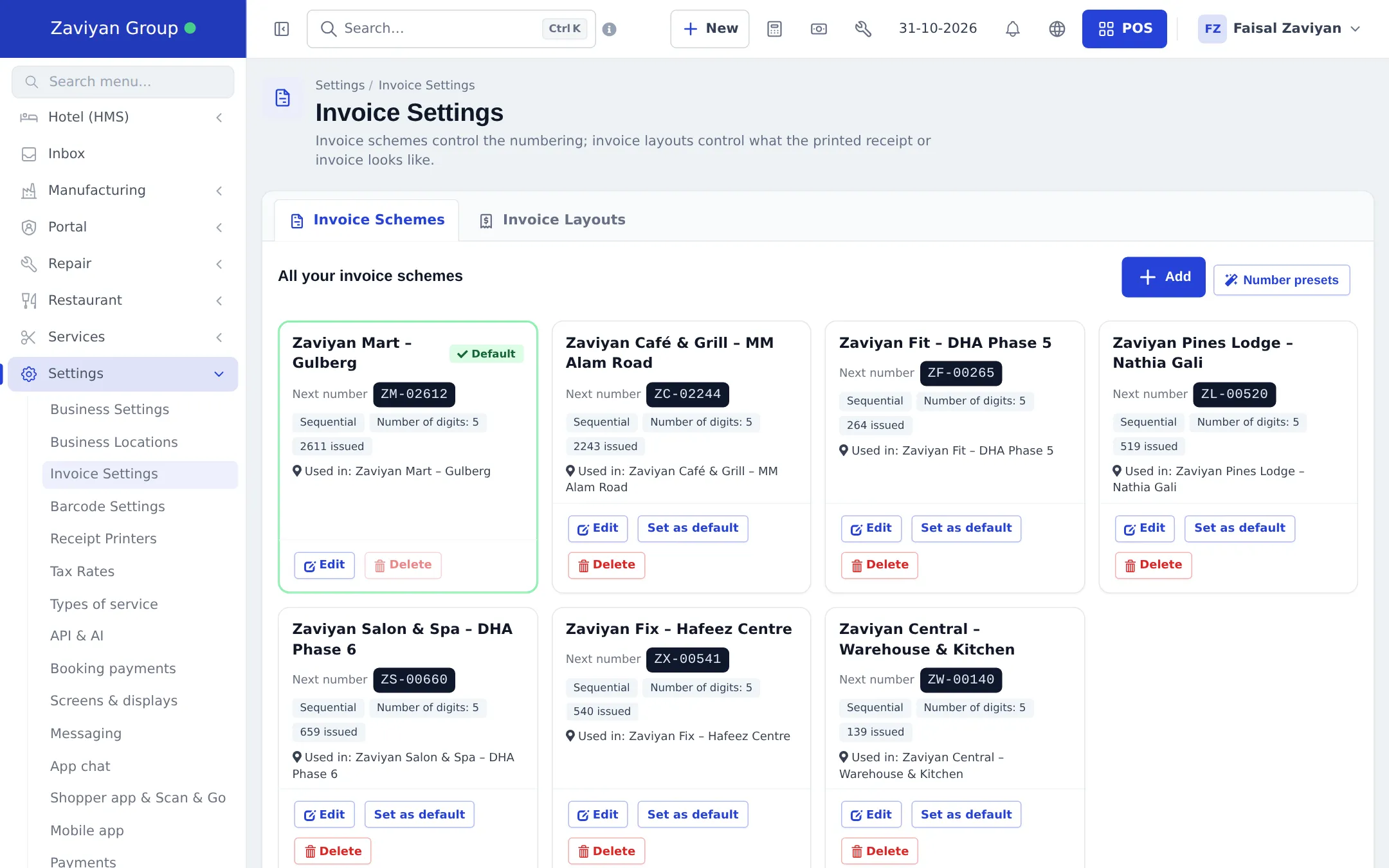
Open Settings › Invoice Settings. It has two tabs: Invoice Schemes (numbering) and Invoice Layouts (design).
Invoice schemes: numbering
Section titled “Invoice schemes: numbering”Each scheme card shows the Next number (for example ZM-02612), whether it is sequential, the number of digits, how many invoices were issued, which locations use it, and buttons Edit, Set as default and Delete.
Add a scheme with Number presets (fastest)
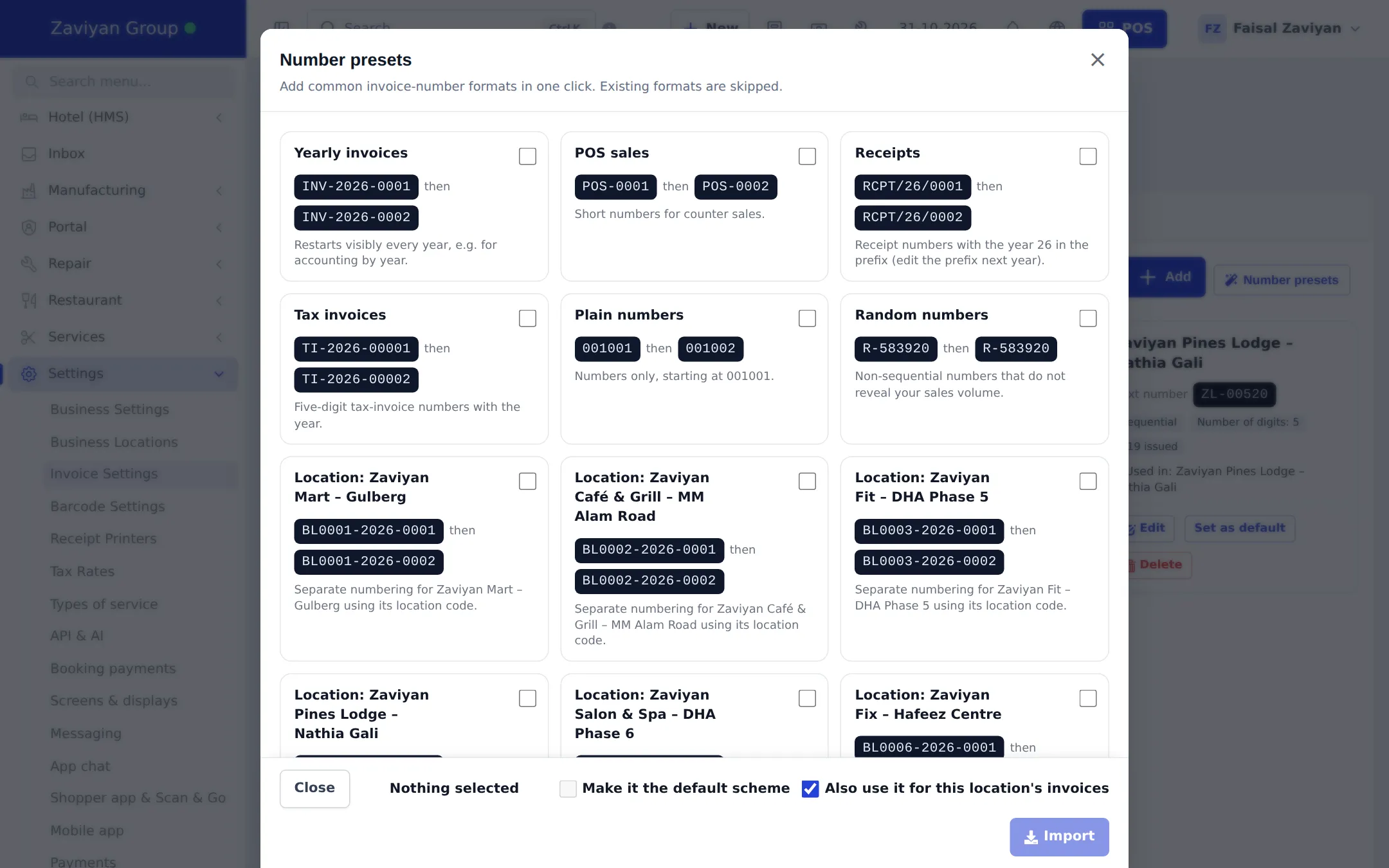
Section titled “Add a scheme with Number presets (fastest)”- On the Invoice Schemes tab, click Number presets.
- Tick the formats you want: Yearly invoices (
INV-2026-0001), POS sales (POS-0001), Receipts (RCPT/26/0001), Tax invoices (TI-2026-00001), Plain numbers (001001), Random numbers, or one per location using its location code. - Optional: tick Make it the default scheme, and keep Also use it for this location’s invoices for location presets.
- Click Import and confirm. Formats you already have are skipped.
Add a scheme by hand
Section titled “Add a scheme by hand”Click + Add, then fill in Name, choose a format card, the Numbering Type (sequential or random), Prefix, Start from and Number of digits. The window shows “Your invoice numbers will look like…” as you type. Tick Set as default if new locations should use it, then Save.
Invoice layouts: what the receipt looks like
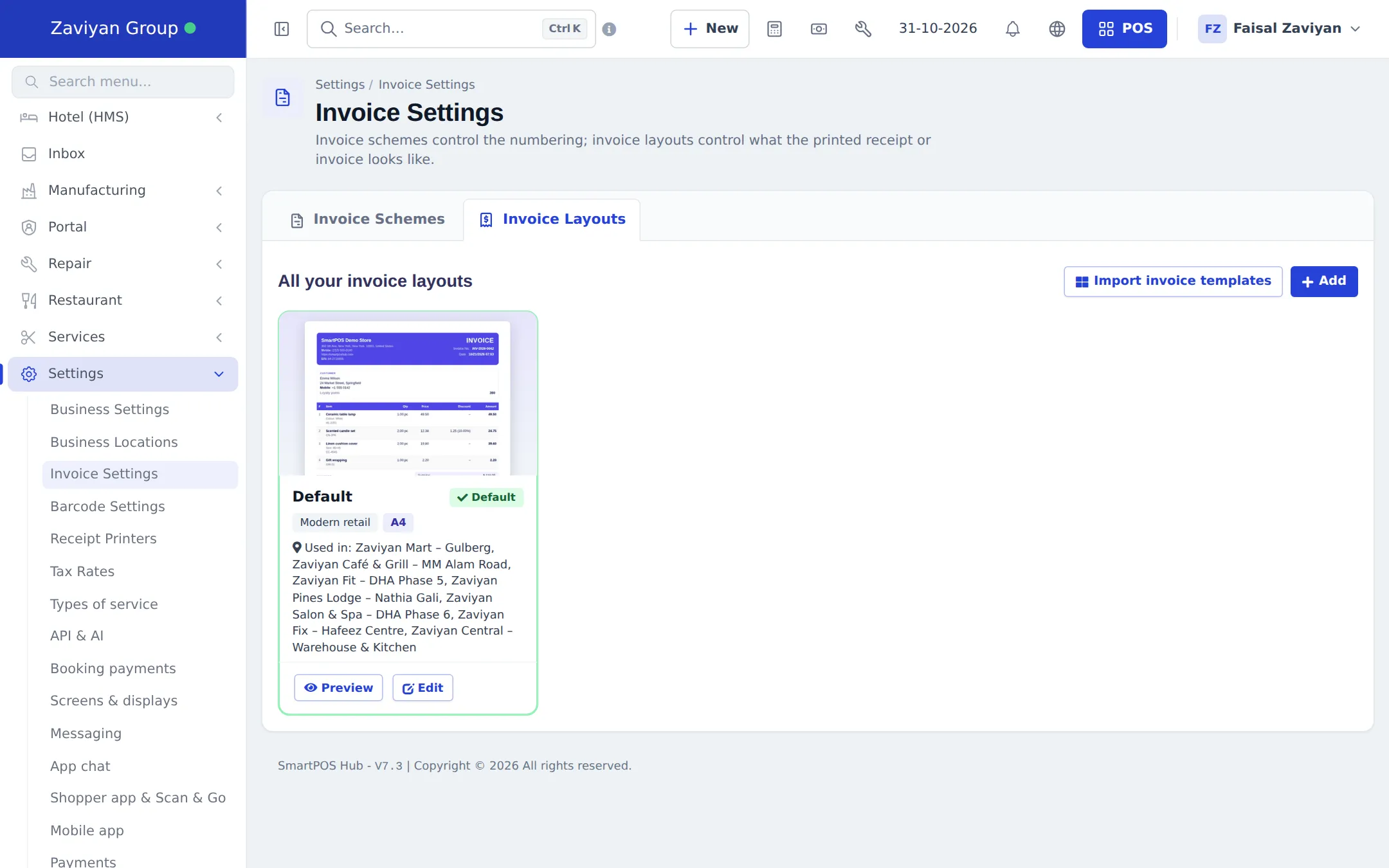
Section titled “Invoice layouts: what the receipt looks like”The Invoice Layouts tab shows each layout with a thumbnail, its design and paper size, where it is used, and Preview and Edit.
Import a ready-made template
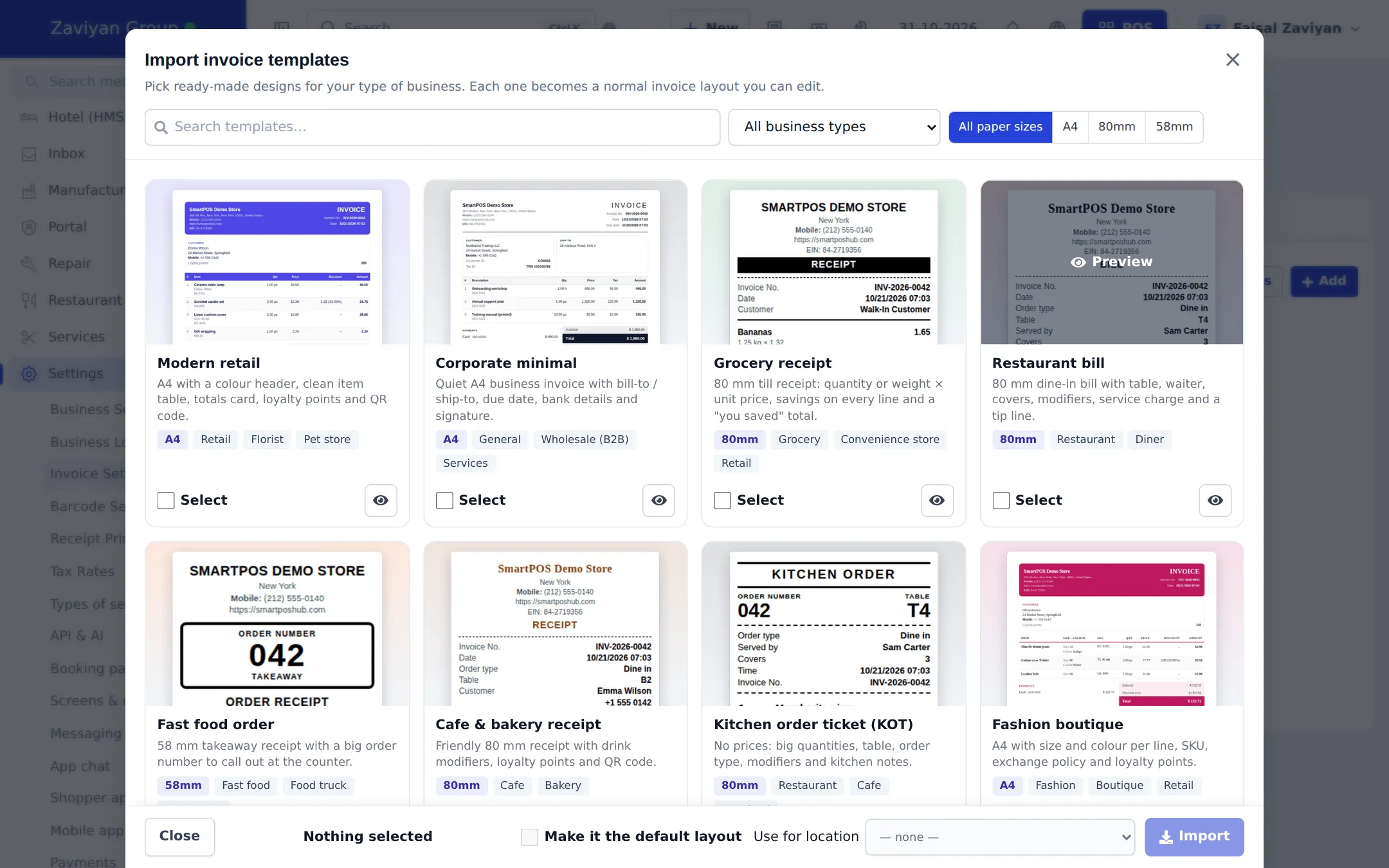
Section titled “Import a ready-made template”- On Invoice Layouts, click Import invoice templates.
- Filter by business type (All business types, Grocery, Restaurant, Pharmacy…) and paper size (A4, 80mm, 58mm), or search.
- Click the eye button to see a template full size. Tick Select on the ones you want.
- Optional: tick Make it the default layout (one template only) and pick Use for location.
- Click Import and confirm. Each template becomes a normal layout you can edit.
Edit a layout
Section titled “Edit a layout”Click Edit on a layout. At the top, Design & live preview lets you Choose a design, the accent colour, text size and terms or policy text. Below are the sections for the header (logo, business name, address, tax number), the item table (which columns to show), totals, footer and extras such as QR code or loyalty points. The live preview on the right updates as you change anything; switch paper size, sample data or Latest sale, and print a test. Click Save when done.
Choose the scheme and layout per location
Section titled “Choose the scheme and layout per location”Each location has four choices under Invoices & prices: Invoice scheme for POS, Invoice scheme for sale, Invoice layout for POS and Invoice layout for sale. Set them on Settings › Business Locations › Edit, or on the location’s Settings page. See Multiple locations.
Tips and mistakes to avoid
Section titled “Tips and mistakes to avoid”- Use 80 mm layouts for the POS and A4 for invoices sent to business customers.
- Print a test on the real printer before going live; thermal printers cut long lines.
- Keep one scheme per branch so two branches never print the same number.
- Tax invoices: show your tax number (Business Settings › Tax) on the layout if the law requires it.
Related pages
Section titled “Related pages”Frequently asked questions
What is the difference between an invoice scheme and an invoice layout?
The scheme decides the number, such as INV-2026-0001. The layout decides how the printed or e-mailed receipt or invoice looks. Each location picks one of each for POS sales and one of each for other sales.
Can each branch have its own invoice numbers?
Yes. Create one scheme per branch (Number presets can make one per location in one click) and choose it on each location.
Can I make random invoice numbers?
Yes. Choose the random numbering type, or the Random numbers preset. Random numbers do not reveal how many sales you make.
Which paper sizes are supported?
A4 for full invoices, and 80 mm and 58 mm for thermal receipts. Each template is marked with its paper size.
Can I see the receipt before saving my changes?
Yes. The layout editor has a live preview that updates as you type, with sample data or your latest sale, and a paper-size switch.
Can I have a different receipt for POS and for invoices?
Yes. On each location set Invoice layout for POS (for example an 80 mm receipt) and Invoice layout for sale (for example an A4 invoice).
Will importing templates change my current receipt?
No. Each imported template becomes a new layout. Your default layout changes only if you tick Make it the default layout.
Can I add my return policy or bank details to the receipt?
Yes. Use the footer, terms and policy text in the layout editor. Many templates already have places for bank details, a QR code and loyalty points.