
Getting started with SmartPOS Hub
This page shows the order in which to set up SmartPOS Hub, from sign-up to your first sale. It is for shop owners and managers doing the first setup. Follow the steps top to bottom; each step links to a detailed guide with screenshots. Most businesses finish the basics in about 15 minutes.
The setup path at a glance
Section titled “The setup path at a glance”- Create your account and pick a plan. Fill in one short form; a free trial starts straight away. See Sign up and choose a plan.
- Take the first-login tour. Learn the dashboard, the menu, search (Ctrl + K) and the POS button. See First login tour.
- Fill in your business settings. Name, logo, currency, time zone, financial year and the features you want switched on. See Business settings for first-time setup.
- Add your locations. Every shop, branch or warehouse is a location with its own stock, prices, invoice numbers and receipts. See Add and manage multiple locations.
- Add your staff. Create users, give each one a role and the locations they may work in. See Users, roles and location access.
- Add what you sell. Pick ready-made products from the Product Library, use Import prebuilt for categories, brands and units, or add products yourself.
- Enter your opening stock. Tell the system what is on the shelf today. See Opening stock.
- Connect your devices. Receipt printer, barcode scanner, label printer, customer display and the SmartPOS Business app. See Devices and printers.
- Make a test sale and go live. Open the register, sell, print the receipt, then check everything with the Go-live checklist.
What you see after you sign in
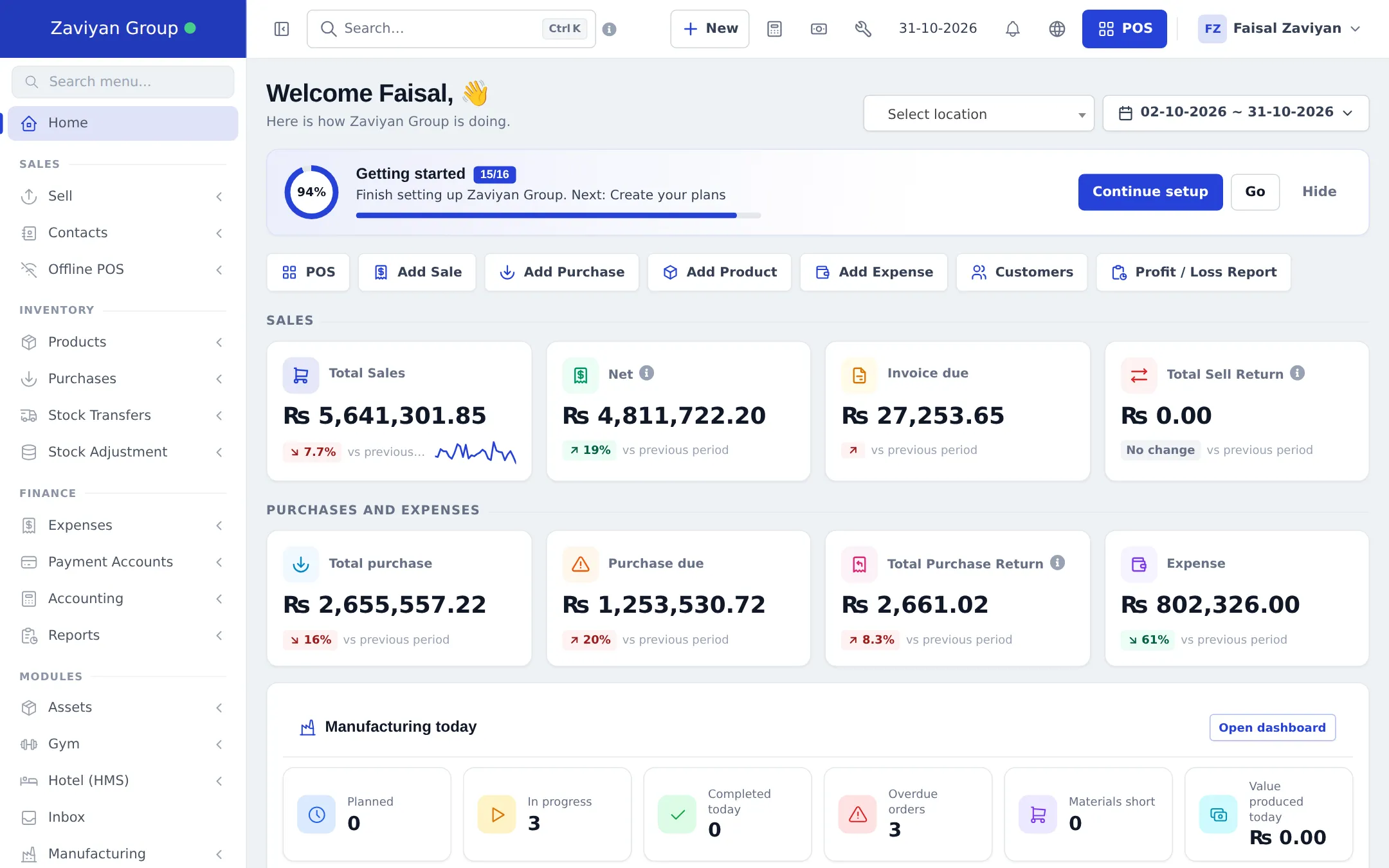
Section titled “What you see after you sign in”The home dashboard shows your sales, money owed, purchases and expenses for the location and dates you choose. The Getting started card at the top tells you the next setup step and how far along you are.
The three things that decide what you see
Section titled “The three things that decide what you see”A menu or button only appears when all three of these allow it:
| Gate | Where you check it | Example |
|---|---|---|
| Your plan includes it | Settings › Package Subscription (the “Modules in your plan” list) | Hotel, Gym or Manufacturing are in some plans only |
| The feature is switched on | Settings › Business Settings › Modules | Turn on Stock Transfers before moving stock between branches |
| Your role allows it | User Management › Roles | A cashier can sell but cannot see purchase prices |
If something in these guides is missing from your screen, check those three places, or ask the account owner.
Guides in this section
Section titled “Guides in this section”Frequently asked questions
How long does it take to set up SmartPOS Hub?
Most shops are ready to sell in about 15 minutes. A small shop needs the business details, one location, a few products and a payment method. Bigger setups with many branches, staff and thousands of products take longer, but the Product Library and Import prebuilt buttons save most of the typing.
Do I need to install anything?
No. SmartPOS Hub runs in your web browser at app.smartposhub.com on a computer, tablet or phone. The SmartPOS Business app for Android is optional and adds selling, scanning and stock work on the phone.
Can I run several shops or a warehouse from one account?
Yes. Each shop, branch or warehouse is a business location with its own stock, prices, invoice numbering and staff access. Your plan sets how many locations you can add.
Is there a free trial?
Yes. When you sign up without choosing a paid plan, a free trial starts so you can try the system before you pay. The Subscription page shows how many days are left.
Can I import my existing products?
Yes. You can import products from an Excel or CSV file, pick ready-made products from the Product Library (mart, pharmacy and electronics catalogs), or type them in one by one.
What is the Getting started guide?
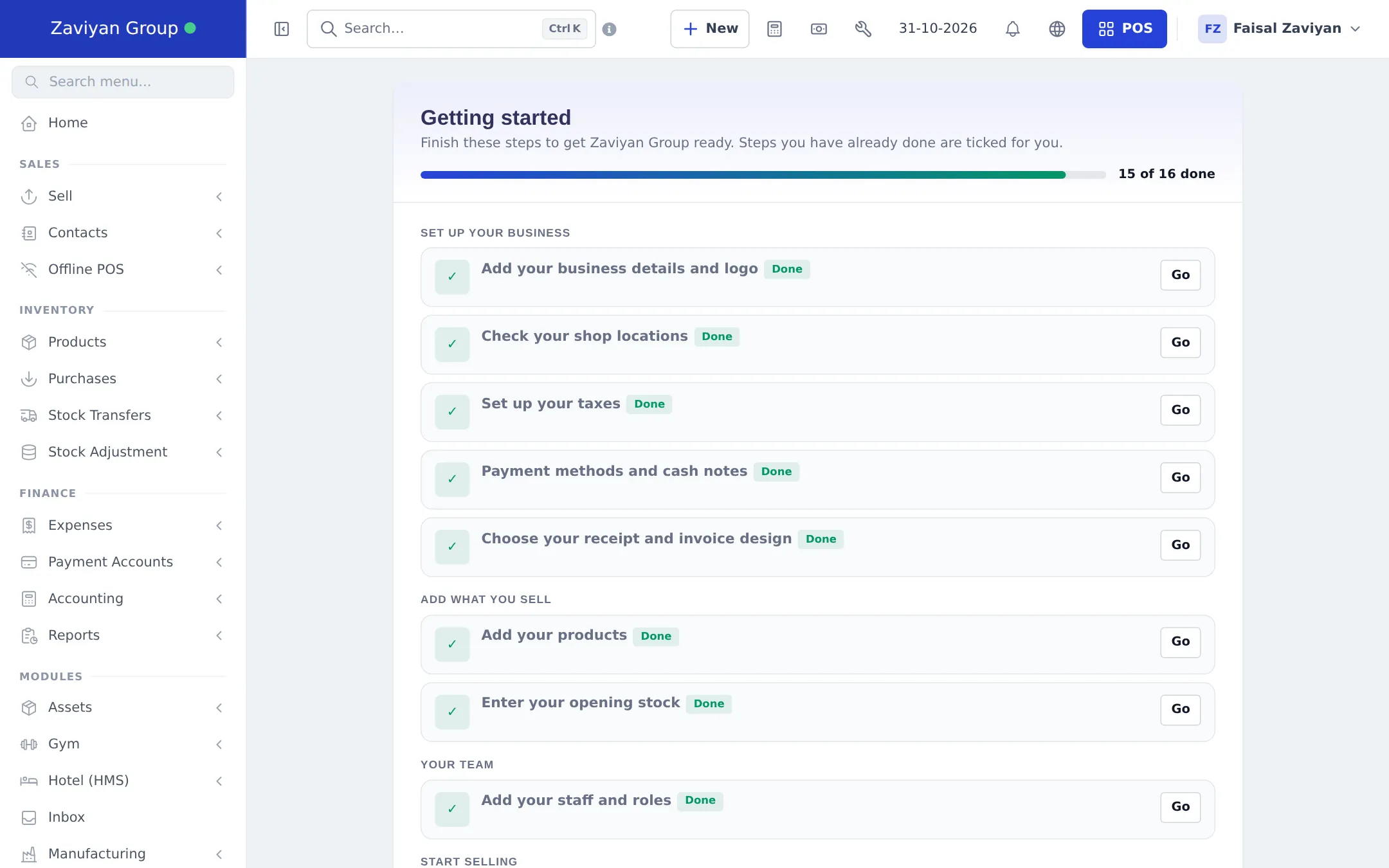
It is a checklist inside the app that ticks steps off as you finish them, such as business details, locations, taxes, products, opening stock, staff and your first sale. Open it from the Getting started card on the dashboard.
Which devices work with SmartPOS Hub?
Any modern browser works. You can add receipt printers, barcode scanners, label printers, a cash drawer, a customer display and Android phones running the SmartPOS Business app.
Where do I get help if I am stuck?
Use Help and Support in the app menu, or contact the SmartPOS Hub team through smartposhub.com/contact.