
POS V2 – the new fast point-of-sale screen
POS V2 is the redesigned till screen in SmartPOS Hub: a fast product list or tiles, a search box that is always ready for the barcode scanner, a cart that stays readable on laptops, keyboard shortcuts for everything, dark mode and a proper phone layout. It suits every business that sells at a counter, from marts and pharmacies to cafés, restaurants and salons.
POS V1 or POS V2?
Section titled “POS V1 or POS V2?”| POS V1 (classic) | POS V2 (new) | |
|---|---|---|
| Sale engine, receipts, reports | Same | Same |
| Modules (modifiers, tables, kitchen, open tabs, repair, services, gym, order options) | Yes | Yes |
| Product view | Tiles panel next to the cart | List or tiles, tile size, pictures, stock badges |
| Scanner | Search box | Scanner-first: the search box is always ready |
| Keyboard shortcuts | Classic set | Classic set + about 25 extra, cheat sheet with ? |
| Dark mode | — | Light, dark or same as the device |
| Phone layout | Basic | Bottom View cart / Pay bar, full-height sheets |
| POS styles per location | — | Retail, café, restaurant, pharmacy, services |
| “Why is this hidden?” | — | POS features panel |
Both versions stay available side by side, and you can switch at any time. See POS V1 for the classic screen.
Before you start
Section titled “Before you start”- POS is switched on in Settings › Business Settings › Modules (Sales & stock group).
- A cash register can be opened at your location.
Make POS V2 your default
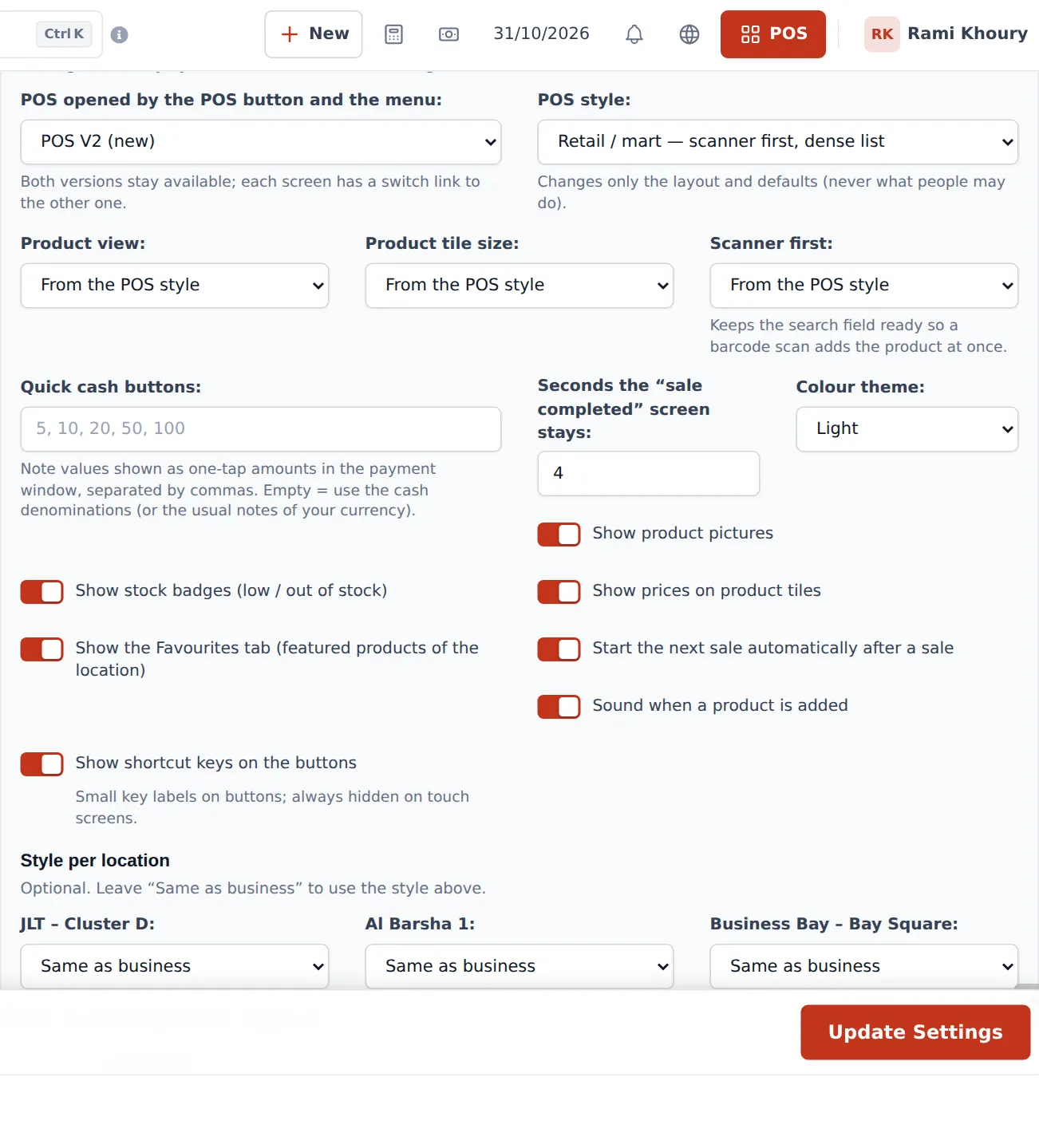
Section titled “Make POS V2 your default”- Open Settings › Business Settings and click the POS tab.
- Scroll to the POS V2 section (settings used only by the new POS screen).
- Set POS opened by the POS button and the menu to POS V2 (new).
- Pick a POS style: Retail / mart (scanner first, dense list), Café / bakery (big product tiles), Restaurant (tables, order types, kitchen), Pharmacy (list with batch / expiry) or Services / salon (staff per line). Under Style per location you can give a branch its own style.
- Adjust the rest (see the table below) and click Update Settings.
To try it without changing the default, click Try POS V2 on the POS V1 screen.
Selling on POS V2
Section titled “Selling on POS V2”- Click POS in the top bar. Check the location in the top-left dropdown.
- Scan a barcode, type in Search or scan: name, SKU, barcode, or tap a product. Use the category chips (All, Recent, your categories) to browse. Products with variations show “3 options”.
- The item lands in Current sale. Change quantity with − / +, or tap the line for Price, discount & note.
- Pick the customer (search by name, phone in any format, e-mail or ID; or add a new one from the search text). Open Order details for table, order type, staff and notes.
- Finish with Cash (exact cash in one tap), Card, or Pay to open the payment window for split payments, Pay later or counting notes. Other buttons: Hold, Draft, Quotation, Credit Sale, Cancel; restaurants also see Send to kitchen.
- The “Sale completed” screen shows for a few seconds with Print again and Next sale.
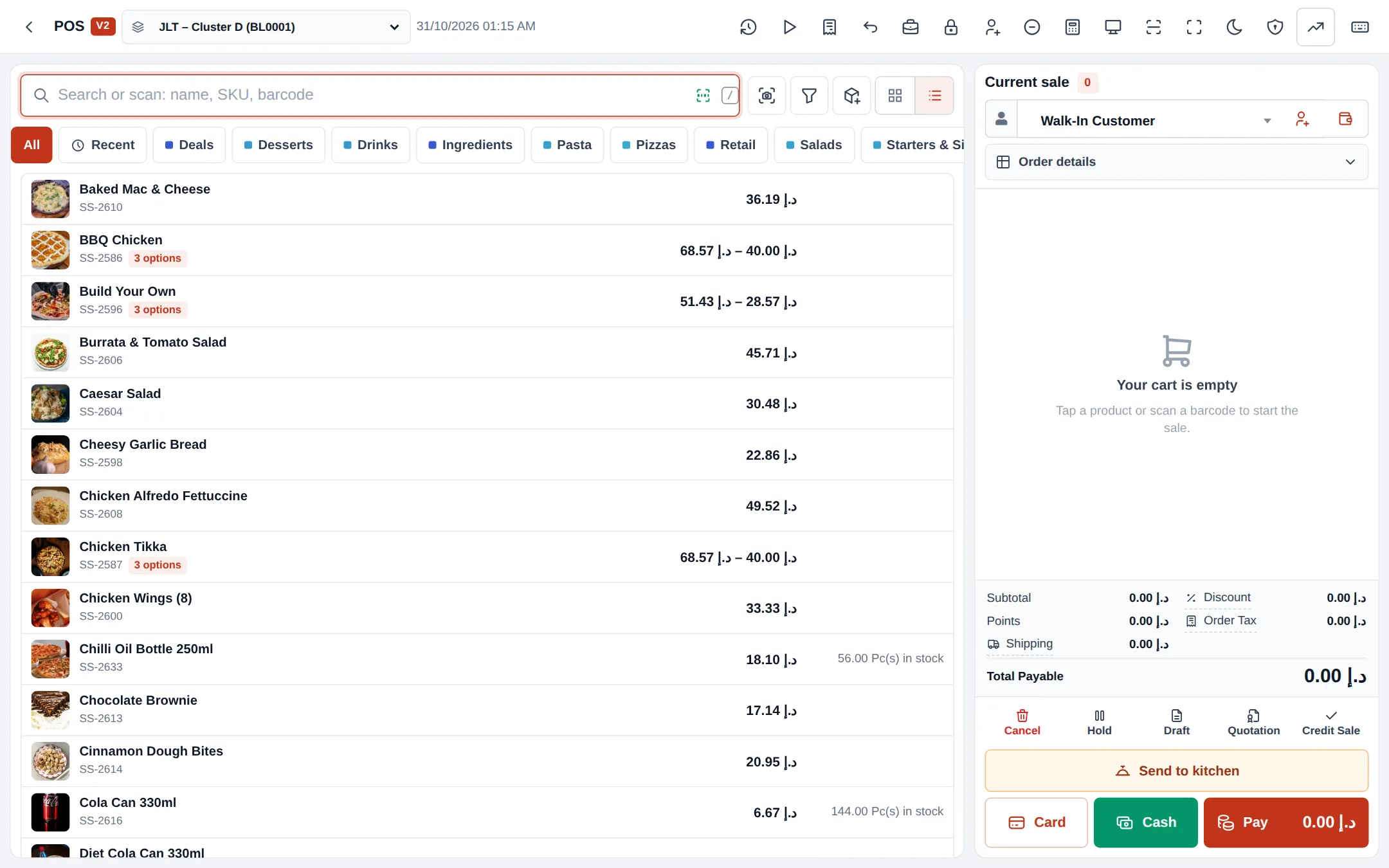
The top bar holds the tools: recent transactions, Last sale, register details, sell return, close register, calculator, customer display, full screen, Dark mode / Light mode, POS features, Keyboard shortcuts and Switch to POS V1 (under More on smaller screens).
On a phone
Section titled “On a phone”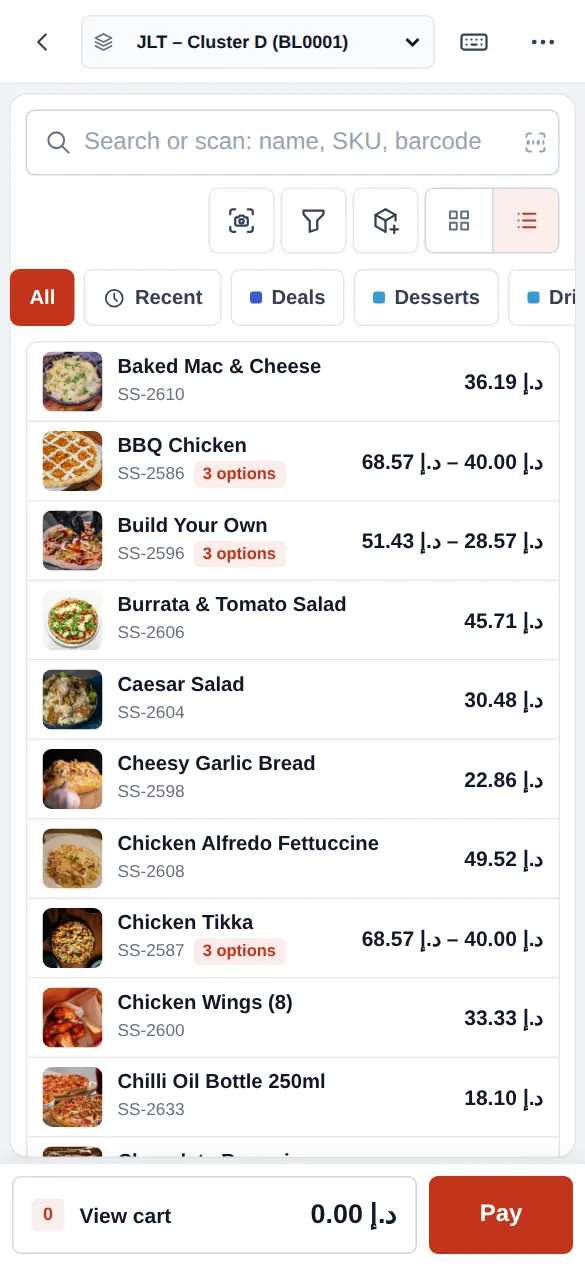
Settings explained (POS V2 section)
Section titled “Settings explained (POS V2 section)”| Setting | What it does |
|---|---|
| POS opened by the POS button and the menu | POS V1 (classic) or POS V2 (new). Both stay available. |
| POS style / Style per location | Layout and defaults only, never what people may do. |
| Product view, Product tile size | List or tiles, small / medium / large (or “From the POS style”). |
| Scanner first | Keeps the search field ready so a scan adds the product at once. |
| Quick cash buttons | Note values shown as one-tap amounts in the payment window. Empty = your cash denominations. |
| Seconds the “sale completed” screen stays | How long the success screen shows. |
| Start the next sale automatically after a sale | Clears the screen for the next customer. |
| Show product pictures / stock badges / prices on product tiles | What tiles show. |
| Show the Favourites tab | Featured products of the location. |
| Sound when a product is added | Beep on add. |
| Show shortcut keys on the buttons | Small key labels (hidden on touch screens). |
| Colour theme | Light, Dark or Same as the device. |
| Keyboard shortcuts | Click a field and press keys; Use recommended keys resets them. Keys marked V1 + V2 work on both screens. |
| Cash denominations | Notes and coins for the note counter, with Suggested for your currency. |
The other POS tab groups (Checkout buttons, Cart, prices and discounts, Staff, orders and invoices, Screen and printing) apply to both V1 and V2.
Permissions
Section titled “Permissions”POS V2 uses exactly the same permissions as POS V1 (Roles page › POS):
| Permission | Effect |
|---|---|
| View POS sell / Add POS sell / Edit POS sell / Delete POS sell | Open, sell, edit and delete POS sales |
| Edit product price from POS screen / Edit product discount from POS screen | Change price or discount on a line |
| Add/Edit Payment, Print Invoice | Take payments, reprint |
| Disable Multiple Pay, Disable Draft, Disable Express Checkout, Disable Discount, Disable Suspend Sale, Disable credit sale button, Disable Quotation, Disable Card | Hide those buttons for the role |
Tips and mistakes to avoid
Section titled “Tips and mistakes to avoid”- Pick the right POS style first; it sets sensible defaults for tiles, scanner and view.
- Teach the shortcuts. Press ? on the POS to show the business’s keys; F-keys and Shift combos save a lot of clicks at busy times.
- Use Offline POS for outages. POS V2 needs a connection. See Offline POS.
Related pages
Section titled “Related pages”Frequently asked questions
Do I lose anything by switching to POS V2?
No. POS V2 uses the same sale engine as POS V1, so modifiers, order options, tables, kitchen, open tabs, repair, services, gym, price groups, reward points, lots, serials and cash registers all work the same. Sales are saved in the same place.
Can some cashiers keep using POS V1?
Yes. Both versions stay available. Every screen has a link to the other one (Switch to POS V1 / Try POS V2). The setting only decides which one the POS button and menu open.
How do I make the POS button open V2 for everyone?
Go to Settings › Business Settings › POS, find the POS V2 section and set POS opened by the POS button and the menu to POS V2 (new). Click Update Settings.
Why is a button missing on my POS?
Open More › POS features. It lists every feature and why it is hidden for you - not in your package, module switched off, no permission, turned off in settings, or nothing set up yet - and where to change it.
Does POS V2 work on a phone or tablet?
Yes. On phones the cart becomes a bottom bar with View cart and Pay, and menus open as full-height sheets. Tablets and laptops show the cart beside the products.
Where do I change keyboard shortcuts?
In Settings › Business Settings › POS › Keyboard shortcuts. Click a field and press the keys. Press ? on the POS at any time to see the list.
Does POS V2 work offline?
POS V2 needs an internet connection. For selling during outages use the Offline POS module, which has its own installable screen.