
Salon step 3: stylists, hours and commission
Your stylists, therapists and beauticians are the heart of the booking system: SmartPOS Hub only offers a time when someone who performs that service is working and free. This page sets up their logins, roles, services, working hours, time off and commission. It is for the owner or manager.
Before you start
Section titled “Before you start”- Your service menu is in place (step 2).
- You know each person’s working days and hours, and how you pay commission (percent of price or a fixed amount per service).
Create logins and roles
Section titled “Create logins and roles”- Open User Management › Roles. Click Import prebuilt and pick the salon roles (Salon Manager, Stylist / Therapist, Salon Receptionist), or click Add to build your own.
- Open User Management › Users and click Add for each person. Give them the right role and the branch (location) they work at.
- Save. Repeat for every stylist, therapist and receptionist.
| Role | Typical Services permissions |
|---|---|
| Owner / manager | All, including Services: manage staff, hours and commission, Services: view reports and Services: settings |
| Receptionist | Services: view overview, Services: manage all appointments, plus POS selling |
| Stylist / therapist | Services: manage own appointments (staff) only, plus POS selling if they bill their own clients |
See Users and roles for the full permission list.
Add each stylist as staff
Section titled “Add each stylist as staff”- Open Services › Staff and click Add staff member.
- Pick the User, add a Job title (for example “Senior stylist”), and set the Commission type (Percent of price or Fixed amount) and Commission. Tick Performs all current services for an all-rounder.
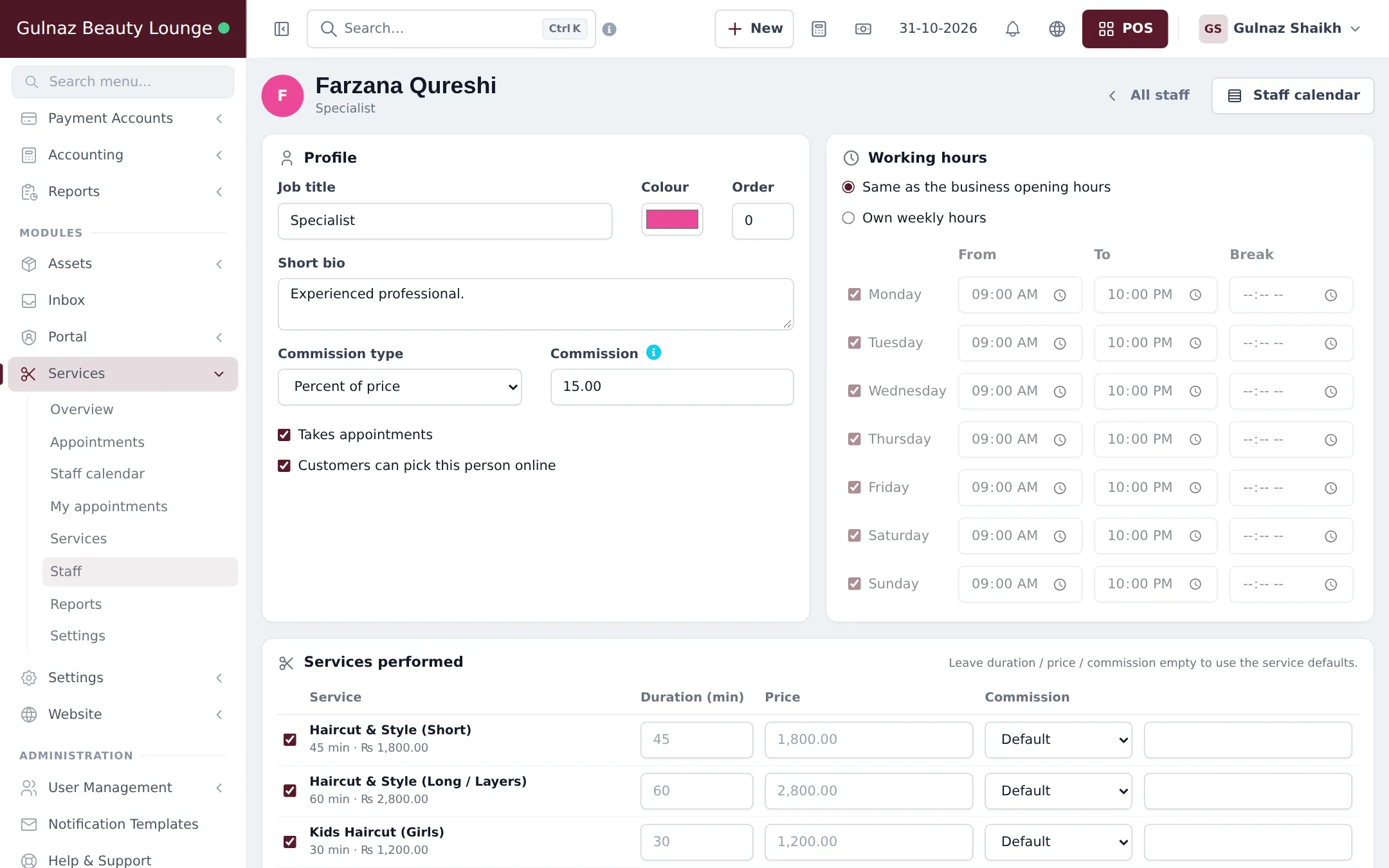
- Save, then click Manage on the new card.
- Under Working hours, choose Same as the business opening hours or Own weekly hours. With own hours, tick the working days and set From, To and a Break.
- Under Services performed, tick what this person does. Leave Duration, Price and Commission empty to use the service defaults, or type their own values.
- Keep Takes appointments ticked, and tick Customers can pick this person online if clients may choose them on the booking page.
- Under Time off & breaks, add holidays or a dentist appointment with a Reason.
- Save.
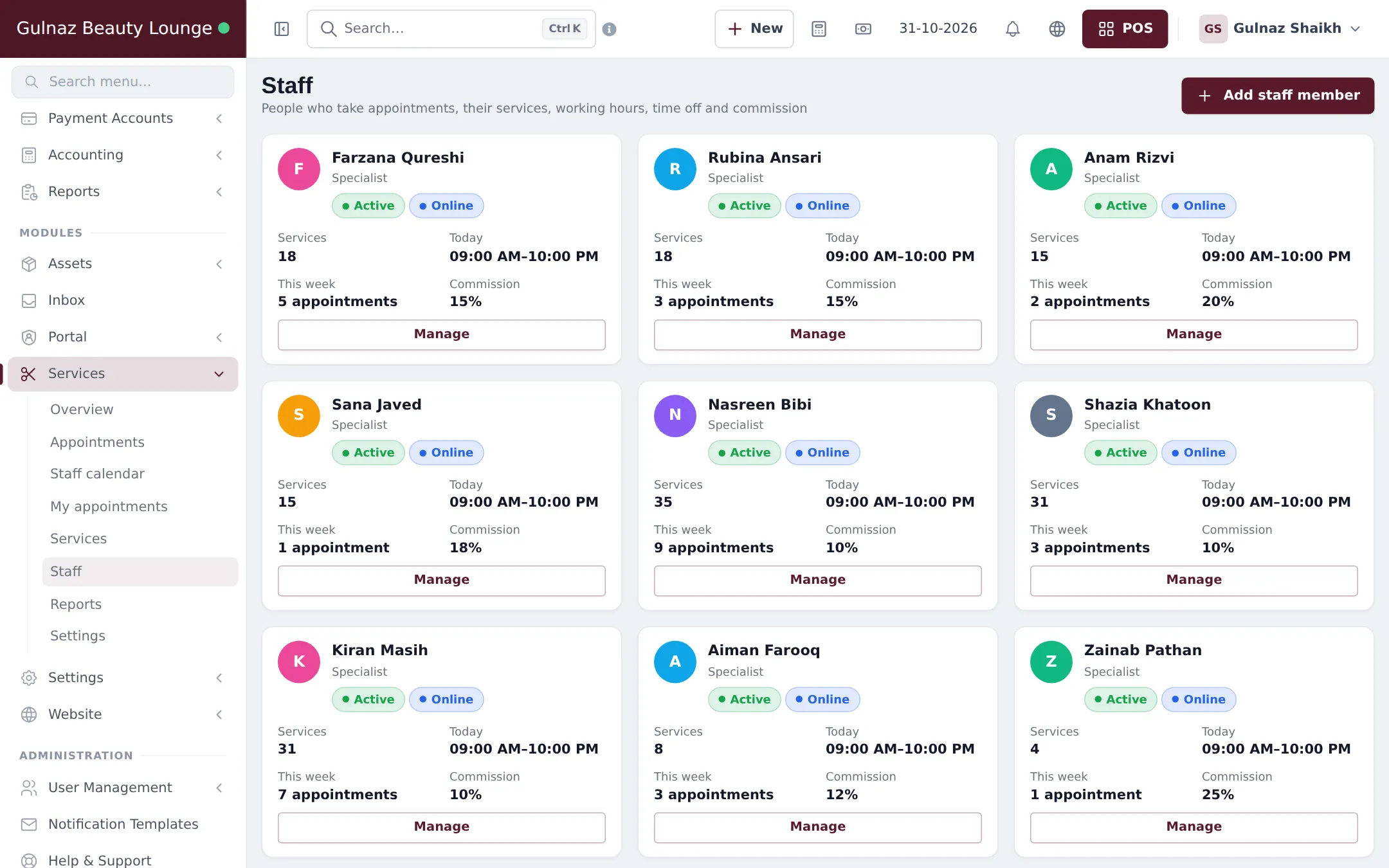
The Staff list shows a card for each person with their number of services, today’s hours, this week’s appointments and commission.
Set the commission default
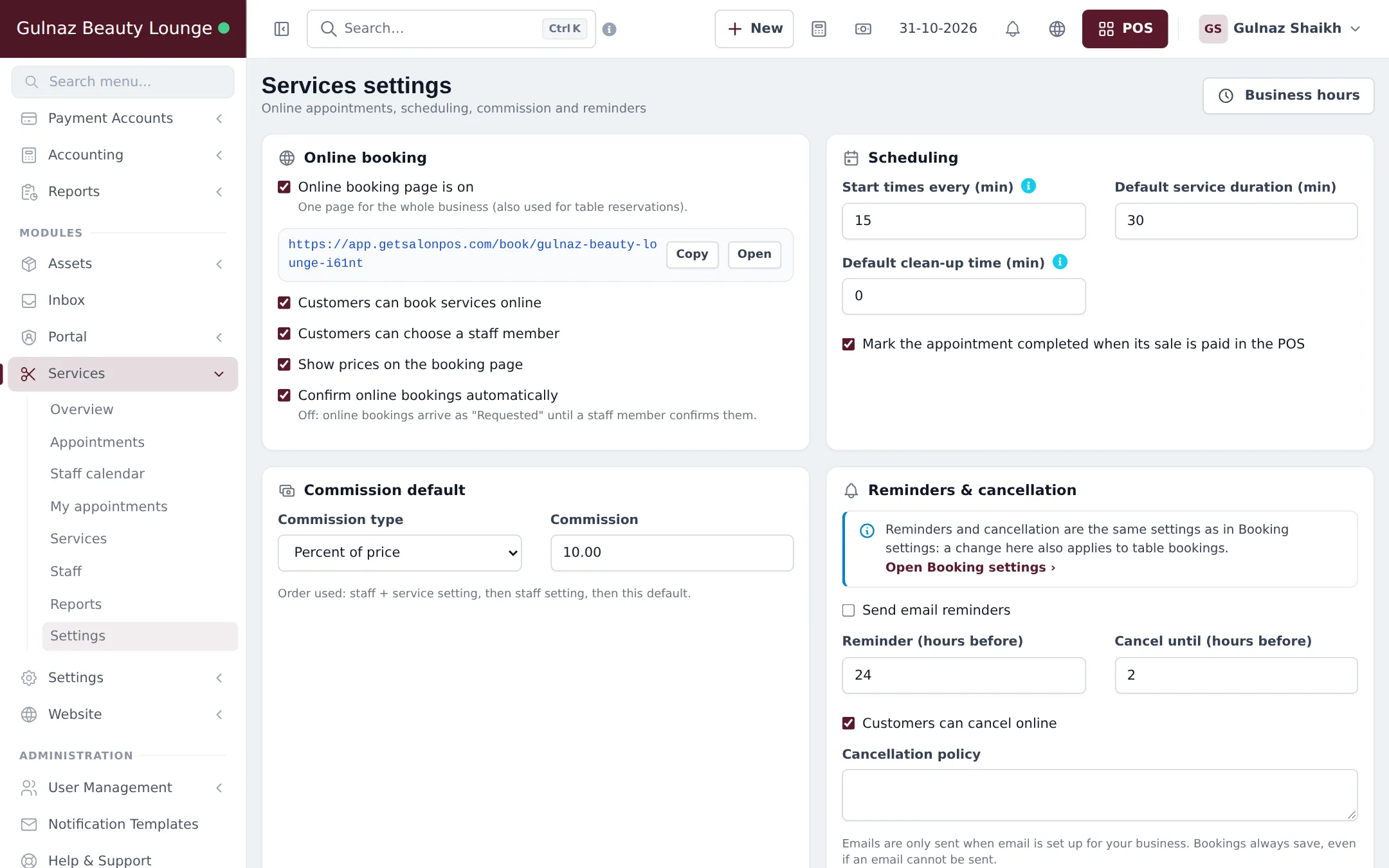
Section titled “Set the commission default”Open Services › Settings and fill in Commission default (type and amount). SmartPOS Hub uses commission in this order: the staff member’s setting for that service, then the staff member’s own commission, then this default.
Sales commission agents (optional)
Section titled “Sales commission agents (optional)”SmartPOS Hub also has Sales Commission Agents, a separate core feature that pays a Sales Commission Percentage (%) on whole sales. Salons sometimes use it for freelancers, referral partners or staff who sell retail products.
- Open Settings › Business Settings, Sale tab, and choose how Sales Commission Agent is picked: Logged in user, Select from user’s list or Select from commission agent’s list.
- For outside agents, open User Management › Sales Commission Agents and click Add.
- On the POS, choose the agent in the Commission Agent box before you take payment.
What happens next
Section titled “What happens next”Stylists appear in Services › Staff calendar, the New appointment form and, if allowed, on the booking page. Continue with step 4: online booking and deposits.
Frequently asked questions
Does every stylist need a login?
Yes. Staff in the Services module are your existing users, so create a user for each stylist first in User Management › Users. A stylist who only performs services needs a role with few permissions.
Which roles should I use?
The Roles page has an Import prebuilt button with Salon Manager, Stylist / Therapist and Salon Receptionist templates. Import them and adjust, or build your own under User Management › Roles.
Can a senior stylist charge more for the same service?
Yes. On the stylist's staff page, under Services performed, enter their own price, duration or commission for that service. Leave the boxes empty to use the service defaults.
Is commission paid on retail products too?
Services commission is earned on services checked out from an appointment. For a percentage on whole sales, including products, use Sales Commission Agents, which is a separate core feature.
What happens when a stylist is on holiday?
Add the dates under Time off & breaks on their staff page. They are not offered for appointments on those days, online or at the desk.
What happens if a stylist leaves?
Use Remove from staff. The user keeps their login until you deactivate it, and past appointments and commission stay in the reports.