
Auto shop step 3: set up Repair for vehicles
The Repair module started life for phones and laptops, but each device category has its own fields. For a garage you use the Car category (and Motorbike if you service bikes), so every job card asks for the plate, VIN and mileage instead of an IMEI. This page goes through Repair › Settings tab by tab.
Before you start
Section titled “Before you start”Categories & fields: add Car
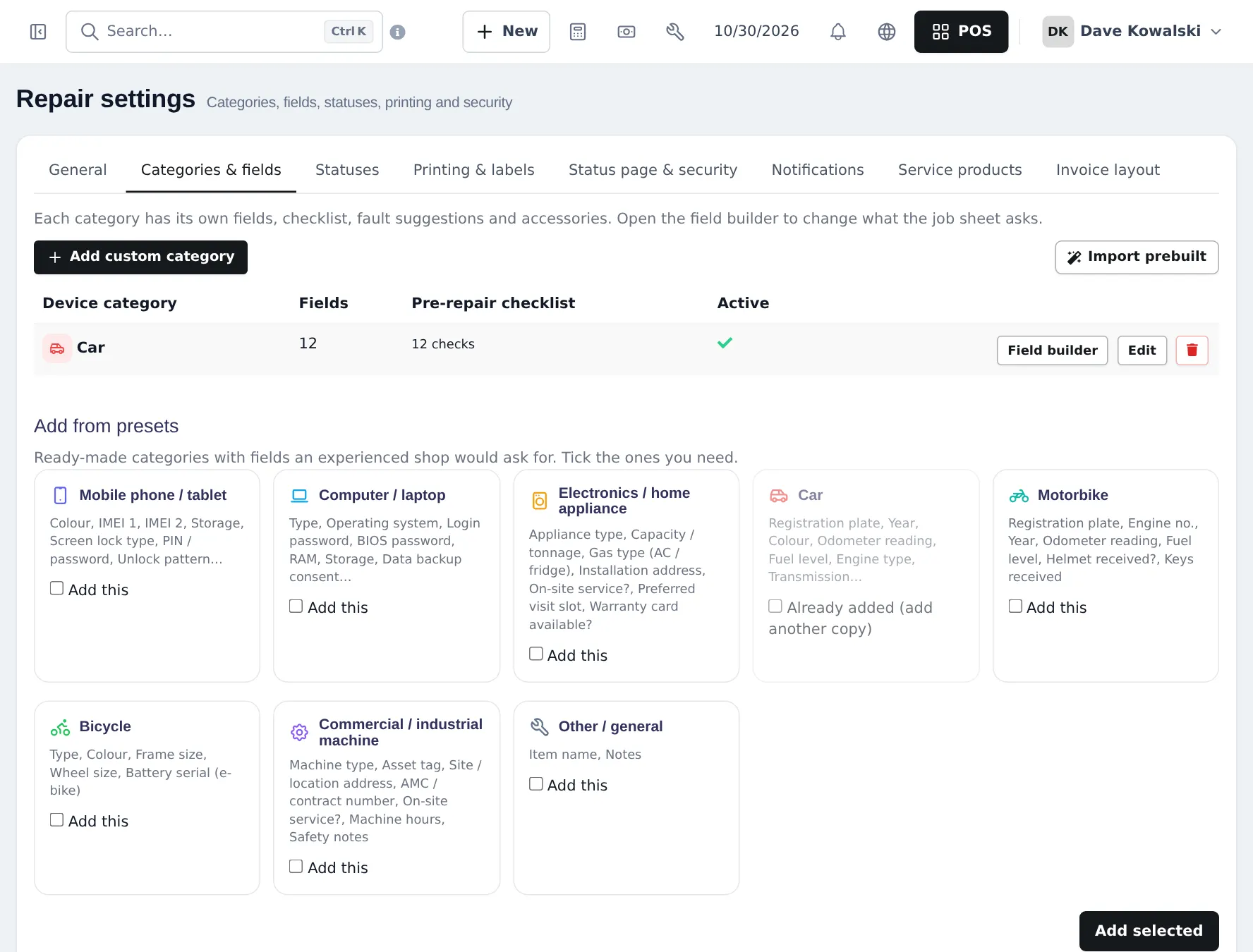
Section titled “Categories & fields: add Car”- Open Repair › Settings and click Categories & fields.
- Under Add from presets, tick Car (and Motorbike, Commercial / industrial machine if you need them), then click Add selected.
- Untick or delete categories you never use (Mobile phone, Computer), so staff don’t pick the wrong one.
- Click Field builder on Car to change the fields, the pre-repair checklist (headlights, indicators, brake lights, horn, wipers, AC, spare wheel, jack & tools…), the fault suggestions (periodic service, oil change, brake noise, engine check light…) and the accessories list (keys, spare key, service book).
The Car category asks for:
| Field | Notes |
|---|---|
| Make, Model | Pick from your brands and device models, or type a new model |
| VIN / chassis no. | Searchable later in Repair status lookup |
| Registration plate | Required |
| Year, Colour, Engine type, Transmission | Engine type: Petrol, Diesel, Hybrid, Electric (EV), CNG / LPG |
| Odometer reading | Required. Protects you if the customer disputes mileage later |
| Fuel level | Slider from E to F |
| Keys received, Vehicle damage notes, Damage photos | Record existing dents and scratches at intake |
| Next service due (distance and date) | Printed for the customer |
General: numbers, defaults and intake rules
Section titled “General: numbers, defaults and intake rules”On the General tab set:
- Job number prefix and Number of digits (for example JS + 5 digits).
- Defaults for new job sheets: Default status, Default technician, Default warranty (for example 90 days), Default days until ready, Default service type (Carry-in, On-site, Pickup & delivery).
- Urgent surcharge and Express surcharge.
- Intake rules: Customer must accept terms, Customer signature required, Deposit required on new jobs with a Minimum deposit %.
Statuses, printing and notifications
Section titled “Statuses, printing and notifications”- Statuses: keep or rename the list, for example Received, Diagnosing, Awaiting approval, Waiting for parts, In progress, Ready for pickup, Delivered, Cancelled / not repairable. Each status can send an SMS or e-mail.
- Printing & labels: your terms (storage charges, unclaimed vehicles), label size for the key tag.
- Status page & security: whether customers can check the status online.
- Service products: the products used for visit charges and priority surcharges.
- Invoice layout: what the repair invoice prints (vehicle, VIN, faults, warranty).
Device models
Section titled “Device models”Open Repair › Device models and click Import prebuilt or Add for the models you service most. A model can have its own checklist and common faults. Staff can also type a new model on the job card; it is created for next time.
Tips and mistakes to avoid
Section titled “Tips and mistakes to avoid”- Make Odometer reading and Registration plate required (they are by default). They settle most disputes.
- Ask for damage photos on every car. They are stored with the job.
- Keep the status list short. Six to eight statuses are enough for a busy workshop board.
Next: step 4: run job cards.
Frequently asked questions
Does the Repair module know about cars?
Yes. Repair › Settings › Categories & fields has ready-made Car and Motorbike categories with fields such as registration plate, VIN or chassis number, year, odometer reading, fuel level, engine type, transmission and keys received.
Can I add my own fields, such as tire pressure or license state?
Yes. Click Field builder on the category to add, remove or reorder fields and change the checklist and fault suggestions.
Can I require a deposit before work starts?
Yes. On the General tab, tick Deposit required on new jobs and set a Minimum deposit percentage.
Can I charge extra for urgent jobs?
Yes. Set Urgent surcharge and Express surcharge on the General tab. On the Service products tab choose the product used to invoice the surcharge.
Can the customer get an SMS when the car is ready?
Yes, if SMS or e-mail is set up. Each status can have its own message on the Statuses and Notifications tabs.
Can I turn off the public status page?
Yes, on the Status page & security tab.